Actionable Expense Workflow Notifications in Microsoft Teams allow approvers to review and act on Expense Reports directly within MS Teams. This enhancement eliminates the need to switch between systems, supports faster decision-making, and improves collaboration by keeping communication and approvals within a single platform.
When the Send Notification to MS Teams option is selected for an Expense Workflow State or Transition Notification, the notification is sent to the designated Recipient(s) via Microsoft Teams. For further details see Configure Workflow Notifications for Microsoft Teams in PSA.
Important: To use this functionality, you must download the latest version of the PSA Workflow Notification Bot (V3.0). For assistance, please contact PSA Support. Upon completion of backend configurations, you will be provided with a link to download the updated .zip file. For more information see Install and Connect the Microsoft Teams PSA Workflow Notification Bot.
Note: It is important to note that the language of the Microsoft Teams bot's confirmation messages is based on your Microsoft Teams settings, whereas the PSA-generated content will continue to follow the language preferences set within PSA.
Available Actions in Microsoft Teams
Within the Teams notification, you can perform the following actions:
- View in PSA - Opens the Expense Report directly in Upland for detailed review.
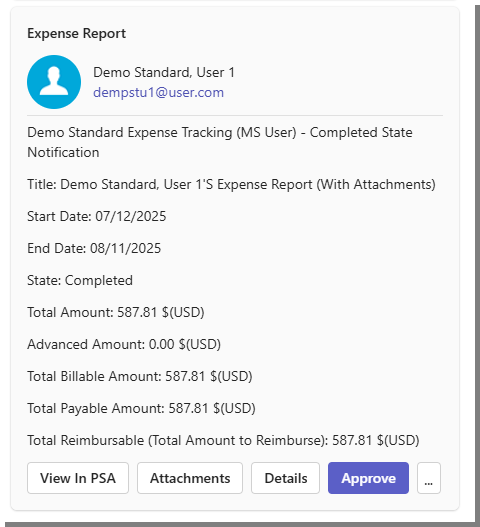
- Attachments - Opens files attached to the Expense Report, such as receipts or supporting documents.
- Image files (for example, JPEG and PNG) display directly in the details view.
- Other file types are available as download links.
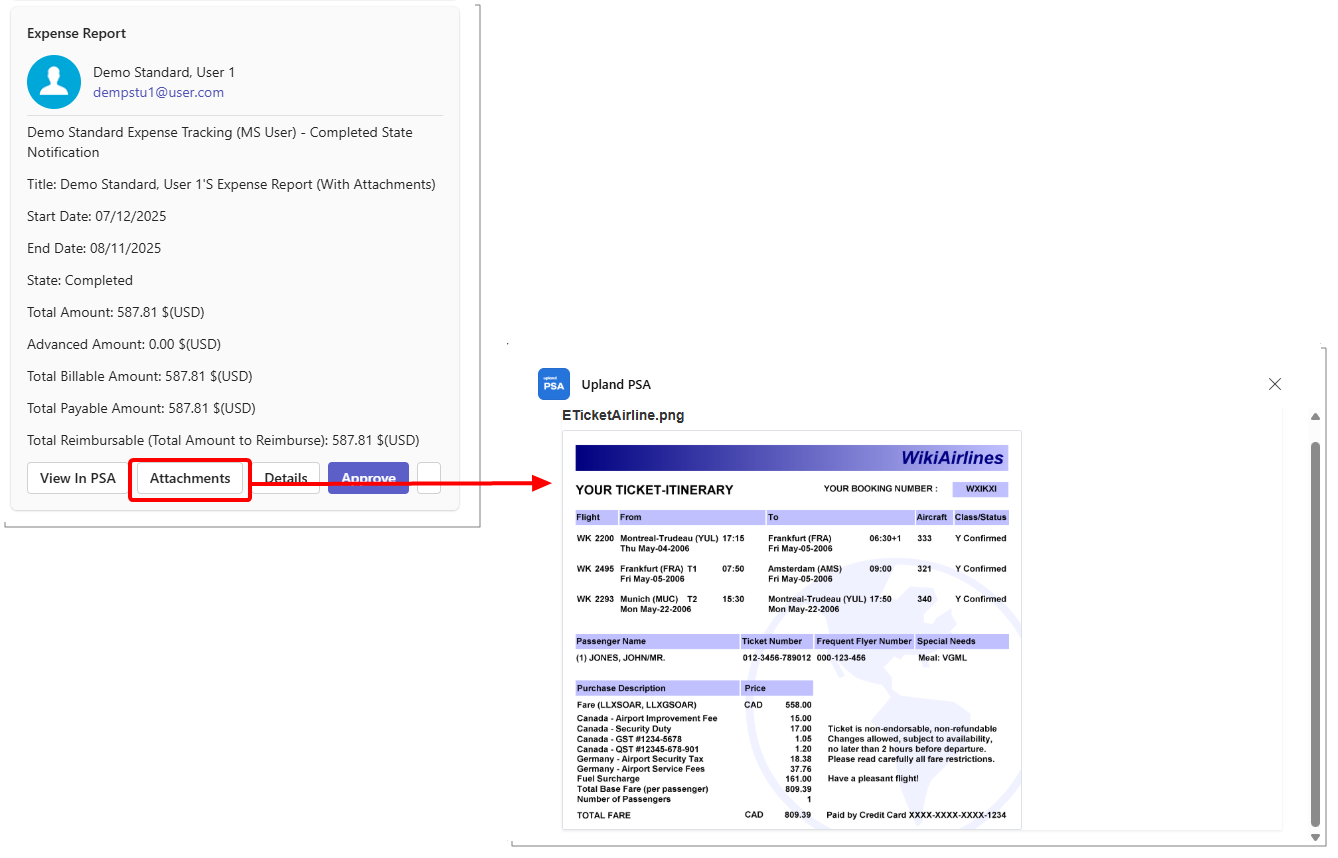
Note: If no attachments are available, the message “No Attachments found” appears.
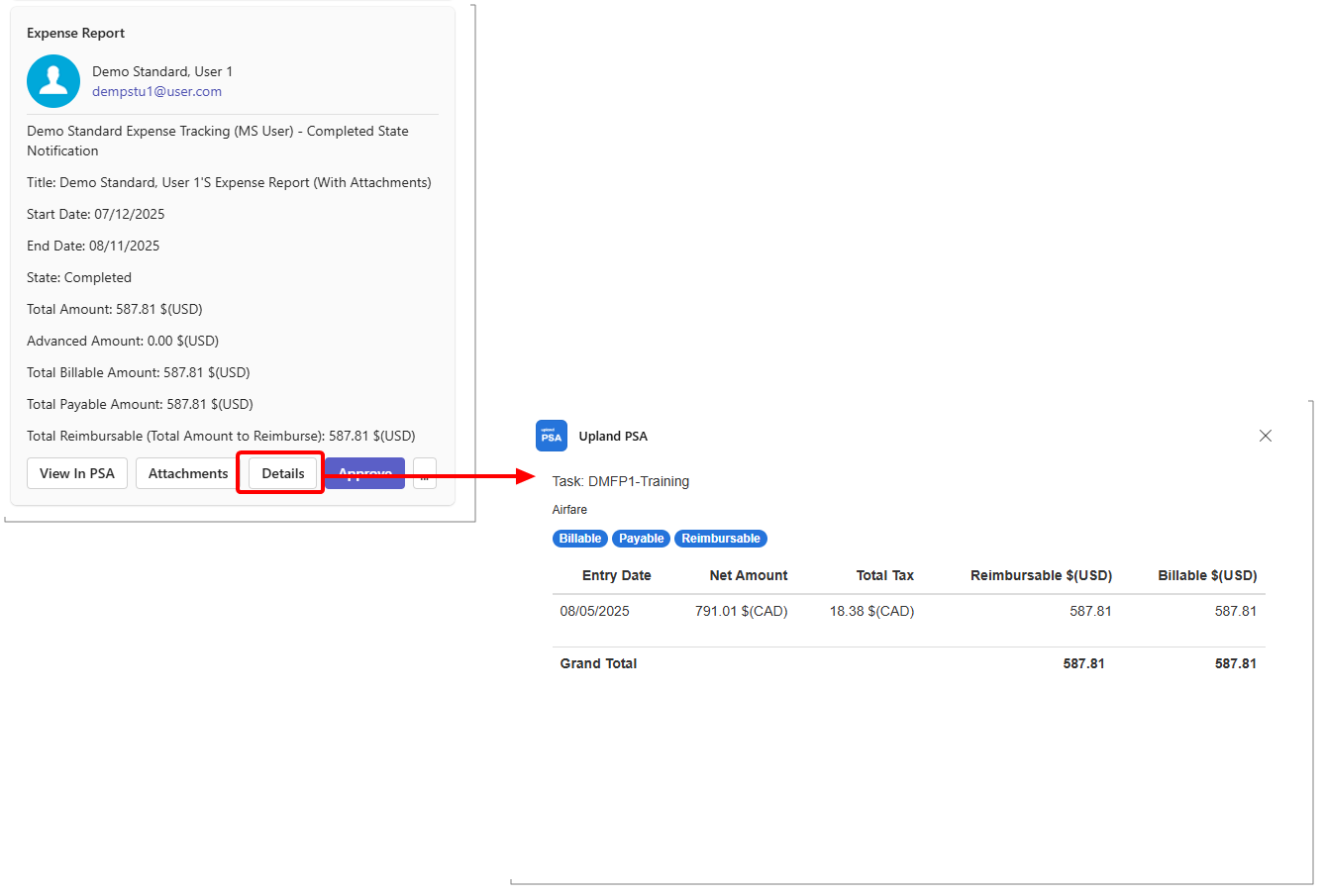
- Details - Displays a summary of the Expense Report, including:
- Task Name
- Expense Item
- Applicable Expense Attributes
- Entry Date, Net Amount, Total Tax, Reimbursable (Cur) amount, Billable (Cur) amount
- Totals for Reimbursable (Cur) and Billable (Cur) amounts
- Actions such as:
- Approve - Approves the submitted Expense Report. This confirms that the details are accurate and complete, allowing the report to proceed through the workflow.
- Reject - Rejects the submitted Expense Report. You may be prompted to provide a reason or comment, which will be visible to the submitter for correction.