A workflow is a combination of states and transitions that make up a process. The workflows are used to automate and streamline business practices by enforcing a systematic method of producing specific results in an organization.
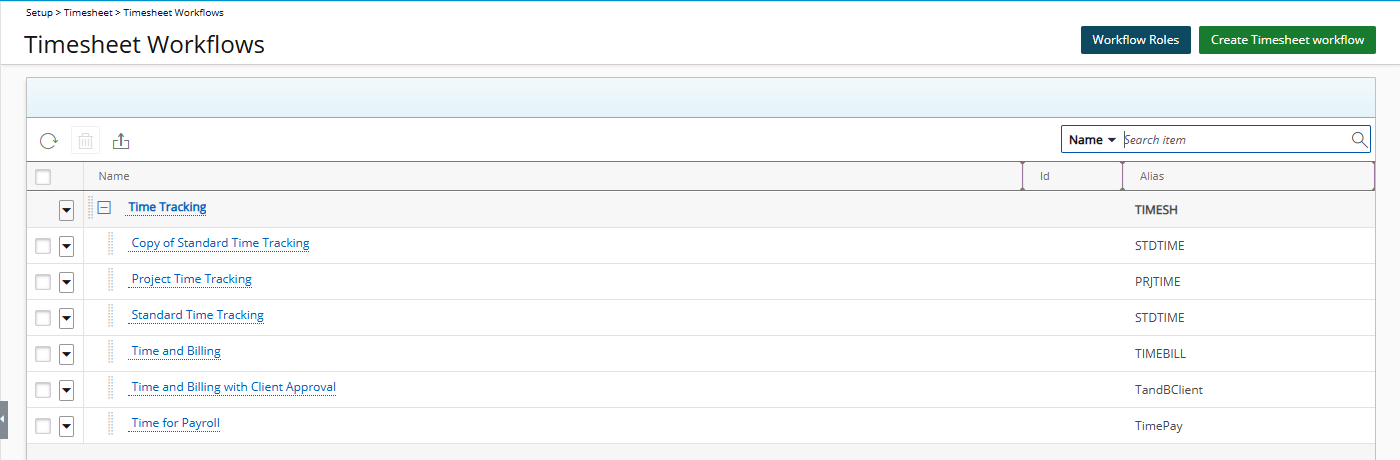
The Timesheet Workflows page contains a list of all available Timesheet Workflows in the system under a root placeholder called Time Tracking.
Within this page you can:
- Create new Timesheet Workflows
- Edit Timesheet Workflows
- Delete Timesheet Workflows
- Refresh the page
- Export to Excel
- Access the Timesheet Roles setup and management page
Access the Timesheet Request Workflows page
- From the Icon Bar click Setup
 .
. - From the Navigation Menu click Timesheet.
- From the available menu options select Timesheet Workflows.
- View Timesheet Request Workflows list page.
Available Options
The Timesheet Workflows page contains a list of all available Timesheet Workflows in the system under a root placeholder.
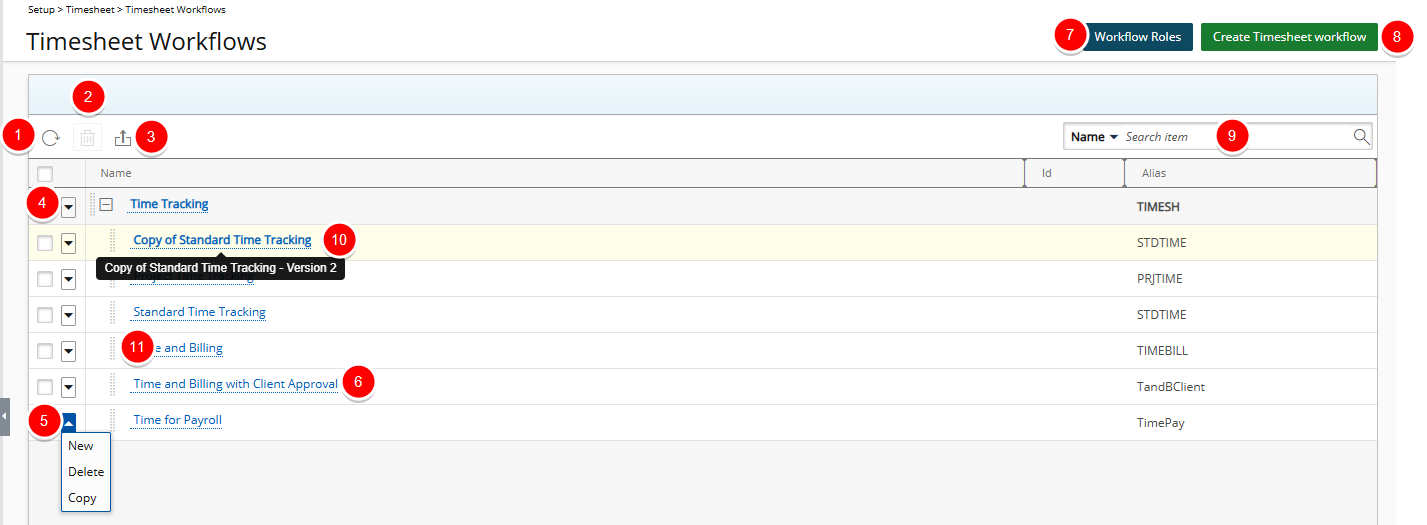
From the Timesheet Workflows list page you can perform the following:
- Click Refresh
 to reload the page.
 - Delete
 selected Workflow(s): When one or more Workflow(s) are selected, the delete button becomes available. Note that the Delete option is not available for placeholder Workflows with child items.
 - Click to Export
 the list to Excel.
 - Access the placeholder Workflow context menu to create a New Workflow. Note that the Delete option is not available for placeholder Workflows with child items.
- Access the Workflow context menu to:
- Create a New Workflow.
- Delete the Workflow.
- Copy the Workflow
- Click the name of a Workflow to edit.
- Click Workflow Roles to create/manage the Work Item Workflow Roles.
- Click Create Timesheet Workflow to create a new workflow.
- Search for a workflow by Name, Id or Alias.
- Hover over a workflow name to view a tooltip displaying the workflow name and version in the format "<WorkflowName> – Version <VersionNumber>".
- Click
 and drag a Workflow name to a new Parent placeholder.
For more information refer to: