Set All Projects View to Display in a Hierarchy Format
You can toggle between displaying the Project List as a list or as a hierarchy when in All Projects View.
The display is remembered when navigating away from the page and will be automatically reapplied on subsequent visits until modified.
This article covers how to toggle between hierarchy display for All Projects View.
Example: Fred, a long time PSA user who predominantly manages his projects using the hierarchical view can now continue to work in this manner within the Project List page. He finds that it provides an easy view of the parent-child relationships. Furthermore the repositioning of a project which has been made easier with the ability to drag and drop a project into a new position is extremely useful to him in his day to day work.
- From the Icon Bar click Project List
 .
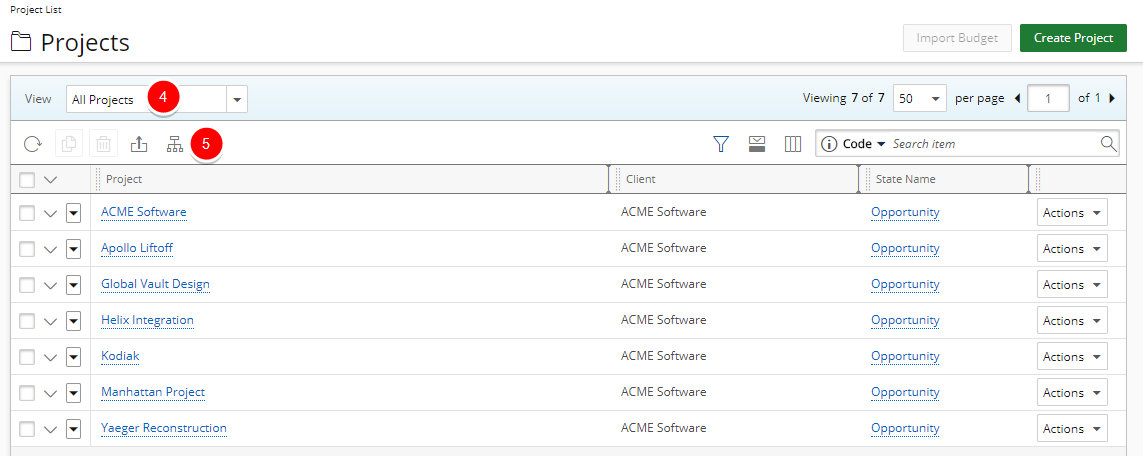
. - Click the expand arrow on the right of the current View name.
- Select the All Projects View from the list of available Views.
Note: Hierarchy
 and List
  options are only available for All Projects view.
 - Click Hierarchy button to toggle between the Display List or Display Hierarchy .
- Within the Hierarchy View the Project ID and Project Manager columns display, however the Filter, Column Selection and Expanded Row Column Selection buttons are no longer accessible.
Note: By default there is a limit of 100 rows displayed in the Hierarchy display for All Projects View.
Tip: If you are interested in increasing the number of rows displayed in the Project List Hierarchy view, contact PSA Support to discuss your specific business requirements.