When the Program Detailed Auditing option (under Setup > Work) within the Audit Trail setup area is turned on, you can then view changes made to the Program such as the Modification, Previous Value, New Value, Date Modified and Modified by information.
From the History tab, you can also export the History to Excel, Refresh the list and Search based on Modified by criterion.
This article details the information and options available to you from the Program History tab.
Tip: For more information on how to turn the Program Detailed Auditing option on click here.
Accessing the Program History tab
- From the Icon Bar select Program List
 .
. - Choose the Program you wish to modify by clicking it's name and accessing the Program Edit page.
- From the Program Edit click the History tab.
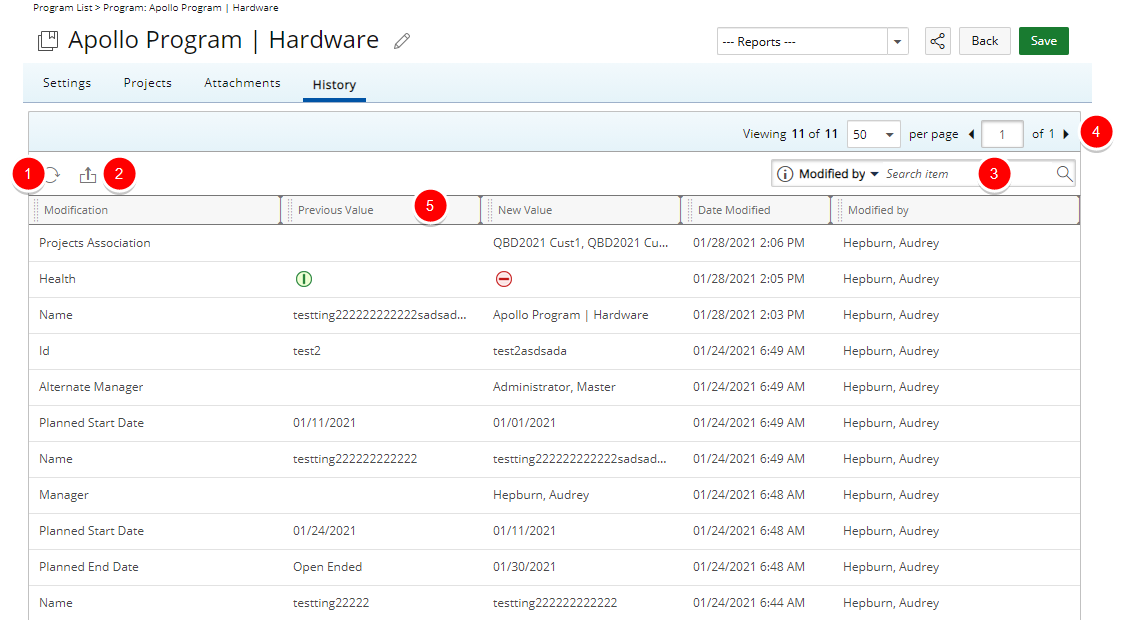
From the Program History tab you can:
- Refresh the list by clicking the Refresh
 button.
 - Export the History to Excel by clicking the Export to Excel
 button.
 - Click the Search down arrow (
 ), select a criterion and then enter the corresponding value. Then either click the Search
  button or the [Enter] key. The following criteria are available: Modification, Previous Value, New Value, Date Modified and Modified By. For further details refer to Search for an Item.
 - The Pagination facilitates moving to a new History list page and to view the number of History pages. For further details refer to Pagination.
- From the table header:
- You can easily sort the columns by ascending or descending order simply by clicking a column header. Note that an arrow indicates the descending (
 ) or ascending (
 ) order applied to the column.
 - Click
 and move a column to the desired position.
 - You can dynamically resize column(s), to your preferred width. Simply move your cursor to the column boundary (
 ) you want to resize. When the cursor becomes a resize cursor, click and drag the column accordingly.
- You can easily sort the columns by ascending or descending order simply by clicking a column header. Note that an arrow indicates the descending (