Navigating Mobile Commons
When you sign in to Mobile Commons, you see the Home dashboard, which provides a snapshot of recent activities and access to additional resources in our mobile-messaging blogs and in the Upland Community:
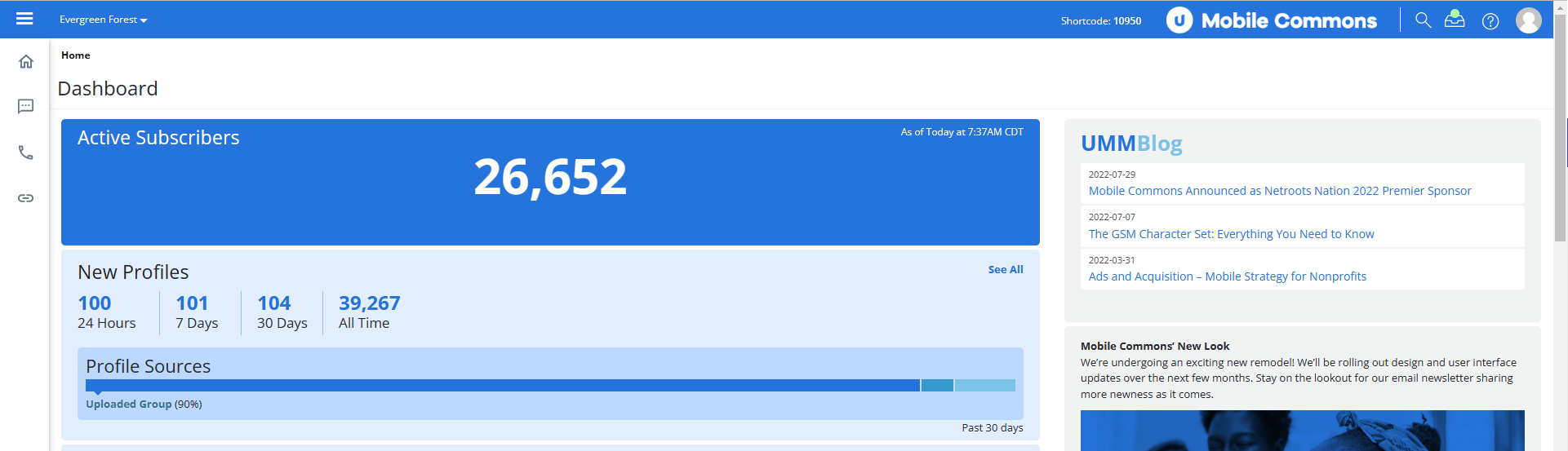 To return to the Home dashboard from anywhere in Mobile Commons, select the Mobile Commons logo in the upper-right corner of the page.
For more information on the Home dashboard, see Reviewing recent activity.
From anywhere in Mobile Commons, you can access:
Title bar
The title bar is always available at the top of the page.

The following items are available on the title bar:
-
 Menu, which expands the main menu
 -
Name of the active company
Note: If you have access to more than one company in your account, you can switch among them. For more information, see Changing the active company.
-
The active short code
-
Mobile Commons logo, which opens the Home dashboard from anywhere in Mobile Commons
-
 Search your company's profile database by mobile phone number
 -
 Your profile picture

When necessary, a scroll bar is available on the right.
Main menu
The main menu is always available in the left pane.
-
To expand the main menu, select
 Menu in the left corner of the title bar.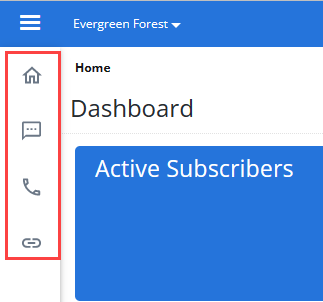
-
Select an option on the main menu, and then select an option from the submenu:
Main menu Submenu Action 
Home Dashboard Return to the Home dashboard from anywhere in the Mobile Commons platform. Profiles Open the Profiles table, which contains information for each user. Groups Open the Groups table, which contains sets of user profiles for targeted messaging and reports. Tags Open the Tags table, which contains descriptive labels used to organize campaigns. Reports Open the Recent Data Exports table, which contains reports with exported data, messaging statistics, and billing data. File Drop Open the Secure Files table, where you can securely import and export data from Mobile Commons. Data Sync Open the CRM Data Sync page, with instructions about integrating data from your company accounts in CRM platforms into your Mobile Commons data set. Custom Fields Open the Custom Fields table, which contains profile fields that capture additional user information for more targeted audiences 
Text Messaging Campaigns Open the Campaigns dashboard, where you can build and manage opt-in and broadcast messages. Opt-In Paths Open the Opt-in Paths table, which lists the status and key details for opt-in messages used in your campaigns. Broadcasts Open the Broadcasts table, which lists the status and key details for broadcast messages used in your campaigns. Keywords Open the Keywords table, which contains the keywords used in your company's campaigns. Inbox Open the Inbox dashboard, where you can respond to messages received from users. Outbox Open the Outbox dashboard, which lists responses sent from Mobile Commons to users. Attachments Open the Attachments table, where you can upload image and media files for use in MMS text messages. mData Open the mDatas table, which contains query tools used to build searches by location, non-location, or web service. Polling Locators Open the Polling Locators page, where you can build searches for polling places and drop boxes during active elections. 
Phone Calls mConnects Open the Phone Calls dashboard, where you can connect users to local and state representatives or other target based on their location information. VoIP Numbers Open the VoIP Numbers table, which contains the VoIP (voice over Internet protocol) phone numbers that have been assigned to an mConnect or that are available to assign to an mConnect. Recordings Open the Recordings table, which contains the audio recordings available for use by an mConnect. Phone Books Open the Phonebooks table, which contains the phone directories available for use by an mConnect to route callers based on location. Calls Open the Calls table, which contains call data by subscriber, based on their profile information. 
Mobile Web Links Set up and manage shortened links that automatically track all clicks coming from text messages. Your path displays in the upper-left corner of the page.
Note: Add-on feature upgrades may be added to the main menu. For more information, contact your customer success manager or Technical Support.
Information bar
The information bar is always located at the bottom of the page.

The information bar includes the copyright notice and the following links:
| Link | Action |
|---|---|
| Release number | Log in to the Community for information on the current release. |
| Status | Open the status report with detailed information about system components. |
| Terms of service | Open the terms of service agreement. |
| Privacy policy | Open the privacy policy document. |
| Contact | Send an email to Technical Support. |