Editing an mConnect
To edit an mConnect:
Searching the mConnects tables
To search the Active or Inactive mConnect table by mConnect name:
-
Select
 Phone Calls in the left pane, and then select mConnects.
The mConnects page displays the Active mConnects table. To open the Inactive mConnects table, select the Inactive mConnects tab.
-
Above the Active or Inactive mConnects table, on the right, enter a search term in the Search box, and then select
 Search.
The Active or Inactive mConnects table displays the matching records.
Editing mConnect details
To edit an mConnect:
-
Select
Phone Calls in the left pane, and then select mConnects. -
Locate the mConnect in the Active mConnects or Inactive mConnects table.
-
Select
 Menu at the end of the row, and then select Edit.
The Edit mConnect form opens.
-
Make your changes to the form. For field-by-field instructions, see Adding a new mConnect.
-
When you are done, select Update.
Tagging an mConnect
You can organize your efforts in Mobile Commons by adding any label that makes sense for your organization.
To add a tag to an mConnect:
-
Select
Phone Calls in the left pane, and then select mConnects. -
Locate the mConnect in the Active mConnects or Inactive mConnects table, and then select the mConnect name link.
The mConnect page opens.
-
Enter the name of a tag into the "Tags" field:

-
Select Enter on your keyboard.
Each item is automatically tagged with the email of the user who created the item. Additional tags are added below the "Tags" field. For more information about tags, see Organizing campaigns using tags.
-
To delete a tag, select the X on the displayed tag
-
Cloning an mConnect
You can make an exact copy of an mConnect to use as the basis for a new campaign.
To clone an mConnect:
-
Select
 Phone Calls in the left pane, and then select mConnects.
 -
Locate the mConnect in the Active mConnects or Inactive mConnects table, and then select the mConnect name link.
The mConnect page opens.
-
Open the "Actions" dropdown menu:
-
Select Clone.
An exact copy of the mConnect is added to the Inactive mConnects table.
-
To make changes to the cloned campaign, select the mConnect name link.
-
Open the "Actions" dropdown menu again.
-
Select Edit Details.
The Edit mConnect form opens.
-
Make your changes to the form. For field-by-field instructions, see Adding a new mConnect.
Tip: Be sure to change the mConnect name.
-
When you are done, select Update.
Accessing call data
To view call data for an mConnect:
-
Select
Phone Calls in the left pane, and then select mConnects. -
Locate the mConnect in the Active mConnects or Inactive mConnects table.
-
Select
Menu at the end of the row, and then select Calls.The Calls table opens. For more information, see Analyzing call data.
Opening an mConnect report
Each mConnect campaign produces a report of call results.
To open an mConnect report:
-
Select
Phone Calls in the left pane, and then select mConnects. -
Locate the mConnect in the Active mConnects or Inactive mConnects table.
-
Select
Menu at the end of the row, and then select Report.The mConnect report opens.
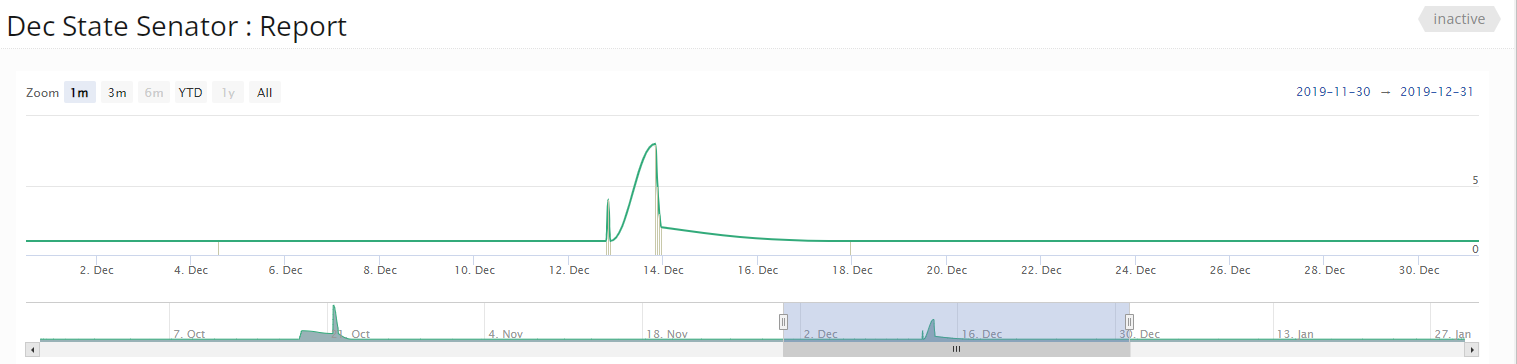
For more information, see Working with the mConnect report.