Working with profile groups
To work with profile groups:
-
Select
 Home in the left pane, and then select Groups.
The Groups table opens:

The Groups table is sorted by the Group column, in ascending order. To sort the Groups table by name, select
 Ascending or
  Descending order.
Tip: To sort the Groups table by date, select
Ascending or Descending order to the right of the Updated or Created header. About the Groups table
The Groups table contains the following information for each group:
Column Description Checkbox to select one or more or all groups. Group Name of the profile group and method by which it was added to the data set, for example, uploaded group. Group type Type of group:
-
Filtered group
-
Uploaded group
For more information, see Organizing profile groups.
Approximate size Number of profiles in the group. Because this number can change for dynamic groups, the count is updated every 30 minutes. Subscribers The number of profiles that are subscribers to one or more campaigns. Updated Date and time the count of profiles in the group was last updated. Created Date and time when the group was created. Available actions for a filtered group:
-
Save as CSV
-
Edit
-
Delete
Available actions for an uploaded group:
-
Save as CSV
-
Group Add - add profiles to a group
-
Group Delete - remove profiles from a group
-
Delete
Additional actions are available above the table, on the right:
-
CSV Template
-
Save as CSV
If the table is longer than one page, use the page-navigation options on the right to navigate to the
 next or
  previous page.
To delete multiple groups at once, select the groups to delete from the Groups table and click the
 Delete icon.
A confirmation message appears, select YES, DELETE to delete the selected groups.
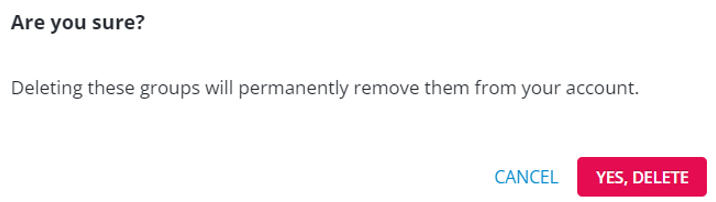
Once deleted, a message appears on the screen confirming the deletion of the selected group.

The delete icon will be enabled only when you select at least one group.
-
Filtering Groups
You can display all of the groups or narrow the list by one of the preset filters:
-
Above the Groups table, on the right, select
 Filter.
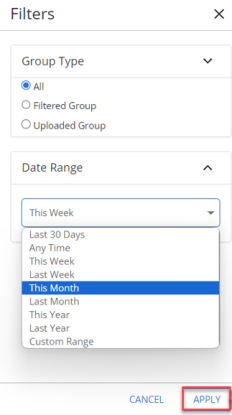
-
Select Group Type and then select a group type from the following options: All, Filtered Group, Uploaded Group.
-
Select Date Range then specify a date range:
-
Last 30 days (default option)
-
Anytime
-
This week
-
Last week
-
This month
-
Last month
-
This year
-
Last year
-
Custom range
-
Select the From field, and then select a date from the calendar selector.
-
Select the To field and enter a date from the calendar selector.
-
-
-
When you are done, select APPLY.
From the Groups table:
Searching the Groups table
To search the group records:
-
Select
Home in the left pane, and then select Groups. -
Above the Groups table, on the right, enter a search term in the Search box, and then select
 Search.
The Groups table displays groups that match the search terms.
Exporting group data
You can save data about the groups to a CSV (comma-separated values) file.
To export group data:
-
Select
Home in the left pane, and then select Groups.The Groups table lists all of the profile groups for your company.
-
To save the data for all of the groups in a CSV file, above the table, on the right, select Actions and then select Save as CSV.
The records in the Groups table are saved in a CSV file containing the following columns:
Column Description name The name of the group. type The method by which the group was added to Mobile Commons: Uploaded group or Filtered group.
For more information, see Organizing profile groups.
approximate_count The number of profiles in the group, updated every 30 minutes. approximate_subscriber_count The number of profiles in the group that are active subscribers. subscription_status The filter type for a group, for example:
-
An uploaded group will return an empty field for subscription_status as it’s not filtered.
-
If a group includes all subscribers regardless of subscription, the subscription_status field will return All.
created_at The date and time when the group was added. updated_at The date and time when the group was last updated. -
-
To download the CSV file, select
Home in the left pane, and then select Reports. -
Locate the CSV file in the Exports table, select the link in the Name column, and then open the downloaded file.
Exporting user data for a group
You can save the user profile data in a group to a CSV (comma-separated values) file. For more information about profile data, see Exporting profile records.
To export user data for a group:
-
Select
Home in the left pane, and then select Groups.The Groups table lists all of the profile groups for your company.
-
To save the user data in the group in a CSV file:
-
Locate the group in the Groups table, and then select Save as CSV from the menu at the end of the row.
-
Locate the group in the Groups table, and then select the group name link. In the Group Actions panel on the right, select Save as CSV.
The records for every profile in the group are saved in a CSV file.
-
-
To download the CSV file, select
Home in the left pane, and then select Reports.
Locate the CSV file in the Exports table, select the link in the Name column, and then open the downloaded file.
Group Details
Clicking on the Group link and Approx. Size link on the Groups page opens Group Details with the Profiles section (below the Group Details). For more information on profiles, see Working with user profiles.
The Profiles section includes the following:
-
User Profiles
-
Address
-
First Seen
-
Start Chatting

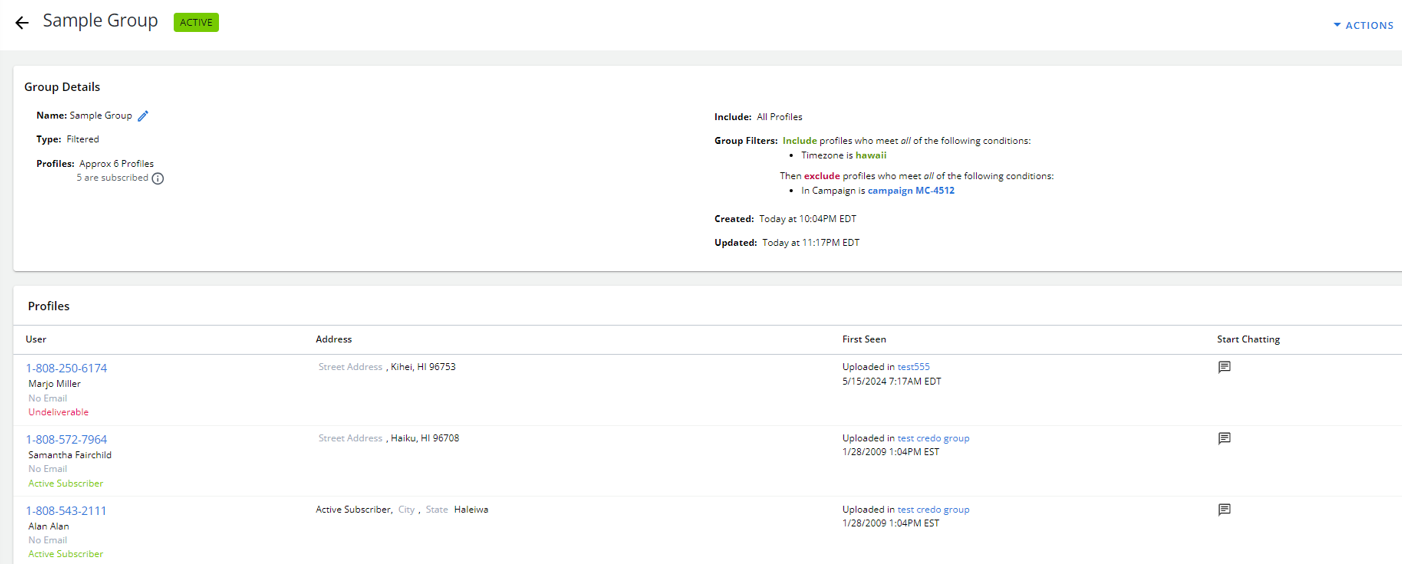
Within the Group Details section, on the left-hand side, the following fields are available:
-
Name: Name of the group
-
Type: Type of the group
-
Profile
On the right-hand side, the following fields are available:
-
Include
-
Group Filters
-
Created (To view the Group History, click
 View History available next to date and time when the group was created. This option is available only for Uploaded groups.)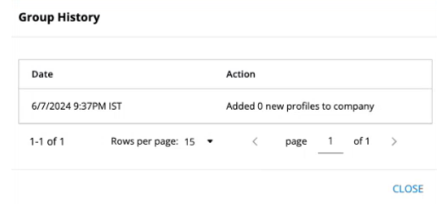
-
Updated
See the “About the Groups table” above to know more about the above-mentioned fields.
In the Group Details Actions panel on the right, the following options are available:
-
Change Filters
-
Subscribe to Campaign
-
A/B Test
-
Add Profiles
-
Remove Profiles
-
Save as CSV
-
Make a static copy
-
Clone
-
Delete Group
For the Uploaded type group, the following options are available in the Actions panel:
-
Upload More Profiles
-
Remove Profiles
-
Subscribe to Campaign
-
A/B Test
-
Copy
-
Save a CSV
For the Filtered type group, the following options are available in the Actions panel:
-
Change Filters
-
Clone
-
Subscribe to Campaign
-
A/B Test
-
Make a static copy
-
Save a CSV
For more information on the actions mentioned above, see Editing Profile Groups, Organizing Profile Groups, and Setting up A/B testing groups.