Working with scheduled messages
Note: You can create only one message schedule per campaign.
To work with scheduled messages:
-
Select
 Text Messaging in the left pane, and then select Campaigns.
 -
Locate the campaign in the Campaigns table, and then select the campaign name link.
The Campaign Details page opens.
-
To review scheduled messages, select the Recent CMS rows tab at the bottom of the page.

The Recent CMS rows table lists scheduled messages for the selected campaign.
-
Select Actions at the top of the page, and then select Edit Schedule.
The message schedule form contains a schedule summary and the Messages table.
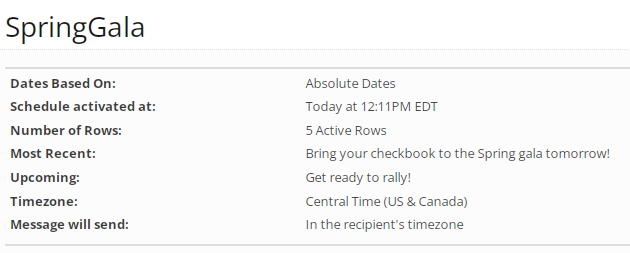
 About the schedule summary
The absolute schedule summary specifies the basis for the schedule, the date and time and time zone settings, the number of messages to be sent (one per row), and previews the most recent and upcoming messages.
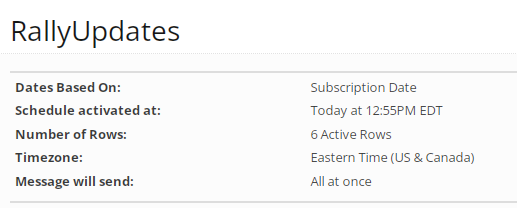
The relative schedule summary specifies the basis for the schedule, the date and time and time zone settings, and the number of messages to be sent (one per row).
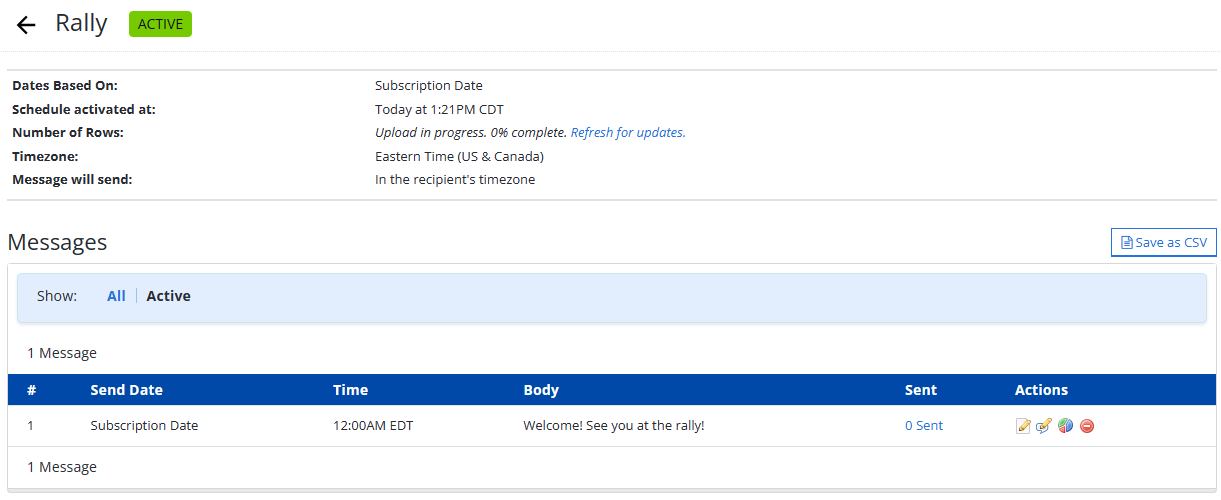
 About the Messages table
The Messages table contains the following information:
Column Description # Messages are listed in order of send date. Send date The absolute or relative date when the message was or will be sent. Time The time when the message was or will be sent. Body The message content. Sent Number of messages sent. (If the message has not yet been sent, the entry is 0.) To see the recipient list, select the Sent link. Actions The following actions are available for scheduled messages:
-
 Edit
Edit -
 Edit Conversation
 -
 Report
 -
 Delete
Filter options are located in the Show bar above the table:
-
All: displays all of the messages in the Messages table.
-
Upcoming: displays messages with a future send date, so they have not yet been sent.
The number of messages in the table appears in the upper-left corner.
If the table is longer than one page, use the page-navigation options on the right to navigate to the
 next or
  previous page.
 -
From the Messages table:
For more information, see Setting up a messaging schedule.
Exporting message data
You can export the message data in the Messages table to a CSV (comma-separated values) file.
-
Select
Text Messaging in the left pane, and then select Campaigns. -
Locate the campaign in the Campaigns table, and then select the campaign name link.
The Campaign Details page opens.
-
Select Actions at the top of the page, and then select Edit Schedule.
-
(Optional) In the Show bar above the table, select a filter:
- All: displays all of the messages in the Messages table.
-
Upcoming: displays messages with a future send date, which have not yet been sent.
-
Above the Campaign table, on the right, select Save as CSV.
The message records in the Messages table are saved in a CSV file containing the following columns:
Column Description id The message ID. body The message content. day The absolute or relative date when the message was or will be sent. hour The hour when the message was or will be sent. minute The minute when the message was or will be sent. -
To download the CSV file, select
 Home in the left pane, and then select Reports.
 -
Locate the CSV file in the Exports table, select the link in the Name column, and then open the downloaded file.
Editing a message schedule
To make changes to a message schedule:
-
Select
Text Messaging in the left pane, and then select Campaigns. -
Locate the campaign in the Campaigns table, and then select the campaign name link.
The Campaign Details page opens,
-
Select Actions at the top of the page, and then select Edit Schedule.
-
Locate the message in the Messages table, and then select
Edit at the end of the row.The Edit Row page opens.
-
Adjust date and time when the message will be sent:
-
For absolute schedules, edit the date in YYYY-MM-DD format and enter any changes to the time in 24-hour format.
-
For relative schedules, enter the date relative to the target date (use + or - to indicate days before and after the target date, 0 for the target date itself). Enter any changes to the time in 24-hour format.
-
-
When you are done, select Update.
Editing a conversation
-
Select
Text Messaging in the left pane, and then select Campaigns. -
Locate the campaign in the Campaigns table, and then select the campaign name link.
The Campaign Details page opens.
-
Select Actions at the top of the page, and then select Edit Schedule.
-
Locate the message in the Messages table, and then select
 Edit Conversation at the end of the row.
The Conversation page opens.
-
Make your changes to the message.
You can expand the message to a conversation. For more information, see Conversation and Personalizing your message.
-
To view the message as it will be seen by its recipients, select Test message template under different scenarios. Use the Liquid tester to verify and refine your message markup. When you are done, you can select Finish and Save to update your message. For more information, see Testing your Liquid markup.
-
When you are done, select Save.
Deleting a message
-
Select
Text Messaging in the left pane, and then select Campaigns. -
Locate the campaign in the Campaigns table, and then select the campaign name link.
The Campaign Details page opens.
-
Select Actions at the top of the page, and then select Edit Schedule.
-
Locate the message in the Messages table, and then select
Delete at the end of the row. -
Select OK to confirm.
Opening the scheduled message report
To open the report for a scheduled message:
-
Select
Text Messaging in the left pane, and then select Campaigns. -
Locate the campaign in the Campaigns table, and then select the campaign name link.
The Campaign Details page opens.
-
Select Actions at the top of the page, and then select Edit Schedule.
-
Locate the message in the Messages table, and then select
 Report at the end of the row.
The scheduled message report opens.
*
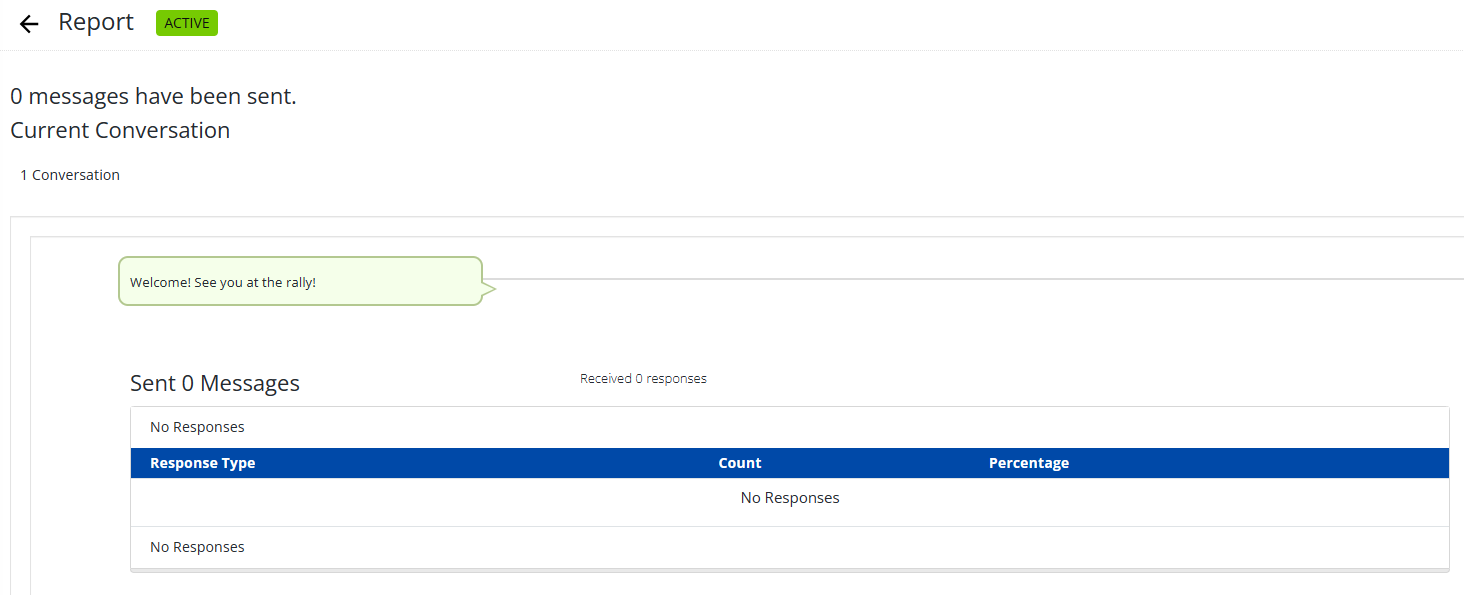
The scheduled message report is a form of broadcast report. For more information, see Working with the Broadcast report.