The User Detailed History provides a comprehensive record of all changes made to a user’s profile. When User Detailed Auditing is enabled in the Audit Setup page, the system logs updates to fields within the General, Personal, Security, and User Defined Fields (UDFs) tabs.
You can access this information from the History tab on the User Edit page to review who made a change, when it occurred, and what was modified. This feature helps administrators maintain transparency, track user updates, and support compliance and audit requirements across the organization.
This article details how to access and review a user’s detailed history to track profile updates across General, Personal, Security, and User Defined Fields (UDFs) tabs. View who made each change, when it occurred, and what was modified.
Note: Only modifications performed within the User Edit page (General, Personal, and Security tabs) are audited.
Caution: Modifications made to a user outside of the User Edit page—such as editing a Team by associating a User with it—are not yet included in the User History. Auditing for these types of modifications will be available in an upcoming release
Access User History
- From the Icon Bar click Setup
 .
. - From the Navigation Menu click Organization.
- From the available options select Users.
- Upon the Users list page displaying, click the name of the User you wish to edit, to access the User Edit page.
Tip: You may wish to narrow your Users list so that you retrieve just the right amount of information you need. To do so you can perform a search. Select a search criterion from the list of available search criteria and then enter a corresponding value in the Search box. Click the Search icon to narrow down the Users list. For more information on the contains-in logic search click here.
- From the User Edit page, navigate to the History tab.
- When User Detailed Auditing is enabled in the Audit Setup page, the system logs updates to fields within the General, Personal, Security, and User Defined Fields (UDFs) tabs.
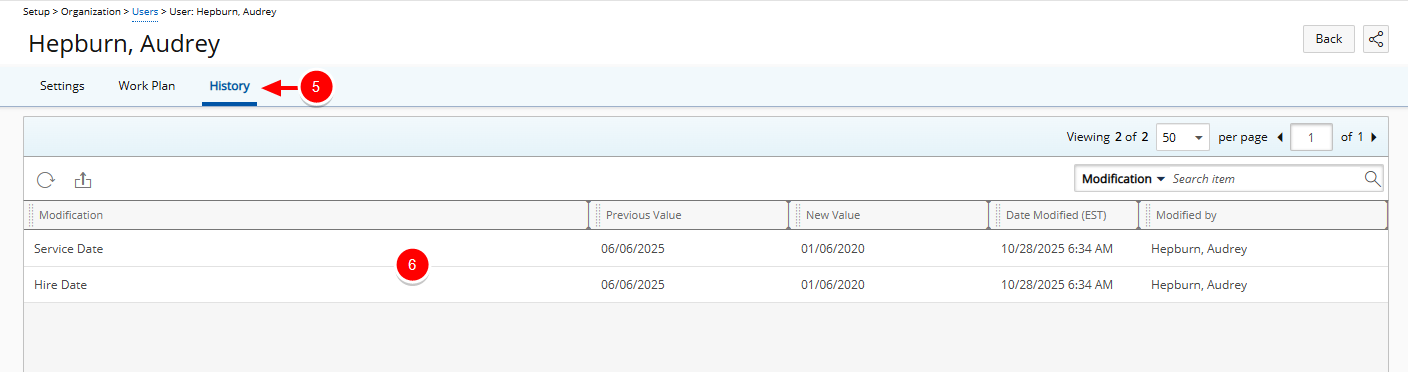
Note: The History tab will appear empty if User Detailed Auditing is not enabled in Audit Setup. To capture and display user change history, make sure the User Detailed Auditing Event Type is turned on under Setup > Organization tier of Audit Setup page (Setup > Organization > System > Security).
Available Options
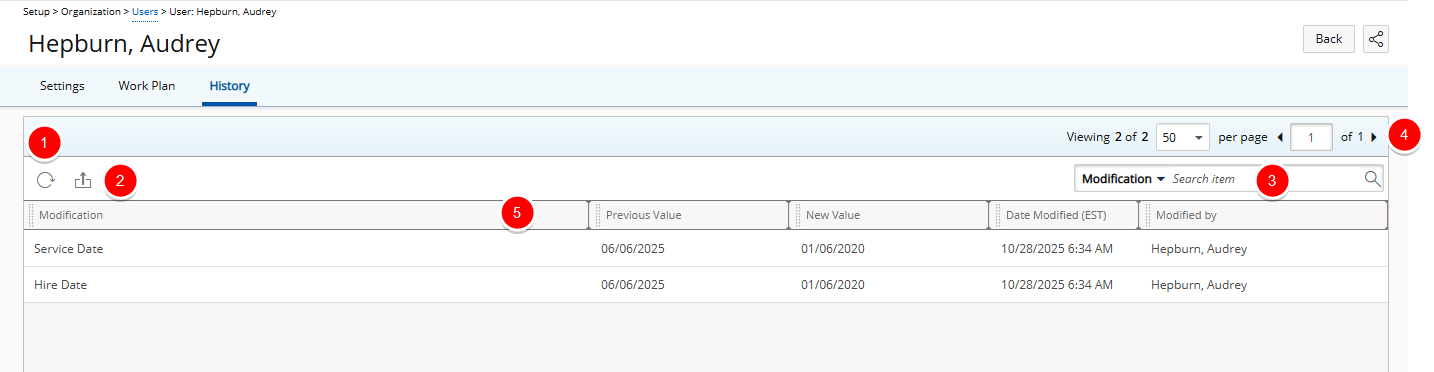
- Click Refresh
 to reload the list.
 - Click Export
 to export the list to Excel. For further details refer to Export to Excel.
 - Click the Search down arrow (
 ), select a criterion and then enter the corresponding value. Then either click the Search
  button or the [Enter] key. The following criteria are available: Modification, Previous Value, New Value, Date Modified and Modified By. For further details refer to Search for an Item.
 - The Pagination facilitates moving to a new list page and to view the number of pages. For further details refer to Pagination.
- The table shows key details for each change, including:
- Change – Description of the modification performed.
- Previous Value – The value before the change.
- New Value – The value after the change.
- Date Modified – When the change occurred.
Note: The Date Modified value reflects the Time zone of the logged-in User’s Active Site.
- Modified By – The user who made the change.
- From the table header:
- You can easily sort the columns by ascending or descending order simply by clicking a column header. Note that an arrow indicates the descending (
 ) or ascending (
 ) order applied to the column.
 - Click
 and move a column to the desired position.
 - You can dynamically resize column(s), to your preferred width. Simply move your cursor to the column boundary (
 ) you want to resize. When the cursor becomes a resize cursor, click and drag the column accordingly.
- You can easily sort the columns by ascending or descending order simply by clicking a column header. Note that an arrow indicates the descending (