When the Booking Detailed Auditing Event Type is enabled under Entry > Workforce Planning tier of Audit Setup page (Setup > Organization > System > Security) you can access and view the Booking History dialog box.
The page provides a detailed record of all booking changes, helping you track who made updates, what was modified, and when those changes occurred. Each entry lists the modification type, previous and new values, date and time of change, and the user responsible. You can refresh, search, sort, resize, or export the data to Excel for deeper analysis. This view gives administrators and project managers clear visibility into booking activity, improving transparency, accountability, and audit compliance.
This article details how to access and use the Booking History dialog box to review detailed records of booking changes. See who made each update, when it occurred, and what was modified. Use search, sort, and export options to manage and analyze booking data efficiently.
Note: The pages and formats shown in this article may differ from what you see in your environment. Your organization’s configuration or the rights assigned to you may result in a different experience.
Access Booking History
- From the Icon Bar click Project List
 .
. - From the Project List page, select the Project you wish to edit by following one of these steps:
- Click the Project context menu button
 to expand it. From the available options click Edit.
OR - Click the name of the Project you wish to access.
Tip: Use the search capability for an efficient way of finding the specific project. For further details refer to Searching for a Project within the Project List page.
- Click the Project context menu button
- From the Project Edit page, hover your mouse over the Planners tab and select Budget from the available options.
- Click the Context menu
 and select History from the available options.
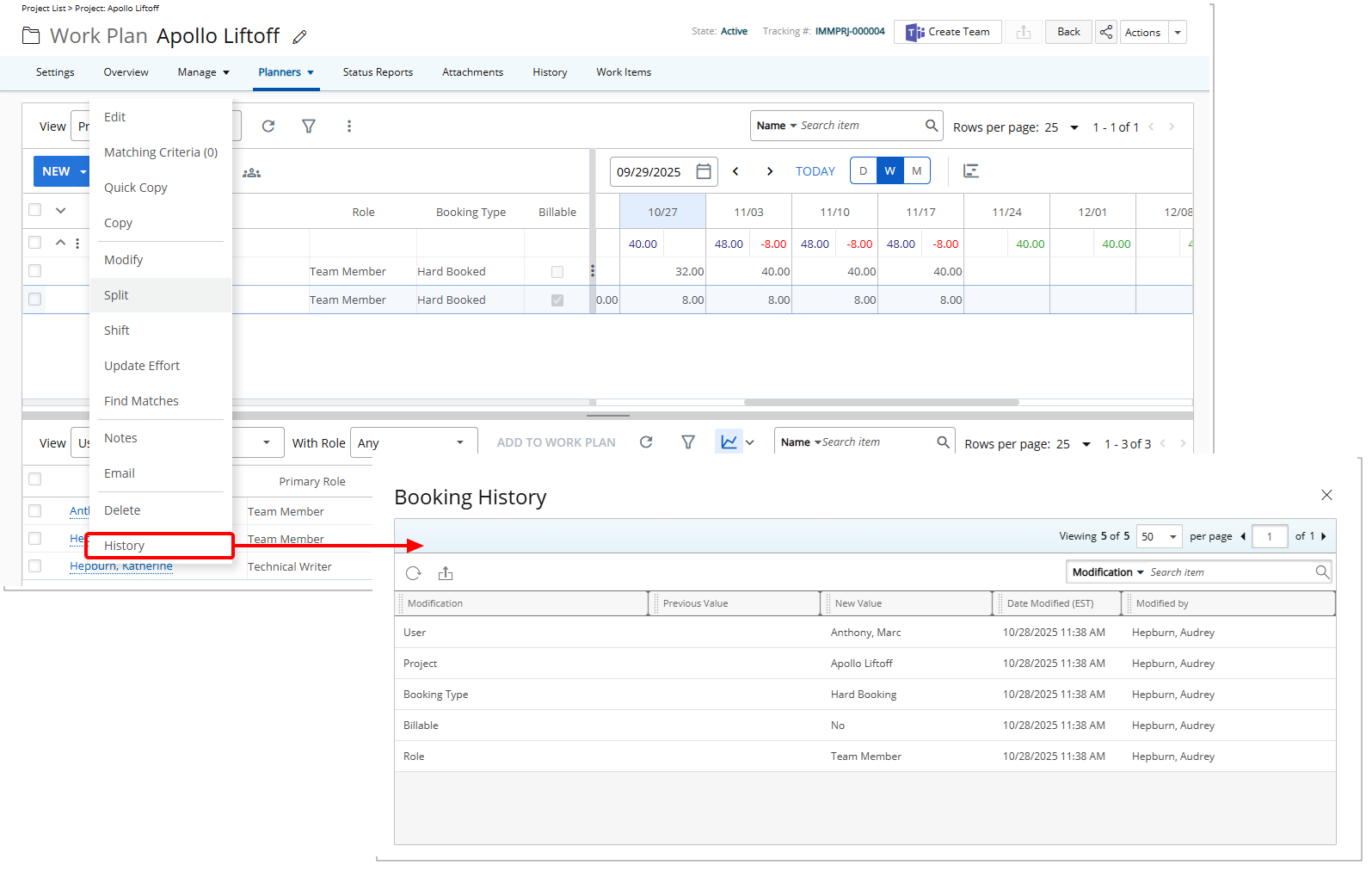
- On the History page, you will see:
- Booking modifications such as Role, User, Project, and Task.
- Booking properties such as Booking Type, Booking Attributes, and any custom Properties.
Note: Allocation changes are not included in detailed auditing.
Available Options
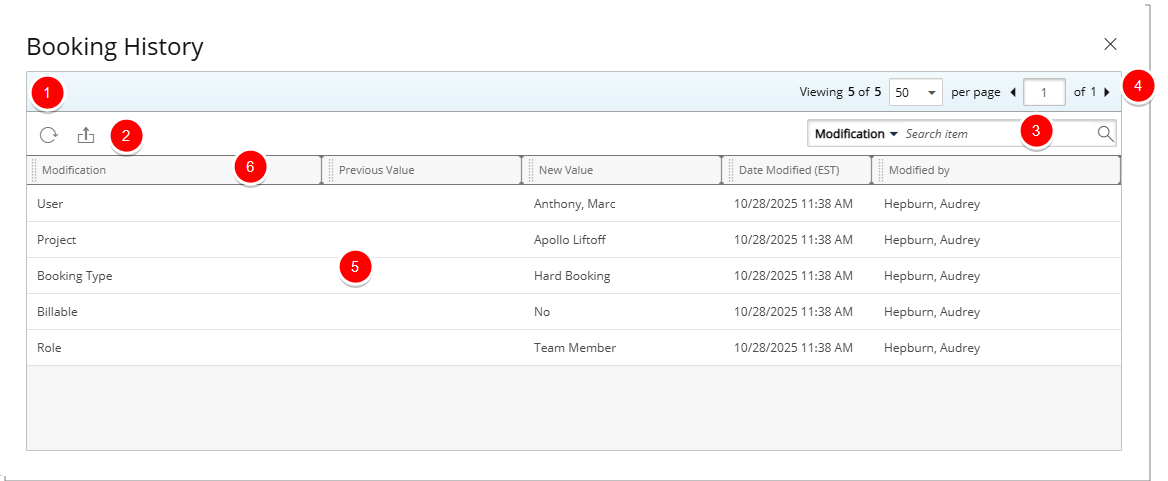
- Click Refresh
 to reload the list.
 - Click Export
 to export the list to Excel. For further details refer to Export to Excel.
 - Click the Search down arrow (), select a criterion and then enter the corresponding value. Then either click the Search
 button or the [Enter] key. The following criteria are available: Modification, Previous Value, New Value, Date Modified and Modified By. For further details refer to Search for an Item.
 - The Pagination facilitates moving to a new list page and to view the number of pages. For further details refer to Pagination.
- The table shows key details for each change, including:
- Change – Description of the modification performed.
- Previous Value – The value before the change.
- New Value – The value after the change.
- Date Modified – When the change occurred.
Note: The Date Modified value reflects the Time zone of the logged-in User’s Active Site.
- Modified By – The user who made the change.
- From the table header:
- You can easily sort the columns by ascending or descending order simply by clicking a column header. Note that an arrow indicates the descending (
 ) or ascending (
 ) order applied to the column.
 - Click
 and move a column to the desired position.
 - You can dynamically resize column(s), to your preferred width. Simply move your cursor to the column boundary (
 ) you want to resize. When the cursor becomes a resize cursor, click and drag the column accordingly.
- You can easily sort the columns by ascending or descending order simply by clicking a column header. Note that an arrow indicates the descending (