When Budget Detailed Auditing is enabled, all changes to project budgets are tracked and displayed in the Budget History dialog box. The dialog shows a chronological log with details such as the field updated, previous and new values, the user who made the change, and the date and time of the modification (including time zone).
This article details how to access and use the Budget History dialog box to track changes to project budgets. View detailed logs of updates, including fields changed, previous and new values, the user who made each change, and the date and time (including time zone). Understand available options for searching, sorting, exporting, and managing budget audit records.
Access Budget History
- From the Icon Bar click Project List
 .
. - From the Project List page, select the Project you wish to edit by following one of these steps:
- Click the Project context menu button
 to expand it. From the available options click Edit.
OR - Click the name of the Project you wish to access.
Tip: Use the search capability for an efficient way of finding the specific project. For further details refer to Searching for a Project within the Project List page.
- Click the Project context menu button
- From the Project Edit page, hover your mouse over the Planners tab and select Budget from the available options.
- Click the Context menu
 and select History from the available options.
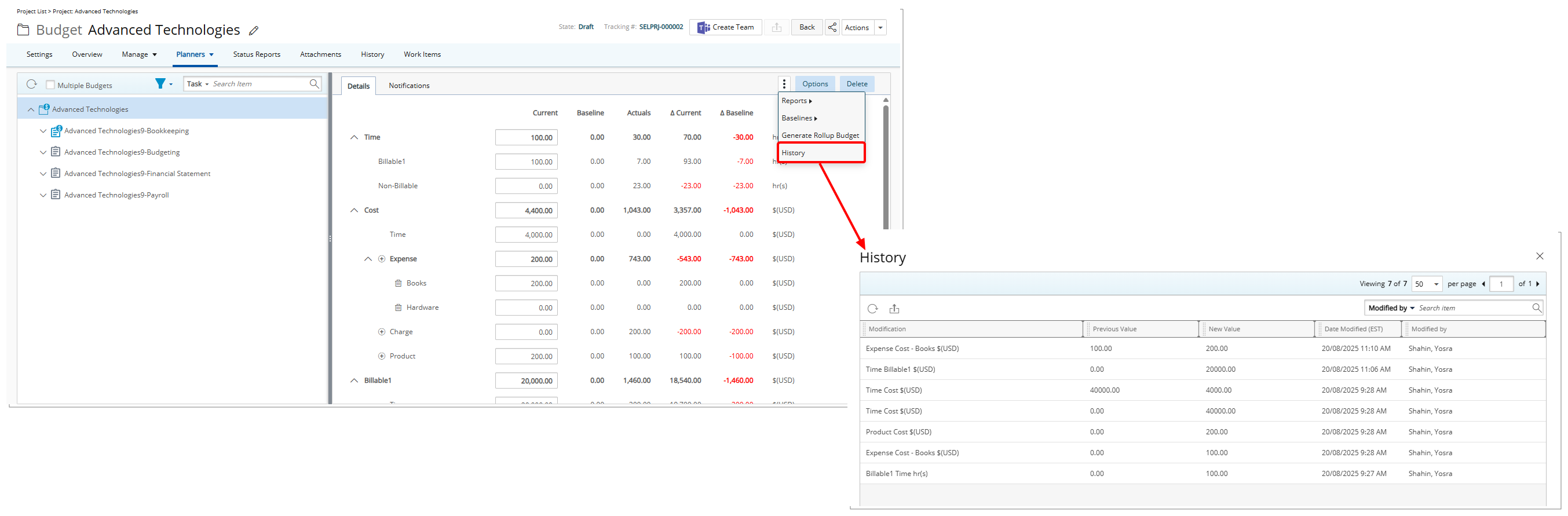
- On the History page, you will see:
- Changes across a wide range of budget entries, including Time, Costs, Billable and Non-billable Amounts, Budget Name, Description, and Dates, as well as Baseline updates.
- Additions or deletions of subitems, recorded as value shifts (for example, from 0 to a positive amount for an addition, or to 0 for a deletion), labeled with descriptive subitem names for easier identification.
- Only direct user edits are logged; system-generated or automatic recalculations, such as totals adjusting when subitems change, are not recorded.
- Budget Detailed History for all budget types, including Task, Project, Assignment, and Role, with API-based modifications also captured for a complete, auditable record of budget activity.
Note: For clarity, all time-related changes are shown in hours and all costs are shown in currency.
Available Options
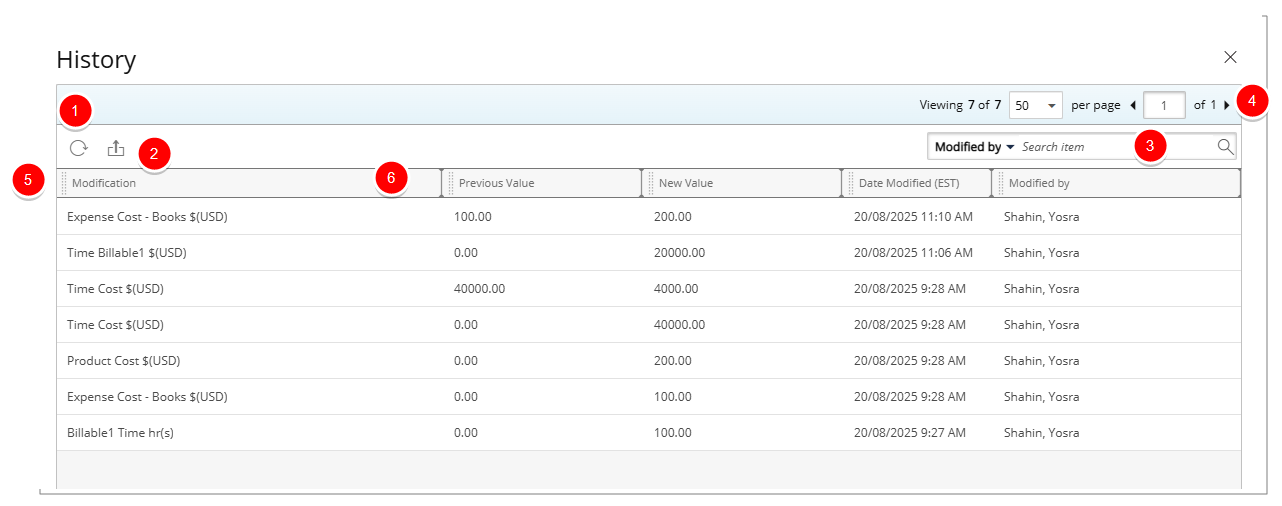
- Click Refresh
 to reload the list.
 - Click Export
 to export the list to Excel. For further details refer to Export to Excel.
 - Click the Search down arrow (), select a criterion and then enter the corresponding value. Then either click the Search
 button or the [Enter] key. The following criteria are available: Modification, Previous Value, New Value, Date Modified and Modified By. For further details refer to Search for an Item.
 - The Pagination facilitates moving to a new list page and to view the number of pages. For further details refer to Pagination.
- The table shows key details for each change, including:
- Change – Description of the modification performed.
- Previous Value – The value before the change.
- New Value – The value after the change.
- Date Modified – When the change occurred.
Note: The Date Modified value reflects the Time zone of the logged-in User’s Active Site.
- Modified By – The user who made the change.
- From the table header:
- You can easily sort the columns by ascending or descending order simply by clicking a column header. Note that an arrow indicates the descending (
 ) or ascending (
 ) order applied to the column.
 - Click
 and move a column to the desired position.
 - You can dynamically resize column(s), to your preferred width. Simply move your cursor to the column boundary (
 ) you want to resize. When the cursor becomes a resize cursor, click and drag the column accordingly.
- You can easily sort the columns by ascending or descending order simply by clicking a column header. Note that an arrow indicates the descending (