Actual Labor Costs
The Actual Costs page calculates labor costs using Timesheet entries and Resource rates, providing managers with an accurate view of project labor costs based on recorded effort.
Note: "Control costs" must be enabled from the work item's Standard Details to access the Actual Costs page. Additionally, users require the "View Cost" Project Task permission to view the Actual Costs page.
Note: See Estimated Labor Costs for information on labor costs that are only calculated from Resource assignment effort.
Actual Costs that appear as a result of approved time submitted toward the work item will display a "Time" value on the Actual Costs page. Time submitted by a Resource for each individual day will result in a new row on the table.
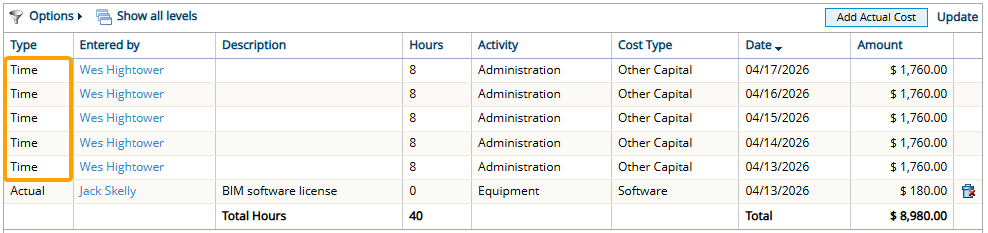
Note: Users can select the same work item for multiple lines on the same Timesheet if a different Activity and/or Role is selected for each one. When this happens, it is also displayed as multiple rows on the Actual Costs page.
This page covers the following topics:
Actual labor cost columns
The Actual Costs page contains the following columns for actual labor costs:
-
Entered By: The Resource who submitted the Timesheet.
-
Description: This column is always empty for actual labor costs.
-
Hours: The number of hours the Resource submitted toward the work item on the specific day (outlined in the "Date" column).
-
Activity: The Activity the Resource selected for the time while filling out the Timesheet.
Note: This Activity does not effect which rate the Resource receives from the specified Rate Table. This is determined by the work item's Default Activity instead.
-
User Cost Tag ("Cost Type" in the example above): The Resource's User Cost Tag value that can be configured by editing the Resource's profile.
Note: The User Cost Tag can be selected on the Resource Planning page.
-
Date: The specific day the hours were entered for.
-
Amount: The Actual Cost of the Resource's labor for the day, calculated using the designated Rate Tables or the Resource's Personal Rates.
Note: See Rate lookup algorithm below for more information on how the costs are calculated.
How actual labor costs are generated
Labor costs will only appear on the Actual Costs page after the following actions occur:
-
The Resource has been assigned to the work item: Actual labor costs primarily use Resource assignments to determine which rate to associate with a Resource's labor. The Resource's Project Central assignment information (Default Activity, Roles, and Resource attributes) will determine the hourly rate of each Resource that enters time against the work item. See Rate lookup algorithm below for more information on how PowerSteering selects rates for actual labor costs.

Note: Timesheets entered by unassigned Resources can also be included in the work item’s actual labor costs. See Rate lookup algorithm below to see how the rate is selected for these Resources.
-
The Resource submits a Timesheet: Resources must submit a Timesheet to include their effort on the Actual Costs page. The selection under the "Work Item" column will determine which work item will receive the actual labor cost.

Note: Selections under the "Role" and "Activity" columns of a Timesheet will not have an effect on which rate is selected for the actual labor costs; only the Default Activity and Role from the Resource assignment will be taken into account. However, unassigned Resources can still receive rates. See Rate lookup algorithm below to see how rates are selected for assigned and unassigned Resources.
-
The Timesheet is approved: The submitted Timesheet must be approved before it can be included on the Actual Costs page.

Tip: The "Cost" column on the Manage Time page offers a preview of the actual labor cost of each submitted Timesheet. Time approvers should review the potential labor costs to ensure that time entry errors do not result in inaccurate Actual Costs.
-
The Time Conversion agent runs: When The Time Conversion agent runs, it scans PowerSteering for any outstanding approved Timesheets and converts the entered hours into actual labor costs on the work items that they have been entered against. Approved Timesheet hours will not be added to Actual Costs pages until the agent runs.
Tip: If you would like to add the approved time immediately instead of waiting for the agent's schedule, navigate to the Time Conversion agent and select the Run Agent button to run the agent manually.

Please note that only PowerSteering administrators can configure agents. If you are not an administrator, please reach out to one to request this. -
The actual labor costs appear on the Actual Costs page: Once the Time Conversion agent runs, the approved time will be converted to actual labor costs on the work item. Users can navigate to the Actual Costs page to view them.
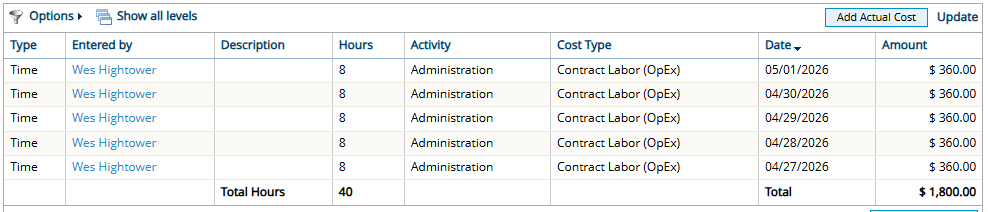
In this example, Wes submitted a Timesheet with 8 hours per day against the work item. His actual labor costs are calculated using these hours and the applied rate (see Rate lookup algorithm below).
Rate lookup algorithm
The rate applied to actual labor cost hours depends on the following:
-
Personal Rates: Resource-specific rates that will be applied depending on the assigned Role.
-
Rate Tables: PowerSteering-wide rates that determine labor costs based on combinations of Roles, Activities, and Resource attributes.
Rates will be applied to actual labor costs based on the following work item configurations:
-
"Use personal rates" is disabled

If "Use personal rates" is disabled from the work item's standard details, actual labor cost rates will only be determined by the work item's designated Rate Table. The Resource's Project Central assignment information (Default Activity, Roles, and Resource attributes) will determine the hourly rate of the actual labor cost. If the Timesheet submitter's assignment cannot completely satisfy of the table's rates, the table's default rate will be applied.
See Rate Tables for more information on how rates are selected.
Note: The work item's Default Activity and the Role from the Resource's assignment are what determine the Rate Table rate, not the Activity and Role submitted on the Timesheet.
Note: The Resource assignment will need to satisfy all components of a Rate Table rate for it to be applied. For example, take this rate from a project's designated Rate Table:

In order for this rate to be applied to an actual labor cost, the Resource must be assigned to the effort as a Developer and the work item's Default Activity must be set to "Administration".
Additionally, the assigned Resource's Cost Type (the User Cost Tag) and Proficiency (a Resource Qualification Tag) must be set to "Contract Labor (OpEx)" and "Senior", respectively.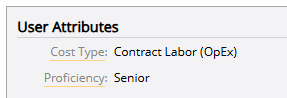
If the assignment cannot satisfy all of these attributes, the rate will not be applied. If the assignment cannot completely satisfy any rates from the designated Rate Table, the Rate Table's default rate will be used to calculate the estimated labor cost.Here is how Rate Table rates are applied to actual labor costs in each possible assignment scenario:
-
Resource is assigned to one role on the work item: The Resource's Project Central assignment information (Default Activity, Role, and Resource attributes) will determine the hourly rate. If the Timesheet submitter's assignment cannot completely satisfy any of the table's rates, the default rate will be applied.
-
Resource is assigned to multiple roles on the work item: The Resource's first Project Central assignment on the work item will be used to locate a rate from the Rate Table.
-
Resource is not assigned to the work item: Unassigned Resources submitting Timesheets toward the work item will automatically receive the same Rate Table rate as the first Resource assigned to the work item. If no Resources are assigned to the work item, the Rate Table's default rate will be applied.
Tip: If unassigned Resources are expected to submit time against the work item, enabling Personal Rates will provide greater control over the actual labor costs.
-
-
"Use personal rates" is enabled

If "Use personal rates" is enabled from the work item's standard details, the Personal Rates of assigned Resources will prioritize any rates from the designated Rate Table. The Resource and the assigned Role will determine the estimated hourly rate of each assignment. If the assigned Resource has no Personal Rate for the selected role, the default Personal Rate will be used. Resources with no Personal Rates at all will default to the designated Rate Table (see above) to determine their rate.
Note: A Personal Rate will only count if a value has been associated with it. For example, take a look at Wes Hightower's rates on the Personal Rates page.

Two roles appear for him on the page because the "Analyst" and "Team Member" roles have been added to his profile. However, neither of these Personal Rates have an actual "Current Rate" associated with them. Therefore, Wes' rate on the Actual Costs page will rely on the work item's designated Rate Table instead (see above).Here is how Personal Rates are applied to labor costs in each possible assignment scenario:
-
Resource is assigned to one role on the work item: The role from the Resource's Project Central assignment will determine the Personal Rate. If the Resource does not have a Personal Rate for the role, the Resource's default Personal Rate will be used. If the Resource does not have any Personal Rates, the work item's designated Rate Table will be used instead (see above).
-
Resource is assigned to multiple roles on the work item: If the Resource's default role is one of the assigned roles and there is a Personal Rate attached to it, that rate will be used to calculate their actual labor cost. If the default role is not assigned (or there is no Personal Rate attached to it), the logic below applies:
If the Resource has Personal Rates for more than one of their assigned roles, the most recent assigned role will be used to calculate their actual labor cost. If they have a Personal Rate for only one of the assigned roles, that rate will be used. If they do not have any Personal Rates for any of their assigned roles, their default Personal Rate will be used. If the Resource does not have any Personal Rates, the work item's designated Rate Table will be used instead (see above).
-
Resource is not assigned to the work item: The Resource's default Personal Rate will be used to calculate their actual labor cost. If the Resource does not have any Personal Rates, the work item's designated Rate Table will be used instead (see above).
An exception occurs if the work item has any unstaffed demand (unassigned labor). In this case, the user's Actual Labor Cost is calculated using the Personal Rate for the unstaffed demand's role.

This project has 15 hours of unstaffed demand for a Delivered Donation Manager. If an unassigned user submits time for this project, their Personal Rate for Delivered Donation Manager is used to calculate their Actual Labor Cost.Note: If the work item contains unstaffed demand toward multiple roles, the first unassigned effort added to the work item will be used.
However, administrators can override this exception by forcing default Personal Rates to be used for all unassigned users.
-