Rate Tables associate Resource assignment components (Default Activity, Roles, and Resource attributes) with hourly rates. When a Resource assignment matches all the criteria in a Rate Table row, the corresponding hourly rate is applied. The rate is then used to calculate estimated and actual labor costs.
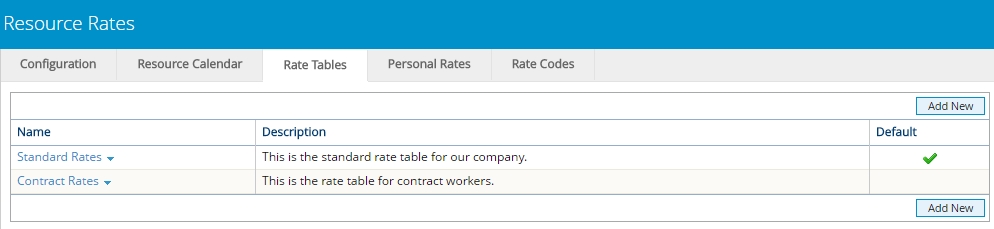
A PowerSteering environment can contain multiple Rate Tables.
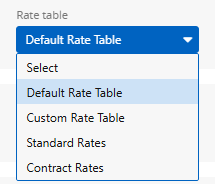
Users can determine which Rate Table a work item will use while editing the work item's standard details.
Resource assignments must satisfy all components of a Rate Table's rate for it to be applied. Assignments that cannot completely fulfill any rates from the Rate Table will receive the default rate.
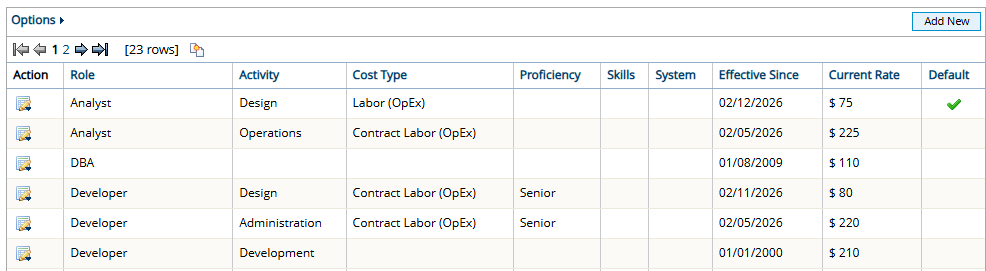
Example: Look at this rate from a project's designated Rate Table:
In order for this rate to be applied to an estimated or actual labor cost, the Resource must be assigned to the effort as a "Developer" and the work item's Default Activity must be set to "Administration". 
Additionally, the assigned Resource's Cost Type (the User Cost Tag) and Proficiency (Resource Qualification Tag) must be set to "Contract Labor (OpEx)" and "Senior", respectively.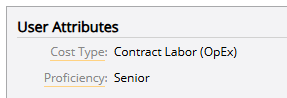
If the assignment cannot satisfy all of these components, the rate will not be applied. If the assignment cannot satisfy any rates from the designated Rate Table, the Rate Table's default rate will be used to calculate the estimated labor cost.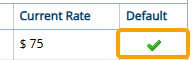
Note: If a work item is configured to use Personal Rates, a Resource's Personal Rates will be applied before any rates from the designated Rate Table. 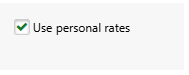
When this is the case, the designated Rate Table will only be used if the Resource does not have any Personal Rates.
Select any of the Rate Table attributes below for information on configuring them:
 Role
Role
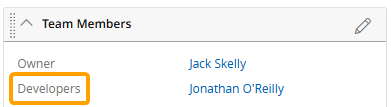
Roles are the primary components that determine which rate a Resource will receive from a Rate Table. The Role assigned to the Resource through the "Roles" column in Project Central or the work item's "Team Members" window.

Activity
The Rate Table uses the work item's Default Activity to determine which rate the assignment will receive. The Default Activity can be selected using the "Default Activity" column in Project Central or the work item's Budget page.

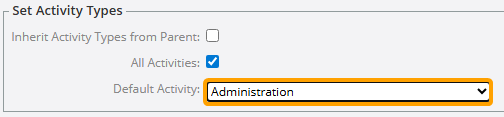
Note: The "Default Activity" field/column can only be edited when "Inherit Default Activity" is disabled. Disable this using the "Inherit Default Activity" column in Project Central or the "Inherit Default Activity from Parent" field on the Budget page.
Additionally, the desired Default Activity must belong to one of the selected Activity Types. Select Activity Types using the "Activity Types" column in Project Central or the "Activity Types" field on the Budget page.
See Add / Remove Columns in Project Central and Set a Budget for more information.
Note: Activities selected on user Timesheets will NOT have an effect on which rate the user receives.
User Cost Tag
The Rate Table uses the Resource's User Cost Tag value to determine which rate the assignment will receive. The User Cost Tag can be selected on the Resource Planning page.
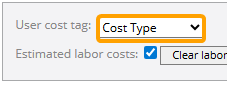
Note: The User Cost Tag will always appear on Rate Tables even if it has not been selected as a Resource Planning Tag.
The User Cost Tag value on a Resource's profile will help determine which rate the assignment receives from the Rate Table.
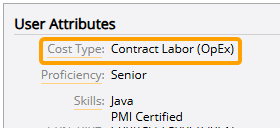
However, the data entered / loaded into Project Central "Resource" columns will ultimately determine the rate (see the note below for more information).
Note: If "Rate Lookup" has been enabled for your PowerSteering environment, the Resource's attributes (including the User Cost Tag value) will automatically be loaded into Project Central when the Resource is assigned to work. These values will not be editable in Project Central.
If this is not enabled, a window will appear whenever a Resource is assigned.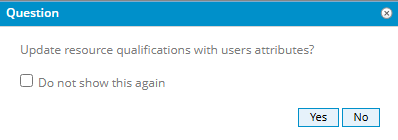
Selecting Yes will automatically load the Resource's attributes into the assignment:
Selecting No will not load any attributes, allowing the user to select custom attributes for the assignment.
Speak to your PowerSteering representative if you would like "Rate Lookup" to be enabled or disabled.
Resource Planning Tags
The Rate Table uses Resource Planning Tag values to determine which rate the assignment will receive. Resource Planning Tags can be selected from the Resource Planning page.
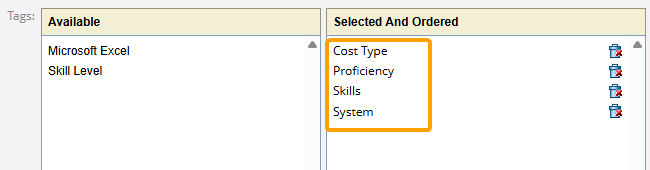
The Resource Planning Tag values on a Resource's profile will help determine which rate the assignment receives from the Rate Table.
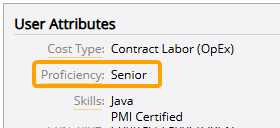
However, the data entered / loaded into Project Central "Resource" columns will ultimately determine the rate (see the note below for more information).
Note: If "Rate Lookup" has been enabled for your PowerSteering environment, the Resource's attributes (including the User Cost Tag value) will automatically be loaded into Project Central when the Resource is assigned to work. These values will not be editable in Project Central.
If this is not enabled, a window will appear whenever a Resource is assigned.
Selecting Yes will automatically load the Resource's attributes into the assignment:
Selecting No will not load any attributes, allowing the user to select custom attributes for the assignment.
Speak to your PowerSteering representative if you would like "Rate Lookup" to be enabled or disabled.
See the following pages for more information on Rate Tables: