Request a Gate Approval
A Gated Project in PowerSteering represents a multi-stage process that is subject to review and approval at specific checkpoints (also known as Gates).
Once all of the Pre-Advance Conditions and required Deliverables have been satisfied for a Gate, users can submit a Gate for approval. Once an approval request has been submitted, users that have been assigned as approvers will receive notifications in their PowerSteering inbox. Once the approver(s) take action on the request, Gate can be advanced.
Note: Administrators can define when and which user(s) can request approval for Gates on Gated Work. See Gate Advance Configuration for more information.
To request a Gate Approval:
Before You Start: The Request Approval button will only be visible if all of the Pre-Advance Conditions and required Deliverables have been satisfied for the current Gate. Also, the Gate Advance Configuration page determines which users can see the button once these requirements are met.
-
Navigate to the work item.
-
Select the Request Approval button:
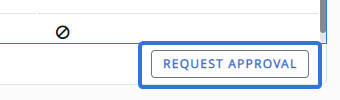
Note: If the Pre-Advance Conditions for the Gate have not been met, the Request Approval button will not be clickable:
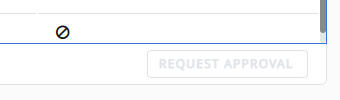
If this is the case, select Show More to view the Pre-Advance Conditions under the "Conditions" tab. Any Conditions with an "X" icon still need to be satisfied before Gate Approval can be requested: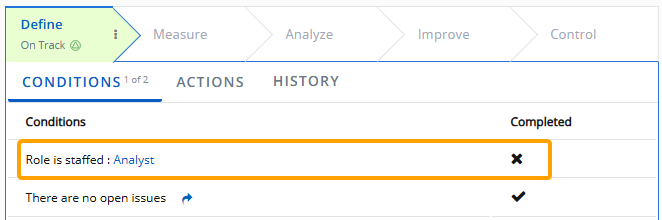
Also, keep in mind that administrators can edit who sees the Request Approval button through Phase Advance Configuration. -
(Optional) Review the Post-Condition Actions (if any) that are set to take place after the Gate is advanced:
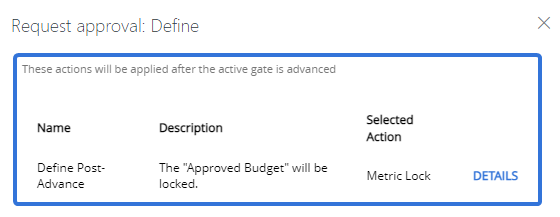
Note: Administrators can attach Post-Advance Actions to Gates.
Tip: Select Details for more information on the Post-Advance Actions that will apply.
-
(Optional) Type in a Comment for the approver(s):

-
(Optional) Attach any Gate Documents to the request:
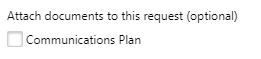
Note: Documents will only appear here if they were attached to the Gate through the Descendants section.
-
Select the Request Approval button:
After selecting Request Approval, the approver(s) will be notified of your request.
Users that have been assigned as approvers can either address the request from their PowerSteering inbox or directly on the Summary page.