The Project List
The Project List page allows you to view the summary information of filtered projects, action on assigned projects, manage Tasks and manage Views.
This article details the information available on the Project List page.
Available Options
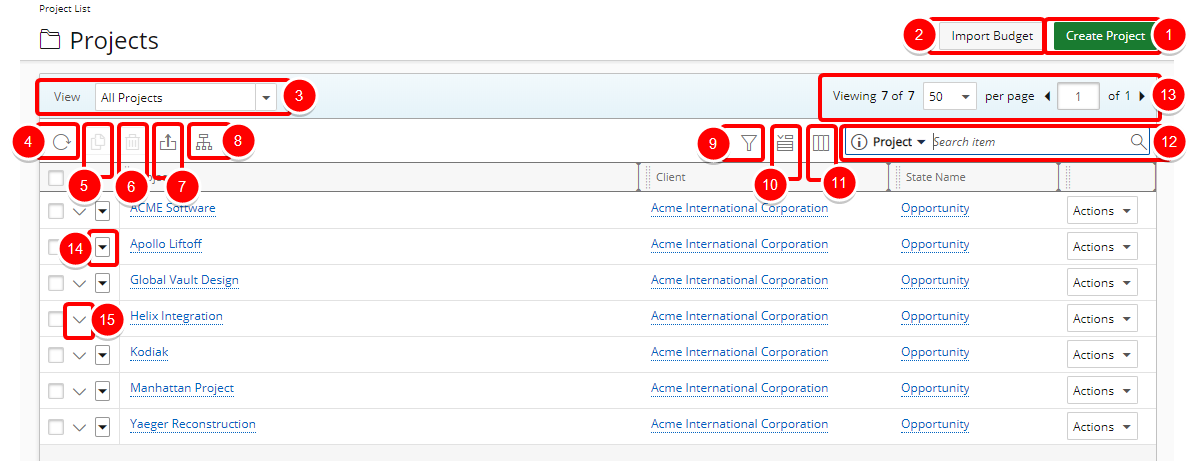
The following are the features available on the Project List page:
- Create Project: Click Create Project to start and build a new Project through the Project Edit page. You must have the proper rights to use this functionality.

- Import Budget: Allows users to import project budgets into the application from a predefined Excel template.
- Select the View list box to access the available Views and additional options such as Create, Edit Details, Manage and Delete. You must have the proper rights to use this additional options.
The available out of the box views are:- My Projects: This View provides a list of all Projects where you are the Project Manager.
- My Portfolio Projects: This View provides a list of all Projects where you are the associated Portfolio Manager.
- Available Projects: This View provides a list of Projects where you are the Project or associated Portfolio Manager. It also includes Projects that:
- Have been shared with you
- You have been assigned to
- You can report on
- Assigned Projects: This View provides a list of Projects that are in a state assigned to you.
- All Projects: This View provides a list of all available Projects when scoping is not applied. Once scoping is applied, the View will include:
- Projects where you are the Project Manager, or
- Projects that have no scope, or
- Projects with Shared scope
- Refresh: Select Refresh to refresh the page.
- Copy: Select Copy to copy the selected Project.
- Delete: Select Delete to delete the selected Project.
- Export to Excel: Select Export to Excel to export all the projects listed, and as displayed, to Excel. Note that numeric columns are formatted as number or currency in the exported Excel files, allowing you to perform calculations directly on the data. For further details refer to Export to Excel.
- Hierarchy/List View:Allows the toggling between displaying the Project List as a list or as a hierarchy when in All Projects View.
- Filter: Click this button to open the Filters dialog box to create a filter(s) to refine the list of projects displayed.
Note: When an on-page filter is applied in the Project List, the Filter button changes appearance — the button background turns blue, and the icon itself becomes white (
 ) — indicating that a filter is currently active.
 - Expanded Row Column Selection: Click this button to open the Expanded Row Column Selection dialog box where you can manage the information you see when expanding a project line item on the Project List page.
- Column Selection: Click this button to open the Column Selection dialog box where you can add or remove columns to display on the Project List.
- Search: To search for a Project(s), click the Search down arrow, select a criterion and then enter the corresponding value.
- Pagination: Included at the top to facilitate function.
- Project Context menu: Provides shortcuts to easily Edit, Delete, Copy as well as Access the Work plan, the Project Planner, the Project Status Report and the Calendar.
- Show/Hide Expanded Row: Click this button to show hide the Expanded Rows.
Note:
- You must first select only one Project for the Copy to be available.
- You must first select one or more Projects for the Delete to be available.
- The All Projects View is only available to users who have been granted the access right to the Project List with All Projects View Component (Setup > Organization > System > Security > Security Profile > Management > Central)
For further details refer to: