|
|
|
Release Notes 2025
|

The Release Notes contain release information about the Server Administrator and application-specific features, enhancements, patches, resolved issues, bug fixes, limitations, and platform-related integration news.
What's new in this release
Expand to view more information.
 Features and Enhancements
Components > Compose > Conversions > HEIC
Connectors > SMTP Inbound and Outbound
Connectors > Zip Archive Connector
Devices > Button Properties > Disclaimer/Customized Content
Devices > Button Properties > Scan Settings > Capture Mode
HP Device Accessibility Support
Maintenance Component > Custom Cleanup
HEIC support, no setup required
The Compose conversions list includes HEIC. The server can convert from HEIC to the standard suite of document formats. High Efficiency Image Container (HEIC) is a file format associated with Apple devices offering better compression than other file types, for example, JPEG, smaller file sizes and high image quality. Setup is not required.
Note: Documents cannot be converted to the HEIC format.
See About Compose Component for more information.
Did you hear that? Listening for incoming mail
The SMTP listener service has been developed to receive email messages sent using the Simple Mail Transfer Protocol (SMTP) as a result of the Microsoft IIS SMTP Service deprecation.
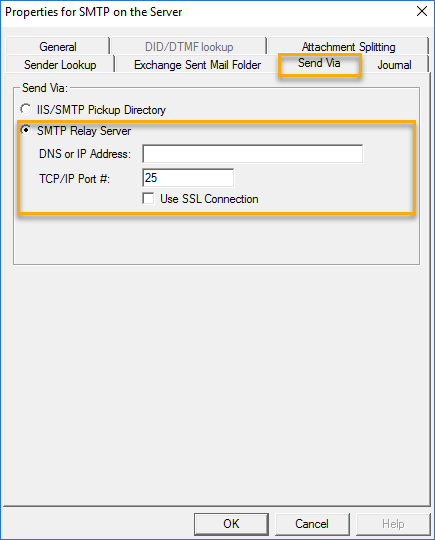
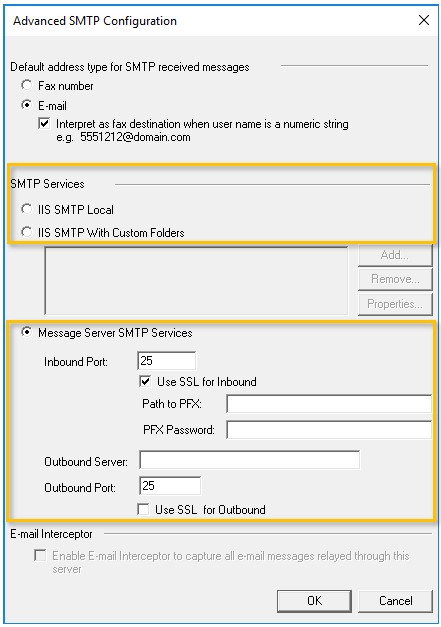
In this release SMTP Outbound > SMTP Relay Server has been moved to the SMTP on the Server Properties > General tab.
See the Before and After locations in the examples below.
| Before - SMTP on the Server Properties > Send Via | After - SMTP on the Server Properties > General > Advanced |
|
|
Both SMTP Inbound and Outbound options are available in the Advanced SMTP Configuration dialog box.
See About SMTP Inbound and Outbound for more information.
Zip it with the Zip Archive Connector!
Messages with attachments can be zipped and delivered to a specific folder with the use of the Zip Archive connector and rules.
See About Zip Archive Connector for more information.
Add a disclaimer or customized content to your device buttons with style
Add a disclaimer or customized content for use as a splash screen to any device button. The information is displayed after the button is selected by the device user. Several style attributes can be applied to the text to make it stand out.
See Adding a Disclaimer or Customized Content for more information.
The Capture Mode scan setting has been developed to allow users to perform ID Scanning at HP supported devices. When Capture Mode ID Capture Prompt Both Sides is enabled each ID side can be scanned separately but both sides appear on a single page.
See About Capture Mode ID Scanning for more information.
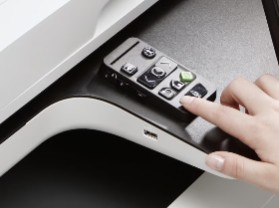
Making Accessibility Happen with
|
Note: Not all printer screens are optimized for screen reader use, and some may not be supported. The HP Accessibility Assistant only reads content in English. See the HP Product Support page for more information. |
The Maintenance component removes messages from the
See About Custom Cleanup for more information.
Server Monitor Installation on the Main Server - Proceed with Caution
The Server Monitor is a stand-alone application that monitors various components of an
See Installing the Server Monitor for more information.
Export History details to a CSV file
Administrators can export Help Desk History details to a CSV file for analysis and reporting purposes with the use of
For Administrators
See About
For
See Using
Unlock queue documents automatically with Auto Unlock
Administrators can set an auto unlock timer for documents in a queue that are being reviewed by multiple users. This prevents any user in the group to lock a document for long periods of time.
See About
Redact content easily with
With redaction designated Queue users can obscure content from any document for legal and security purposes.
For Administrators
See About
For
See Using
Route it to an email, fax, or printer using
For Administrators
With the Route action, Queue users can route jobs to specific recipients, include additional data like sender name, company name and email address. In addition, the queue user can route the entire document or specific pages and add comments if necessary.
See About
For
Using
See Using
Drag and drop page management with the
For Administrators
See About
For
The Thumbnail panel allow users to reorder, move up or down, rotate clockwise or counter clockwise, merge, delete pages if necessary and download.
See Using
Software Technology Integrations
None in this release.
Bug Fixes, Resolved Issues,
Patches, Known Issues,Dialog Box UI Update
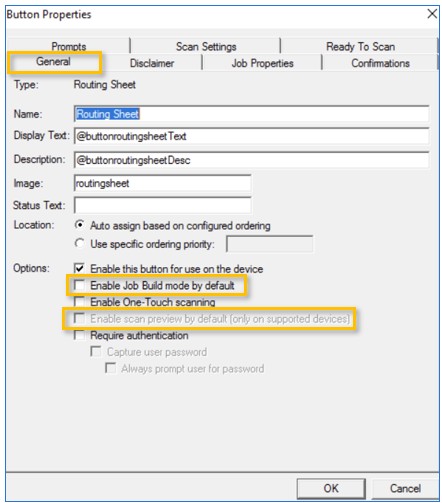
Device Button Properties > General Options have moved
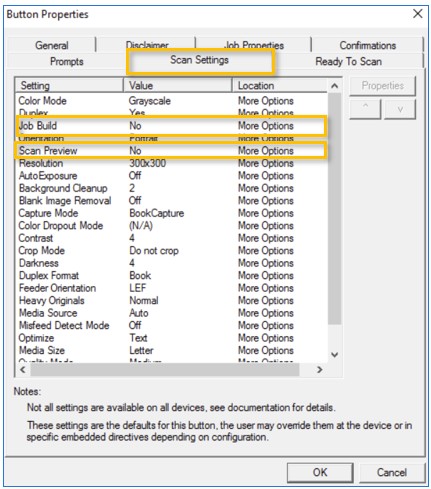
Enable Job Build Mode and Enable Scan Preview by default options have moved from Button Properties > General to Scan Settings.
| Before - General tab | After - Scan Settings tab |
|
|
See Adding Device Buttons for more information.
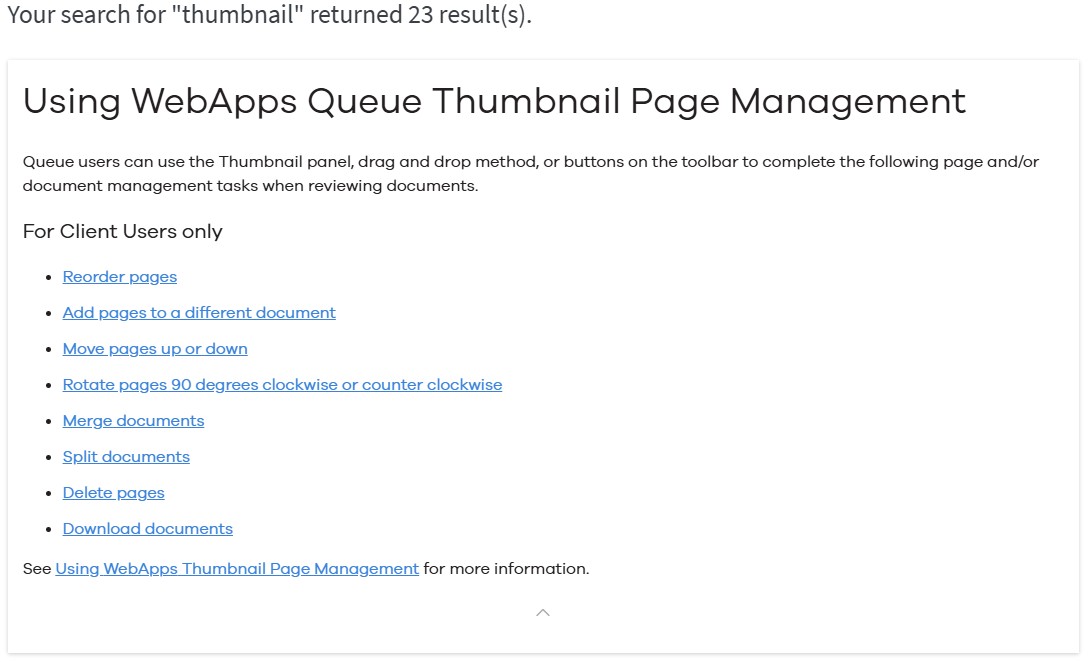
Documentation updates and Search Results improvements
|
About the Help Center
The About Help Center slide show includes information about micro content and how it works when you do a search. Micro content for top search terms and Spotlight features has been developed to assist you with getting to Help-related content quickly and easily. See About the Help Center for more information.
|
Silent Server Install
Silent Server Install is the installation of a software program that requires minimal or no user interaction. Recent updates have been made to Installing the Silent Server instructions.
See About Silent Server Install for more information.
Object Archive Volume Lists
ObjectArchive provides data storage and retrieval. Manage your archiving requirements with move, import and delete volumes functionality.
See Configuring Object Archive for more information.
API Documentation
Dashboard and Fax Delivery API documentation has JSON and more code snippets that developers can easily copy/paste.
See API Documentation for more information.
API, Services, Library, SDK Upgrades and Changes
Device and AccuRoute Application Upgrades
The following upgrades support new devices released by our device partners.
-
Canon AccuRoute MEAP v5.10
-
Lexmark eSF.71.004
-
Xerox EIP v5.3
Software Application Upgrades
-
The Ghostscript v10.05.1 upgrade includes performance and security improvements. See Ghostscript for more information about this upgrade.
Upgrade Support
AccuRoute 8.0 supports upgrading from the following versions: 5.0, 5.1, 5.1.1, 6.0, 6.1, 6.2, 6.3, 6.4, 6.5, 6.6, 6.7, 7.0
Bugs and Limitations
Server Monitor, Windows Server, and IIS SMTP Email Notification Limitation
- Email notifications are not sent when Server Monitor is installed on a Windows server that does not support IIS SMTP. This is a limitation that was discovered during testing and will be investigated in an upcoming release.
- Due to a August 2025 Microsoft security patch and September 2025 Windows security update, the PIC will not launch the installers as expected and an error message will appear. The current workaround requires users to navigate to the install media folders and launch the setup manually via:
\MessageServer\setup.exeor\Web\Setup.exe.
Supported Devices
See Supported Devices > Canon for more information.
See Supported Devices > HP for more information.
See Supported Devices > Lexmark for more information
See Supported Devices > Xerox for more information.