Release Notes
October 2026
Version 20.2.1000.0030
AI Assist Enhancements
Revise with AI Assist in the Library
Qvidian's AI Assist feature allows users to revise and rewrite existing RFP answers to better match questions. Now, this functionality is also available in the library. Create and share your own prompts in addition to the suggested AI Assist prompts that are already available in sliced RFPs. Clean up content for RFPs, proposals, and presentations directly in your library.
Note: To revise library content with AI Assist, ensure that the user has "Edit" content permissions and that the "Allow User to Use Revise with AI Assist in Library" user permission has been enabled. Navigate to the library and locate the desired content record, click the More Options  menu and select Edit Content > Revise with AI Assist. Revising library content with AI Assist counts as an "Edit" and checks out the content. Click Preview and Accept to open the side-by-side comparison of the old and new content. From here, you can preview, download, and copy the content before accepting the revision.
Caution: Revising with AI Assist in the library is only recommended for simple content that does not contain multiple styles and/or graphics. Once revised text is accepted, the changes are saved to the library, which may overwrite any existing styles and graphics.
LLM Updates
Qvidian will support the Llama 4 Maverick LLM for Watsonx.
BYOAI Test Connection
Administrators are now able to test their AI Assist connection in Qvidian prior to enabling it.
Note: To test your connection, navigate to Administration > AI Assist Connection. Enter your API Key and Organization Key. Click the Test Connection button. If a connection fails, the system will display an error message.
Content Management Enhancements
Allow Project Participants to Submit Content
Previously, only project owners or users with similar permissions could submit content from projects. Now, users can submit content from project workflows that they are a participant of.
Note: To allow a project participant to submit content, enable the “Allow user to Submit Content from Projects as a Participant” user permission.
Reporting Enhancements
Qvidian for Office Events Added to Analytics Content Usage
The following audit events for consuming content via Qvidian for Outlook have been added to the Analytics Content Usage reports:
| Event ID | Event Name | Event Type | Event Description |
|---|---|---|---|
| 29400 | Content Downloaded from Qvidian for Office/Web (Outlook) | Content | Content was downloaded from the Qvidian for Outlook session. |
| 29401 | Content Inserted from Qvidian for Office/Web (Outlook) | Content | Content was inserted the Qvidian for Outlook session. |
| 29402 | Content Copied to Clipboard from Qvidian for Office/Web (Outlook) | Content | Content was copied to the clipboard from the Qvidian for Outlook session. |
| 29403 | Content Preview in Qvidian for Office/Web (Outlook) | Content | Content was previewed as an HTML in Qvidian for Outlook. |
| 29405 | User used AI Assist to Write a custom Answer in Qvidian for Office/Web (Outlook) | User | A user used AI Assist to generate an answer in Qvidian for Outlook. |
| 27007 | File Attached from Qvidian for Office (Outlook) | Content | A user attached a Qvidian file to an email using Qvidian for Outlook. |
Audit Event Tracks Content Enabled at Creation
Audit Event #14: "Content Enabled" will now be recorded when content is enabled during its creation.
Example: When a user uploads new content and selects the Enabled checkbox, Audit Event #14: "Content Enabled" will be recorded.
Qvidian for Office Enhancements
Updated Previews for Qvidian for Office
Previews of PDF and Excel files will now be available in Qvidian for Office.
Note: Click the More  icon on a PDF or Excel file and select Preview. HTML Previews are not available for PDF and Excel files.
Integration Enhancements
Choose Salesforce Field for Project Name
Users can now choose which Salesforce field will be used for their Qvidian project name.
Example: Use the Salesforce "Contract Name" field for the Qvidian project name.
Note: To override the default "Project" name field with a different name field, enter that value into the SalesForceProjectNameField global setting. To construct a name using several fields, separate these values with commas (e.g. "CompanyName, ContractName", where the CompanyName is "ABC Organization" and ContractName is "Contract XYZ", would be displayed as "ABC Organization Contract XYZ").
October 2026 Resolved Issues
|
Item |
Summary |
Resolution |
|---|---|---|
| QPA- 117469 | When a customer revised an answer in an Excel RFP using AI Assist, the AI text would often take a long time to generate and contained irrelevant text. | Performance has been improved. Qvidian now supports the Llama 4 Maverick LLM for Watsonx. |
| QPA- 118257 |
If a customer edited an existing merge code that did not contain any "Context", when they added content to the "Context" field, the changes did not save as expected. |
If a customer edits an existing merge code that does not contain any "Context", when content is added to the "Context" field, the changes will save as expected. |
| QPA- 113000 | When a user reordered a File List or RFP file, two file placeholders would be displayed; one for the file's original location and one for the drag and drop target. This resulted in files not ending up in the intended drag and drop location. | Performance has been improved. When a user reorders a File List or RFP file, only one placeholder will appear in the intended drag and drop location. |
| QPA- 118050 | When a user attempted to create assignments in an RFP file using Qvidian for Web, the "Assignments" menu option was disabled. | Assignments can be created as expected in an RFP using Qvidian for Web. |
| QPA- 117524 | When a content manager was attempting to approve a "Submitted to...." content review job, if that content file was not assigned to a folder, the "Content Record(s) must specify a library folder, and cannot be approved at this time" warning would appear and disappear in less than one second, which was not enough time to click the "OK" button. | When the "Content Record(s) must specify a library folder, and cannot be approved at this time" warning will be displayed until a user clicks the "OK" button. |
| QPA- 118200 | When a user imported sliced Word documents into a project, the text appeared blue in some of the slices. This occurred because there were hidden hyperlinked bookmarks in the Word file. | This issue has been resolved. |
| QPA- 118276 | Qvidian for Office did not save the user's preferences when inserting answers into Word tables and Excel RFPs. | Qvidian for Office will save the user's preferences when inserting answers into Word tables and Excel RFPs. |
| QPA- 117706 | When a user performed a semantic search on a library folder that contained subfolders but did not have "Auto-select SubFolders" selected, the search results still included those subfolders. | When a user performs a semantic search on a library folder that contains subfolders and does not have "Auto-select SubFolders" selected, the search results will not include those subfolders. |
| QPA- 110324 | The support email address displayed in the "Invalid/Expired Login Link" error message was incorrect. | The correct support email address will be displayed in the "Invalid/Expired Login Link" error message. |
| QPA- 117794 | When a user ran a search in Qvidian for Office or AutoFill in projects, the "More Options" menu and "Insert" icon were not displayed on the search results. | When a user runs a search in Qvidian for Office or AutoFill in projects, the "More Options" menu and "Insert" icon will be displayed on the search results. |
| QPA- 117912 | The "Added to Project (External File)" email notification trigger contained a file link that did nothing when selected. | The file link in the "Added to Project (External File)" email notification trigger will work as expected when selected. |
| QPA- 115216 | If no Qvidian Notifications or Announcements existed, then the Home Page widgets would be blank. | Performance has been improved. If no Qvidian Notifications or Announcements exist, then the widget will display the following message: "You are up to date with all of your notifications!" |
 September 2026
Version 20.2.0000.0038
Qvidian for Office Enhancements
Qvidian for Office in Microsoft Outlook
Qvidian for Outlook allows users to access trusted, approved content directly within Outlook when composing or responding to emails. This content can be inserted, attached, copied/pasted, downloaded, and/or added to emails and meeting requests as links. AI Assist integrates with Qvidian for Outlook to write custom answers to questions and revise text.
Tip: Pin the Qvidian for Office add-in to keep it open between sessions.
Caution: FirstPass functionality is currently NOT available in Qvidian for Outlook.
Content Management Enhancements
Email on Accept / Reject of Submitted Content
Users who submit "New" or "Revised" content will now receive one of the following email notifications informing them when the submitted content is accepted or rejected:
- Accept Submitted New Content
- Reject Submitted New Content
- Accept Revised Content
- Reject Revised Content
Note: These email triggers are set to "AutoSend" by default. To disable or edit, navigate to the Email Notification Triggers page and click the Edit Properties icon for the desired email notification trigger.
Filters and Fields Added to Track Additional Content Properties
The following fields tracking content properties have been added as filters in the Library, Search Mode, AutoFill, and Qvidian for Office/Web: WordCount, CharacterCount, PageCount, HasImages, HasObjects, PDFPageCount, SlidesCount, WorksheetCount.
Example: Exclude content over 100 pages when running AutoFill.
Usability Enhancements
Reset Option for Search Features
Users now have an option to clear their searches in AutoFill, Search Mode, and Qvidian for Office/Web like they do in the Library.
Note: To clear the search (e.g. filters, folders, text) and its results, click the Reset button at the bottom of the search pane.
Custom Action Button Updates
The UI for custom action buttons has been improved in the following Project areas: Overview, Data Entry Screens, Structured Content, and Selection Driven Content. If there is only one custom action configured, it will be displayed as a single button (e.g. "Get Title"). If there are multiple custom actions configured, a More Actions button will display a dropdown menu when clicked.
September 2026 Resolved Issues
|
Item |
Summary |
Resolution |
|---|---|---|
| QPA- 117700 | When a user ran AutoFill with AI Assist in projects, if the library did not contain relevant answers, the "AI Generated Answer" would be blank. | When a user runs AutoFill with AI Assist in projects, if the library does not contain relevant answers, the following error message will be displayed: "There has been an error generating an AI answer. An answer could not be generated due to insufficient source content." |
| QPA- 113706 | When a client uploaded a Word file to the library that has an associated template file on their local machine, if they attempted to export that file, it would fail because Qvidian did not have access to the associated template file. | This issue has been resolved. |
| QPA- 109542 | When a user downloaded a zip file from the library and edited the extracted file(s), if they uploaded the edited file(s) back into the library, the "Revision" option was disabled. The user was only able to upload the edited file as a new record. | When a user downloads a zip file from the library and edits the extracted file(s), they can upload the edited file(s) back into the library as a revision. |
| QPA- 117009 | When a user ran AutoFill or Search Mode with AI Assist in an RFP file, the following error occurred: "There has been an error generating an AI answer." This occurred because the style template contained a character style that did not get mapped to the destination document. | Style templates containing character styles will be mapped to the destination document as expected when running AutoFill or Search Mode with AI Assist. |
| QPA- 117137 | There were discrepancies between contents' "Checked Out" status in the Qvidian UI versus the API. | Performance has been improved. |
August 2026
Version 20.1.3000.0034
System Enhancements
Time Limit Maximums
The Timeouts Administration page will now enforce reasonable limits on user-entered values. Each timeout setting will display the minimum and maximum values that can be entered.
Note: Existing values will not be changed. If a value is edited and is outside the new min/max limit, then the system will disable the "Save" button until a value within the allowed range is entered.
Copy Permission Text
Users now have the ability to copy User and Role permission description text.
Note: To copy the permission description, navigate to the Permissions tab of User and/or Role Properties page, hover over the desired permission and click the Copy Permission Description  icon to copy the text to your clipboard.
Qvidian for Office Enhancements
Upland Assist in Qvidian for Office & Web
Upland Assist is now available within Qvidian for Office and Web. This allows users to access the Help Center and Community directly from their Qvidian for Office or Web session.
Note: To open the Upland Assist dialog within a Qvidian for Office or Web session: click the Menu  icon and select Help from the dropdown menu. Upland Assist will display as a dialog.
Library Enhancements
Semantic Search: Early Access Release Period
Semantic Search capabilities, which are now available in the library for our early access trial period, enable teams to find the right answers faster and with greater accuracy by interpreting the meaning of the search text and the content.
Example: When a user searches for "data encryption security", semantic search results flag "information protection standards" as a contextual match. Relevant answers are found without requiring users to enter exact terms.
| Indexed Search | Semantic Search |
|---|---|
| Keyword searches return too many irrelevant results | Interprets natural language queries |
| Users must refine queries repeatedly | Matches based on meaning—not exact wording |
| Time lost digging through content instead of responding | Surfaces best-fit answers instantly |
| Increased reliance on SMEs for basic content retrieval | Enables side-by-side fallback to legacy keyword search |
| Results depend on how content was written, not what is needed | Delivered through a phased, controlled roll-out approach |
Note: To beta test Semantic Search in the library, contact your CSM to enable it in your environment. Once enabled, click the More Options menu to the right of the library Search bar and select Search Settings. On the "Search Settings" dialog below Type of Search, select the Semantic radio button. During the Early Access period, this selection is NOT saved between sessions or workspace. Whenever a new library session is initiated, the Semantic radio button must be reselected.
Caution: Semantic search currently does not support inflectional terms, Boolean searching (AND/OR/NOT), ANY/ALL/EXACT phrase searching, default search behavior choices, or the removal of "noise words".
August 2026 Resolved Issues
|
Item |
Summary |
Resolution |
|---|---|---|
| QPA- 111171 | When a user worked on an Excel RFP that contained populated answer cells, if they built a project or downloaded a current RFP, those answer cells would be missing values. | Excel RFPs containing populated answer cells will retain their values when a user builds the project or downloads a current RFP. |
| QPA- 116523 | When a user exported library content, the "Include Properties" list was not sorted in alphabetical order and contained duplicates of "Content Title" and "Content ID". | When a user exports library content, the "Include Properties" list will be sorted in alphabetical order and will not contain duplicates of "Content Title" and "Content ID". |
| QPA- 116706 | The "Created By" field for a content revision showed the incorrect user. This occurred because the "Created By" field was being incorrectly populated by the "LastModifiedByUserID" value. | The "Created By" field for a content revision will be populated by the "CreatedByUserID" value. |
| QPA- 116854 | When a user revised text using AI Assist in Qvidian for Office, the "Current Text" window would narrow, and the "Collapse Current Text" icon did not move and resize as expected. | When a user revises text using AI Assist in Qvidian for Office, the "Collapse Current Text" icon will move and resize as expected. |
| QPA- 116093 | An RFP file caused a build to fail. This occurred because the system attempted to preserve a continuous section break after the inserted content when performing a range insert. | This issue has been resolved. |
| QPA- 116776 | The "Share to Roles" label on a "Revise with AI Assist" dialog in Qvidian for Office displayed as "SLIB_ShareToRoles". | The "Share to Roles" label on a "Revise with AI Assist" dialog in Qvidian for Office displayed as expected. |
| QPA- 115934 | If a user updated library reference codes, the "Library References" were not refreshed. | If a user updates library reference codes, the "Library References" will be refreshed as expected. |
| QPA- 114248 | Vertically aligned text in a Word table did not appear in the HTML preview. | Vertically aligned text in a Word table will appear as expected in the HTML preview. |
| QPA- 117080 | If a user made any inline edits after the characters were added, the following characters appeared in the answers of the sliced Excel RFPs:   | This issue has been resolved. |
| QPA- 117131 | When a user without library-wide permissions (e.g. View/Search All, Edit All) attempted to insert an AI Assist answer via Search Mode, the "Your Edit Save request failed" error message occurred. | Users without library-wide permissions (e.g. View/Search All, Edit All) can insert an AI Assist answer via Search Mode as expected. |
July 2026
Version 20.1.2000.0029
Content Management Enhancements
Delete Content from Review Jobs
Users with permission to delete a content record in the library can now perform that action in Review Jobs.
Example: A content manager is working with a Review Job and decides the content record must be deleted from the library.
Note: To delete content from a Review Job, locate the desired content, click on the More Options menu, and select Delete.
Caution: This will also remove the content from the Review Job. Deleted content will remain in the Recycle Bin for a configurable amount of time before it is physically deleted.
Content Title Optional for Advanced Edits
The Content Title is now optional when performing an Advanced Edit in the library, Review Jobs, and Manage Review Jobs.
Note: To exclude the Content Title from library content or a review job, click Advanced Edit and deselect the Content Title checkbox within the Include Properties section of the "Edit Content" dialog.
Usability Enhancements
"Extra ID" Added to Event Auditing
The "Extra ID" field that tracks an additional ID with the audit event can now be added to the Event Auditing grid.
Note: To add the "Extra ID" field to the Event Auditing grid, click the Customize Columns icon in the top right corner of the grid to display the Columns dialog. On the "Manage Columns" dialog, select "Extra ID" from the Available Columns and add it to the Selected Columns. Reorder the columns as desired and click Save.
Project Enhancements
RFP Menu Option to Enable Track Changes
Users now have the ability to enable Track Changes for RFPs that have already been loaded into a project.
Example: A user forgot to enable Track Changes in their Word document prior to loading the RFP into their Qvidian project and does not have the ProjectWordRFPTrackChanges global setting enabled.
Note: To enable tracking for a Word RFP that has already been loaded into a Qvidian project, click the More menu and select Turn on Track Changes. This menu option will be disabled if the file is checked out or if track changes has already been enabled for the document. Once enabled, any changes made when edited in Word will be tracked. In-line edits will NOT show as tracked changes.
Project Activities on File Settings Changes
Any changes made to the properties of File List and RFP files will now be displayed in the project "Activities" dialog to reflect the audit events introduced in the May 2026 release.
July 2026 Resolved Issues
|
Item |
Summary |
Resolution |
|---|---|---|
| QPA- 114315 | If a user attempted to apply permissions to a specific library folder and all folders were selected, when they clicked the "Select a folder" button, all folders in the Content Library tree were disabled. | If a user attempts to apply permissions to a specific library folder and all folders are selected, when they click the "Select a folder" button, only the folder that permissions are being applied to will be disabled. |
| QPA- 116154 | When a user exported library content in its current Display Order, the files were not sorted correctly. The order of the exported records did not match the order in which the records were sorted in the library. | When a user exports library content in its current Display Order, the records will appear in the same order as they were sorted in the library. |
| QPA- 116013 | When a user selected text within their Qvidian for Web instance, if they clicked the "Revise selected text with AI Assist" button, AI Assist would fail to launch. | AI Assist will launch as expected in Qvidian for Web. |
| QPA- 115351 | Merge codes that were being used were not accurately reflected in the exported report. If a merge code was used in multiple places, the "Used" field within the Export would display as "FALSE" and would be excluded when "Used" was set to "Is True" within Architecture > Merge Codes. | Merge codes that are being used will be accurately reflected in the exported report. |
| QPA- 115276 | When a client ran AI Assist in AutoFill, the answers did not follow the AI Assist Rules that were entered. | When AI Assist in AutoFill is run, AI Assist will follow the rules more closely. Generative AI may not follow all rules in all cases. Users should always review all AI generated content. |
| QPA- 115605 | The following permissions were missing from a client's "Everyone" Role: #147 (Allow user to perform content review tasks) and #149 (Allow user to be added as a Participant in Projects). | Permissions #147 and #149 will be available as expected for the "Everyone" Role. |
| QPA- 114954 | When a customer accepted an answer into an RFP project, additional spaces were being inserted even though the style template was set to add a "0pt" space. | When answers are accepted into an RFP project, the style template will be applied as expected. |
| QPA- 113609 | When a user approved a SME Job containing content that was deleted from the Library, a “Composite Edit type request failed” error occurred, and changes would not be saved. | This issue has been resolved. |
| QPA- 114810 | When an administrator attempted to perform an Advanced Edit in MS Word to multiple records in Manage Content Review Jobs, a "QPA Request Error: Unexpected Exception" would occur. | Users can perform an Advanced Edit in MS Word to multiple records in Manage Content Review Job. |
| QPA- 115148 | When a user sent a SME email, the email body did not retain the line breaks set in the Administration's "SME Email Body" page. | When a user sends a SME email, the email body will retain the line breaks set in the Administration's "SME Email Body" page. |
| QPA- 110284 | The "Aggregate Value Descending" sort order did not display as expected in Upland Analytics stacked bar chart reports. | The "Aggregate Value Descending" sort order will be displayed as expected in Upland Analytics stacked bar chart reports. |
| QPA- 115618 | When a user searched for PPT files and applied "Bundle" filter in Qvidian for Office (PowerPoint), the following error message occurred: "There has been an error generating an AI Answer." | Users will receive the expected results when performing a search for PPT files if the "Bundle" filter is applied in Qvidian for Office (PowerPoint). |
| QPA- 115011 | When a user inserted an AI Assist answer in AutoFill/Search Mode, the default style from the style template was not applied like it was when new answers were created via Word or Inline Edit for enabled users. | The default style will be applied to the AI Assist answers as expected. |
| QPA- 115916 | When a user added answers to sliced RFPs, Default Value Merge Codes were not processed if they were not in all lower case letters. | When a user adds answers to sliced RFPs, Default Value Merge Codes will process as expected if they contain upper case letters. |
| QPA- 111171 | When a user downloaded or built an RFP, the populated answers in the Excel RFPs were missing values if the slices were being edited for longer than the configured 5 minute timeout. | The timeout setting has been updated to 60 minutes. |
June 2026
Version 20.1.1000.0057
Library Enhancements
Library Recycle Bin
Recover deleted folders and content via the self-service Library Recycle Bin. The deleted folders and content can only be restored by users with "Manage" or "Owner" content permissions or the “Manage All Library Folders and Content” application permission.
Note: To recover deleted folders and content from the "Library Recycle Bin" page, click the More Options menu to the right of the library Search bar and select Recycle Bin or click the Go To Recycle Bin button on the confirmation dialog that appears immediately after deleting content/folder(s). From here, hover over the desired deleted item and click the Restore icon or select multiple items and click the Restore Selected
 icon at the top of the grid. The following information can also be viewed here: Type, Name/Title, Folder Path, Deleted on, Deleted by, # of Folders, and # of Files. If additional items are deleted or restored by other users, click Refresh to update the recycle bin.
Note: The "RecycleBinTimeframe" global setting specifies the number of days that deleted folders and content will be preserved in the Library Recycle Bin where they can be recovered. The default is 14 days.
Caution: Content or folders that are flagged as deleted can be recovered where they existed. If a content record or folder was moved or unassigned while deleted, it is not returned to its original location.
Project Enhancements
Enable Track Changes on RFPs
Users now have the ability to automatically enable Track Changes for all RFPs, including ones that have already been loaded into a project. This allows for full editing transparency and flexibility without disrupting RFP workflows.
Note: To automatically enable Track Changes for all Word RFPs within a project, set the ProjectWordRFPTrackChanges global setting value to "On". Once enabled, any changes made when edited in Word will be tracked. In-line edits will NOT show as tracked changes.
Permission to Control Assigning Tasks to Users Outside the Project
A permission that controls whether Project Participants are allowed to assign tasks to users outside of the project has been added. This permission does not affect Project Owners.
Example: An organization only wants specific users and roles to have the ability to assign tasks to users outside of the project, making those users participants.
Note: To enable this permission for certain users and/or roles, turn on the "Allow users to assign tasks to users outside of the project" user permission.
AI Assist Enhancements
View AI-Generated Source Content in Qvidian for Office
Users can now view the source content for AI-generated answers within the Qvidian for Office/Web search results.
Note: To view the source content, click the More Options menu on the "AI Generated Answer" within the search results and select View Source Content, which opens a new tab and displays all the sources used to generate the AI Assist response.
Qvidian for Office Enhancements
Context Sensitive Preview Panel
The Preview, Details, and Feedback for a selected content record in Qvidian for Office/Web will now be displayed in a context sensitive panel. The panel updates automatically as users select new search results—enabling continuous, in-context review without repetitive navigation or workflow disruption.
Example: A user wants to view a preview, details, and feedback for multiple content records without needing to close and re-open the dialog for each content record.
Note: After running a search in Qvidian for Office, click the More Options menu on a search result and select one of the following options: Preview, View Details, or Feedback. You can keep the dialog open and click through other search results to preview the content or view details and feedback.
June 2026 Resolved Issues
|
Item |
Summary |
Resolution |
|---|---|---|
| QPA- 114355 | When a customer used AI Assist to generate an answer in Qvidian for Office, an Unexpected Exception error would occur. This occurred because the source content was comprised of exceptionally large files that would cause the action to time out. | Performance has been improved. |
| QPA- 113731 | When a user created new content in the library, the style template's "Default Style Name" was not applied to the content. | When a user creates new content in the library, the style template's "Default Style Name" will be applied to the content as expected. |
| QPA- 113819 | When a workspace template was created and shared with the "Everyone" Role, only users with the "Manage Workspace Templates" app permission were able to access it. | Users will have access to workspace templates that are shared with the "Everyone" role. |
| QPA- 114448 | The "Content Reviewer Your Turn" email trigger was not being sent to the creator of the content review job when “<<UserSending>>” was included in the recipient list. | The "Content Reviewer Your Turn" email trigger will be sent to the creator of the content review job when “<<UserSending>>” is included in the recipient list. |
| QPA- 114477 | Questions were not being added to the Learned Terms when Search Mode was used in an Excel RFP or Word table. |
Questions will be added to the Learned Terms when Search Mode is used in an Excel RFP or Word table. |
| QPA- 114661 | When a user exported library content in its current Display Order, the files were not sorted correctly. The order of the exported records did not match the order in which the records were sorted in the library. | When a user exports library content in its current Display Order, the records will appear in the same order as they were sorted in the library. |
| QPA- 115614 | When a user created a project assignment in Qvidian for Office, the email notification did not contain the "Open Project" link. | When a user creates a project assignment in Qvidian for Office, the email notification will contain the "Open Project" link. |
May 2026
Version 20.1.0000.0039
Qvidian for Office Enhancements
Assignments in Qvidian for Office
Users can now create assignments in Microsoft Word and Excel files that aren't housed in a Qvidian Project. This allows teams to benefit from assignments by tracking progress, collaborating, and communicating more effectively in Qvidian for Office.
Example: Users store their RFPs and other files on SharePoint, OneDrive, Teams, or Box to allow co-authoring and team editing in locally installed Office. Now, these users can create assignments using Qvidian for Office in those files.
Note: To create assignments in local Microsoft Word and Excel files, the following permissions must be enabled: "Allow user to create assignments in Microsoft Word/Excel files outside of Qvidian" and "Create new Projects". Once an assignment is created in a local Word or Excel file, a Project ID and RFP File ID links the file to a new project, allowing the file to function as a standard unsliced RFP where revisions can be uploaded. New email triggers will notify users of their assignments and audit events will be logged.
Project Enhancements
Project Name in the Browser Tab
As of the April 2026 release, the name of the current open project will be displayed in the browser tab. This provides better context for users who may have multiple Qvidian browser windows open, allowing them to find their projects more easily.
Example: When a user opens their "ABC Company" project, the browser tab will display "Qvidian - ABC Company".
Option to Prevent Build When Merge Codes are Incomplete
Administrators now have the option to prevent a project from being built if any of the optional merge codes found on the Customization tab of the Build Package page are incomplete. This saves users time by eliminating the need to manually scan documents for any gaps left by merge codes without values.
Note: To prevent a project from being built if any optional merge codes are incomplete, set the ProjectBuildButtonModeGlobal Setting to a Value of "3".
AI Assist Enhancements
Increased Length for Saved Prompts
Users will now be able to save prompts up to 8000 characters. If the text is over the limit, the "Add" button will be disabled and a hover text explanation will appear.
Additional Azure OpenAI LLM Options
The following Azure OpenAI LLM options have been added: GPT 5.4 mini and GPT 5.4 nano.
Usability Enhancements
Event Audit Updates
The following audit events have been added to Qvidian:
| Event ID | Event Name | Event Type | Event Description |
|---|---|---|---|
| 2125 | User Changed Section Name | Project | Triggered when a user changes a project section name. |
| 2130 | Content added to File List from Library | Project | A user added a file from the library to a File List Component. |
| 2131 | Content added to File List from Desktop | Project | A user added a file from the desktop to a File List Component. |
| 2132 | Content deleted from File List | Project | A user deleted a file from the File List Component. |
| 2133 | File List File Opened in Microsoft Office for Editing | Project | A Microsoft Office editing session was initiated on the File List file. |
| 2134 | File List File Saved from Microsoft Office Editing | Project | A File List file was saved from Microsoft Office editing session. |
| 2135 | File List Microsoft Office Editing Closed - No Pending Incremental Saves | Project | A Microsoft Office editing session was closed for a File List file with no pending incremental saves. |
| 2136 | File List Microsoft Office Editing Canceled | Project | A user canceled a Microsoft Office editing session for a File List file. |
| 2137 | User Changed Subsection Name | Project | Triggered when a user changes a project subsection name. |
| 2138 | User Changed Component Name | Project | Triggered when a user changes a project component name. |
| 28106 | AI Generated Content Inserted as Answer in AutoFill | Project | AI generated content was inserted as an answer using AutoFill. |
| 28211 | AI Generated Content Inserted as Answer (Projects Search Mode) | Project | AI generated content was inserted as an answer using Projects Search Mode. |
| 28212 | User Assigned to Workflow - External File | Project | A user is assigned to a workflow in Qvidian for Office. |
| 28213 | Workflow Task Added - External File | Project | A workflow task is added in Qvidian for Office. |
| 28214 | Workflow at New Step - External File | Project | A workflow has moved to the next step in Qvidian for Office. |
| 28215 | User Removed from Workflow - External File | Project | A user was removed from a workflow in Qvidian for Office. |
| 28216 | Workflow Task Deleted - External File | Project | A workflow task was deleted in Qvidian for Office. |
| 28217 | Workflow Steps Completed - External File | Project | Workflow steps have been completed in Qvidian for Office. |
| 28218 | User Sent Task Back - External File | Project | A user sent a task back in Qvidian for Office. |
| 28219 | User Sent Task Back with Comment - External File | Project | A user sent a task back with comment(s) in Qvidian for Office. |
| 28220 | User Completed Workflow Step - External File | Project | A user completed a workflow step in Qvidian for Office. |
| 29000 | Content Downloaded from Qvidian for Office/Web (Web Extensions) | Content | A user downloaded content from Qvidian for Office/Web using Web Extensions. |
| 29001 | Content Inserted from Qvidian for Office/Web (Web Extensions) | Content | A user inserted content from Qvidian for Office/Web using Web Extensions. |
| 29002 | Content Copied to Clipboard from Qvidian for Office/Web (Web Extensions) | Content | A user copied content to clipboard in Qvidian for Office/Web using Web Extensions. |
| 29003 | Content Preview HTML from Qvidian for Office/Web (Web Extensions) | Content | A user previewed HTML content in Qvidian for Office/Web using Web Extensions. |
| 29004 | Public Saved Search Run in Qvidian for Office/Web (Web Extensions) | Search | A user ran a public saved search in Qvidian for Office/Web using Web Extensions. |
| 29005 | User used AI Assist to Write a custom Answer in Qvidian for Office/Web (Web Extensions) | User | AI Assist was used to write a custom answer in Qvidian for Office/Web using Web Extensions. |
| 29006 | User Inserted AI Generated Answer from Library Search in Qvidian for Office/Web (Web Extensions) | User | An AI Generated answer from a library search was inserted into Qvidian for Office/Web using Web Extensions. |
| 29007 | Content Inserted from Qvidian for Office/Web (Web Extensions) | Project | A user inserted content into Qvidian for Office/Web using Web Extensions. |
| 29100 | Content Downloaded from Qvidian for Office/Web (Word) | Content | A user downloaded content from Qvidian for Office/Web using Word. |
| 29101 | Content Inserted from Qvidian for Office/Web (Word) | Content | A user inserted content from Qvidian for Office/Web using Word. |
| 29102 | Content Copied to Clipboard from Qvidian for Office/Web (Word) | Content | A user copied content to clipboard in Qvidian for Office/Web using Word. |
| 29103 | Content Preview HTML from Qvidian for Office/Web (Word) | Content | A user previewed HTML content in Qvidian for Office/Web using Word. |
| 29104 | Public Saved Search Run in Qvidian for Office/Web (Word) | Search | A user ran a public saved search in Qvidian for Office/Web using Word. |
| 29105 | User used AI Assist to Write a custom Answer in Qvidian for Office/Web (Word) | User | AI Assist was used to write a custom answer in Qvidian for Office/Web using Word. |
| 29106 | User Inserted AI Generated Answer from Library Search in Qvidian for Office/Web (Word) | User | An AI Generated answer from a library search was inserted into Qvidian for Office/Web using Word. |
| 29107 | Content Inserted from Qvidian for Office/Web (Word) | Project | A user inserted content into Qvidian for Office/Web using Word. |
| 29200 | Content Downloaded from Qvidian for Office/Web (Excel) | Content | A user downloaded content from Qvidian for Office/Web using Excel. |
| 29201 | Content Inserted from Qvidian for Office/Web (Excel) | Content | A user inserted content from Qvidian for Office/Web using Excel. |
| 29202 | Content Copied to Clipboard from Qvidian for Office/Web (Excel) | Content | A user copied content to clipboard in Qvidian for Office/Web using Excel. |
| 29203 | Content Preview HTML from Qvidian for Office/Web (Excel) | Content | A user previewed HTML content in Qvidian for Office/Web using Excel. |
| 29204 | Public Saved Search Run in Qvidian for Office/Web (Excel) | Search | A user ran a public saved search in Qvidian for Office/Web using Excel. |
| 29205 | User used AI Assist to Write a custom Answer in Qvidian for Office/Web (Excel) | User | AI Assist was used to write a custom answer in Qvidian for Office/Web using Excel. |
| 29206 | User Inserted AI Generated Answer from Library Search in Qvidian for Office/Web (Excel) | User | An AI Generated answer from a library search was inserted into Qvidian for Office/Web using Excel. |
| 29207 | Content Inserted from Qvidian for Office/Web (Excel) | Project | A user inserted content into Qvidian for Office/Web using Excel. |
| 29300 | Content Downloaded from Qvidian for Office/Web (PowerPoint) | Content | A user downloaded content from Qvidian for Office/Web using PowerPoint. |
| 29301 | Content Inserted from Qvidian for Office/Web (PowerPoint) | Content | A user inserted content from Qvidian for Office/Web using PowerPoint. |
| 29302 | Content Copied to Clipboard from Qvidian for Office/Web (PowerPoint) | Content | A user copied content to clipboard in Qvidian for Office/Web using PowerPoint. |
| 29303 | Content Preview HTML from Qvidian for Office/Web (PowerPoint) | Content | A user previewed HTML content in Qvidian for Office/Web using PowerPoint. |
| 29304 | Public Saved Search Run in Qvidian for Office/Web (PowerPoint) | Search | A user ran a public saved search in Qvidian for Office/Web using PowerPoint. |
| 29305 | User used AI Assist to Write a custom Answer in Qvidian for Office/Web (PowerPoint) | User | AI Assist was used to write a custom answer in Qvidian for Office/Web using PowerPoint. |
| 29306 | User Inserted AI Generated Answer from Library Search in Qvidian for Office/Web (PowerPoint) | User | An AI Generated answer from a library search was inserted into Qvidian for Office/Web using PowerPoint. |
| 29307 | Content Inserted from Qvidian for Office/Web (PowerPoint) | Project | A user inserted content into Qvidian for Office/Web using PowerPoint. |
May 2026 Resolved Issues
|
Item |
Summary |
Resolution |
|---|---|---|
| QPA- 113435 | The Edit Inline functionality was not working as expected in slices containing un-styled text. | The "ApplyProjectStyleTemplateFontToSplitRFPInlineEdit " global setting has been added. When the setting value is "Off", the Edit Inline functionality works as expected in slices containing un-styled text. |
| QPA- 113593 | Project builds would fail if a Word file contained replies to comments. | Projects will build as expected if Word files contain replies to comments. |
| QPA- 113708 | A user was unable to copy the text from a Content Review Job note. | Text from Content Review Job notes can now be copied. |
| QPA- 112902 | When a user expanded the library folder tree, the number of selected folders would change. | Selected folder count accuracy has been improved. |
| QPA- 113918 | Project RFP assignment tasks would be displayed in reverse order on the Participants tab. | Project RFP assignment tasks will be displayed in the expected order on the Participants tab. |
| QPA- 113679 | Sentence and List Merge Codes, which are driven by Selection Screens, were appearing on the Build Package > Customization tab. | Sentence and List Merge Codes will not appear on the Build Package > Customization tab. |
| QPA- 113756 | Unexpected and incorrect hover text appeared when using AI Assist in Qvidian for Office. | This issue has been resolved. |
| QPA- 113687 | When an RFP containing numbered questions is sliced and assigned, if the text of the question is edited, the numbering would disappear. | The visibility for numbered questions in assignments has been improved. |
April 2026
Version 20.0.3000.0028
Project Enhancements
Project Assignments for "Users"
Previously, project tasks could only be assigned to project Participants and/or Teams. Now, tasks can be assigned to users outside the project. Once assigned, these users are automatically added as project Participants.
Note: To assign project tasks to users outside the project, create an assignment in a project RFP and select the "Users" filter option from the "Add Assignees" dialog to display all users in your organization.
Qvidian for Office Enhancements
"Copy to clipboard" Option Added
Users now have the ability to copy text from Qvidian for Office search results to their clipboard.
Note: To copy text from your search results to your clipboard, click the More  icon on the desired search result and choose the Copy to Clipboard option.
Usability Enhancements
"Close" Button Standardization
The "Close" button for Administration and Architecture full screen modals will now display both the "X" icon and "CLOSE" text label with a vertical divider "|" separating it from other header action buttons (e.g. "Help").
Email Notification Trigger Updates
The default field heights for email notification triggers have been adjusted for improved readability, and any required fields will display an asterisk "*" next to the field label. The "Insert Code" button styling has been updated. The "<<Role>>" reference in the body of email notification triggers #64 and #73 has been removed.
Project Status Bar Display Order
The project status bar for selection groups and/or items will now be displayed to the left of the checkbox for improved visibility.
Answer with AI Assist "Rules" and "Disclaimer"
The "Rules" and "Disclaimer" sections in AutoFill, Search Mode, Qvidian for Office/Web, and FirstPass will only appear when using AI Assist to answer a question.
Event Audit Updates
Separate audit events will now be logged when any of the following changes are made in the File List settings in a project: File Name, Section Formatting, and Include in Main Document. An audit event will be logged when content from a File List section in a project is downloaded. Audit Event #308 "User Logged in successfully from Qvidian for Office" will distinguish between logins from Qvidian for Word, Excel, and PowerPoint.
April 2026 Resolved Issues
|
Item |
Summary |
Resolution |
|---|---|---|
| QPA- 113363 | When a client edited Role permissions, the Users tab didn't finish loading when they clicked "Save". This caused any Users assigned to the Role being edited to be lost. | When Role permissions are edited, the changes will save as expected. |
| QPA- 112140 | When one project participant ran AutoFill in an Excel RFP, if another user cancelled their checkout on one of the questions, then AutoFill could not be completed for that question. | This issue has been resolved. |
| QPA- 113610 | When a user updated permissions on a library folder and applied those permissions to child folders, then only the "View" permission would be applied to non-leaf folders in the folder tree. | When permissions are updated on a library folder, the changes will also be applied to its child folders. |
| QPA- 112918 | Comments in an Excel RFP would appear and disappear unexpectedly if more than one user was interacting with those comments. | This issue has been resolved. |
| QPA- 113231 | When a user attempted to edit multiple records in a content review job, if they did not have "View" permissions for one or more of those records, a "QPA Request Error" occurred. | Users can edit multiple records in a content review job without "View" permissions as expected. SMEs may participate in Review Jobs without requiring access to the library. |
| QPA- 113327 | If a user did not set their Qvidian Marketing Notification preferences, when the administrator created an "Alert" announcement, it did not display when that user logged into Qvidian. | If a user has not set their marketing preferences, when the administrator creates an "Alert" announcement, it will display as expected. |
| QPA- 113458 | When a user attempted to delete Roles, an error occurred in a specific situation. | Roles can be deleted as expected. |
| QPA- 113009 | When a user exported library content, the files were not sorted correctly. Instead of sorting by "Display Order", the records were displayed in the order that they were selected. | When a user exports library content, the files will "Sort by" the option selected on the "Export Content" dialog. |
| QPA- 113169 | When a user ran AutoFill on a sliced Excel RFP, if they accepted more than one suggested answer, the AutoFill did not complete and the cell remained purple. | This issue has been resolved. |
| QPA- 112828 | When a project contained content with “Sentence” or “List” Merge Codes, those codes appeared on the Build Package screen’s Customization tab, which allowed users to override the values determined by selections made in the project. | All sentence and list merge codes will no longer be displayed on the "Customization" tab of the Build Package page. This eliminates the manual override of sentence and list merge codes applied to the document type being used. |
March 2026
Version 20.0.2000.0045
Library Enhancements
Simple Content Creation
Users can now create new content in the library. Previously, users had to upload existing documents into the library to create new content records.
Note: To create new content, locate the desired library folder for which you are the owner or have "Edit", "Manage", or "Submit" permissions. Click the More Options menu and select Create Content. Paste the copied plain text into the Content field of the "Create Content" page. Set the content record properties and specify a Style Template. Click Save or Save and Create Another to add more content with the same content properties (e.g. custom metadata, keywords, learned terms, permissions).
Example: Copy and paste text from an email to create a new content record.
Caution: The Content text field is not a rich text box; only simple, plain text can be pasted into the text field. To apply a style, select a Style Template from the dropdown menu. If no style template is selected, the default style will be applied. To add highly formatted content and/or content with graphics, upload the content.
AI Assist Enhancements
Answering with AI Assist in Projects: Search Mode
AI Assist can now be used to write custom answers to RFP questions when in Search Mode, like AI Assist in AutoFill.
Note: To answer a question with AI Assist in Search Mode, select the Use AI Assist to write a custom answer checkbox in the "Settings" tab and enter any rules for how the AI generated answer is written in the AI Assist Rules text area to override any applied Tone and Terms. The "Allow users to use AI Assist in Search Mode in Projects" permission must be enabled at the User or Role level to see the Use AI Assist to write a custom answer checkbox. This permission is off by default.
Apply Tone & Terms on Revise with AI Assist
Previously, users were only able to apply Tone and Terms when generating an answer with AI Assist. Now, Tone and Terms can be applied when revising an answer with AI Assist.
Example: Apply Tone and Terms to Revise so that output matches corporate Tone and Terms.
Note: Enabled Tone and Terms will be applied automatically when revising with AI Assist. Users have the option to disable Tone and Terms for a given Revise session via the "Allow user to see the toggle to temporarily disable/enable the Admin-configured Tone and Terms for an AI Assist Revision session" permission, which is disabled by default. Once this permission is enabled, click the AI Assist Tone and Terms icon next to the prompt text field to toggle the "Apply Tone and Terms to Output" setting.
March 2026 Resolved Issues
|
Item |
Summary |
Resolution |
|---|---|---|
| QPA- 112469 & 112897 | When FirstPass was run on Excel or Word table cells in Qvidian for Office, no results were returned. | When FirstPass is run on Excel or Word table cells in Qvidian for Office, results will be returned as expected. |
| QPA- 112265 | When a user opened a content review job in the "Preview" or "Notes" View, they were unable to copy the text. | Text can be copied as expected from the "Preview" or "Notes" View in a content review job. |
| QPA- 111827 | When content was submitted to an active user, it would appear under a deactivated user's name on the "Manage Content Review Jobs" Home page widget (e.g. "Submitted to John Smith" if John Smith was the deactivated user. | When a content review job is submitted to an active user, it will appear under the specified active user's name on the "Manage Content Review Jobs" Home page widget. |
| QPA- 112048 | When a client searched keywords in their project "Show Activities" log, the entire list of activities would appear in the search results. | The project "Show Activities" log will return expected search results. |
| QPA- 112075 | When a client clicked the "Attachment" icon in a content record's Feedback thread, the dialog containing the attachment did not resize and the file name was obscured. | This issue has been resolved. |
| QPA- 112196 | When a user selected the "More Options > Edit Properties" action for a Manage Content Review Jobs item, multiple "QPA Request Error" messages appeared. | When a user selects the "More Options > Edit Properties" action for a Manage Content Review Jobs item, the "Edit Content Properties" page will appear as expected. |
| QPA- 112208 | When a user hovered over a library folder's checkbox, the hover text would display directly on top of the checkbox, which prevented the user from selecting the folder's checkbox. | This issue has been resolved. |
| QPA- 112575 | When a client attempted to open a content review job(s) with a large number of records, the process would time out and a "QPA Request Error" message appeared. | Performance has been improved and content review jobs with a large number of records will open as expected. |
| QPA- 112890 | When a user with full AI Assist permissions performed a search in Qvidian for Office, if the "Use AI Assist to write a custom answer" checkbox was selected, a "QPAResultsErrorTitle" error message appeared. | When a user with full AI Assist permissions performs a search in Qvidian for Office and selects the "Use AI Assist to write a custom answer" checkbox, the search results will be returned as expected. |
| QPA- 113214 | When a BYOAI client would attempt to use AI Assist in their Qvidian instance, the menus would be grayed out and a message stating that their AI Assist package was expired would display. | This issue has been resolved. |
February 2026
Version 20.0.1000.0035
Content Management Enhancements
Advanced Editing in Review Jobs
Advanced editing capabilities, like those found in the library, are now available in Review Jobs and Manage Review Jobs. This allows users to bulk edit content records in Microsoft Word for Office or the Web and include additional properties, such as custom metadata, for reference while editing.
Example: Save time by editing all Word content in a single document, instead of opening, editing, and saving each one separately.
Note: To edit a single content record within Review Jobs and/or Manage Review Jobs: hover over the desired content, click the Edit Content  icon and select Advanced Edit. To edit multiple Word content records in a single document: select the checkboxes of the content records you want to edit, click the Edit Content
  icon at the top of the grid, and select Advanced Edit. The "Edit Content - Single Document (N records)" dialog displays where N is the number of records you selected.
Caution: The ability to "Disable content while checked out" will not be available when performing an advanced edit in Review Jobs and Manage Review Jobs.
Tip: Share the SMEs Experience: Content Review Job topic with your SMEs so they can learn more about how to incorporate advanced editing within the review job process.
System Enhancements
Opt-In/Out for Qvidian Notifications
To comply with GDPR, users can opt in or out of Qvidian Marketing Notifications prior to receiving them. The first time a user that has the "Allow user to view Qvidian Marketing/Product Notifications" permission(s) enabled, logs into Qvidian after the February 2026 release, a dialog will appear with the following options for the Marketing and Product Notifications:
- See Qvidian Marketing/Product Notifications along with your regular Alerts and in the optional Qvidian Notifications Widget: This is the default setting for Product Notifications. These notifications will be displayed on both the "Announcements" alert dialog and on the Qvidian Notifications home page panel (if displayed).
- See Qvidian Marketing/Product Notifications on the optional Qvidian Notifications Widget: These notifications will only appear in the Qvidian Notifications home page panel.
- Hide all Qvidian Marketing/Product Notifications: This is the default setting for Marketing Notifications when a user's preferences are reset. When the user is first prompted to make a selection on the Qvidian Notifications dialog, the "Qvidian Marketing Notification Preferences" will not be set.
Note: Users will only receive the Marketing and Product Notifications that they are permitted see via the Allow user to view Qvidian Marketing Notifications and Allow user to view Qvidian Product Notificationspermissions, which administrators can set at either the User or Role level. If these permissions are enabled for a particular user or role, then those users and/or users belonging to those roles can change their Qvidian Marketing/Product Notification Preferences at any time in My Preferences.
User Preference Updates
The ability to reset user preferences has been split out from the My Preferences option in the Profile menu.
Note: To reset your user preferences, click the Profile menu  icon and select Reset Preferences from the dropdown.
Exclude Users and/or Roles from Inactivity Deactivation
Certain users and/or roles can now be prevented from being automatically deactivated or locked out after a period of inactivity.
Example: A company's "UserInactivityLock" global setting automatically locks users after a 30-day period of inactivity, but they want to exclude specific SME's, who log into Qvidian infrequently, from being locked out.
Note: To exclude a specific user or role from deactivation, enable the "Exclude user from automatic deactivation based on inactivity" permission at either the User or Role level. This setting is disabled by default.
File List API Updates
File List files can now be deleted via the API and an insert location can be specified when adding files to an existing File List.
Note: For more information on implementing this feature, please contact Qvidian support.
February 2026 Resolved Issues
|
Item |
Summary |
Resolution |
|---|---|---|
| QPA- 99055 | The Edit Inline functionality was not applying styles to the sliced RFP as expected. | The Edit Inline functionality will apply styles to the sliced RFP as expected. |
| QPA- 102873 | When a user attempted to upload a Word RFP that contained tables with comments to a project, it would fail. | Word RFPs that contain tables with comments will be uploaded to projects as expected. |
| QPA- 111296 | When a user searched on an RFP question slice, the learned term was missing some of the text from the question. | This issue has been resolved. |
| QPA- 112183 | When FirstPass ran on an Excel file cell in Qvidian for Office, it did not return any results. | When FirstPass is run on an Excel file cell in Qvidian for Web, results will be returned as expected. |
| QPA- 112079 | When a customer attempted to add a new value to a merge code dropdown field or change the sort order, a "QPA Request Error" would occur. | New values can be added to merge code dropdown fields, and sort order can be updated. |
| QPA- 110875 | If a user ran AutoFill on an Excel RFP slice and answered with AI Assist, when they submitted the content, the accepted answer became the title of the new record. | If a user runs AutoFill on an Excel RFP slice and answers with AI Assist, when they submit the content, the question slice will be the title of the new record. |
| QPA- 112054 | If a user searched text within a Word doc table using Qvidian for Office, when they attempted to insert the answer, the "Insert" button was disabled. | When inserting an answer into a Word doc table using Qvidian for Office, the "Insert" button will work as expected. |
| QPA- 112058 | When FirstPass was run on multiple questions in Qvidian for Office with AI Assist enabled, it did not return any results. | When FirstPass is run on multiple questions in Qvidian for Office with AI Assist enabled, results will be returned as expected. |
January 2026
Version 20.0.0000.0082
Qvidian for Office & Web Enhancements
Updated UI and Search in Qvidian for Office & Web
The UI and search functionality in Qvidian for Office and Web has been updated to be more consistent with AutoFill and Search Mode in Projects. Tri-state checkboxes improve visibility of folder and subfolder status(es). Boolean searching and additional search filters and fields, such as Content ID, have also been added to match those found in AutoFill and Search Mode.
AI Assist Answers in Qvidian for Office & Web
Customers can now use AI Assist to answer questions in Qvidian for Office and Web. Automatically create a custom answer to individual questions in Word, Excel, and Qvidian for Web or use FirstPass to answer multiple questions directly in Word or Excel.
Note: "Allow user to use AI Assist in Qvidian for Office/Web to Show/Insert a generated answer for each question" user permission must be enabled to display the "Use AI Assist to write a custom answer" checkbox on the Qvidian for Office and Web panel.
Note: Answers are not automatically inserted into Qvidian for Office and Web. Instead, like AutoFill, your top "N" search results are displayed with the AI generated answer appearing at the top. The following global settings determine the maximum number of single search and/or FirstPass results that can be used for the AI-generated result: "WebAddInsFirstPass_MaxResultsPerAIGenerate" and "WebAddInsSearch_MaxResultsPerAIGenerate".
Caution: As of the January 2026 release, AI Assist in FirstPass does not have the ability to show users what content was used in the answer.
AI Assist Enhancements
LLM Updates
Qvidian will support the o4-mini LLM for Azure OpenAI.
Project Enhancements
Translation Review Jobs
Qvidian has re-introduced the ability to initiate a review job for translated content by re-translating its parent record. This ensures that review jobs are always using the latest version of the content record.
Example: An English content record is copied and linked using a translation link type with the translation options set to: "Original is parent". This child record is translated into French using Microsoft's "Translate" feature. Then, when a user applies a Review Job to the translated content and selects the "Translation Review Job" Content Options checkbox, the latest version of the English parent record will be used, and the reviewer can re-translate that child record to French.
Note: This works well with Microsoft Office's "Translate" feature, which preserves formatting. It is not recommended for integration or comparison-based translations.
Workflows and Editing on Project Reference Materials
Users can now edit files in the Instructional and Related Files section and assign workflows to control editing access and approvals. This allows teams to collaborate on the source materials and instructions provided to their project participants.
Confirmation on Approve/Reject/Save & Submit in Review Jobs
Confirmation dialogs have been added to the following content record hover toolbar actions: "Approve" and "Reject" in Manage Review Jobs and "Save & Submit" in Review Jobs.
Example: Previously, users would accidentally "Accept" or "Reject" records, which would then disappear from the Manage Review Jobs list, Now, a confirmation dialog will appear to prevent this occurrence.
Note: The confirmation dialog will also appear when approving, rejecting, or saving & submitting content records via the context menu or toolbar.
Note: Users can choose not to show the confirmation dialog again by selecting the "Don't show me this again" checkbox. To show the confirmation dialog again, and reset the Message Preferences.
System Enhancements
Improved Validation in User Upload and Editing Spreadsheets
Qvidian has improved the validation of entered values when uploading and editing user spreadsheets to match the functionality of bulk editing content properties. Any validation errors that are found will be flagged in the spreadsheet, allowing the user to revise the fields.
Updated Material Design Controls
All material controls used throughout Qvidian (e.g. checkboxes, dropdowns, tables, text boxes, tab controls, etc.) have been updated.
Job Queue Parallel Processing
Parallel processing capabilities have been added to the Job Queue service, allowing multiple content records to be processed at a time.
Note: As of the January 2026 release, parallel processing capabilities will only be available when applying templates to PowerPoint content.
Library Enhancements
Automatic View Permissions on Parent Folders
When User and/or Role permissions are granted for a library folder, Qvidian will automatically ensure that the User/Role has at least "View" permissions on all parent folders.
Example: This allows the user to navigate to and view the desired folder without requiring their Content Manager to grant them "View" permissions for each individual parent folder.
January 2026 Resolved Issues
|
Item |
Summary |
Resolution |
|---|---|---|
| QPA- 110676 | When a user ran AutoFill and selected "Answer with AI Assist", content records with "Exclude from AI Assist" enabled were included in the results. | Content records with "Exclude from AI Assist" enabled will not be included in the results when running AutoFill with "Answer with AI Assist" selected. |
| QPA- 107448 | Some content review jobs were not returned in the library search results when the "Under Review" filter was applied. | Content review jobs will appear in the library search results as expected when the "Under Review" filter is applied. |
| QPA- 110939 | When a customer dragged and dropped a library record with an active alert into an RFP answer cell, the alert warning would not always be displayed. | When a customer drags and drops a library record with an active alert into an RFP answer cell, the alert warning will display as expected. |
| QPA- 109770 | A customer was able to select multiple selection driven components even if the maximum "Total number of selections allowed" for a Doc Type Selection Group was set to "1". This occurred because there was a several second delay in applying the min/max restrictions before the selections were greyed out. | The min/max restrictions for selection driven components will be applied immediately and the user will only be able to select the expected number of items. |
| QPA- 109995 | When a customer uploaded a PDF into a project File Section with a style template, the document converted to Word as expected. But, if the Word document was edited before it was sliced, the project style template was not applied to the edited Word file. | When a PDF is uploaded to an RFP and converted into a Word document, the project style template will be applied as expected. |
| QPA- 109317 | When a customer exported an RFP project Activity Report, it would fail if an answer was updated via the "Revise with AI Assist" action. | RFP project Activity Reports will export as expected if an answer is updated via the "Revise with AI Assist" action. |
| QPA- 105455 | When an answer was inserted into an Excel questionnaire or Word table via Search, Autosearch, or Search Mode, a "Revised Content" flag appeared on the slice. | "Revised Content" flags will not appear when an answer is inserted into an Excel questionnaire or Word table via Search, Autosearch, or Search Mode. |
| QPA- 107856 | If a project owner attempted to open a project that contained a Doc Type for which they did not have "Build" permissions, the system redirected them to the login page. | The "Build" Doc Type permission constraint has been removed, allowing project owners to open their projects as expected. |
| QPA- 109781 | When a customer ran AutoFill with AI Assist, the system would stall or not return answers. This occurred because the library folders included in the search contained large PDF files. | This issue has been resolved. |
| QPA- 110166 | The following inconsistent flagging of RFP answers occurred:
|
RFP answer slices will display the expected flag indicators. |
| QPA- 105686 | Upland Analytics was unable to filter on EventID when "Event Auditing" was used as a data source. | Upland Analytics will filter as expected on EventID when "Event Auditing" is the data source. |
| QPA- 110675 | Limited Collaboration permissioned users were able to complete other user's project tasks. | Limited Collaboration permissioned users cannot complete other user's project tasks. |
November 2025
Version 19.2.2000.0037
Library Enhancements
Preserve Comments on Build for PowerPoint
The option to preserve comments on build is now available for PowerPoint presentations.
Example: Display PowerPoint comments on your presentation after you build.
Note: The "PreserveCommentsOnBuildForPowerPoint" global setting is off by default.
Updated Office Version(s)
Qvidian's workers have been updated to Office 365 to better handle newer Microsoft Office features.
Project Enhancements
AutoFill Performance Updates
Once the first AutoFill question has been answered, the user will be directed to the answer(s) where they can review the results while the other AutoFill questions are still being answered.
Project Creation Shortcut for Specific Opportunities
Users can now generate links that act as shortcuts to create projects for specific document types.
Note: To create a shortcut for specific opportunities, locate the desired Doc Type ID(s) and append the following to your URL: ?CreateNewProject=1&DocTypeIDs=X where "X" is/are the Doc Type ID(s). Once a user clicks on the link, they will be directed to the "Create a Project or Document" page with pre-selected Doc Types. If there is only 1 Doc Type ID listed in the URL, it will be automatically selected; if there are multiple Doc Type IDs listed, the user can choose from them via the "Select Document Type" dialog.
Example: Create a shortcut for PPT presentation Doc Types with the following Doc Type IDs: 3, 8, and 17. and append them to your URL. The following URL: https://qpalogin.qvidian.com will become https://qpalogin.qvidian.com?CreateNewProject=1&DocTypeIDs=3,8,17.
System Enhancements
Qvidian In-Product Notifications
Stay up-to-date on product changes with in-product notifications. Much like Announcements, the in-product notifications can provide links to training videos, webinar sign-ups, and surveys.
Note: The Allow user to view Qvidian Product Notifications permission will be enabled by default for the "Everyone" role. Administrators can determine which Users or Roles will see the notifications. Qvidian product notifications may begin to appear following the November 2025 release; Qvidian marketing notifications will not appear until users have the ability to opt in to them.
New Email Notification Triggers
The following email notification triggers have been added:
- Linked Content Deleted: Notifies content owners when their "Content Management" type linked content has been deleted.
- Linked Content Changed via Review Job: Notifies content owners when their "Content Management" type linked content has been updated in a review job.
- Content Item Changed via Review Job: Notifies content owners when content is updated in a review job.
Example: This email trigger can be used to help content owners determine whether their linked content should also be deleted. If an English language version of the content record was deleted, the "Linked Content Deleted" email notification trigger will notify the German language content owner that they should also delete their content record.
Scrub User Data on Deactivation
User data can now be fully or partially scrubbed at the time of deactivation. The following options have been added to the "Deactivate User(s)" dialog:
- Leave User Data: Marks the user as inactive and continues to store their data, licenses, permissions, and assignments.
- Remove Permissions and Assignments: Marks the user as inactive and removes their licenses, permissions, and assignments, but the user data will continue to be stored in the system.
- Anonymize User Data: One of the several options available for GDPR compliance, this option marks the user as inactive and removes all user data, licenses, permissions, and assignments.
Note: To deactivate and/or scrub a user from the system: click the More Options menu for a single user or the More Options menu at the top of the page for multiple/all users and select Deactivate. Select one of the following options on the "Deactivate User(s)" dialog: Leave User Data, Remove Permissions and Assignments, or Anonymize User Data. Once a user is scrubbed from the database or removed from assignments, they will be displayed as "DELETED USER" in the system.
Note: The Anonymize User Data and Remove Permissions and Assignments menu options, introduced in the October 2025 release, have been added to the toolbar above the User grid and context menu.
November 2025 Resolved Issues
|
Item |
Summary |
Resolution |
|---|---|---|
| QPA- 82914 | Users were unable to build a project when the last ">" of a merge code was deleted and then re-added with "Track Changes" enabled (which added extra code between the ">>" merge code characters). | This issue has been resolved. |
| QPA- 83111 | When a user with the "User Reports" permission updated a report's parameters, an Audit Event was not logged. The user(s) expected Audit Event 902 (Report Properties Updated) to be logged, but that only applied to changes in the report's properties (only available to users with the "Manage Report Views" permission), not parameters. | Audit Event #915: "Report Parameter Updated" has been added to track when a report's parameters have been updated. |
| QPA- 108341 | Structured content that contained "Numeric" or "Currency" data types did not display correctly in the Local Codes field. The "<< >>" characters in the code were replaced with “<<” characters. | Structured content that contains "Numeric" or "Currency" data types will display as expected in the Local Codes field. |
| QPA- 109082 | When a user selected a root library folder and chose the More Tools > Expand All Subfolders option above the library tree, the subfolder branches did not expand as expected. | When a user selects a root library folder and chooses the More Tools > Expand All Subfolders option above the library tree, the subfolder branches will expand as expected. |
| QPA- 108205 | If a user created a Structured Content section in a presentation Doc Type that had "Content" field code(s) containing dropdown values with enabled PPT files from the library; when the project was built, the build file did not contain the field code(s) nor the library PPT files. | Structured Content in PPT projects will build as expected. |
| QPA- 107874 | When a customer clicked on a project Participants tab, the assignments were not listed for some users. | The project assignments list will display as expected for all participants. |
| QPA- 107166 | "Admin Only" custom metadata fields were not working as expected for content managers unless they also had the "Manage Custom Metadata" user permission (i.e. content managers without the "Manage Custom Metadata" could update "Admin Only" custom metadata fields via the content's properties but were unable to filter by these fields in the library). | "Admin Only" custom metadata fields will work as expected and will be visible to users with either the permission to "Allow user to see features related to content management" or the "Manage Custom Metadata" user permission. |
| QPA- 105090 | When a user with a hyphen, en dash, em dash, or underscore in their username attempted to access Upland Analytics, a "QPA Request Error" would occur. | Users with a hyphen, en dash, em dash, or underscore in their username can access Upland Analytics as expected. |
| QPA- 108358 | Dashes were removed from content titles when exported into zip files. | Dashes will remain in content titles when exported into zip files. |
| QPA- 108698 | When a user ran AutoFill, they were unable to preview the AI generated content. | AI generated content can be previewed as expected after running AutoFill. |
| QPA- 108857 | The "Aggregate Value Descending" sort order did not display as expected in Upland Analytics reports. | The "Aggregate Value Descending" sort order will display as expected in Upland Analytics reports. |
| QPA- 109483 | When a user clicked the "Content Properties" link on a Doc Type Selection List, nothing happened. | The "Content Properties" link on the Doc Type Selection List will open as expected. |
Caution: The Legacy Add-In trusted publisher certificate has expired as of October 18, 2025. The "Download Add-Ins" option on the Profile menu will no longer be available as of the November 2025 release. To download the legacy add-ins, please contact support.
October 2025
Version 19.2.1000.0029
Library Enhancements
Replace Merge Codes in Speaker Notes (Download)
The default merge codes within a presentation's speaker notes will be replaced upon download.
Note: To download slides with the default merge codes replaced in the speaker notes: locate the desired slide(s) in the library, click the More Options menu and select Download/Export > Download. Graphic merge codes and formatting codes will not be replaced.
More Content Properties in Review Job Grids
Managers and reviewers who have access to the library will now be able to pick additional content properties to display in the Review Jobs and Manage Review Jobs grids.
Example: Prioritize work by sorting and filtering on additional values.
Note: To display additional content properties in the Review Jobs and Manage Review Jobs grids, click the Customize Columns  icon. All available content properties, excluding "Admin Only" fields, are displayed in the Available Columns area. Add the desired fields to the Selected Columns area and click Save.
Reporting Enhancements
Merge Code Usage Reports
Qvidian has upgraded to Upland Analytics v2025R1 and has added the "Content Merge Code Usage" data source and the following merge code usage reports, which help users identify which content relies on specific merge codes, have been added to Upland Analytics:
- Content Merge Codes Report: This report displays what merge codes are used in each content record.
- Merge Code Usage Report: This report displays what content each merge code is used in.
System Enhancements
Scrub User Data on Demand
Previously, Qvidian would scrub user data after a configured period following a user's deactivation. Now, customers can scrub user data and remove users from assignments on demand.
Note: To scrub a deactivated user's data: click the More Options menu for the desired inactive user and select Anonymize User Data. To remove a deactivated user from assignments: click the More Options menu for the desired inactive user and select Remove Permissions and Assignments. Once a user is scrubbed from the database or removed from assignments, they will be displayed as "DELETED USER" in the system.
Caution: The Anonymize User Data and Remove Permissions and Assignments menu options will be added to the toolbar above the grid and context menu in the November release.
Alphabetical Sorting for Merge Code Dropdowns
Merge Code Dropdown Data Type values can now be sorted alphabetically. Click the Sort icon within the "Create/Edit Merge Code" dialog to sort all or selected values alphabetically.
In-App Notification Permission Setup
In-product notifications, available in November, will allow users to stay up to date on product changes and Qvidian marketing communications. The following permissions will be enabled by default for the "Everyone" role:
- Allow user to view Qvidian Marketing Notifications: Allows users to view in-app marketing notifications.
- Allow user to view Qvidian Product Notifications: Allows users to view in-app product notifications.
Note: These permissions, available in the October release, can be customized by Role or User ahead of the November release.
Upland Credential Manager: Self-Service Migration
Qvidian is upgrading its Single-Sign On (SSO) functionality from Ping Federate to Upland Credential Manager (UCM). A temporary SSO Providers section on the Single Sign On page will allow customers to manage their own connection information during the migration.
Note: Once the metadata has been transferred to UCM, navigate to: Administration > Single Sign-On > SSO Providers. Select the applicable UCM radio button from the list of Service Providers. Enter the Identity Provider (IDP) Entity ID in the Partner IDP ID field. Click Save.
Caution: Customers transitioning from Ping to UCM should work with support to initiate the transfer of their metadata prior to switching to UCM via the self-service SSO administration page. If a support ticket has not already been created, please contact Qvidian support.
October 2025 Resolved Issues
|
Item |
Summary |
Resolution |
|---|---|---|
| QPA- 107905 | Hover text prevented users from selecting the "Send to SME" menu option for a content record. | Hover text will display as expected in the library. |
| QPA- 108126 & 107470 | If a field that was required for submitting content did not have a default value, when the user submitted content their selection was not saved and the field would display: "[Not Set]". | This issue has been resolved. |
| QPA- 108690 | If a user clicked "Select Style Template" in the Qvidian legacy add-in toolbar, Qvidian opened in the browser, but the "Select Style Template" dialog did not display. | The "Select Style Template" dialog will display as expected when accessed via the Qvidian legacy add-in toolbar. |
| QPA- 107909 | If a user selected the "Style Template" before the "Document Type" when creating a project or document, then all available templates were displayed in the "Style Template" dropdown, regardless of that user's permissions. | The "Style Template" dropdown on the "Create a Project or Document" page will remain disabled until a "Document Type" is selected. |
| QPA- 107694 | If a user attempted to perform a file query or analysis using AI Assist on a Word RFP that was still in the process of being converted from a large PDF file, an error message would be displayed. | The "More Options" action menu will not be displayed on a Word RFP thumbnail until the uploaded PDF has been converted. |
| QPA- 105044 | The file list names were not being populated on the Agenda Slide selection screen, and the file list selections were not being populated on the Agenda slide. | The file list names will be populated on the Agenda Slide selection screen, and the file list selections will be populated on the Agenda slide. |
| QPA- 107875 | Numeric merge code fields in projects did not accept decimal values. | Numeric merge code fields in projects will accept decimal values. |
| QPA- 105886 | When a user attempted to export multiple Word content files from the library into a zip file, only the first selected file was downloaded. | Zip files containing multiple Word content files will be exported from the library as expected. |
| QPA- 105973 | When a user edited an existing Upland Analytics report that used the "Content Usage & Management" data source, the fields did not display on the "Fields & Filters" page. | When a user edits an existing Upland Analytics report that uses the "Content Usage & Management" data source, the fields will display on the "Fields & Filters" page as expected. |
| QPA- 107489 | If a user was viewing all comments for a multi-sheet Excel RFP file, when they navigated to a sheet that did not contain the comment(s), the hyperlinks in the "Show Comments" dialog were disabled. | Comment hyperlinks in the "Show Comments" dialog will work as expected when viewing multi-sheet Excel RFPs. |
| QPA- 107879 | The following Upland Analytics Content Management and Content Usage reports failed to load for some subscribers: Content Edited KPI, Content Management Activity by Type, Content Management Activity By User, Content Records Used KPI, Content Usage By Type, Content Usage Trend, Top Content Users, and Top Usage by Content ID. | Upland Analytics reports will load as expected. |
| QPA- 108003 | When a customer ran AutoFill with AI Assist on an entire spreadsheet, the processing time reached the maximum time allowed. | Timeout for AutoFill with AI Assist has been increased from 15 minutes to 1 hour. |
| QPA- 107296 | The "AssignedText" value in UA RFP Project Tasks data source was limited to 300 characters. | The "Max_UA_AssignedText" global setting has been added. This allows users to set a max length (between 5-2000 characters) for the "AssignedText" value in UA RFP Project Tasks data source. |
September 2025
Project Enhancements
Delegate Ownership of Project Components
Project components that have work to complete, such as Selection Content, Structured Content, Data Entry, Agenda Slides, editable Static Content, and RFP sections can now be assigned to project participants like they are in the File List sections. Once assigned to a component, owners can edit content, update data, and manage workflows.
Note: To assign ownership of any project components either drag and drop project participants from the Participants tab into the desired title bar or click the Add Participants  icon and select the participants from the "Add Participants to Section" dialog. When ownership of a component is assigned, ownership of any child subsections or subsections that share the same data is also applied.
Caution: Users cannot be assigned to subsections that do not have any work to complete, such as Dynamic Slides. Static Content sections with the ability to edit content would allow assignments for users with the “Allow editing of Static/Selection Content when enabled” permission, but static content sections without the ability edit content would not.
Replace Merge Codes in Speaker Notes
The merge codes within a presentation's speaker notes will be replaced when a project is built.
Example: A salesperson can customize their speaker notes with details from the project while maintaining a sleek and streamlined presentation.
Note: Graphic merge codes and formatting codes will not be replaced.
Library Enhancements
Download Content from Review Jobs with or without Merge Code Replacement
Users now have the option to download content from Review Jobs and Manage Review Jobs with or without the merge code replacement.
Note: To download content, hover over the desired review job and click the More Options icon. To download content with the merge code replacement, select Download Preview. To download content without the merge code replacement, select Download without Code Replacement.
System Enhancements
Validating User Email Addresses
Qvidian has implemented a process to prompt all users to validate their email addresses.
Example: When a user logs into their Qvidian session, an email containing a 6-digit code is sent. This 6-digit code must be entered to validate the email address. This email validation is triggered if/when an email address changes.
Note: When an unvalidated user logs into Qvidian, the "Verify Email Address" prompt will appear until their email address has been validated. Click the "Send Verification Code" button to send the 6-digit code to the unverified email address. An Alert icon will also appear in the header Profile menu. Click the Profile menu icon and select "Verify Email Address" from the dropdown menu to send the 6-digit code to the unverified email address. Once the verification code has been sent, the user will be prompted to enter the 6-digit Verification Code in the "Enter Verification Code" dialog. Once validated, the "Verify Email Address" prompt and Profile menu alert icon will no longer be displayed.
Note: The "EmailVerificationMaxCodeEntryAttempts" global setting specifies the number of attempts (minimum of 3, maximum of 10) a user is allowed to enter verification codes per hour. Once exceeded, the user will be blocked for up to 1 hour.
September 2025 Resolved Issues
|
Item |
Summary |
Resolution |
|---|---|---|
| QPA- 107716 | The content title was not included when AI Assist was used to answer a question in AutoFill. | The content title will be included as context when using AI Assist to answer a question in AutoFill. |
| QPA- 104715 | When a Mac user viewed a sliced RFP in their browser, the Microsoft font bullets appeared differently than they did in Word. | This issue has been closed. The bullets are a Microsoft-copyrighted font that is not available on Macs by default. |
| QPA- 107394 | A customer's project comments were being sorted by their original comment date. | Project comments will be sorted by reply date, where the most recent comment and/or reply is displayed at the top. |
| QPA- 107685 | When PDFs were loaded into a Project RFP, they were not automatically converted to Word files. | When PDFs are loaded into a Project RFP, they will be automatically converted to Word files. This issue was resolved in a previous hotfix. |
| QPA- 107147 | If an RFP answer that contained an "Auto-Assign" custom metadata field with associated user names, an error occurred when an assignment was created and the "Auto-Assign" option was selected from the "Participants" tab. | This issue has been resolved. |
| QPA- 106983 | When a customer selected "Remove unused Word styles" when applying a template to a Library record, a Word style that was only used in a text box was removed. | Word styles used in text boxes will be accounted for if "Remove unused Word styles" is selected when applying a template to a Library record. |
| QPA- 107154 | An assignment for a content review job was not displayed when a user navigated to it using the More Options menu. This occurred because a new revision had been created while the review job was in a "Pending" state. | New revisions will be prevented while an active review job is in a "Pending" state. |
| QPA- 107141 | If a customer renamed the "Everyone" role, when they opened the "AI Assist Tone & Terms" page, the Roles and AI Prompts were not displayed. | The "AI Assist Tone & Terms" page will display the expected Roles and AI Prompts. |
| QPA- 106731 | The spacing in the project's Data Entry Screen was not being displayed as expected. | This issue has been resolved. |
| QPA- 106787 | When a user with "New Folder" permissions attempted to create a new folder within an existing one that they had permissions for, the "Create" button did not display on the "Create Folder" dialog. | Users with "New Folder" permissions can create new folders as expected. |
| QPA- 106861 | When a customer attempted to preview an expired content record in Qvidian for Office, the preview window did not open. | Expired content records can be previewed in Qvidian for Office. |
| QPA- 107510 | AI Assist was not working as expected in AutoFill for a BYOAI customer that had set their AI Assist Connection to OpenAI. | This issue has been resolved in the August 2025 release. |
August 2025
Project Enhancements
PDF Conversion to Word for RFPs
PDFs will be automatically converted to unsliced Word files when they are imported to the RFP section of a project (e.g. questionnaires). Once converted to a Word file, users can edit the document in Microsoft Word or Word for the web, then slice the questionnaire and work on it directly within the projects interface. This feature allows customers that see RFPs in PDF format to respond to them in their Qvidian project.
Note: The Qvidian Project Style Template will be applied upon import. After import, the unsliced Word file can be edited before being sliced (click the More Options menu and select Slice). The Slice option is only available to project owners, users with the Role permission to "Manage Projects Owned by Other Users"/ "Manage Projects Owned by Partner/Role/Doc Type Permissions", and users assigned to the current "Write" step of the project workflow.
Tip: The original PDF can be downloaded at any time by clicking the More Options menu and selecting Download Original.
Selection Screen Improvements
When viewing the content used in an item's subsection, there is now: zero state text and a "no file"  icon for item details if the selected subsection does not have any content, file type indicators in the title bar for item details, and file type indicators for item subsections with content. When viewing the selection tree in "Simplified" view, Word and/or PowerPoint icons will now display for any item that has content in any subsection, rather than just the first subsection.
Library Enhancements
Multiple Filter Conditions per Search Field
Users now have the option to apply multiple filters on each field when searching more complex situations in the library. This feature is already available in Qvidian for Office, Qvidian for Web, and AutoFill and Search Mode in sliced projects.
Example: Starts with X OR starts with Y. Contains All (A, B, C) OR contains all (X, Y, Z). Date > X OR is empty.
Disabled Folder Indicators
Qvidian now displays visual indicators for disabled folders, such as the disabled folder  icon and hover text.
Example: Content managers can easily see which folders are disabled without being required to view the folder's properties.
Note: Only the users that have been granted permission to view the disabled folder will continue to see the folder and new disabled folder icon. Permissions have not changed.
Content IDs in Library References
Content IDs can now be included in library reference codes.
Example: Using the content ID for the library reference codes makes it easier to identify the content record because the content ID does not change as frequently as the record title.
Note: The "LibraryReferenceCodeFormat" global setting specifies the format that is used when generating library reference codes. Enter a value of "1" (default) to include only the title in the library reference code, "2" to include only the Content ID, and "3" to include both the title and Content ID.
August 2025 Resolved Issues
|
Item |
Summary |
Resolution |
|---|---|---|
| QPA- 106185 | If required(*) custom metadata date fields were not populated, the "Submit" option was still enabled and users were able to submit content for review. When the unpopulated content was submitted, the email notification was not sent to the selected content manager(s). | Users can only submit content for review when the required(*) custom metadata date fields have been populated. |
| QPA- 105681 | If a user set their browser default language to English (UK), when they built a project that contained date merge codes, the incorrect date was populated. |
Date merge codes will be populated as expected for users that have their browser default language set to English (UK). |
| QPA- 105861 | If a user had a Doc Type that had a selection list with several groups, each of which contained multiple items that were linked "By Inclusion", when they used "Simplified View" in their project, the linked items were not displayed. | This issue has been resolved. |
| QPA- 106554 | When the Assigned to Workflow (RFP) email notification was sent, the "as <<Role>>" metadata would not be substituted with a value. | The obsolete "as <<Role>>" metadata has been removed from the email notification. |
| QPA- 104739 | When a user answered multi-part questions with AI Assist, it took a long time for the content to process. | Performance has been improved. |
July 2025
AI Assist Enhancements
Updated LLM
Qvidian has improved how it handles the input and output lengths for the large language model (LLM) used in AI Assist by updating the default LLM for OpenAI to o4-mini and Watsonx to mistral-small-3-1-24b-instruct-2503.
AI Assist Provider & Model Information
The AI Assist language model and provider information is now displayed on the About screen.
Library Enhancements
Remove Unused Slide Layouts
Reduce the size(s) of presentation files by removing unused layouts when exporting content records. This provides users with another method to remove slide layouts, first introduced in April 2025, and expanded upon in June 2025 with the ability to remove layouts when adding a template.
Note: To remove unused layouts: click the More Options menu on a single content record, or at the top of the grid for multiple records. Select Download/Export > Export Content to display the "Export Content (X records)" dialog. Select the Remove Unused Layouts from Slides checkbox and click Export.
Caution: Users may want to keep unused layouts in presentations if they plan to customize or add new slides.
Download Content via Web Links as PDFs
Users now have the option when creating Web Links to require Word and PowerPoint content to download as PDFs. This feature makes it possible to manage content in Qvidian and deliver it in a non-editable format.
Note: When generating a Web URL, select the "Download as PDF" checkbox to ensure that the Web Link file downloads as a PDF.
Library References in Excel Downloads
Library references in Excel files can now be replaced upon download, no longer requiring users to build their projects in order to populate their Excel questionnaires with library references.
Example: Store repeatable Excel questionnaires with library reference codes in the library and download whenever you want to populate them.
Note: To download an Excel file containing Word library references: click the More Options menu and select Download/Export > Download.
Manager Selected Fields in Review Jobs
Manager selected fields will now be displayed for all users in the Content Summary panel of Review Jobs and Manage Review Jobs. The Keywords and Learned Terms panels will also be available for all users.
Note: Users with full access to the library will see the manager selected fields in the "Content Manager Specified Fields" section below their preferred fields in panel. Limited Collaborators without access to the library will only see the manager selected fields. Manager selected fields are not editable.
Project Enhancements
Populate Library References in Excel RFP Files
Library references in both sliced and unsliced Excel RFPs can now be populated upon import or when refreshing data in a loaded RFP. Like the functionality introduced in February 2025 for Word RFP files, this will allow users to collaborate on pre-answered, standard questionnaires within a project.
Example: Store files containing reference codes in the library, then populate them in the project to collaborate on the answers with your team members.
Note: Populate library reference codes when importing content files by selecting the "Populate library reference codes during import" checkbox and/or replace data on loaded RFPs using the "Replace Library References" menu option.
Note: The "Populate library reference codes during import" checkbox is currently not available when loading an RFP file via the "Create a Project" Home page widget. You must already be in a project to use this feature.
Search Mode & AutoFill Updates
The following performance improvements have been made to Search Mode and AutoFill functionality:
- The "GridAutoSearchTimeout" global setting now waits 500 ms by default before automatically executing the grid search.
- Selecting a filter will close the filter list, which facilitates a quick selection of filters.
- The “Content File Ext” filter has been renamed “Content File Extension”, making it easier to find. This change applies to all filters across the product.
- The automatic filters, introduced in March 2025, now allow users to map multiple selection groups and/or merge codes to custom metadata fields.
System Enhancements
Home Page Compact Mode
Compact mode in My Preferences now affects the Home page in addition to your Qvidian grids. Switching to compact mode improves the use of space in the Home page by adjusting the height of widget headers, tabs, and grid rows.
Note: To switch between the modes, go to My Preferences within the header Profile menu and select the Default and/or Compact radio buttons.
"Does Not Contain" Filter
The "Does Not Contain" filter option has been added to the following areas: library, Qvidian for Office/Web, Search Mode, Autofill, search APIs, and grid columns. When applied, this filter produces any results that do not contain the specified text.
Multiple Filter Conditions per Search Field
Users now have the option to apply multiple filters on each field when searching more complex situations using AutoFill and Search Mode in sliced projects. This feature is already available in Qvidian for Office and Qvidian for Web.
Example: Starts with X OR starts with Y. Contains All (A, B, C) OR contains all (X, Y, Z). Date > X OR is empty.
Architecture Enhancements
Optional Agenda & Dynamic Slides
Agenda and Dynamic Slide components can now be optional for PowerPoint Document Types.
Note: Select either "Optional" or "Optional or by inclusion" on the "Include" dropdown when creating or editing an Agenda or Dynamic Slide component in a Document Type.
July 2025 Resolved Issues
|
Item |
Summary |
Resolution |
|---|---|---|
| QPA- 103342 | When an RFP answer was revised using AI Assist, a "Revised by AI Assist" entry would not appear in the Activities log. | When an RFP answer is revised using AI Assist, a "Revised by AI Assist" entry will appear in the Activities log. |
| QPA- 102716 | When a client added an answer into an Excel RFP using Qvidian for Office, a blank line was inserted before the answer cell. | Answers will be added into Excel RFPs as expected when using Qvidian for Office. |
| QPA- 104355 | Completed assignments appeared in the "Assigned to Me (Projects)" Home page widget. | Completed assignments will not appear in the "Assigned to Me (Projects)" Home page widget. |
| QPA- 104808 | When a user copied and pasted text into the "Description" field of a folder's "Edit Properties" dialog, the "Save" button would remain disabled. | The "Save" button on a folder's "Edit Properties" dialog will be enabled when text is copied and pasted into the "Description" field. |
| QPA- 104813 | When a user selected all the learned terms using the "Select all on page" checkbox, only the terms on the first page of the grid were deleted. | When a user selects all the learned terms using the "Select all on page" checkbox, all learned terms will be deleted. |
| QPA- 105346 | When a user added a comment to an RFP slice, the comment icon did not display until the project workspace was refreshed. | When a user adds a comment to an RFP slice, the comment icon will display as expected. |
| QPA- 104494 | If a user with their time zone set to EDT populates a date field on a data entry screen, any users with their time zone set to PDT will see the date a day behind. | Date fields should always show the date the user entered. |
| QPA- 105677 | When an Azure client clicked on the AI Assist Connection menu option, they were logged out of their Qvidian instance. | The AI Assist Connection page will open as expected for provisioned AI Assist users. |
| QPA- 105663 | If a user added an answer to an un-sliced Word RFP table cell using the Qvidian add-in, when they attempted to insert it "0 cells to the right/0 cells down", the text in the following question was deleted. | This issue has been resolved. |
| QPA- 104914 | The "Content Usage & Management" data source was not available when a user created a report in Upland Analytics. | The "Content Usage & Management" data source is available when creating reports in Upland Analytics. |
| QPA- 105568 | If a user closed a Qvidian for Office or Web session in Chrome or Edge, when they reopened it, the panel was blank. | When a user closes and reopens a Qvidian or Office or Web session in Chrome or Edge, the panel will display as expected. |
| QPA- 105160 | When a client was submitting content and attempted to select a user from a custom metadata field dropdown, only the first 100 users were listed. | When submitting content, all users will be listed on their custom metadata field dropdown. |
| QPA- 105272 | The export of Created Documents and Project would fail due to invalid "Date" field merge codes when files were imported from Salesforce. |
"Date" field merge codes will be converted to a standard "MM/dd/yyyy" format to improve handling in Projects and Created Documents. |
| QPA- 104872 | When a client attempted to edit the properties of an existing project, a "QPA Request Error" occurred. | Existing project properties can be edited as expected. |
| QPA- 105050 | The "Document Due Date Has Changed" email trigger sent emails when project teams were assigned to multiple projects. | The "Document Due Date Has Changed" email trigger will only send emails when a document's due date has changed. |
| QPA- 105248 | Folder counts were displayed as links in Search Mode and AutoFill. | The folder count will no longer appear as links. |
June 2025
AI Assist Enhancements
Tone and Terms for AI Assist
Users can now control the tone of voice, reading level, term replacements, and any terms to avoid when running AutoFill and answering with AI Assist. Administrators can test and create corporate tones and terms for different user roles using the AI Assist Tone & Terms page.
Note: The "Allow user to view AI Assist Tone & Terms" permission must be enabled to access the AI Assist Tone & Terms Administration page (under App Settings).
Rules for Answers
Rules can now be provided for how AI answers should be written in AutoFill. When either the "Answer with AI Assist" or the "Show top 5 answers from the Library plus an answer written by AI Assist" option is selected, the AI Assist Rules text area will be displayed, where users can define how the answer will be written (e.g. word length, character length, language, etc.). The system will remember and display previously used rules that can be selected from by clicking the dropdown menu icon,  .
.
Library Enhancements
Bulk Edit Content Properties via Spreadsheet
Content managers can now bulk edit content properties via spreadsheet, similar to how administrators manage multiple users' properties simultaneously by downloading a bulk edit template pre-filled with existing data. Users choose which columns will be included in the downloaded spreadsheet and update the properties as desired. Qvidian will validate the data upon upload. If any errors are found, they will be flagged so that they can be corrected and re-uploaded.
Remove Unused Slide Layouts
Reduce the size of presentation files by removing unused layouts at the same time as applying the template.
Note: To remove unused layouts, click the More Options menu on your content record, and select Edit Content > Apply Template. Choose the template you want to apply and select the Remove unused PowerPoint layouts checkbox before clicking Apply.
Caution: The Strip Unused Layouts menu option, which was introduced in April 2025, has been renamed: Remove Unused Layouts.
Remove Unused Word Styles
Remove unused styles from your Word content while applying style templates.
Example: Re-brand a template with new style names and remove any non-template styles.
Note: To remove unused Word styles when applying templates, click the More Options menu on your content record and select Edit Content > Apply Template. Choose the template you want to apply and select the Remove unused Word styles checkbox before clicking Apply. The unused styles are removed before the template is applied, so the template's styles will be available while editing the content.
Preserve Comments on Build for Word
The option to preserve comments on build for Word files is now available.
Note: The "PreserveCommentsOnBuildForWord" global setting, which applies to all users, is off by default and must be configured by an admin.
Project Enhancements
AutoFill File Size Limits Raised
The AutoFill file size limits have been removed for the manual insert method and raised to 10 MB for auto-insert / auto-populate. Previously, the file size limits for auto-insert was 300 KB and 750 KB for the manual insert method. This will allow users to include larger Word files that contain embedded graphics and/or videos.
Landing Pages Remember State
The following landing pages will remember a user's filters, searches, sort order, paging, and the last item that was opened: Project Assignments, Review Jobs, Manage Review Jobs, and SME Jobs.
Example: The Project Assignments page will remember its state when a user navigates to an assignment from that page. When they return to the Project Assignments page, the grid will open at their last position and remember any filters and/or sort order that was applied. But, if a user then navigates to another page, such as the Home page, or ends their Qvidian session, the Project Assignments page will not remember its state.
June 2025 Resolved Issues
|
Item |
Summary |
Resolution |
|---|---|---|
| QPA- 103729 | When a user previewed library records, an "QPA launch service" error occurred. | Users can preview library records as expected. |
| QPA- 104711 & 104418 | Qvidian API function, libraryContentRevisionAdd, timed out and failed when large files were uploaded. | Performance has been improved. Files up to 300MB can now be uploaded via the Qvidian API function, libraryContentRevisionAdd. |
| QPA- 104440 | Only administrators were able to see the preview(s) of AI-generated answers in AutoFill. The following error message displayed for all other AI Assist users in the Preview: "An HTML preview could not be generated for this content." | All AI Assist users can see the preview(s) of AI-generated answers in AutoFill. |
| QPA- 104549 | Only users with the "Manage All Folders and Content" permission enabled could create bundles in the library. | All users can create bundles in the library. |
| QPA- 104930 | When a user created General Feedback from the Home page widget, the recipient(s) did not receive the email notification(s) nor see it displayed on their Home page or under their My Work > Feedback page. | When a user creates General Feedback, the recipient(s) will receive the email notification(s) and see it displayed on their Home and Feedback pages. |
| QPA- 105049 | When a user applied a Saved Search when running AutoFill, the filters are not applied as expected. If they attempted to enable/disable the filters, AutoFill froze. | When a user applies a Saved Search when running AutoFill, the filters will be applied as expected. |
| QPA- 104073 | When a user bulk loaded a PowerPoint file into the library, the file name was included in the folder path. | This issue has been resolved. |
| QPA- 104454 | Users that had the "Apply Limited Collaboration" permission but did not have either of the following permissions were unable to log into Qvidian: "Allow user to perform content review tasks" and/or "Allow user to be added as a participant in projects". | Users or roles that are assigned the "Apply Limited Collaboration" permission can log into Qvidian as expected. |
| QPA- 105042 | If a user downloaded a file from a SME Job email notification, when they uploaded it back to the SME Job without making any changes, it failed. | Content files can be downloaded from a SME Job email notification and re-uploaded without any changes. |
| QPA- 105043 | When an asterisk* was used to search for different word forms during a library search, the search terms were not highlighted in the results. | When an asterisk* is used to search for different word forms during a library search, the search terms will be highlighted in the results. |
May 2025
AI Assist Enhancements
Flagging Content for AI Assist
Users can now flag content, individually or in bulk, to be excluded from consideration when writing and revising answers with AI Assist.
Example: Exclude sensitive customer-specific content from being used when running AutoFill and answering with AI Assist.
Note: To flag content, select the Exclude from AI Assist checkbox on the Edit Content Properties "Details" tab. Flagged content can be easily identified with the "Exclude from AI Assist" field, which can be displayed in the following areas: library grid, library Content Summary, Review Jobs and Manage Review Jobs Content Summary, Submit Content pages, and Analytics views and data sources.
Caution: This feature is NOT available in Qvidian for Office / Qvidian for Web.
Project Enhancements
Custom Fields on Documents & Projects Grid
Users can now include their Merge Codes as columns in the Documents & Projects grid, allowing them to sort and/or filter projects by these fields. Any Custom Fields that are added to the grid will be included in the Excel export.
Note: To add a Merge Code column to the Documents & Projects grid, click the Customize Columns icon. Merge Codes found in Doc Types that the user has "Build" permissions for are displayed in the Available Columns area. Add the Merge Codes for to the Selected Columns area and click Save. If there are duplicate field labels in the Available Columns, hover over the label to see the unique Merge Code.
Documents & Projects Page Remembers State
The Documents & Projects page will remember a user's filters, searches, sort order, paging, and the last item that was opened.
Example: The Documents & Projects page will remember its state when a user navigates to a project from that page. When they return to the Documents & Projects page, the grid will open at their last position and remember any filters and/or sort order that was applied. But, if a user then navigates to another page, such as the Home page, or ends their Qvidian session, the Documents & Projects page will not remember its state.
Search Enhancements
"Auto-Select Subfolders" Enabled
The "AutoSelectSubfoldersDefault" global setting will be enabled by default. The "Auto-Select Subfolders" option in AutoFill and Search Mode will be enabled for any users that do not currently have a preference set or have reset their preferences.
Note: This will not change the value for any users that already have their preference set.
Show All Fields in Search Results by Default
The search results in AutoFill and Search Mode will show all fields by default.
Note: To hide certain fields from the search results, select Configure Results Display from the content's More Options menu and set the Data Field Options for Search Mode and/or AutoFill.
System Enhancements
Spaces in File Names on Download
Qvidian now allows spaces to be left in file names when downloading content. Previously, any spaces found in the file names were replaced with underscores.
Note: Qvidian will continue to support the use of underscores in file names.
Reporting Enhancements
Upland Analytics Filtering Projects by Complete Flag
Upland Analytics reports and dashboards now include an "Is Complete" filter for the following data sources: Created Documents, RFP Project Tasks, and RFP Projects.
Upland Analytics Version Upgrade
The Upland Analytics interface has been upgraded to v2024R1.2 for all Upland Qvidian users.
Note: The "Classic" interface is no longer available. For more information on the "new" Upland Analytics interface, see Qvidian's October 2022 and November 2022 Release Notes.
May 2025 Resolved Issues
|
Item |
Summary |
Resolution |
|---|---|---|
| QPA- 103490 | If a user added a Project Team to an assignment, those Project Team members were not added as participants when the assignment was saved. | Project Team members added to an assignment will be added as project participants. |
| QPA- 103052 | The progressive search results scores in AutoFill and Search Mode were normalized incorrectly. | The progressive search results scores in AutoFill and Search Mode will be normalized as expected. |
| QPA- 103465 | When a user that has the "Manage Custom Metadata" application permission but does not have the "Manage Merge Codes" permission attempts to edit a custom metadata field, they are logged out of Qvidian. | Users with the "Manage Custom Metadata" application permission can edit custom metadata fields as expected. |
| QPA- 103551 | When a user exported all their library records to Excel, the process timed out and a "QPA Request Error" occurred. | Performance has been improved. |
| QPA- 102882 | When a client attempted to create a content review job by selecting multiple content files, the "selected records have differences in their applied workflow tasks" error message appeared. This occurred because one of the content files had been rejected from a previous workflow but was not removed from the review jobs. | This issue has been resolved. |
| QPA- 103168 |
When a user built a document that contained a Doc Type with "Lock after build: Content Marked As Locked", the entire build was locked. |
Document builds will lock content as set in the Document Type(s). |
| QPA- 103467 | A client continued to receive daily "Tasks Due on Projects" email notification even though the task(s) deadline had been extended to a future date. | "Tasks Due on Projects" email notification will be sent as expected. |
| QPA- 102285 & 103309 |
The following API calls failed if the user had Manage Project permissions, but was not the project owner: projectMergeCodeGetList, projectPropertyGetByCode, projectPropertyWrite, and projectPropertyGet. |
The projectMergeCodeGetList, projectPropertyGetByCode, projectPropertyWrite, and projectPropertyGet API calls work for users that have Manage Projects permissions. |
| QPA- 103723 | Persisting issues from April 2025 Resolved Issues item QPA-102820 required further clean up. | Submitting new content from the Home Page or RFP slices will use the “Content Management” permission. Submitting revised content from RFP slices, with a single owner, will default to that owner. Submitting revised content from RFP slices, with either no owner or multiple owners, will include users with Edit/Manage/Owner permissions. |
| QPA- 103323 | The new Qvidian API fails when larger files are uploaded. | This issue has been resolved. |
| QPA- 103338 | If a user created an assignment/task and their computer is set to UTC-06:00 (Central time), the incorrect time would display when they hovered over the task. | The correct time will display as expected when users hover over a task. |
| QPA- 103397 | Merge codes did not populate as expected in a Document Type test build, but did populate correctly when a project build was run using that same Doc Type. | Merge codes will populate as expected in a Document Type test build. |
| QPA- 103407 | When a user right-clicked on non-Office content in the library, the "Edit Content" sub-menu was inconsistent. | The "Edit Content" sub-menu for non-Office library content will be consistent. |
| QPA- 103530 | When a user that had their browser default language set to "English UK" exported content, any included date fields displayed in "English US" format. | Date fields will display in the expected format when a user exports content. |
| QPA- 103816 | When a user downloaded a bundle that contained the same file types from the Bookmarked Content widget on the Home page, the dialog did not display. | The dialog will display as expected when a user downloads a bundle containing the same file types from the Bookmarked Content widget on the Home page. |
| QPA- 104144 | A client's database received incident reports when they created custom metadata. | This issue has been resolved. |
April 2025
AI Assist Enhancements
AI Assist BYOAI Admin Page
AI Assist customers can now configure and manage their AI connection for the following platforms: OpenAI and Watson x (Azure OpenAI is currently available for testing during the early access period). This allows companies to plug in their own keys from their AI vendors, rather than purchasing token packages from Upland Qvidian.
Note: The "Allows the user to access and manage the AI Assist connection administration screen" user permission must be enabled to access the AI Assist Connection administration page.
Note: The "Package Details" tab on the AI Assist Usage page will not be visible to customers that use their own AI keys.
Tip: Customers that use their own AI vendor do not need to sign the Upland Qvidian AI addendum.
Early Access: BYOAI with Microsoft Azure OpenAI
Microsoft Azure OpenAI customers can begin testing their own custom AI keys in Qvidian. This empowers companies to bypass Qvidian's token usage and connect to their own instance of Microsoft Azure OpenAI.
Note: Contact your customer success manager to enroll in the early access period.
Revisions for Limited Collaborators
Limited Collaborator users can now use AI Assist to revise their assigned answers and share prompts with other users.
Note: To revise text in a project answer using AI Assist, the "Allow user to use AI Assist to revise text" permission must be enabled. To share prompts with others, the "Allow user to share AI Assist Prompts with other users/roles (by role membership)" AND "Share to All Roles/Users - User is not limited to Roles they are in when sharing Workspace Templates, Saved Searches, etc." permissions must be enabled. To edit prompts owned by other users that share the same role membership, the "Allow user to manage AI Assist prompts owned by other users (by Role)" permission must be enabled. To edit prompts owned by other users, regardless of role membership, the "Allow user to manage AI Assist prompts owned by other users" permission must be enabled.
Caution: Limited collaborators cannot use AI Assist in AutoFill (because they do not have access to the library) or File Query/File Analyzer (because they do not have project ownership).
Answering Multi-Part Questions with AI Assist
AI Assist can now answer multi-part RFP questions more efficiently by parsing out and answering the individual questions and then creating a single comprehensive answer based on those answers.
Example: When AutoFill is run on an RFP that contains multiple questions in the same slice, such as: “How many stores do you have? Where are they located? When did they open? What are their hours?”, AI Assist breaks them down into individual questions to find answers to each question and writes the final answer based on each of those answers.
Note: When running AutoFill with AI Assist on a multi-part question, the system may generate up to 5 answers for each question that is found.
Library Enhancements
Linked Content IDs
"Linked Content IDs" can now be added to the library grid column and to the Review Jobs and library Content Summary panels as fields. This enables users to easily find a content record's linked content and include that information in the Excel export.
Note: To add the "Linked Content IDs" column to the library grid, click the Customize Columns icon and add "Linked Content IDs" the Selected Columns. To add the column to the Content Summary view in the library and/or Review Jobs Details panels, click the Configure Content Summary  icon and add "Linked Content IDs" the Selected Fields.
Strip Unused Layouts from PPTs
Unused layouts and master slides can now be removed from PowerPoint content. Removing unused layouts reduces file size, making presentations easier to manage and update.
Note: To strip unused layouts from any selected slide(s) the user has permission to edit and is/are not currently checked out, click the More Options menu, and select Edit Content > Strip Unused Layouts. This action checks out the files, removes unused layouts, and saves a new revision.
System Enhancements
Apply Style Templates via API
API calls can now be used to apply style templates to content records in bulk. Users will have the option to apply section formatting to Word and PowerPoint content, similar to how it is handled in the library, and will have the ability to poll until the job is complete.
Note: To apply style templates in bulk via the API, use the most recent Qvidian WSDL file containing the latest API calls.
April 2025 Resolved Issues
|
Item |
Summary |
Resolution |
|---|---|---|
| QPA- 102618 | When a project task was re-opened, the comment(s) would not be included in the email notification. | When a project task is re-opened, the comment(s) will be included in the email notification. |
| QPA- 102885 | Closed and archived assignments were being displayed on the Project Assignments Home page widget. | Closed and archived assignments will not be displayed on the Project Assignments Home page widget. |
| QPA- 102916 | Project participants with "Read-Only" access were able to see the Edit and Autosearch menu options when they right-clicked an RFP slice. | Project participants with "Read-Only" access cannot add or edit answers in RFPs. |
| QPA- 102934 | Users were not warned if a document they downloaded from the Preview screen of the Bookmarked Content widget contained an active alert. | When a user downloads a document that contains an active alert from the Preview screen of the Bookmarked Content widget, the "Content Alerts" dialog will be displayed. User will have the option to "Continue" or "Cancel" the download on the "Content Alerts" dialog. |
| QPA- 101867 | When a user downloaded a bundle from the Bookmarked Content widget on the Home page, a .bndl file was created. | When a user downloads a bundle from the Bookmarked Content widget on the Home page, it will behave like it does in the library and a zip file is created. |
| QPA- 102820 | If a user submitted revised content from an RFP that had no owners or multiple owners, the list of content managers that could receive the content did not include users with Edit/Manage/Owner permissions. | If a user submits revised content from an RFP that has no owners or multiple owners, the list of content managers that can receive the content will include users with Edit/Manage/Owner permissions. |
| QPA- 102036 | PowerPoint Doc Types were displaying Dynamic Slides when the project was in Simplified View. | Dynamic Slides will not be displayed when a project is in Simplified View. |
| QPA- 102562 | When a user submitted content on an answer with a non-required custom metadata field that was a dropdown list, a value was added to the field by default. | This issue has been resolved. |
| QPA- 102573 | When a user dragged and dropped a library file into the File List component of a project, it was uploaded as a GIF and could not be edited. | When a user drags and drops a library file into the File List component of a project, it will be uploaded in the correct file type. |
| QPA- 102780 | When a user launched a preview in a new window for a library record that was not selected (i.e. the blue checkmark was not displayed), the window would be blank. | When a user launches a preview in a new window for a library record that is not selected, the preview window will display as expected. |
| QPA- 103268 | When a user applied a suggested filter in RFP Search Mode, if they re-ran the search to further filter the results, the suggested filters from the previous search were still applied. | Suggested filters will be applied as expected in RFP Search Mode. |
| QPA- 103370 | When a user enabled Search Mode in a File List component, they were unable to download any of the search results. | Search results will be downloaded as expected. |
| QPA- 103495 | Users that did not have the "Allow user to perform inline editing in New Projects" permission enabled could still perform an inline edit if they double-clicked the RFP slice. | Users that do not have the "Allow user to perform inline editing in New Projects" permission enabled cannot perform an inline edit on RFP slices. |
March 2025
AI Assist Enhancements
Usage Display
The AI Assist Token Usage page has been added for administrators to view details about their purchased token packages, including the amount of consumed and remaining tokens. The usage page grid can be filtered by user, date, and various other fields. Administrators can track AI Assist activity by reviewing the prompts run by their users.
Note: The "Allow user to view AI Assist Usage" user permission must be enabled to see the AI Assist Token Usage page.
Project Enhancements
Improved Search Context
Users can now automatically filter out irrelevant content based on their Project-level choices that aid in finding the right content, such as: products and/or services, region, industry, and company size. Merge Code Mapping and Selection Group Mapping tabs have been added to the Custom Metadata Properties page, allowing users to map a new or existing custom metadata field. This ability to map custom metadata fields to selection groups and data entry fields improves search accuracy for AutoFill, AI Assist, and Search Mode.
Example: Find content that is available to be used in the United States and include any other content that is not limited to a specific region in the search results. This search would exclude any content that is tagged for another region, such as Mexico or Canada. To do this, ensure that the custom metadata has been mapped to the "Region" merge code and that the "United States" is listed and matching within the dropdown values. Create or open a project using a Document Type that contains the "Region" field in its Data Entry section. Select "United States" from the region dropdown field. Once an RFP questionnaire is loaded and a search is run, content tagged for the "United States" region and any content without a region tag would be found. Any content tagged specifically for another region would be excluded from the search results.
Note: Automatic search filtering is enabled by default but can be disabled if it is not needed for a particular search.
System Enhancements
Event Auditing Details
Event Auditing details for a single event can now be viewed quickly and easily in the Event Audit Detail Panel. To open the Event Audit Detail Panel, do one of the following: double-click the desired grid row, right-click the row and select "View Details", hover over the row and click the Open Event Audit Detail icon, or select the checkbox of the desired row and click the Open Event Audit Detail
 icon at the top of the grid.
Note: Microsoft Excel reports can still be exported from the Event Auditing page.
HTML Preview Zoom Preference
A zoom slider control is now available for all HTML Previews. The HTML Preview zoom slider, which defaults at 100% and is available between 50-400% zoom, can be controlled via the zoom control bar or the right/left/up/down keyboard options at 25% increments.
Note: The HTML Preview will remember the zoom setting last used as the user preference (e.g. if the last zoom view was set to 150%, the next time the user opens the HTML Preview, it will be set at 150%).
Library Enhancements
Exclude Saved Searches and Workspace Searches from Search History
Users now have the option to declutter their Search History list by excluding Saved Searches and Workplace searches from their Search History. This setting can be controlled at either the user level or at the organizational level for users who haven't set a preference. To control at the user level, use the "Include Saved Searches and Workspace Searches in Search History" checkbox in My Preferences. To control at the organizational level, use the "IncludeSavedAndWorkspaceSearchesInHistoryByDefault" Global Setting.
Qvidian for Office Enhancements
Qvidian for PowerPoint Slide Insert
The "QvidianForPowerpointSlideInsertMethod" global setting has been added, allowing customers to control whether the PowerPoint slides that are inserted into Qvidian for Office will use the destination or source formatting.
Example: "Destination Formatting" is the default, which inherits the layouts of the presentation that it is being inserted into. This option is best for organizations that want to start with a consistently themed presentation. To make the inserted PowerPoint slides resemble those found in the library, select the "Source Formatting" option for the "QvidianForPowerpointSlideInsertMethod" global setting. Selecting this option will result in a larger file size due to the source master slides included in the build.
March 2025 Resolved Issues
|
Item |
Summary |
Resolution |
|---|---|---|
| QPA- 101310 | When a user changed a custom metadata multi-valued dropdown to single valued, any content already had multiple values assigned, that existing data for those multi-valued fields was lost. | When a user changes a custom metadata's dropdown from multi-valued to single valued, and any content had multiple values assigned, the following warning message will appear: "Uncheck Multi Valued Confirmation - Changing this field to a single valued dropdown will lose existing values for X content records that currently have multiple values assigned. This data cannot be recovered. Are you sure you want to proceed?". |
| QPA- 102572 | The "Project Assignments" and "Manage Project Assignments" Home Page widgets did not display any information. When a user clicked the "View All" link, a QPA request error occurred. | The "Project Assignments" and "Manage Project Assignments" Home Page widgets will display the expected information, and the "View All" link will direct the user to the appropriate pages. |
| QPA- 101449 | When a user clicked "View in Excel" in Reports, nothing happened. | Reports will open in Excel as expected. |
| QPA- 101003 | The project build failed if an RFP contained a dropdown list content control within a table. | Project will build as expected when the RFP contains a dropdown list content control within a table. |
| QPA- 101717 | When a user chose to “Maintain Format of RFP Questionnaire” when they loaded an RFP, some of Word’s default styles were still overwritten by the project style template. | Choosing to “Maintain Format of RFP Questionnaire” will ensure the existing styling in the RFP is not overwritten by the project style template. |
| QPA- 101494 | When a user created an assignment in Word, if that selection of text contained more than one comment, an error would occur. | This issue has been resolved. |
February 2025
Project Enhancements
Project UI Update
The new Projects interface in Upland Qvidian, which has been enabled for all customers, features a modern and improved user view that includes major enhancements to the AutoFill and Search Mode functionality.
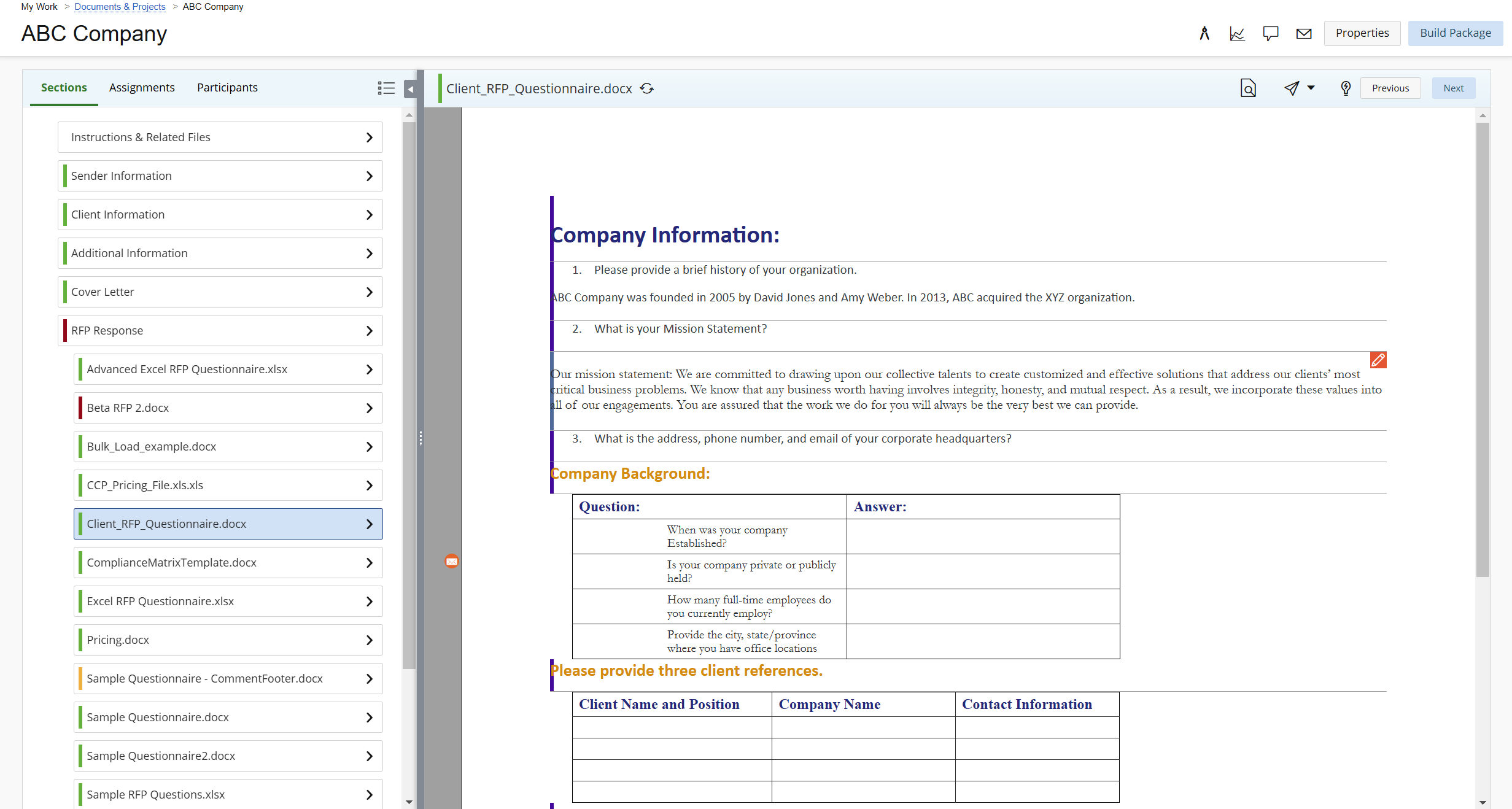
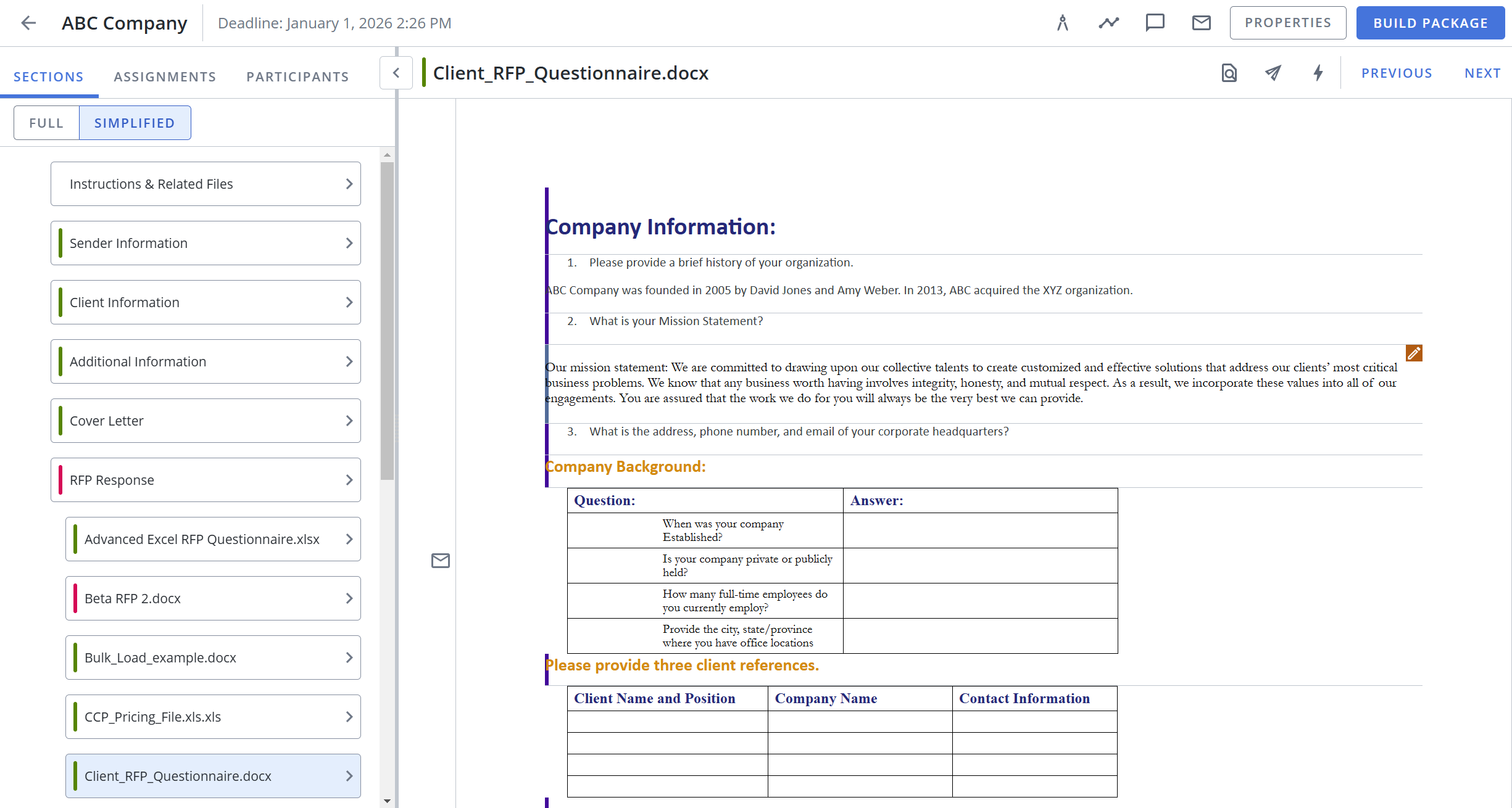
Interface in the Classic Project (left) compared to the New Project (right) interface. Click to enlarge.
- Search Mode Updates: The Project area Search Mode has undergone a major UI update and now matches the form and functionality of the one found in the library.
- AutoFill Updates: The Project AutoFill area now allows users to refine their results further if the suggested results do not adequately answer the questions. If enabled, AI Assist will work seamlessly in the Autofill panel to provide additional options using AI to generate a new answer or suggest five answers from the library in addition to a new AI generated answer.


The Search Mode panel displaying the Content Text, Library Folder Path, and Metadata tags in the Classic Project (left) compared to the New Project (right) interface. Click to enlarge.
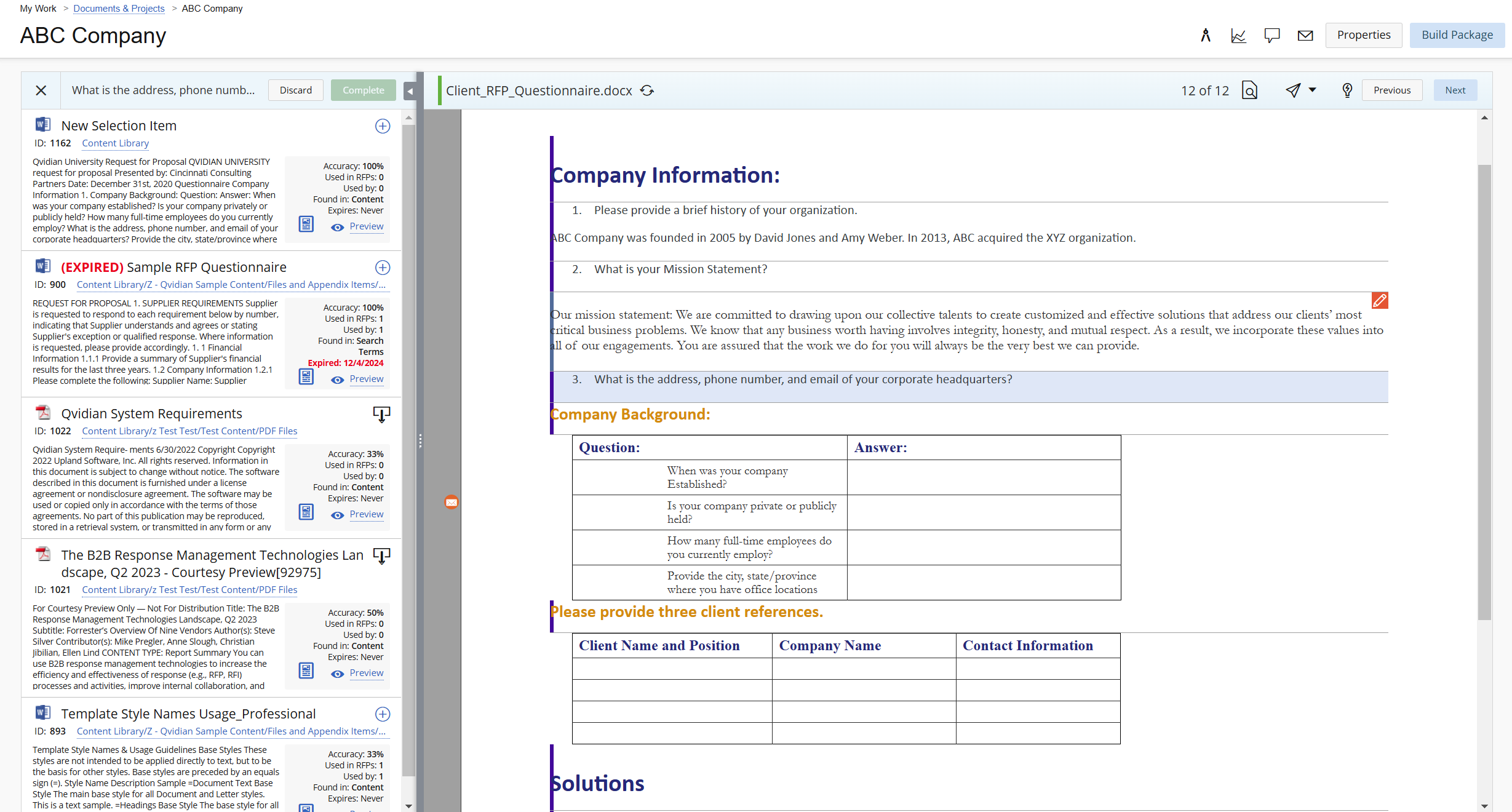
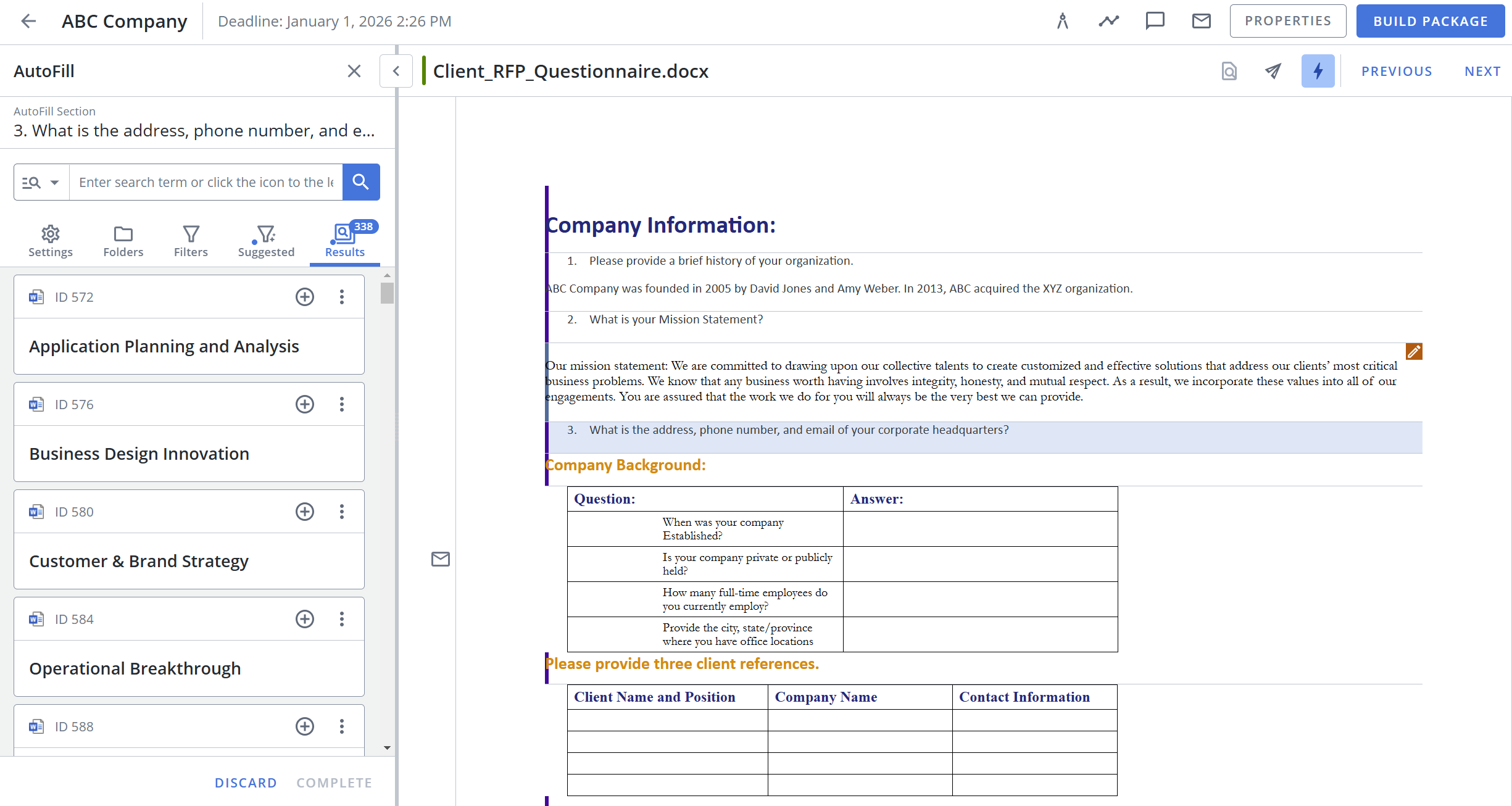
The AutoFill panel in the Classic Project (left) with "Show AutoFill Suggestions Only" compared to the New Project (right) interface with "Show top 5 answers from the Library" selected. Click to enlarge.
Caution: Customers may still revert to the "Classic Project" option in My Preferences if there are any unresolved issues preventing them from using the new interface until the Classic Project UI is officially discontinued in March 2025.
Library Reference Processing
DDQs, RFIs, FAQs, and other repeated questionnaires now handle library references using a more efficient process. Library references will be contained within their slice and can be populated upon import or when replaced in a loaded RFP. This will allow users to periodically update their questionnaires with the latest version of the answers.
Example: Previously, if users wanted to replace their library references with the most recent content and/or versions of answers, they were required to build or download the content from the library and then load it as an RFP, causing slices to load separately and unlinking questions and answers. Now, users can populate their library reference codes when importing content files by selecting the "Populate library reference codes during import" checkbox and replace data on loaded RFPs using the "Replace Library References" menu option.
Note: This feature is currently only available for Word documents.
Note: The "Populate library reference codes during import" checkbox is currently not available when importing a document via the Home page.
Manage Project Permissions by Role or Partner
User permissions that allow individuals to manage projects owned by other users have been updated to include role and partner parameters. The “Manage Projects created by other Users” user permission is now called “Manage Projects (by Doc Type Permissions)”, which allows users to manage projects for which they have Doc Type permissions. The "Manage Projects created by the current User" will continue to allow users to manage their own projects and must be selected to delete a project they own. The following permissions have been added:
- Manage Projects (by Partner & Doc Type Permissions): Allows users, with the appropriate Doc Type "Build" permissions, to manage projects owned by other users who have the same Partner name. If a user does not have a Partner name, they can manage projects owned by other users who also do not have a Partner name.
- Manage Projects (by Role & Doc Type Permissions): Allows users, with the appropriate Doc Type "Build" permissions, to manage projects owned by other users who have the same Role(s).
Project Assignments Dashboard
The Project Assignments dashboard now includes project assignments. This allows users to see all their assignments in one place to prioritize their work. The following widgets are now available to be displayed on the Home page:
- Project Assignments: The user's view of their project assignments as a list with links to navigate directly to those assignments.
- Manage Project Assignments: The manager's view of assignments in projects they own as a list with links to navigate directly to those assignments.
AI Assist Enhancements
File Analyzer
The AI AssistFile Analyzer tool allows users to conduct a series of in-depth examinations of existing proposal documents to extract valuable information such as key phrases, themes, and structural patterns from the documents. Configure bulk actions to run a series of prompts against RFPs and Instructional/Related Files to extract desired information quickly and easily. The File Analyzer can automatically create summary files and store them in the Instructional/Related Files section for reference by your team.
AutoFill with AI Assist
The new Projects interface allows AI Assist to integrate seamlessly with existing and new AutoFill functionality. When enabled, the following AI Assist options are available in the AutoFill Configuration area: "Answer with AI Assist", where AI Assist writes and inserts a custom answer, and "Show top 5 answers from the Library plus an answer written by AI Assist", where the search results will include a custom answer written by AI Assist.
Note: Enable one or both of the following user permissions to use AutoFill with AI Assist: "Allow user to use AI Assist in AutoFill to SHOW a generated answer for each question" AND/OR "Allow user to use AI Assist in AutoFill to INSERT a generated answer for each question".
February 2025 Resolved Issues
| Item | Summary | Resolution |
|---|---|---|
| QPA- 101289 | When a user viewed their archived projects on the Documents & Projects page, the “Unarchive” selection was not available on the “More Options” menu. | The “Unarchive” selection will be available on the “More Options” menu when viewing archived projects on the Documents & Projects page. |
| QPA- 101364 | If a project owner marked their assigned task in a workflow as “Complete”, then all other participants’ tasks within that workflow were also marked as “Complete”. | This issue has been resolved. |
| QPA- 101229 | When a user attempted to complete a task assigned to them, the “Save” button was disabled if the previous task was completed by a user that had since become inactive. | Users can complete their tasks even if the previous task was completed by a currently inactive user. |
January 2025
Library Enhancements
Include Full Text of Content in Export to Excel
The "Export to Excel" functionality now includes the full text extract of the library content. Previously, users were only able to export the first 1000 characters of the content.
Note: Following the January 2025 release, full text extracts will only be taken when a new piece of content is uploaded or an existing one is edited. Content that has not changed in a long time may not have the full text extract available until that content is updated.
Caution: Text extracts are NOT the full content, as they don’t contain images, formatting, layout, or other objects.
System Enhancements
UI Languages
In addition to the languages introduced in November 2024, Upland Qvidian will automatically translate its Angular-powered pages when it detects that a user's browser is set to any of the following languages: Simplified Chinese, Korean, Dutch, Brazilian Portuguese, Mexican Spanish, and French Canadian.
Caution: The following product areas do not use an Angular framework and therefore will not be automatically translated: Architecture, Reports, Created Documents, and the Classic Project UI.
Note: To test out this functionality in the New Project's UI, navigate to My Preferences and choose the "New Project" interface under Project Preferences. Please note, that any labels controlled by the Doc Type (e.g. "Initial Screens") must be manually translated by the user.
Assigned Questions Dashboard
The Assigned Questions dashboard has replaced the legacy "Answer RFP Questions" functionality in Created Documents. This dashboard will list RFP questions in the order they are due and provide links to direct users to their assigned questions.
"Matches Any or Is Empty" Filter
The "Matches Any or Is Empty" filter option has been added to the following areas: Library, Autofill, Search Mode, and Qvidian for Office. When applied, this filter produces any results that match the tagged criteria and will also include any untagged content.
Example: When filtering content for a particular region (e.g. "USA"), "Matches Any or Is Empty" filter will produce search results that are tagged with "USA" and include any results that do not have any region tagged (i.e. excluding anything explicitly tagged "Canada", "Mexico", etc.).
Integration Enhancements
Refresh Salesforce Data from Qvidian
Salesforce customers can now refresh their imported SFDC data from the Structured Content as well as the Data Entry Screens within their project. Clicking the "Retrieve Data" button, located at the top of the project's Data Entry screen, will repopulate any edited fields with the newest SFDC data. In addition to helping users pull in the most up-to-date SFDC data, this feature also allows users to test new merge codes in Upland Qvidian without being required to access their Salesforce instance in order to test them out.
Early Access Release Period
Project Enhancements
Suggested Filters in Search Mode & Autofill
The new Projects area of Upland Qvidian, which is currently available for our early access trial period*, now includes suggested filters to further refine your search results in Search Mode and Autofill. Suggested filters yield more targeted and accurate results by helping narrow down search queries and guiding users to apply relevant filters.
Note: * The new Projects UI early access trail period ends when it is released to GA, which is currently scheduled for February 2025.
Tip: To try the new Project UI, navigate to My Preferences and choose the "New Project" interface under Project Preferences. During the Early Access period, you can switch between the Classic Project and New Project for familiarization and training purposes.
AI Assist Enhancements
View Sources in Library for AI Assist Generated Answers in Autofill
If the Autofill search results include an AI Assist generated answer, users can now view the source(s) of that generated content in the library.
Tip: To try the New Project UI, navigate to My Preferences and choose the "New Project" interface under Project Preferences. To try using the AutoFill with AI Assist feature, enable one or both of the following user Permissions: "Allow user to use AI Assist in AutoFill to SHOW a generated answer for each question" AND/OR "Allow user to use AI Assist in AutoFill to INSERT a generated answer for each question".
Caution: The Early Access period for AI Assist ends on January 17, 2025.
January 2025 Resolved Issues
| Item | Summary | Resolution |
|---|---|---|
| QPA- 98912 | When a content manager attempted to reassign content items from a review job, role members with the correct permissions did not appear in the list of selectable users. |
When reassigning review job content items, role members with the correct permissions will appear in the list of selectable users as expected. This issue was resolved in a Dec ’24 hotfix. |
| QPA- 98926 | When a user ran Autofill on an Excel spreadsheet, an answer exceeding the 32767-character limit was accepted. This caused a build failure. |
Answers that exceed the 32767-character limit will not be accepted as answers when running Autofill on an Excel spreadsheet. This issue was resolved in a Dec ’24 hotfix. |
| QPA- 99350 | When a user accepted an answer into their RFP, if they edited it in Word prior to submitting it for review, the preview did not display in the review job. |
Previews will be displayed in the review job as expected. This issue was resolved in a Dec ’24 hotfix. |
| QPA- 99557 | If a client imported a file into the File List and attempted to edit in Word, the file was blank when opened and an error message appeared when the file was closed. |
This issue has been resolved. This issue was resolved in a Dec ’24 hotfix. |
| QPA- 99586 | When a user with sufficient AI tokens ran “Analyze File with AI Assist (Beta)” in the Instructions & Related Files section, the AI Assist options were grayed out and "Your AI Usage cap has been reached" hover text appeared. |
Users with sufficient AI tokens can run file analysis actions as expected. This issue was resolved in a Dec ’24 hotfix. |
| QPA- 100033 | When AutoFill and/or Answer with AI Assist were run, a lag in request processing occurred. |
Performance has been improved. This issue was resolved in a Dec ’24 hotfix. |
| QPA- 94314 | When a shared Doc Type containing static content components was duplicated, a generic save failure occurred. | Shared Doc Types containing static content components can be duplicated as expected. |
| QPA- 96558 | A macOS client experienced issues keeping the project’s right-click menu active. | Performance has been improved for macOS. |
| QPA- 97960 | A Document Type ID was listed twice in a client’s Architecture Doc Type grid. | Document Type IDs will be listed as expected in the Doc Type grid. |
| QPA- 99839 | The Custom Metadata Fields were not available on the Content Summary panel in Review Jobs and Manage Review Jobs. | The Custom Metadata Fields are available on the Content Summary panel in Review Jobs and Manage Review Jobs. |
| QPA- 98852 | Users that were project owners or had the “Manage Projects Owned by Other Users” permission were unable to unlink projects from Salesforce. | Users that are project owners or have the “Manage Projects Owned by Other Users” permission can unlink projects from Salesforce. |
| QPA- 99247 | When a user modified the contents of a zip file and re-uploaded it on a macOS, they received an error message stating that the file type was incorrect. | Zip files containing modified content can be reuploaded on a macOS as expected. |
| QPA- 100015 | When library slides were exported into a zip file, the selected template was not applied. | When library slides are exported into a zip file, the selected template is applied as expected. |
| QPA- 100409 | The editable dropdowns on the Data Entry Screens were missing the arrow icon. | The arrow icon appears on the edible dropdowns on the Data Entry Screens. |
| QPA- 99370 | The Project Activities list displayed project properties change events, when they did not occur. | The Project Activities list will be accurately reflected. |
| QPA- 100127 | When a File Analysis Action is created, an exception error would occur if the prompt subheading contained an apostrophe. | File Analysis Action prompt subheadings may contain apostrophes. |
| QPA- 100043 | A user was unable to reject a SME Job if content was deleted before the job had been completed. | SME Jobs can be rejected even if content has been deleted. |
| QPA- 100067 | If a merge code was used multiple times within the same RFP cell, the build would fail. | This issue has been resolved. |
| QPA- 98942 |
Doc Type selection groups and items would be blank when a user did any of the following:
|
Doc Type selection groups will be populated as expected. |
| QPA- 98966 | Library files would not check back in if the following page break option was selected during an Advanced Edit: “Include a page break between content to preserve section formatting”. | Library files will check back in as expected when a page break is inserted between content. |
| QPA- 100268 | When a user hovered over a task in the Assignments tab of the New Project interface, the panel would flash repeatedly. | This issue has been resolved. |
| QPA- 100347 | Projects, for which a user did not have the correct permissions, were displayed on their Home page widget. | Users will only see their permissioned projects on their Home page widget. |
| QPA- 100555 | The Home page failed to load for some users. | Performance has been improved. |
| QPA- 100254 | When a user submitted new content and populated the custom metadata date field with a value, the submit request would fail. | Users can submit new content and populate the custom metadata date fields as expected. |
| QPA- 100011 | When a user attempted to delete multiple answers from a Word RFP table, only the first selected answer would be deleted. | Selected answers in Word RFP tables can be deleted as expected. |
| QPA- 98978 | Library windows closed unexpectedly and client would be redirected to the Home page. | This issue has been resolved. |
| QPA- 96074 | When a client built a presentation using a style template, a duplicate master slide was created if a merge code value was replaced the master slide footer. | When a presentation is built using a style template, only one master slide will be created. |
November 2024


AI Assist Enhancements
BYOAI: Bring Your Own AI
OpenAI and watson x customers can now use their own custom AI keys in Qvidian. This empowers companies to bypass Qvidian's token usage and get billed directly by their AI provider. Contact your customer success manager to enable this feature
System Enhancements
UI Languages
Qvidian will automatically translate its Angular-powered pages when it detects that a user's browser is set to any of the following languages: Japanese, German, French, and Spanish.
Caution: The following product areas do not use an Angular framework and therefore will not be automatically translated: Architecture, Reports, Created Documents, and the current Project UI.
Note: To test out this functionality in the New Project's UI, navigate to My Preferences and choose the "New Project" interface under Project Preferences. Please note, that any labels controlled by the Doc Type (e.g. "Initial Screens") must be manually translated by the user.
Event Auditing Up to 3 Years
Users can now filter and export up to 3 years of event data on the Event Auditing page. Previously, users could only filter and export up to 1 year of event data.
Early Access Release Period
Project Enhancements
Project UI Update
The new Projects area of Upland Qvidian, which is now available for our early access trial period, features a modern and improved user interface that includes major enhancements to the AutoFill and Search Mode functionality.
- AutoFill Updates: The Project AutoFill area now allows users to refine their results further using filters if the suggested results do not adequately answer the questions. If enabled, AI Assist will work seamlessly in the AutoFill panel to suggest and insert answers.
- Search Mode Updates: The Project area Search Mode has undergone a major UI update and now matches the form and functionality of the one found in the library.
Tip: To try the New Project UI, navigate to My Preferences and choose the "New Project" interface under Project Preferences. During the Early Access period, you can switch between the Classic Project and New Project for familiarization and training purposes.
AI Assist Enhancements
Caution: The Early Access period for AI Assist ends on January 17, 2025.
File Analyzer
The AI AssistFile Analyzer tool, which is now available for our early access trial period, allows users to conduct a series of in-depth examinations of existing proposal documents by using advanced algorithms to extract valuable information such as key phrases, themes, and structural patterns from the documents. Configure bulk actions to run a series of prompts against RFPs and Instructional/Related Files to extract desired information quickly and easily. The File Analyzer can automatically create summary files and store them in the Instructional/Related Files section for reference by your team.
AutoFill with AI Assist
The new Projects interface allows AI Assist to integrate seamlessly with existing and new AutoFill functionality. When enabled, the following AI Assist options are available in the AutoFill Configuration area: "Answer with AI Assist", where AI Assist writes and inserts a custom answer, and "Show top 5 answers from the Library plus an answer written by AI Assist", where the search results will include a custom answer written by AI Assist.
Tip: To try the New Project UI, navigate to My Preferences and choose the "New Project" interface under Project Preferences. To try using the AutoFill with AI Assist feature, enable one or both of the following user Permissions: "Allow user to use AI Assist in AutoFill to SHOW a generated answer for each question" AND/OR "Allow user to use AI Assist in AutoFill to INSERT a generated answer for each question".
November 2024 Resolved Issues
|
Item |
Summary |
Resolution |
|---|---|---|
| QPA- 98444 | If a text merge code with dropdown values was changed to another data type, an error occurred when the user performed a test build and entered a value into the merge code field. | This issue has been resolved. |
| QPA- 97332 | When a user ran a "Content Custom Metadata" Upland Analytics report, Content ID records were missing. This occurred if a Custom Metadata value was not set for a Boolean field (i.e. a NULL value instead of the expected Y, N value). | Upland Analytics reports will return all content records for Boolean custom metadata fields and will treat Boolean fields as No/False if there is no value set. Note: UA reports will only return populated records for non-Boolean custom metadata. |
| QPA- 97821 | A client experienced spacing and formatting issues when they inserted answers into their Excel RFPs. This occurred when there were empty <span> tags in the XML for the content. | Answers will be inserted into Excel RFPs as expected. |
| QPA- 97939 | A content review job was displayed on the Home page's Content Reviews panel, but no records were listed when the job was opened. | When a content review job is opened, the records will be listed as expected. |
| QPA- 99080 | When a user imported a Document Type, the groups did not display in the selection screens. | When Document Types are imported, groups will display as expected. |
October 2024
AI Assist Enhancements
Recently Used Prompt Display Order
When a new prompt is saved in AI Assist, it will automatically appear at the top of the list of recently used prompts.
Salesforce Integration Enhancements
Unlink Projects and Documents
Users can now easily unlink projects and documents from Salesforce directly in their My Work page.
Qvidian for Office Enhancements
Updated Branding Package
Qvidian for Office has been updated to reflect Microsoft's latest branding package.
October 2024 Resolved Issues
|
Item |
Summary |
Resolution |
|---|---|---|
| QPA-91264 | When an Upland Analytics "Content Management Activity Detail" report is filtered on 2 or more folder paths, the download did not contain any data. | The Upland Analytics "Content Management Activity Detail" reports will contain data when the report filters on 2 or more folder paths. |
| QPA-97716 | Inconsistent results were generated when a user clicked "Regenerate" on an AI Assist file query that used the OpenAI model. | This issue has been resolved. |
| QPA-95349 | When a link is created between 2 content files, the Notification Options would change (e.g. if the Notification Options were set to: "Notify the owner(s) of A if B changes" would be changed to "Notify the owner(s) of B if A changes"). | When a link is created between 2 content files, the Notification Options would remain as expected. |
| QPA-94732 | Tasks appeared to be "Past Due" in the Project Status and Participants tasks progress bars, but when individual tasks and assignments were opened, none appeared to be overdue. Users also received email notifications regarding the past due tasks. | This issue has been resolved. |
| QPA-96806 | A user was unable to amend a project deadline or close date via the Project Properties, when their browser's language was set to any language other than "US English". | Project deadlines and close dates can be amended via the Project Properties as expected. |
| QPA-96902 | When a user attempted to edit File List slides that contained merge codes in the description, a "QPA Request Error" occurred. | Users can edit File List slides that contain merge codes in the description. |
| QPA-96966 | When a client attempted to delete a Document Type, a "QPA Request Error" occurred. This issue was due to a Static Content component that contained a foreign key. | Document Types can be deleted as expected. |
| QPA-97451 | If a user created a Doc Type that contained a shared Selection List section, when they created a new Group in that shared Selection List, this Group did not appear in the original Doc Type's shared Selection List. | This issue has been resolved. |
| QPA-97644 | When a bundle was added to an Excel RFP as an answer, the View Activities log only listed the first Content ID in the bundle as added. | When a bundle is added to an Excel RFP as an answer, the View Activities log will list all the Content IDs in the bundle. |
| QPA-97037 | A Content ID was still visible in a Review Job even though it had been accepted. This caused the "Accept" option to be grayed out and if the "Reject" option was selected, a "QPA Request Error" occurred. | This issue has been resolved. |
| QPA- 96559 | When a user was updating a Doc Type and clicked the "Library" link in the Content Tray, the following error message appeared, "The new Library cannot be opened using IE11". This issue occurred in Edge, Chrome, and Firefox browsers. | The "Library" link in the Content Tray has been replaced with a "Refresh" action. Tray has been replaced with a "Refresh" action. Users can click the Library button on the left navigation bar, and if they add content to the Architecture Tray, they can refresh the tray to get the latest updates. |
| QPA-96284 | When a user updated a Document Type's "Lock After Build" setting from "None" to "Content Marked as Locked", the next time the Document Type Properties were opened, the value was set to "Entire Document". | When a user updates a Document Type's "Lock After Build" setting, the chosen value will remain in place. |
| QPA-96563 | Not all graphic merge codes were replaced upon build when the text boxes weren't defined on the master slide. This occurred because the merge code was being replaced multiple times on the same slide. | Performance has been improved and graphic merge codes will be replaced as expected on build. |
| QPA-96691 | When a prompt was run on an AI Assist File Query using the WatsonX model, an incident report occurred. | This issue has been resolved in the Sept '24 release. |
| QPA-96757 | The Apply Template process failed on content records with "Admin Only" custom metadata fields for users that only had the "Manage Custom Metadata" permission, which allowed them to edit content, but not see these "Admin Only" custom metadata fields. | Performance has been improved for users that only have the "Manage Custom Metadata" permission and the code will no longer attempt to validate the "Admin Only" custom metadata fields |
| QPA-96855 | Library filters on custom metadata user fields did not yield any search results for user accounts that contained apostrophes (e.g. "O'Leary"). | Library filters on custom metadata user fields will yield the expected results for user accounts that contain apostrophes. |
| QPA-97321 | When a client clicked on an email notification, the page failed to load and a "QPA Request Error" occurred. | This issue has been resolved. |
| QPA-97811 | If a user ran AutoFill on questions in a Word table when "Suggest and Insert Records into Document" was selected, it would fail. | AutoFill will run as expected on Word tables when the "Suggest and Insert Records into Document" option is selected. |
| QPA-98103 | When a client clicked the "Revise selected text with AI Assist" icon in an Office for the Web instance and attempted to select a prompt, the "Usage cap has been reached" dialog would appear even though the usage cap was not actually met. | This issue has been resolved. |
September 2024
Watch the Video: September 2024 Release Webinar
This webinar covers the following features: Qvidian for Office in PowerPoint and AI Assist in Qvidian for Office. The webinar begins with Qvidian for PowerPoint, and the AI Assist portion starts at 12:36.
AI Assist Enhancements
Revise Text in Qvidian for Office
Qvidian's AI Assist feature allows users to revise and rewrite existing RFP answers to better match questions. Now this functionality is also available in Qvidian for Office and Web. Create and share your own prompts in addition to the suggested AI Assist prompts that are already available in sliced RFPs. Clean up content in RFPs, proposals, and presentations directly from your Qvidian for Office (e.g. Word, Excel, PowerPoint) or Qvidian for Web browser session.
Watsonx Gen AI Provider Option
IBM's Watsonx (model mixtral-8x7b-instruct-v01) is now being offered as a Generative AI provider for Qvidian's AI Assist. Contact your CSM to help enable and configure your models and settings.
OpenAI Model Upgrade
Qvidian AI Assist is upgrading to OpenAI's GPT-4o mini model from GPT-3.5 Turbo, which has been retired.
Qvidian for Office Enhancements
Qvidian for PowerPoint
Qvidian for Office, which was already available to all fully licensed Qvidian users, now allows teams to access their Qvidian libraries directly within PowerPoint slides. This enables users to insert slides directly into their presentations, copy and paste content into slides, and filter to see the slide Content Type when searching.
September 2024 Resolved Issues
|
Item |
Summary |
Resolution |
|---|---|---|
| QPA- 95839 | When a record containing a library reference was added as an answer to an Excel RFP, the Activities tab only listed the referenced Content ID, not the actual Content ID that was added as an answer. | When a record containing a library reference is added as an answer to an Excel RFP, its Content ID will be listed in the Activities tab. |
| QPA- 93924 | When a user attempted to edit the properties of content within a submitted review job, all the fields for that record were blank. | The "Edit Properties" page fields for content in a submitted review job will populate as expected. |
| QPA-96175 & 96962 | Users with "Edit" permissions for a piece of content were able to: delete content, edit owners and/or permissions of a content record, and move content to a different folder. | Users with "Manage" permissions for a piece of content can: delete content, edit owners and/or permissions, and move content to a different folder. |
| QPA-96504 | When a user selected numerous assignments to edit (that spanned more than 1 page of the Manage Content Review Jobs workspace), the "Assignments" page did not open as expected. | The "Assignments" page will open as expected. |
| QPA-96309 | If a user opened a library folder and clicked "Search" to show the folder contents, when they opened the developer tools Console tab in their browser, a Console error occurred. | This issue has been resolved. |
| QPA-96134 | When a customer applied a new template to a PPT file, the content did not update as expected. This occurred because the system was case-sensitive and could not identify the matching slide layout in the new template (e.g. "Title Only" and "Title only" were not considered matches). | When a new template is applied to a PPT file, the content will update as expected. |
| QPA-96290 | The project Data Entry screen's "Clear All" button did not clear values populated by custom actions. | The project Data Entry screen's "Clear All" button will work as expected. |
| QPA-97063 | The number of active filters was not accurate in the library Filters tab count. | The number of active filters will be accurate in the library Filters tab count. |
August 2024
Reporting Enhancements
Analytics Additional Reports Updates
The "Feedback" report, now titled "Feedback by Recipient" has been updated to include comments for all rows. A "Feedback by Sender" report, which displays feedback items organized by sender, has been added to the Analytics Additional Reports folder. The "Feedback by Sender" report contains the same columns as "Feedback by Recipient" report, except for the following: User Full Name, Is New, Is Recipient.
August 2024 Resolved Issues
|
Item |
Summary |
Resolution |
|---|---|---|
| QPA- 96129 |
When previewing content in the Library or Content Review Jobs, if the user navigated to another piece of content, the Content ID and Title did not update in the preview pane. |
When previewing content in the Library or Content Review Jobs, if the user navigates to another piece of content, the Content ID and Title will update in the preview pane. |
| QPA- 96120 | When an AI Assist revision was accepted, the content lost its format in the project. | When an AI Assist revision is accepted, the content format will be maintained. |
| QPA- 94911 | A client's project build failed when a particular Doc Type was included. This occurred due to a Microsoft Word issue. | This issue has been resolved. |
| QPA- 95569 | When a client inserted a response into an Excel RFP cell, a "QPA Request Error" occurred. | Responses inserted into Excel RFP cells will be saved as expected. |
July 2024
Watch the Video: July 2024 Release Webinar
AI Assist: GA
Revising & rewriting responses contextually
AI Assist allows our users to revise and rewrite existing answers to better match questions. This can be done by revising and rewriting answers for tone, grammar, length, or even by using the question as context to improve the generated content. Our generative AI tools use already existing content to generate revised responses, increasing accuracy and decreasing the need for additional reviews. AI Assist provides suggested prompts, but also allows users to create their own unique prompts. The suggested prompts allow users to:
- Rewrite an answer to be in active voice.
- Revise an answer to sound more persuasive.
- Shorten an answer to meet character or word requirements.
- Translate answers into another language.
- Check existing answers for grammar and spelling.
Performing file queries
AI Assist enables our users to interact even further with their content by performing file queries on RFPs and Instructional/Related Files.
- Conversational AI Integration: We're integrating cutting-edge Generative AI technologies like OpenAI and Watson into our system to enable conversational interactions with both RFP (Request for Proposal) Files and Instructional/Related Files.
- User-Friendly Menu Option: Users will have the convenience of right-clicking on any file and selecting the option "Query with AI Assist" to initiate the interaction with our Generative AI.
- Enhanced AI Assistance: This feature transforms the AI from just a revising tool to a powerful querying assistant. It allows users to ask questions and seek insights directly from their documents in a conversational manner.
- Seamless Integration: Users can seamlessly engage with the AI within the familiar environment of their files, making it effortless to harness the power of AI for querying and gaining deeper understanding.
- Future Expansion: While our initial focus is on RFP and Instructional files, we're planning to expand this functionality to include other file types and actions like File List, Static Content, Selection Content, and Build Files in the future.
July 2024 Resolved Issues
|
Item |
Summary |
Resolution |
|---|---|---|
| QPA- 95471 | When a user searched for a Content ID in the library, the search results would not be highlighted as expected. | Search terms will be highlighted in the library search results as expected. |
| QPA- 94283 | When content from the library search results was copied, the search terms were displayed as HTML in the "Copy Content Record To" dialog. | Search terms will display as expected in the "Copy Content Record To" dialog. |
| QPA- 95165 | If a graphic file contained uppercase letters in the file name, it could not be uploaded into the Branding page. | Graphic files containing upper case letters in the file name can be uploaded into the Branding page. |
| QPA- 94282 | When a user attempted to delete a piece of content, a warning stated that the content was currently being used in a Review Job or Bundle when it was not. | Content can be deleted as expected when not in use. |
| QPA- 95016 | When a user attempted to edit a library item in Microsoft Word, an error message appeared. This only occurred in Firefox. | This issue has been resolved. |
| QPA- 95277 | When a user attempted to create an assignment on a Selection Item 2 or further down in the Section view tree, an error would occur. | This issue has been resolved. |
| QPA- 95329 | When editing properties of a content record or displaying properties on the Content Summary panel, any single value dropdowns would appear to not have values selected. | This issue was resolved via a hotfix in June. |
| QPA- 95255 | When merge codes were added to RFP or File List subsections that were included in the project because they were linked to an Optional Group, the merge codes did not appear in the Build Package Customization tab. | The “By Inclusion” Subsections included in the project based on a link to an Optional Group will appear in the Merge Code list on Build Package Customization tab. |
| QPA- 95012 | A user was unable to see the Folders and Filters panel in the Library because their Workspace panel was saved as 0px width. | Zero width can now be resized and saved with the workflow, and will reload correctly on subsequent attempts. A minimum of 320px will be enforced. |
| QPA- 94955 | When a filter using a "Contains Any" filter on a Users field (e.g. Created By) was applied, the results would only be displayed for the first selected user. | The "Contains Any" field will now include results for all selected users. |
| QPA- 94314 | When a user duplicated a doc type with Static Content that used the Share Content and Components options and then edited the Static Content component, an error would occur. | This issue has been resolved. |
| QPA- 95203 | The inline edit of Excel RFP dropdowns would fail if the first value in a dropdown was from an empty cell. | This issue has been resolved. |
June 2024
AI Assist: Early Access
Caution: The Early Access period for AI Assist ends on January 17, 2025.
Contextually revising & rewriting
In the May 2024 release, early adopters were able to test Qvidian's AI Assist feature to revise and rewrite existing RFP answers to better match questions. Now, early adopters can revise answers using the question as context to improve the generated content.
Performing file queries
AI Assist now enables our early adopters to interact even further with their content by performing file queries on RFPs and Instructional/Related Files.
- Conversational AI Integration: We're integrating cutting-edge Generative AI technologies like OpenAI and Watson into our system to enable conversational interactions with both RFP (Request for Proposal) Files and Instructional/Related Files.
- User-Friendly Menu Option: Users will have the convenience of right-clicking on any file and selecting the option "Query with AI Assist" to initiate the interaction with our Generative AI.
- Enhanced AI Assistance: This feature transforms the AI from just a revising tool to a powerful querying assistant. It allows users to ask questions and seek insights directly from their documents in a conversational manner.
- Seamless Integration: Users can seamlessly engage with the AI within the familiar environment of their files, making it effortless to harness the power of AI for querying and gaining deeper understanding.
- Future Expansion: While our initial focus is on RFP and Instructional files, we're planning to expand this functionality to include other file types and actions like File List, Static Content, Selection Content, and Build Files in the future.
June 2024 Resolved Issues
|
Item |
Summary |
Resolution |
|---|---|---|
| QPA- 93978 | When searching for a user to add to a new content review job task, the "Add Assignees" dialog took a long time to load. | Performance has been improved. |
| QPA- 94151 | When a customer attempted to edit a content record in Microsoft Word, the "QPA Request Error: Content check out failed" message appeared. | Content records can be edited in Microsoft Word as expected. |
| QPA- 91993 | When the properties of a content record were edited, the last revision date would be updated. This occurred because the "Revisions" panel was being populated by the "DateLastModified" field instead of the "DateContentUpdated" field. | The content record "Revisions" panel will be populated by the value from the "DateContentUpdated" field. |
| QPA- 93493 | If a user selected the "Do not send me a notification" option when reopening feedback or marking feedback as closed, they still received email notifications. | The "Do not send me a notification" option will work as expected. |
| QPA- 93648 | When a customer reactivated a disabled user account, an error message stating that there were not enough licenses appeared. | Disabled user accounts can be reactivated as expected. |
| QPA- 93887 | When a content review job was sent, the due date displayed in the email notification was not set to the user's timezone. | The due date in a content review job email notification will be set to the correct timezone. |
| QPA- 93925 | The Folder Permissions and Default Content Permissions in the library took a long time to load. | Performance has been improved. |
| QPA- 94058 | When a customer attempted to view the Content Summary of a library record, an "UnexpectedException Code: 6003" error message appeared. | The Content Summary of a library record can be viewed as expected. |
| QPA- 94579 | A customer was able to approve a Content Review Job when the workflow was not yet complete, causing it to be removed from the Manage Review Jobs list, but not the Review Jobs list. | Content Managers will not be able to approve the content in a Review Job until the workflow is complete. |
| QPA- 94443 | A customer was able to complete a Content Review Job workflow task before the prior task was completed. This was due to clicking the Complete option multiple times. | Users will be prevented from clicking Complete more than once and the validation on completing tasks has been improved. |
| QPA- 94600 | When a user switched the Library to Card View, and then clicked a folder path link, the new Library window would load, but did not display the content from that folder. | Clicking a folder path link will display the contents of the folder as expected. |
| QPA- 94604 | When a Library user opened a bundle in a new tab, the new Library tab opened, but the contents of the bundle did not display. | Opening a bundle in a new tab will display the contents of the bundle, as expected. |
| QPA- 94716 | When a Library user expanded the Linked Content panel into a new Library window, the list of content did not display. | Expanding Linked Content will display the expected content. |
May 2024
Reporting Enhancements
Upland Analytics Interface
The Upland Analytics interface has been upgraded for all Upland Qvidian users. The Classic Upland Analytics interface has been retired.
Note: For more information on the "new" Upland Analytics interface, see Qvidian's October 2022 and November 2022 Release Notes.
AI Assist: Early Access
Caution: The Early Access period for AI Assist ends on January 17, 2025.
Qvidian’s AI powered cloud-based software is utilizing advanced technologies to help teams tailor responses to quickly create standout proposals and response documents. The Qvidian AI Assist tool is currently in its early access testing period. At this time, we’re focusing on generative AI tools that target revising answers. Soon, users will also have the power to create new responses to RFP questions. With these new tools users will have the flexibility to generate unique and customized answers in seconds, helping them win more business.
Revising & rewriting responses
AI Assist will allow users to revise and rewrite existing answers to better match questions. This can be done by revising and rewriting answers for tone, grammar, length, and more. Our generative AI tools use already existing content to generate revised responses, increasing accuracy and decreasing the need for additional reviews. AI Assist provides suggested prompts, but also allows users to create their own unique prompts. The suggested prompts allow users to:
- Rewrite an answer to be in active voice.
- Revise an answer to sound more persuasive.
- Shorten an answer to meet character or word requirements.
- Translate answers into another language.
- Check existing answers for grammar and spelling.
Note: The Qvidian May 2024 Release makes participating in the AI Assist Early Access period possible. For more details on participating in the early access release of AI Assist, register for our upcoming webinar on Thursday, May 16 @ 10 am CDT / 11 am EDT or contact your CSM.
May 2024 Resolved Issues
|
Item |
Summary |
Resolution |
|---|---|---|
| QPA- 92943 | The "Download for Editing" action menu item was available for bundles in Static and Selection Content project sections that had the "Allow assignments and editing in Projects" Doc Type property enabled. | Bundles in Static and Selection Content project sections cannot be edited. The "Download for Editing" action menu item will not be displayed. |
| QPA- 93250 | When a client edited a project File List document in Office Online, duplicate Activity Log entries occurred for the same checkout. | Only one Activity Log entry will occur when a Project File List document is edited. |
| QPA- 93353 | Library search results did not refresh as expected. When a client performed a search on the Home page and viewed results in the library tab, if they performed a subsequent search on the Home page, the initial search results re-appeared. | Library search results will refresh as expected. |
| QPA- 92662 | When a customer dragged and dropped a content record that contained an Alert into an RFP assigned task, the Alert displayed as HTML code. | Content record Alerts will display as expected in Project RFPs. |
| QPA- 93251 | If a SME completed and returned a composite file, the content manager would see the following message when they attempted to approve or reject the job: "The SME has not returned all documents included in the review job. If you proceed, all content items in the SME job will be approved/rejected. Do you wish to continue?". | The "The SME has not returned all documents included in the review job. If you proceed, all content items in the SME job will be approved/rejected. Do you wish to continue?" message will not appear for composite files that have been returned. |
| QPA- 93357 | The library preview did not expand to fit the full browser window when it was maximized. This issue only occurred when using a Chrome browser. | The library preview will expand to fit the browser window as expected. |
| QPA- 93595 | The "Task Completed" activities did not appear in a client's Activity Report for a specific Content Review Job. | Activity Reports will display all "Task Completed" activities that occurred. |
| QPA- 93699 |
The content record's "Date Last Modified" custom metadata field did not update when edited. |
The "Date Last Modified" custom metadata field will update as expected. |
| QPA- 93931 | Values that were copied and pasted into the Project Properties "Project Value" field displayed incorrectly. | Values that are copied and pasted into the Project Properties "Project Value" field will display correctly. |
| QPA- 93756 | The library "Download Merge Code List" option was only visible to users that had the "Manage All Library Folders and Content" permission enabled. | The library "Download Merge Code List" option is visible to users that have the "Manage All Library Folders and Content" permission enabled and/or Content Manager role. |
April 2024
April 2024 Resolved Issues
|
Item |
Summary |
Resolution |
|---|---|---|
| QPA- 92240 | A client's library window would close intermittently and then they would be redirected from the Home page to the login screen. | This issue has been resolved. |
| QPA- 91651 | When a client performed a search on an RFP slice, the "Accept Content" menu option would sometimes fail to be displayed. | The "Accept Content" menu option will appear when a search is performed on an RFP slice. |
| QPA- 90961 | Email notifications continued to be sent from a content review job that no longer existed. This issue was related to QPA-89590, which was resolved in the October 2023 release. | Email notifications will not be sent for content review jobs that no longer exist. |
| QPA- 91140 | The following values would appear in the Search Terms column of an Upland Analytics Content Search Terms report: "QPAIndexSeed" and "Unknown". | "QPAIndexSeed" and "Unknown" values will no longer appear in the UA Content Search Terms reports. |
| QPA- 92468 | When a document that contained multiple instances of the same library reference code was uploaded to a project, the library reference code would fail to populate ("CIRCULAR_REFERENCE" was displayed) when the project was built. | When a document contains multiple instances of the same library reference code is uploaded to a project, it will populate as expected during build. |
| QPA- 92575 | When a user collapsed and then expanded library Folders and Filters panel, some of the previously selected sub-folders would be deselected. | All selected folders will remain selected when collapsing and expanding the library Folders and Filters panel. |
| QPA- 92613 | When a user attempted to delete an enabled folder, it appeared to be disabled (i.e. "Is Enabled? No") on the "Delete Folder" dialog. | Users can delete enabled folders as expected. |
| QPA- 92643 | Child folders remained selected when their parent folders were deselected in the library. | Child folders will also be deselected when their parent folder is deselected. |
| QPA- 92707 | Changes made to Workplace Template Roles were not being retained and/or exception errors were occurring. If a user did NOT have the "Share to All Roles/Users - User is not limited to Roles they are in when sharing Workplace Templates, Saved Searches, etc." permission enabled when editing the Workspace, an exception error occurred. If the user DID have the permission enabled, they could only edit the Workspace Roles of which they were members. | This issue has been resolved. |
| QPA- 92169 | When a client exported content, the "Apply Word Template" and "Apply Merge Codes" selections would not be remembered. | The "Apply Word Template" and "Apply Merge Codes" selections will be remembered when exporting content. |
| QPA- 92252 | If a content file contained a custom metadata date field and the browser was set to DD/MM/YYYY format, the date would be displayed in MM/DD/YYYY format when a composite edit was performed. | Content file custom metadata date fields will retain the user’s date format preference when a composite edit is performed. |
| QPA- 92297 | When a user compared selected revisions in the library, and one of the files had Track Changes enabled, the comparison document downloaded as a text file. | Files will download in their expected format when comparing selected revisions in the library. |
| QPA- 92432 | When a user generated a Web URL for a bundle, the library reference codes did not populate when downloaded. | Library reference codes will populate as expected for Web URL generated bundles. |
| QPA- 92438 | If a user created or reset a password containing the "<" symbol, an incident report occurred. | This issue has been resolved. |
| QPA- 92992 | When a client attempted to manage content review jobs, the "Assignments" page was empty for some records in the job. | The Manage Content Review Jobs "Assignments" page records will populate as expected. |
March 2024
March 2024 Resolved Issues
|
Item |
Summary |
Resolution |
|---|---|---|
| QPA- 91663 | When a user entered a phrase into a content search, the following items were not highlighted in the results: apostrophes and the subsequent letter (e.g. the "s" in "firm's"), definite articles (e.g. "the"), indefinite articles (e.g. "a, an"), prepositions (e.g. "to"), acronyms (e.g. "IT"), and some verbs (e.g. "is"). | The highlighting logic has been updated to highlight word forms (plural, possessive, tenses) for terms that are being used to find the content. "Noise words" (e.g. the, a, an, to, is) will only be highlighted when a user is searching for an exact phrase. |
| QPA- 92095 | When a library search was launched from the search history, the results included content records from all folders, not just those selected in the past search instance. | Library searches launched from the search history will only include results from the folders that were selected in the past search instance. |
| QPA- 92379 | Replies to a comment in a project RFP slice were unable to be selected and copied. | Replies to comments in RFP slices can be selected and copied. |
| QPA- 92461 | The "Allow User to Use Generative AI" permission was visible to a customer. | The "Allow User to Use Generative AI" permission will not be visible to customers until feature complete. |
| QPA- 91805 | When a user overwrote permissions on selected folders, using the permissions of the root library folder, the permissions weren't applied. | When folder permissions are overwritten using the permissions of the root library folder, permissions will apply as expected. |
| QPA- 90591 | When alerts were enabled for content, they were displayed in the original library window on top of the content. This meant that the user was required to switch to a new window in order to copy the text. | The alert will now be displayed directly in the preview window, so the user doesn't need to switch windows to copy the text. |
| QPA- 88752 | When an RFP question and answer slice was submitted, the toast message displayed HTML formatting. | When an RFP question and answer slice is submitted, the toast message will display as expected. |
| QPA- 91720 | When a user attempted to archive multiple Feedback threads, only the first Feedback thread was archived. | Feedback threads will be archived as expected. |
| QPA- 91883 | The <<UserAffected>> and <<UserSending>> recipients did not receive their content feedback email notifications if those placeholders were not separated by a semi-colon in the Recipient List field. | The <<UserAffected>> and <<UserSending>> recipients will receive their content feedback email notifications as expected. |
| QPA- 91923 | The project Participants tab displayed a participant's task status bar as "complete" when tasks were still active. The active tasks were only visible once that participant card was expanded. | The Participants task bar will accurately reflect a participant's task status. |
| QPA- 91973 | When a user copied a content item's title and pasted it into the "Title" field of the Edit Content Properties dialog, the "Save" button did not become enabled. | The titles of content items can be saved when copied and pasted into the "Title" field of the Edit Content Properties dialog. |
| QPA- 92110 | When a customer used AutoFill to add multiple answers to a Word table RFP, the bullet icons were duplicated. | Bullet icons will appear as expected when using AutoFill to add multiple answers to a Word table RFP. |
| QPA- 92173 | A customer intermittently received a "QPA Request Error" when using Edit in MS Word for project File List sections. | This issue has been resolved. |
| QPA- 92195 | When a customer attempted to delete a Role, a "QPA Request Error" occurred. | Roles can be deleted as expected. |
| QPA- 92406 | Only up to 10 instances of the same library reference code would be displayed in a content file HTML preview or download. | The limit to the number of same library reference codes that can be displayed in a content file HTML preview or download has been removed. |
February 2024
Watch the Video: February 2024 Release Webinar
Project Enhancements
Edit Static and Selection Content
Architects will now be able to create Static and Selection Driven Content components that are editable when creating Document Types. This will enable architects to pre-configure starting content that project owners and writers can customize for each project, allowing for more efficient and robust collaboration directly in a Qvidian project. Due to this improvement, architects can use Static and Selection Driven Content in place of File List Components in existing Document Types. There will be a new permission to allow project owners and project participants with “Write” assignments to edit Selection content and Static content sections. Edits made to the content within a project do not impact the master version of the content stored in the Qvidian library. Users will be able to interact with static and selection content sections much like they already do with File List sections.
How do I enable this?
This editability is not turned on by default. When Architects add Static content and/or Selection Driven content sections to a Doc Type, the "Allow assignments and editing in Projects" checkbox must be selected. The "Allow editing of Static/Selection Content when enabled" permission must be enabled at the user or role level for project participants.
Note: "Full Doc Structure" in projects is the recommended view to edit Static and Selection sections if you have a complex document type. “Simplified View” will be updated in a future release to make editing easier.
Reporting Enhancements
Analytics Date Format Updates
The user date preference in Upland Analytics will now auto-populate based on the user’s browser. For example, a UK-based user's dates will automatically be displayed in the DD/MM/YYYY format.
February 2024 Resolved Issues
|
Item |
Summary |
Resolution |
|---|---|---|
| QPA- 90991 | When a customer built a project, the Appendix sub-sections were not included in the project build. | All appendix sub-sections will be included in project builds. |
| QPA- 91850 | The content library folder path would not be displayed when a user hovered over the "..." icon in card view. | The content library folder path will appear as expected when a user hovers over the "..." icon in card view. |
| QPA- 91801 | Users were unable to replace existing terms with learned terms when they performed the "Find and Replace Properties" action in their content record search results. | Existing terms will be replaced with learned terms when performing a "Find and Replace Properties" action in the content record search results. |
| QPA- 90768 | A content record's custom metadata values were unable to be cleared in the dropdown field. | The dropdown field will include a "No value" option. When selected, the content record's custom metadata value will be cleared. |
| QPA- 91071 | The username of the individual performing certain Project, File List, or RFP workflow tasks was missing from the Activity logs. | The username of the individual performing certain Project, File List, or RFP workflow tasks will appear in the Activity logs as expected. |
| QPA- 91139 | Library search terms that contained ampersands within the term (A&E) did not produce the expected results. | Library search terms that contain ampersands will produce the expected results. |
| QPA- 91992 | Exporting a Doc Type with a Structured Content component would fail if it contained the following numeric fields: zero decimal places with no default value, zero decimal places with a default value, two decimal places with no default value, and two decimal places with a default value. | This issue has been resolved. |
| QPA- 92032 | When a user attempted to view "Similar Content" in a content record's Details panel, an error occurred. | The "Similar Content" view in the content record Details panel will work as expected. |
January 2024
Library Enhancements
Filter on Deactivated Users
Content owned or managed by deactivated users can now be filtered on and reassigned to other users. When searching library content, deactivated users are included in the "Owned By", "Managed By", and custom metadata (e.g. "Reviewer" and "User") library filters. Deactivated users will be indicated by the text "(Deactivated)" following their name.
System Enhancements
Improved Visibility for Modified Content & Properties in SME Jobs
Content Managers can now easily see if their SME has updated their content and properties, allowing them to quickly identify what jobs need review. When working with SME Jobs, "Content Modified" and "Properties Modified" columns will be displayed on the grid by default. If a SME has updated content or properties a blue checkmark will be displayed in the appropriate column.
Feedback Thread Tracking
Feedback thread tracking has been improved. The name and times of unread replies in Feedback threads will be in bold and display a blue unread dot icon. The total count of new, unread replies will be tallied when the thread is collapsed. When viewing the thread, the unread comments will display a blue dot.
Deactivated Users Excluded from Email Notifications
Deactivated users will no longer receive automatic and scheduled email notifications.
Track Exports as Content Usage
The "TrackLibraryExportAsContentUsage" global setting has been added. This determines whether the "Export Content" Library action counts towards content usage, such as "Date Last Used", "Last Used By, and "Times Used Counter". This setting is on by default. Please note that when you use "Export to Excel", it will still not count as Content Usage.
File Sizes Increased
The file size limit for individual files that can be uploaded to the Library has been increased to 300MB. The total file size limit when building projects has been increased to 1GB.
January 2024 Resolved Issues
|
Item |
Summary |
Resolution |
|---|---|---|
| QPA- 90144 |
A customer's Feedback window was loading slowly. |
Performance has been improved. |
| QPA- 89286 | Multiple content files could not be assigned in a "Submitted To" content review job. | Multiple content files can be assigned in a "Submitted To" content review job. |
| QPA- 89763 | When European users created a project and set a date/time Deadline, the time stamp would change. | When European users create a project, the set Deadline will remain. |
| QPA- 89160 | A build would fail when the project had an RFP that contained content checkbox controls. | Builds will succeed when a project has an RFP that contains content checkbox controls. |
| QPA- 90679 | When a customer viewed the library content properties, the custom metadata fields were blank. | The custom metadata fields in the library content properties will appear as expected. |
| QPA- 90758 | A customer project build that contained a large number of custom auto-evaluate merge codes would time out and fail. | Performance has been improved so that builds will now complete with a large number of auto-evaluate merge codes. |
| QPA- 90034 | When a ProSearch user selected a project's assigned question link using the "Assigned to Me" panel, they would be redirected to the login window. | ProSearch permissions have been restored. ProSearch users cannot be assigned RFP questions and access the "Assigned to Me" panel or the Assigned RFP Questions page. |
| QPA- 90045 | If a data validation list source field contained a comma, an error occurred when a user selected the dropdown in a project. | If a data validation list source field contains a comma, the project dropdown will work as expected. |
| QPA- 89711 | When a content administrator in India changed the expiration dates of content records in the classic library, users in the United States would see a different expiration date in the new library. | This issue has been resolved. |
| QPA- 90136 |
When a customer ran an Analytics report on Inactive Users, it differed from what appeared on Qvidian's Inactive Users page. |
The Analytics report on Inactive Users will match what appears on Qvidian's Inactive Users page. |
| QPA- 90167 | Users with the appropriate permissions were unable to delete external links. | Users with the appropriate permissions can delete external links. |
| QPA- 90163 | The row count on the Documents & Projects page was inaccurate. | The row count on the Documents & Projects page is accurate. |
| QPA- 90205 | When a user uploaded an RFP that contained a page break and a section break to a project, an "Unexpected Exception" error would occur. | RFPs that contain page breaks and section breaks will upload to projects as expected. |
| QPA- 90354 | The "Expires On" date in the "Expiring Content" Home page panel displayed the incorrect date. | The "Expires On" date in the "Expiring Content" Home page panel will display the correct date. |
| QPA- 90372 | The "ProjectDueDateDefaultTimeFrame" global setting value was not applied when a project was created. | The "ProjectDueDateDefaultTimeFrame" global setting value will apply as expected when creating a project. |
| QPA- 90376 | Login security regular expression for validating email addresses was not applying changes to allow for a longer TLD (Top Level Domain). | Login security has been updated to correctly apply the regular expression validation. |
| QPA- 90441 | When the library is opened in card view, folder link names containing a " / " character were truncated. | When the library is opened in card view, folder link names containing a " / " character will display as expected. |
| QPA- 90487 | When a search (or AutoSearch) was run on a sliced RFP project, the library did not use the default Workspace folder selections if "Run the search when the workspace is applied" was enabled. | When a search (or AutoSearch) is run on a sliced RFP project, the library will use the default Workspace folder selections if "Run the search when the workspace is applied" is enabled. |
| QPA- 90601 | If a user created a project from within Salesforce or the Projects & Documents page, they were unable to select the editing model when the Word RFP was first loaded. | If a user creates a project from within Salesforce or the Projects & Documents page, they can select the editing model when the Word RFP is first loaded. |
| QPA- 90616 | When a user dragged and dropped to reorder files in an RFP or File List project component, a QPA Request Error occurred. | Files can be reordered by drag and drop in RFP or File List project components as expected. |
| QPA- 90632 | An export of multiple documents would fail when applying a style template. | This issue has been resolved. |
| QPA- 90656 | If a customer created a SME job with more than 15 records via the "Individual Files" option, when the SME opened the email only 15 records were visible. | If a customer creates a SME job via the "Individual Files" option, when the SME opens the email all records will be visible. |
| QPA- 90683 | When a customer browsed, uploaded, or exported content in the library, an exception error occurred. | Library content can be browsed, uploaded, or exported as expected. |
| QPA- 90894 | When a customer attempted to delete a Role to which library Saved Searches were shared, a QPA Request Error occurred. | Roles can be deleted as expected. |
| QPA- 90895 |
When a user created a new project and uploaded a Word file using the "Work in Qvidian for Microsoft Office" editing model, the "More Options" menu at the top of the RFP component was not functioning. |
When a user creates a new project and uploads a Word file using the "Work in Qvidian for Microsoft Office" editing model, the "More Options" menu at the top of the RFP component will work as expected. |
| QPA- 90943 | If a custom metadata dropdown list values are capitalized, the sorting incorrectly prioritized the capitalized characters over the lowercase characters. | Custom metadata dropdown list values will sort as expected. |
| QPA- 91025 | If all custom metadata fields except for "User" were disabled and then 2 or more users were added to the content properties, the advanced edit operation in the library failed. | When all custom metadata fields except for "User" are disabled and then 2 or more users are added to the content properties, the advanced edit operation in the library field will work as expected. |
| QPA- 91037 | When a user ran a saved search in their default Personal Workspace that contained applied custom metadata filters, they were unable to update the values of those custom metadata filters. | This issue has been resolved. |
November 2023
System Enhancements
SME Pages Update
The SME experience has been upgraded to the "Upland 2.0" standard. This modern UI improves accessibility and increases consistency within Qvidian and across Upland’s complete product portfolio. In addition to the UI upgrade, feature improvements have enhanced the overall experience for both SMEs and content managers.
Watch the Video: Send to SME Webinar
Content Manager Experience
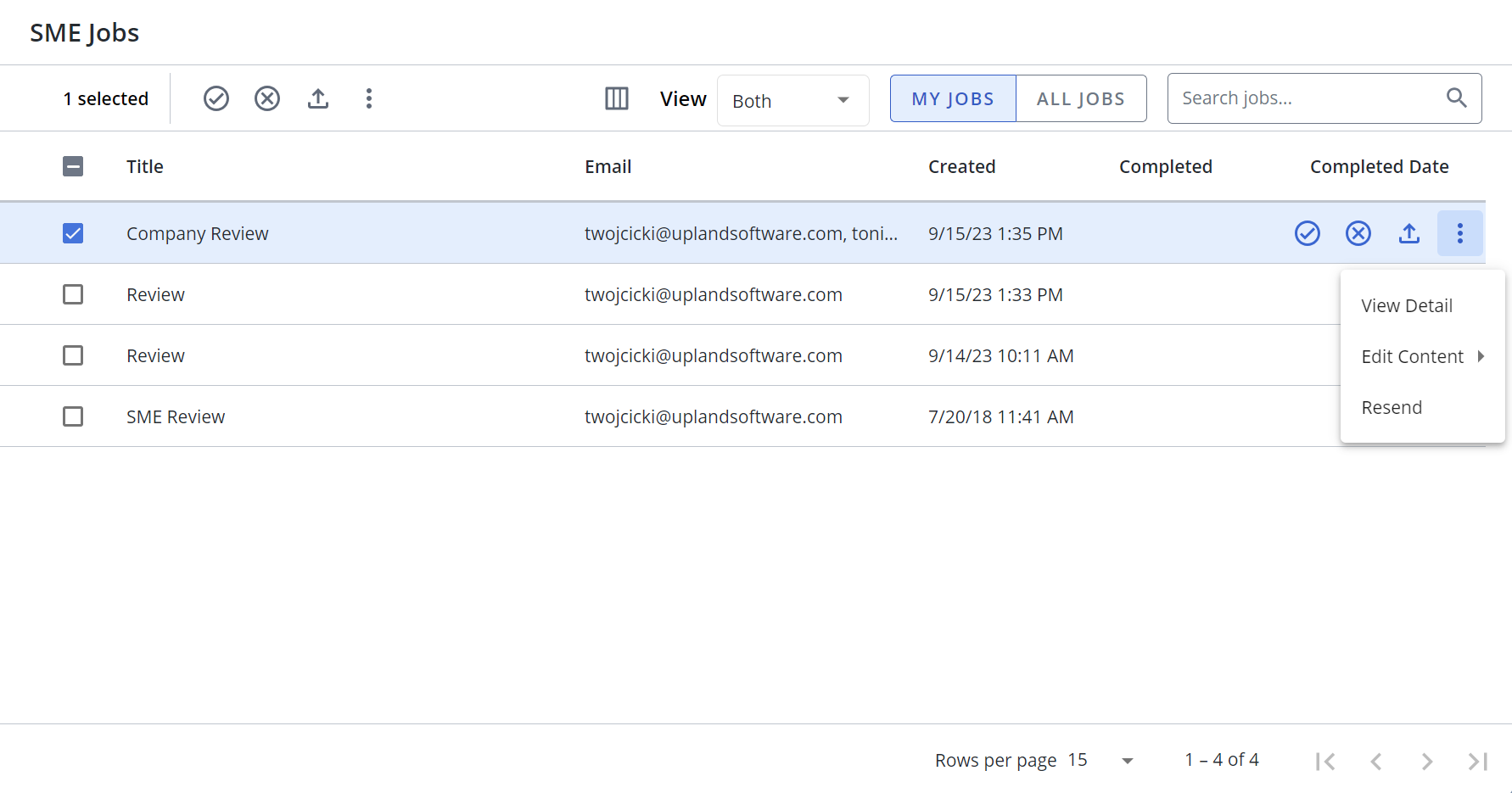
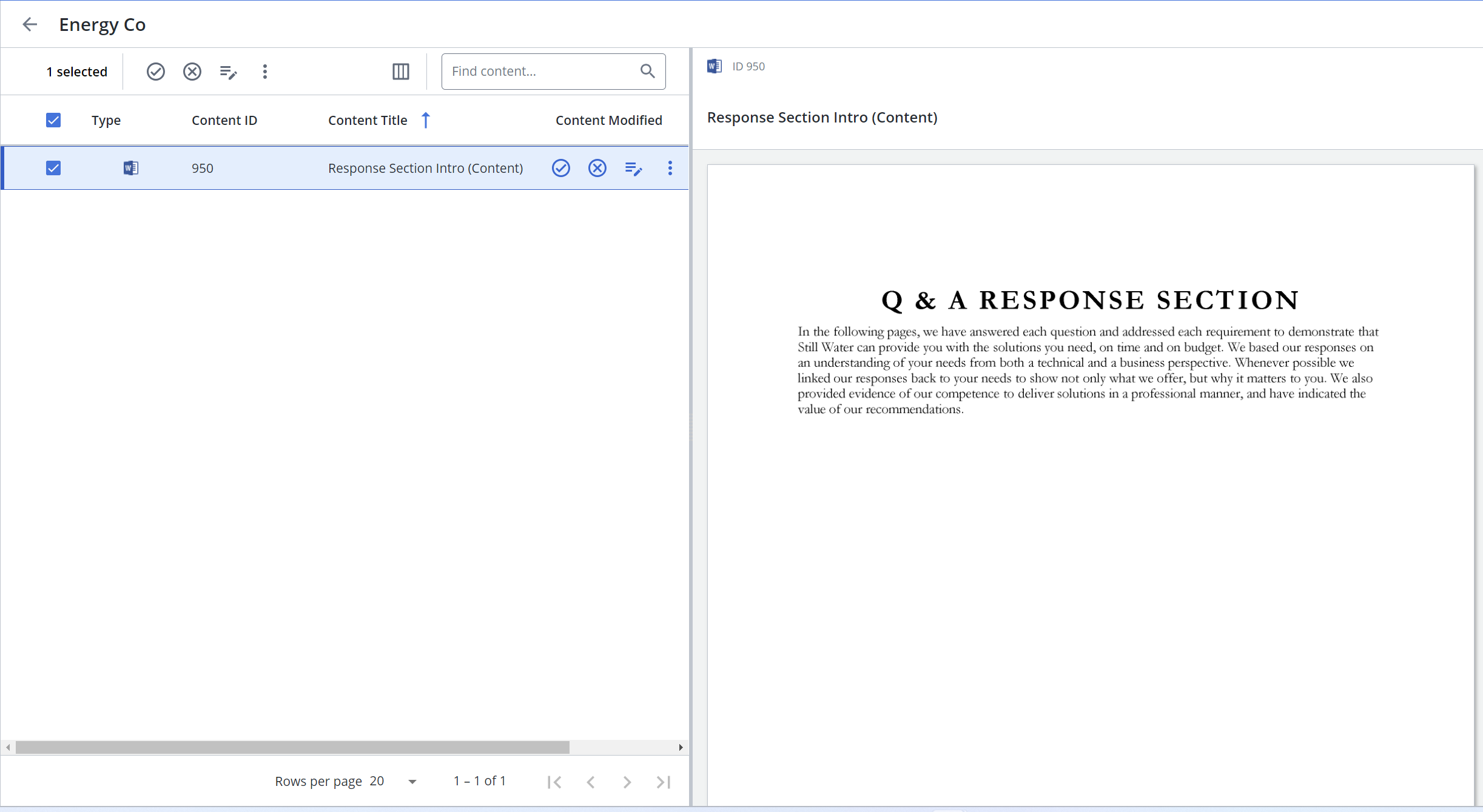
New SME Jobs Page (left) and example of a SME Job from content manager's view (right)
The new SME Jobs interface provides numerous time-saving features, such as: more powerful searching and filtering, improved clarity via info icon, customizable grid, column resizing and sorting, and advanced editing options. The SME Jobs page can be accessed by clicking the View All  icon on the SME Jobs Home page panel or selecting My Work > My SME Jobs from the left navigation panel. The "My Jobs" option displays only your SME Jobs, the "All Jobs" option displays all SME Jobs. Open an SME Job to see all the records assigned in the SME job. Hover over an SME Job to display the Approve, Reject, Export, and More Options selections (which contains: View Detail, Edit Content, and Resend action menu items). Export Microsoft Excel reports on single, multiple, or all jobs. Once in a job, content managers can view, approve, reject, download, and edit properties (and edit content from your jobs).
SME Experience
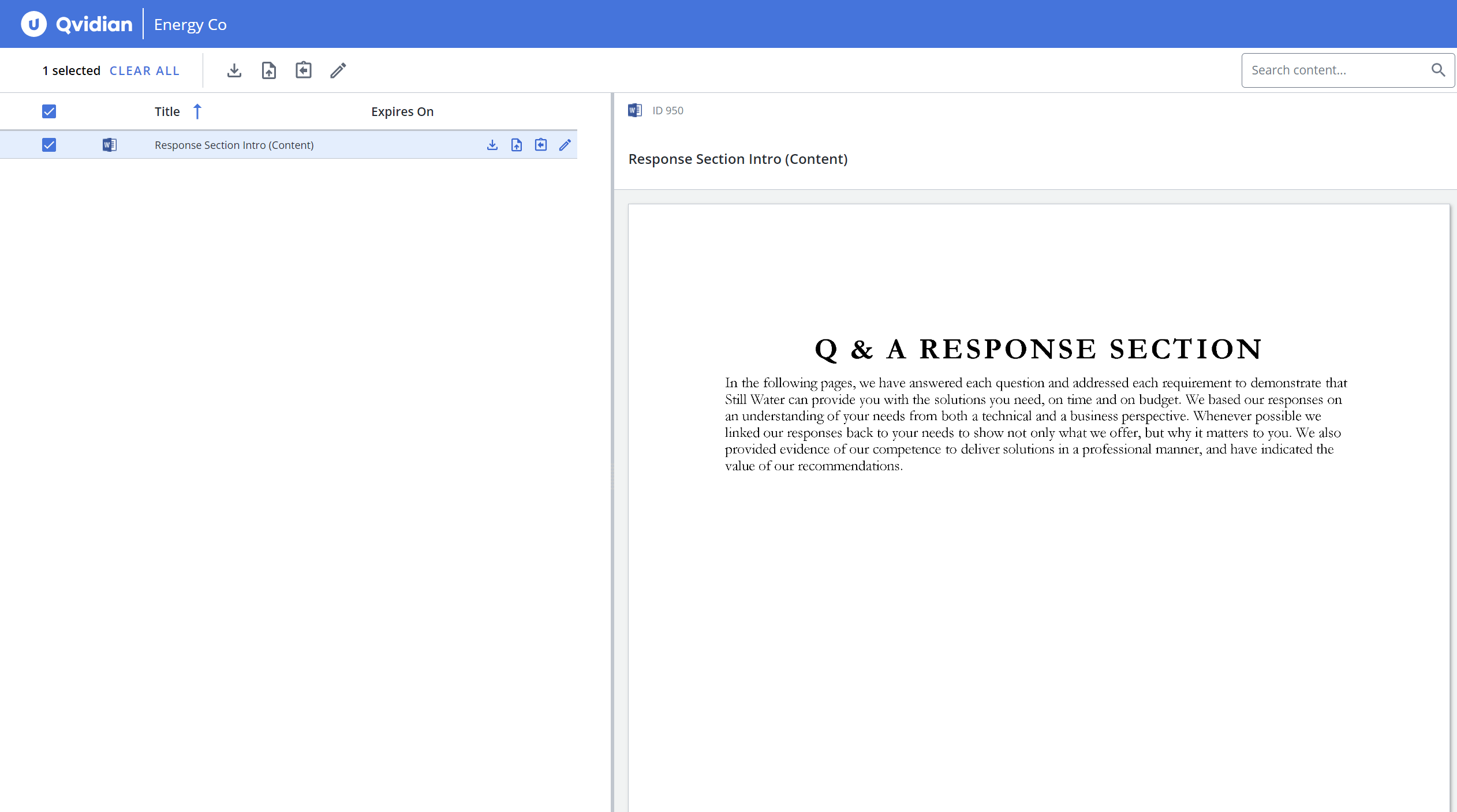
Example of a SME Job from the SME's view
The new SME interface enhances the Send to SME functionality and replaces Qvidian's legacy Add-In functionality with newer editing options. Non-licensed SMEs access their jobs by clicking an emailed link. They are directed to the SME Edit page, which allows them to Download the file for review and edit the records. The SME uploads the edited content record(s) using Upload and then returns the file(s) to the requester using Return File or Return all Files . If the content manager gives "Allow Property Editing" permissions, the SME can also edit the content's properties from here.
Note: The SendToSME global setting must be enabled to display the "Send to SME" option in the Actions menu.
View details for submitted content
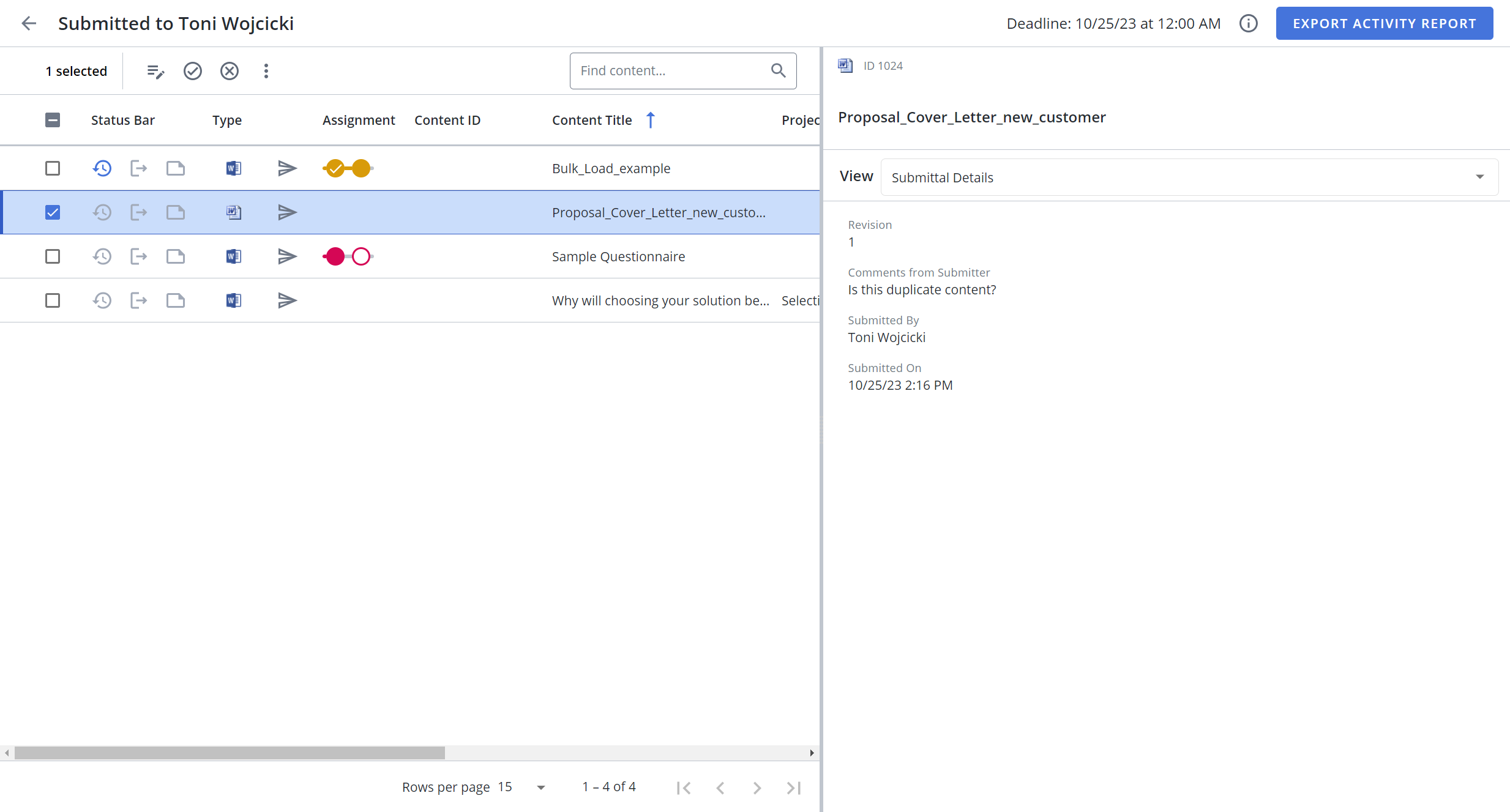
Example of View: Submittal Details
Submittal Details are now available in the Submitted Content "View" panel. The following details can be viewed and copied/pasted for records submitted from the Home page: Revision, Comments from Submitter, Submitted By, and Submitted On. The following details can be viewed and copied/pasted for records submitted from a Project: Revision, Comments from Submitter, Submitted By, Submitted On, Submitted from Project, Question Text, and Original Participants.
Library Enhancements
Sort by Type
Library records can now be sorted by the "Content Type" column in the grid.
November 2023 Resolved Issues
|
Item |
Summary |
Resolution |
|---|---|---|
| QPA- 88839 | When a customer applied a Template to their Library content, an extra space was inserted before the first character in the content. | Templates will apply to Library content as expected. |
| QPA- 89930 | Projects and Feedback panels were taking a long time to load. | Performance has been improved. |
| QPA- 89931 | When a user attempted to drag & drop more than one page of content records into a folder in succession, the second page would fail. | Users can drag and drop multiple pages of content records into folders in succession. |
| QPA- 89573 | When a user attempted to edit any properties of an expired Project, other than the "Project Deadline" field, the "Project Due Date Warning" appeared. | Properties of an expired Project can be edited as expected. |
| QPA- 89631 | The Project Team's description was displayed in the Team Name field of the Project Properties dialog. | The Team Name field of the Project Properties dialog will appear as expected. |
| QPA- 89673 | The "Show Activities" view of a Project Activity export truncated comments at 43 characters. | The entire comment text will appear in the "Show Activities" view of a Project Activity export. |
| QPA- 89723 | If a punctuation mark was entered into the "Find" field of the Find and Replace Properties tool, the expected content would not be returned. | If a punctuation mark is entered into the "Find" field of the Find and Replace Properties tool, the expected content will be returned. |
| QPA- 89767 | When a user clicked out of an Excel RFP cell they had edited, the inline text formatting was reverted. | Inline text formatting will edit as expected in an Excel RFP cell. |
| QPA- 89690 | When a customer searched the Documents & Projects page in "View: All" grid mode, an incident error occurred. | This issue has been resolved. |
| QPA- 89508 | When content was not enabled, users were still able to "Download (with Merge Code Replacement)" and copy from the HTML Preview. | If content is not enabled, the following text will be displayed when users hover over the menu option, "This option is not available when the content is not Enabled for use." |
| QPA- 89469 | When a customer opened a document via SharePoint and edited it in Word, if they inserted a content file using the Qvidian for Office, the numbering style did not continue as expected. | This issue has been resolved. |
| QPA- 89478 |
When a user with the "Manager Users and Roles" permission was also given the "Allow user to unlock/reinitialize users tagged to the same partner" permission, the "Roles" option was not available in the Administration menu. |
When the "Allow user to unlock/reinitialize users tagged to the same partner" permission is enabled, it will not remove the "Roles" option from the Administration menu for users who should be able to see it. |
| QPA- 89017 | The 1,000 character limit for the Title field of a Library content file could be surpassed if the user manually entered or copied/pasted the text into the Title field via the Content Properties. | The 1,000 character limit for Library content Title fields will be enforced. |
| QPA- 89162 | Content feedback threads were still visible after the content file had been deleted. | Content feedback threads will not be visible after the content has been deleted. |
| QPA- 89166 | When a user clicked the pencil icon to edit the properties of a Doc Type, the "Available In:" dropdown list did not appear. | When a user clicks the pencil icon to edit the properties of a Doc Type, the "Available In:" dropdown list will appear as expected. |
| QPA- 89410 | A customer's library references were not displayed in the "View: Library References" panel. | This issue has been resolved. |
| QPA- 89491 | When the Title had search terms highlighted, copying the Library Reference Code (which included the Title), would also highlight the HTML codes, which caused the Library Reference to not work correctly on build. | Copied Library Reference codes will include the Title without the highlighting HTML codes. |
| QPA- 89504 | When a user attempted to view their expired content records by clicking "View All" from the "My" tab of the Expired Content Home page panel, all expired records (including those not owned by the user) would be displayed. | This issue has been resolved. |
| QPA- 89607 | A customer was unable to delete a Project or Architecture component if the component had been renamed in the Project. | Projects and their Architecture components can be deleted when the component is renamed in the Project. |
| QPA- 90063 | When a user selected "Mark Project as Complete", that project was unable to be archived. | Projects can be archived as expected. |
| QPA- 90078 | After editing in Microsoft Word from newer pages, the automatic refresh on the page stopped working. | Editing in Microsoft Word will no longer cause the refresh on the page to stop working. |
October 2023
System Enhancements
Retention Time Increased for Deleted Content and Folders
The maximum amount of time that deleted content and folders can be retained in the system has been increased from 3 to 12 months. This is controlled by the "RecycleBinTimeframe" global setting.
Default Dates for Custom Metadata
Default dates can now be configured for "Date" type custom metadata within content records. This allows the system to recognize the current date as "Today's Date" and select the "Days from Today" option in addition to fixed date and "None".
Alphabetical Sorting for Custom Metadata Dropdowns
Custom Metadata Dropdown Data Type values can now be sorted alphabetically. Click the Sort icon within the Custom Metadata Properties dialog to sort all or selected values alphabetically.
Library Enhancements
Linked Library Folder Path
The folder path listed in the Library grid view is now a link. This allows users to easily navigate directly to the folder containing the content.
Project Enhancements
Complete Filter for Documents and Projects Grid
Documents and Projects marked as "Complete" can now be filtered and viewed within the grid.
October 2023 Resolved Issues
|
Item |
Summary |
Resolution |
|---|---|---|
| QPA- 88601 |
An incident report occurred when a user performed a Library search with a number that contained a comma but was not in quotes (e.g. 5,600). |
Library searches for numbers not in quotes that contained commas will run as expected. |
| QPA- 88097 | When a user performed a Library search that contained the dollar symbol (i.e. $), the search results were not highlighted. | When a Library search includes a dollar symbol, the search results will be highlighted as expected. |
| QPA- 87714 |
A client's Excel workbook dropdowns did not populate into their project correctly. The data validation rules displayed the incorrect values. |
Excel workbook dropdowns will now display as expected. |
| QPA- 88446 | When more than 50 content items were exported from the Library, the process timed out and failed. | The process will no longer time out and allow the content items to be exported from the Library. |
| QPA-89086* | When a user logged into their Qvidian instance with the "Assigned to Me" panel expanded on the Home page, they would be immediately logged out. | Users will remain logged into their Qvidian instance if the "Assigned to Me" panel is expanded on the Home page. |
| QPA- 89075* | Doc Types that were set as "Available in: Projects" would not be displayed when creating a Project or duplicating an existing one. Only Doc Types set as "Available in: Both" within Architecture Document Type Properties would be displayed. | Doc Types were set as "Available in: Projects" will be displayed when creating a Project or duplicating an existing one. |
| QPA-89106* | The Manage Content Review Jobs grid did not display who submitted the review job. | The "Submitted By" column is now displayed in the Manage Content Review Jobs grid. |
| QPA- 89195* | Content Review Jobs that underwent several revisions could not be approved. This occurred because the system saw the versions as conflicting duplicated workflows. | Content Review Jobs with multiple revisions can be approved. |
| QPA-89118* | When a user opened a Content Review Job and attempted to edit a single assignment, the following error message appeared: "Edit Assignment Warning: The selected assignments have different workflows and cannot be edited at this time. To make changes edit the assignment for each content record individually." | Users can edit single assignments within Content Review Jobs as expected. |
| QPA-89377* | Completed tasks and/or workflows were not being displayed in the content review job. | Completed tasks and/or workflows will be displayed in the content review job. |
| QPA-87398* | Tasks would not save when a user submitted new content and the Content Manager assigned it to reviewers. | Tasks will save as expected when a user submits new content and the Content Manager assigns it to reviewers. |
| QPA-89370* | When a user opened a review job from the Content Reviews panel on the Home page, the following error message appeared: "QPA Request Error - review-grid.component.CRContentGridLoad: Cannot read properties of undefined (reading 'Initials')." | Content review jobs can be opened form the Home page panel as expected. |
| QPA-89227* | If a user replied to a feedback thread with a comment that contained an apostrophe, an incident error occurred. | Feedback comments can contain apostrophes. |
| QPA- 89385* | The time stamp for Notes within Manage Content Review Jobs was incorrect. | The Manage Content Review Jobs Notes will display the correct time. |
| QPA-89422* | Participants' avatars did not display a green checkmark for completed assignments within the Manage Review Jobs page. | Participants' avatars will display a green checkmark for completed assignments within the Manage Review Jobs page. |
| QPA- 89411* | If a user attempted to mark a completed task within Manage Content Review Jobs as incomplete, the status did not change upon save. | Manage Content Review Jobs task status will update as expected upon save. |
| QPA-89245 | If an existing workspace template is overwritten, the Roles are not applied. | Roles will remain when a workspace template is overwritten. |
| QPA-89265 & 89270 | A Library search failed to return any results if the default workspace had a folder selected that did not contain any content. | This issue has been resolved. |
| QPA-89249 | The "More Options" menu from within a Library Bundle would intermittently fail to expand. | The "More Options" menu from within the Library Bundle would expand as expected. |
| QPA- 89128 | An "Unexpected Exception" error occurred when a user attempted to delete a Dropdown List Content Feedback Type value that was in use. | When a user attempts to delete a Dropdown List Content Feedback Type value that is in use, a "Value in use" error message will appear. |
| QPA- 89133 | Salesforce data from previous projects was being loaded into new projects that were created from the Home page. | This issue has been resolved. |
| QPA- 89137 | The "Submit" and "Enable" checkboxes on the Submit New Content properties dialog were enabled. | The "Submit" and "Enable" checkboxes will not be displayed on the Submit New Content properties dialog. |
| QPA- 89148 | If a user created a document or project and entered a duplicate title when the "AllowDuplicateProjectTitles" global setting was disabled, an error message appeared and the fields would become disabled. This prevented the user from updating the title. | When the "AllowDuplicateProjectTitles" global setting is disabled the user will be warned and allowed to make a change if they create a duplicate title. |
| QPA- 89144 | The Close Date in the "Create Document/Project" dialog was displayed as a required field. | The Close Date in the "Create Document/Project" dialog will not be displayed as a required field. |
| QPA- 89590 | The Content Review Job notification email link directed the reviewer to the Manage Content Review page instead of the Content Reviews page. | The Content Review Job notification email link will direct the reviewer to the Content Reviews page. |
| QPA- 88609 | The Library windows closed unexpectedly during a client's session. | This issue has been resolved. |
| QPA- 89080 | A client was unable to download any content files from their Library. | Content files will download from the Library as expected. |
| QPA- 87208 | When a client selected "Compare to Latest" from the Library Revisions, some revisions would download as text files. | The "Compare to Latest" Library Revisions functionality will download files in their expected format. |
| QPA- 88500 | Library search terms would remain highlighted in the folders even after the search was cleared. | Library search terms will not remain highlighted after the search is cleared. |
| QPA- 88495 |
The following user permission descriptions were causing confusion:
|
The user permission descriptions have been updated:
|
| QPA- 88530 | Users were not warned when they attempted to edit a record that was under content review. | When a user attempts to edit a record that was part of a Review Job, the following warning will appear: "This content is currently under review. Any changes you make will be overwritten if the content is approved. Are you sure you want to edit? Edit/Cancel". |
| QPA- 88589 | If an Excel workbook containing a semicolon in the file name was uploaded to a Project, the file name following the semicolon would be truncated when the package was built and downloaded. | File names of Excel workbooks uploaded to a Project will appear as expected when a package is built and downloaded. |
| QPA- 88290 | Doc Type test builds were counted towards content item usage. | Doc Type test builds will not be counted towards content item usage. |
| QPA- 89282 | Text from the My Work feedback thread was unable to be copied. | Text from the My Work feedback thread can be copied. |
| QPA- 89403 | Image in Library preview did not re-size when browser window was re-sized. | Library image preview with re-size with browser window. |
| * Indicates that the issue was part of an earlier hotfix. | ||
September 2023
Watch the Video: September 2023 Release Webinar
System Enhancements
New and Enhanced Home Page
The new Home page has fresh new look with the ability to add, remove, customize, and reorder widgets directly on the Home page. Widgets that previously had a form to complete have been updated to action buttons that display the form using the full screen. so that you can focus on that task. Important information, like dates that are past due , are now shown as colorful tags to increase visibility and accessibility.
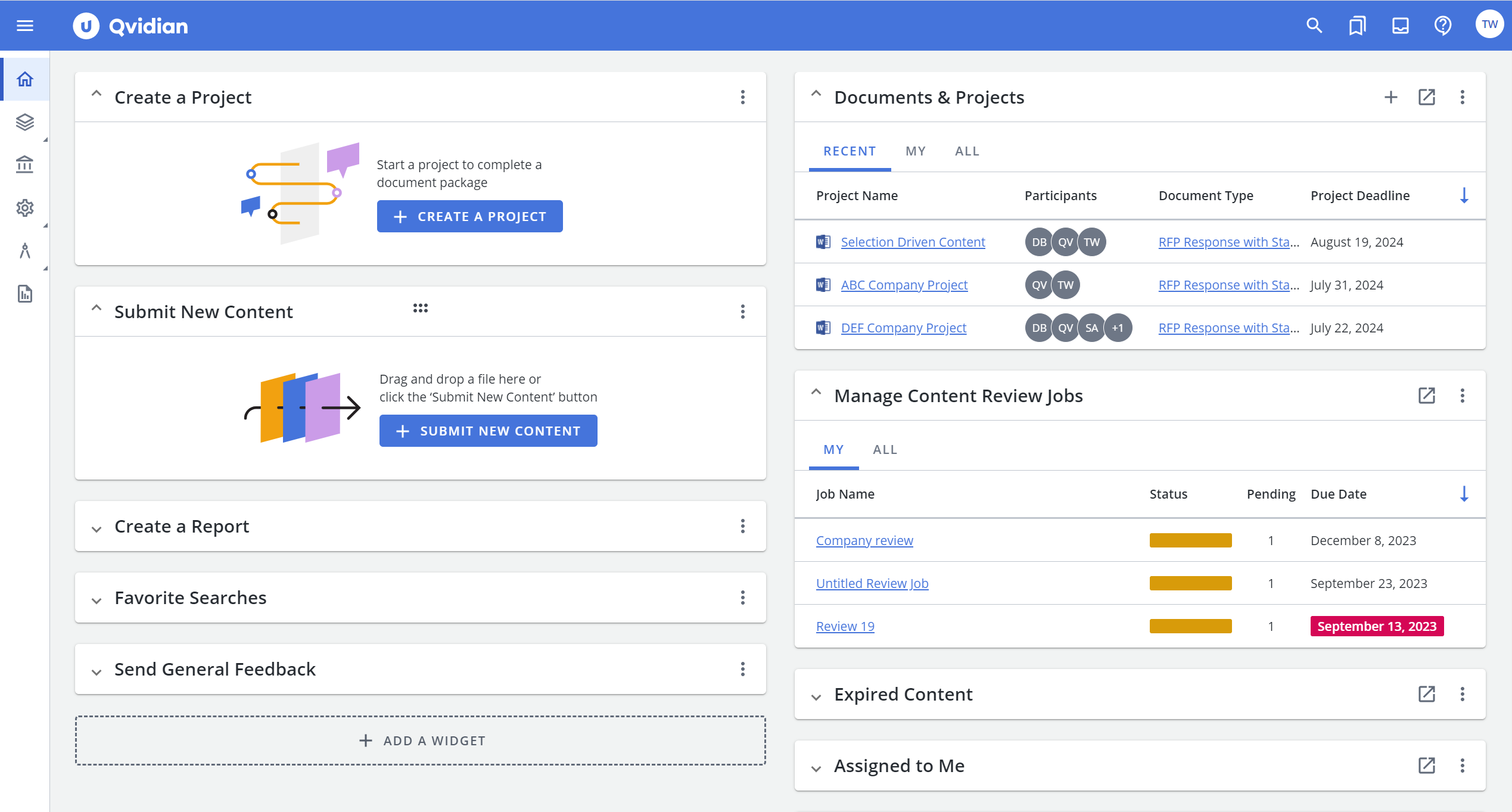
New QvidianHome Page
The following items on the home page have been upgraded to have a new and intuitive user interface pages:
- Content Reviews
- Manage Content Review Jobs
- Bookmarks
- Content Reviews
- Manage Review Jobs
- Bookmarked Content
- Tasked by Me
- Assigned to Me
- My Feedback
- Expired Content
- Announcements
- External Links
- Documents and Projects
For more details, see The Home page.
Content Review Page
The new interface for Content Reviews page lists all the content records for review by participants in the left panel. Hover over a record to display the Edit Content, Save and Submit, and Add Notes menu options. You can select multiple records and apply the same menu options available at the top of the listed records. Double click a record to open the preview in the right panel. You can also view the Content Summary and Notes from the View drop-down menu.
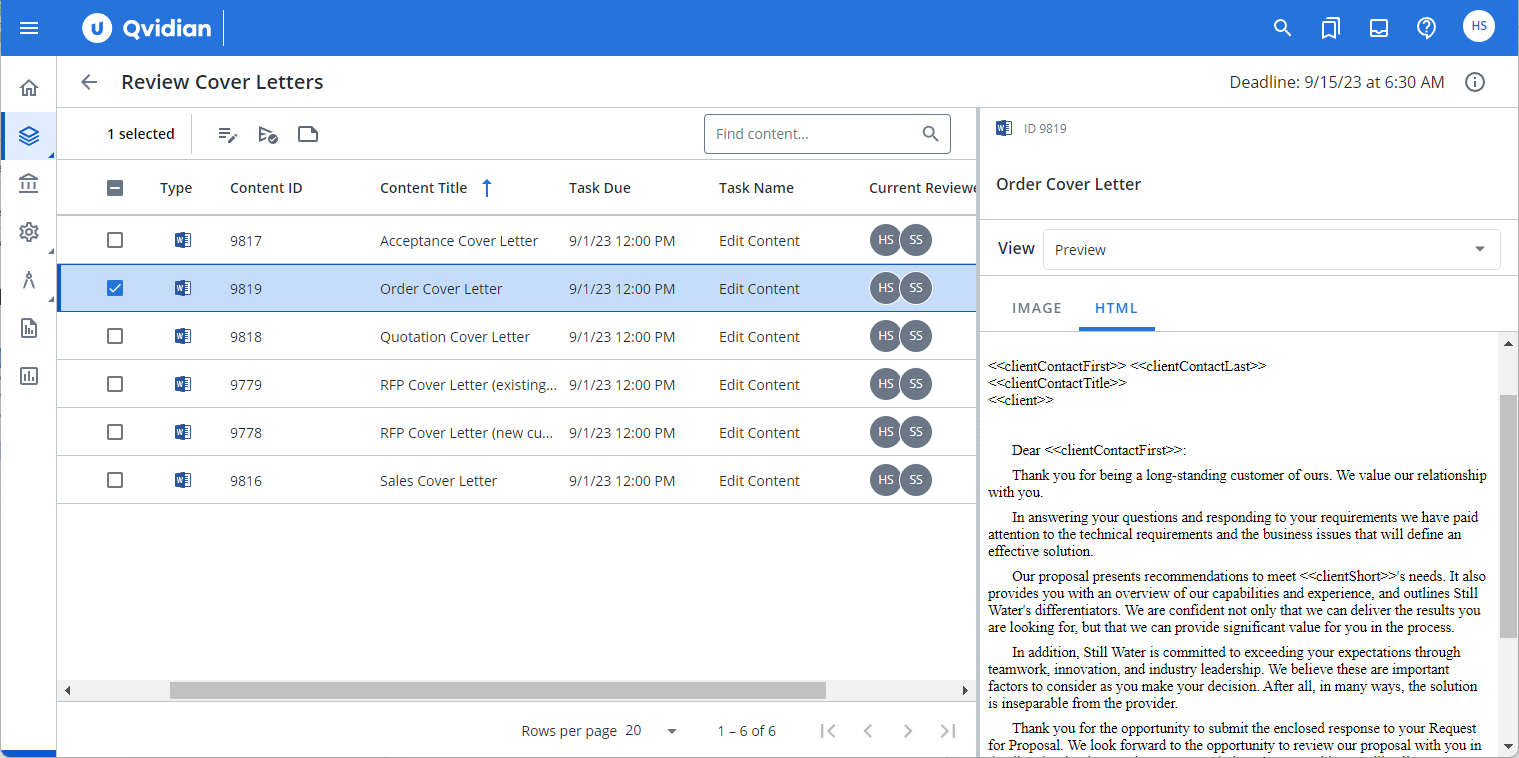
New Content Review Job Page
Manage Content Review Jobs page
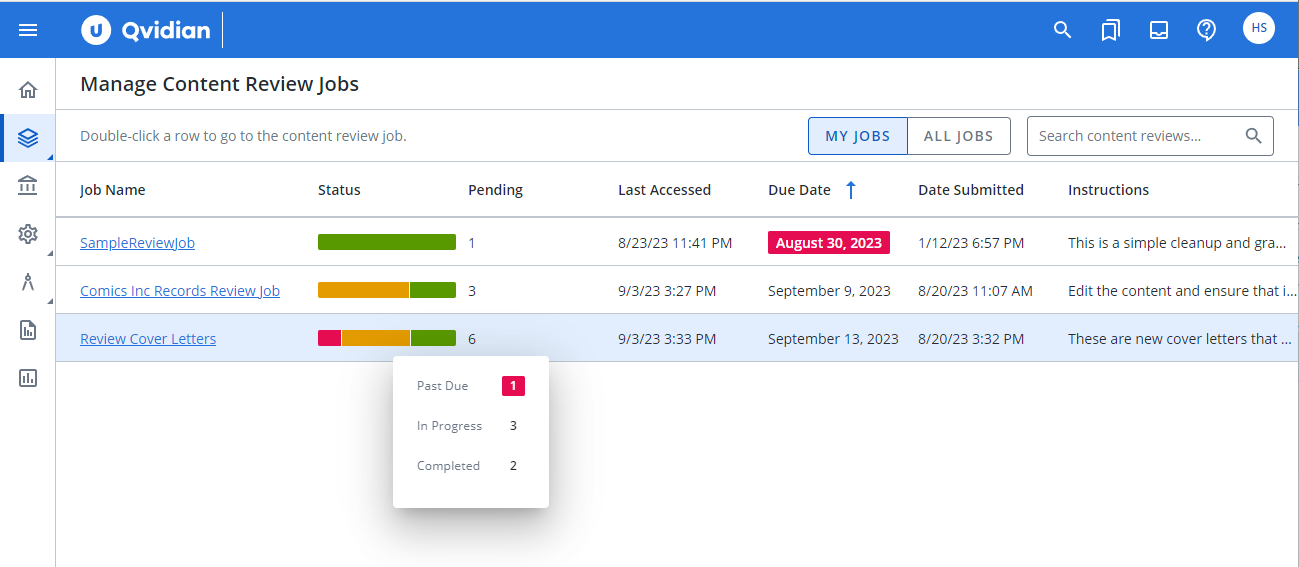
New Manage Content Review Jobs Page
The new Manage Content Review Jobs page for content managers lists your review jobs under the MY JOBS tab and lists all other review jobs under the ALL JOBS tab. You can open the Manage Content Review Jobs page by clicking the View All icon from the widget on the home page or selecting My Work > Manage Content Review Jobs from the left navigation panel. Hover over the Status column to view the status of the different assignments in the review job. Click on a review job to see the records in the review job and their assignment details.
Bookmarks
Clicking the Bookmarks icon on the home page opens the Library in a new tab listing all your bookmarked records. You can perform all the actions available in the Library on the bookmarked records.
Administrative Privileges for Content Managers
In this release, a new permission grants users the privilege to reinitialize or unlock other users who are assigned to the same partner in Qvidian. The users can be individually tagged to the same partner or can be part of a role tagged to the same partner. This will allow the management of a subset users to be enabled for a subset of administrators.
Users assigned the new permission can perform the following:
-
See the list of users. (Users with a Partner Name applied will only see other users within that same Partner)
-
Export the list of users they can see.
-
Unlock a locked user.
-
Reinitialize a user.
Users assigned the new permission cannot perform the following:
-
Create a new user.
-
Duplicate an existing user.
-
Edit user properties or permissions
-
Lock users or Reset user's password.
Classic Library to be Discontinued from September
The Classic Library will be discontinued after the September release. The options to switch between the Classic and the new Library will no longer be available.
September 2023 Resolved Issues
|
Item |
Summary |
Resolution |
|---|---|---|
| QPA-82361 | In the new Library, content could not be found if the apostrophe in the search text did not match the apostrophe in the content. For example, if the content had a curly apostrophe and the search text had a "straight" apostrophe, the search term would not match. | This issue is now resolved. |
| QPA-85688 | Newly created content (Upload, Bulkload, Copy To, and Creating a Bundle) are not showing the newly added content when viewing the content in a folder. | This issue is now resolved. |
| QPA-86495 | Deleting content while drilled in on a specific folder is not keeping the user in the folder. | This issue is now resolved. |
| QPA-86648 | When a suggested filter is applied, it sometimes increases the result count, rather than refining the existing search. | This issue is now resolved. |
| QPA-87464 | When the login name or email address if a Qvidian user is changed by the administrator, the corresponding changes were not made in the user's account in Upland Analytics. This resulted in reports being sent to the old email address and users were not able to log in to Upland Analyrics, | This issue is now resolved. |
| QPA-87599 | When users search for a term and download a content record from the result or copy the content from the HTMLpreview of the content, the search term is not added to the list of learned terms as it should be, | This issue is now resolved. |
| QPA-87652 | In the new Library. sorting the search results using the text columns does not sort the result set properly. The sorted search results contained two sets of items in the A-Z sort order. | This issue is now resolved. |
| QPA-87656 | Users found saved searches reappeared after they were deleted. | This issue is now resolved. |
| QPA-87738 | When users create a review job for a slide and apply a template, the layouts from the template are not applied to the slide. | This issue is now resolved. |
| QPA-87835 | When users add a PowerPoint slide from the Library to a Presentation Project, a Microsoft word file icon displays in the Usage panel for the content instead of a PowerPoint icon. | This issue is now resolved. |
| QPA-88063 | Certain content records could not be found in the Library due to issues obtaining the text extract. | This issue is now resolved. |
| QPA-88107 | When a search term contains HTML keywords and they are using the search settings “Any of these words” or “All of these words”, then the search results contain the html keywords highlighted. This does not occur for an exact phrase search. | This issue is now resolved. |
| QPA-88634 | When users drag and drop a content record from one folder to another, the destination folder count does not get updated. | This issue is now resolved. |
August 2023
System Enhancements
User Filters in the Library
When filtering using Custom User Metadata and Standard User fields, you can now find and select users from a list. You can make multiple selections from the dropdown and your scroll position is maintained. Previously, you had to type the exact name.
Bulk Editing User Roles
Administrators can now bulk edit Roles assigned to users using the Bulk User Edit Template. To know how to use the Bulk User Edit Template, seeDownload and upload user templates.
Rename Sections and Subsections in Projects
In this release, you can rename titles of Sections and Subsections in a project. You can rename them in the Sections tab in the Full and Simplified Doc Structure display modes. Any changes to the title reflect in the Workspace to the right. Name changes only apply to the sections in the project and not the underlying Document Type. This change allows project owners to more accurately reflect section and subsection names unique to each project requirements.
To edit a Section or Subsection title, hover over the title to display the Pencil icon. Click the Pencil icon to display the title in a text box. Rename the title and click the checkmark icon to confirm the changes. A dialog displays confirming the changes.
The following images show the sequence of editing a Section title. The first image shows the section title being edited in the Sections tab and the unchanged section title in the Workspace to the right. The next image shows the confirmation message and both the Sections tab, and the Workspace contain the new title.
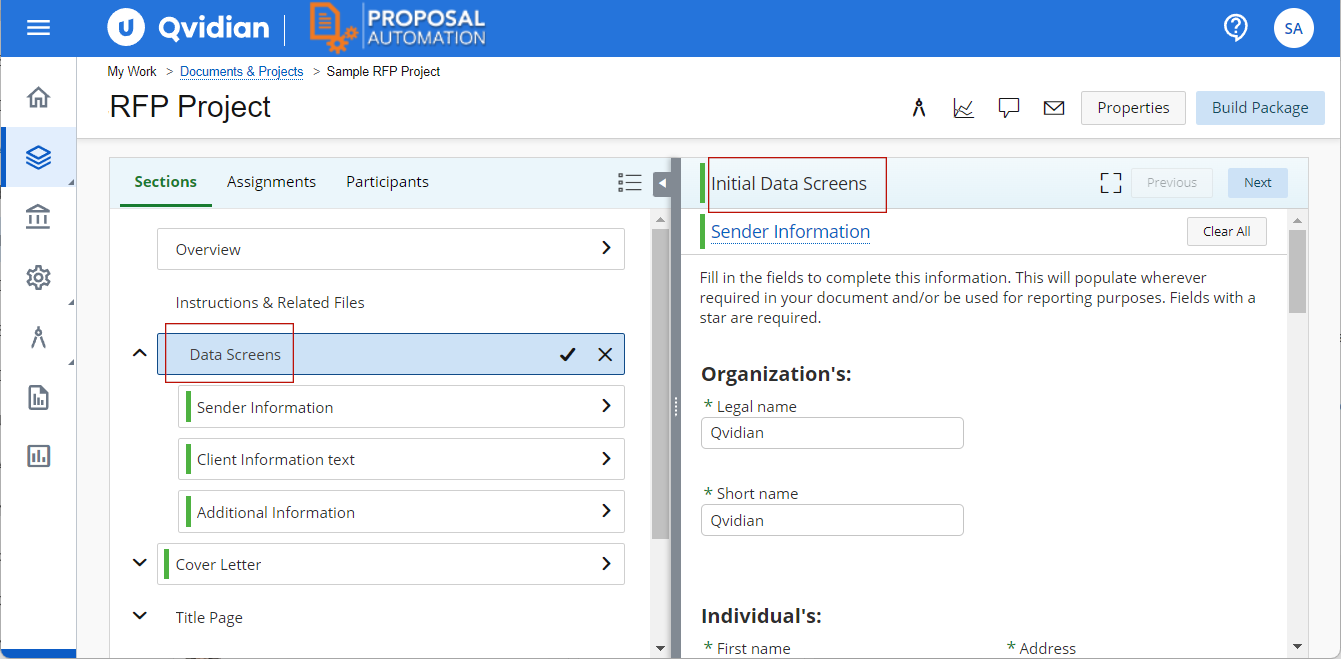
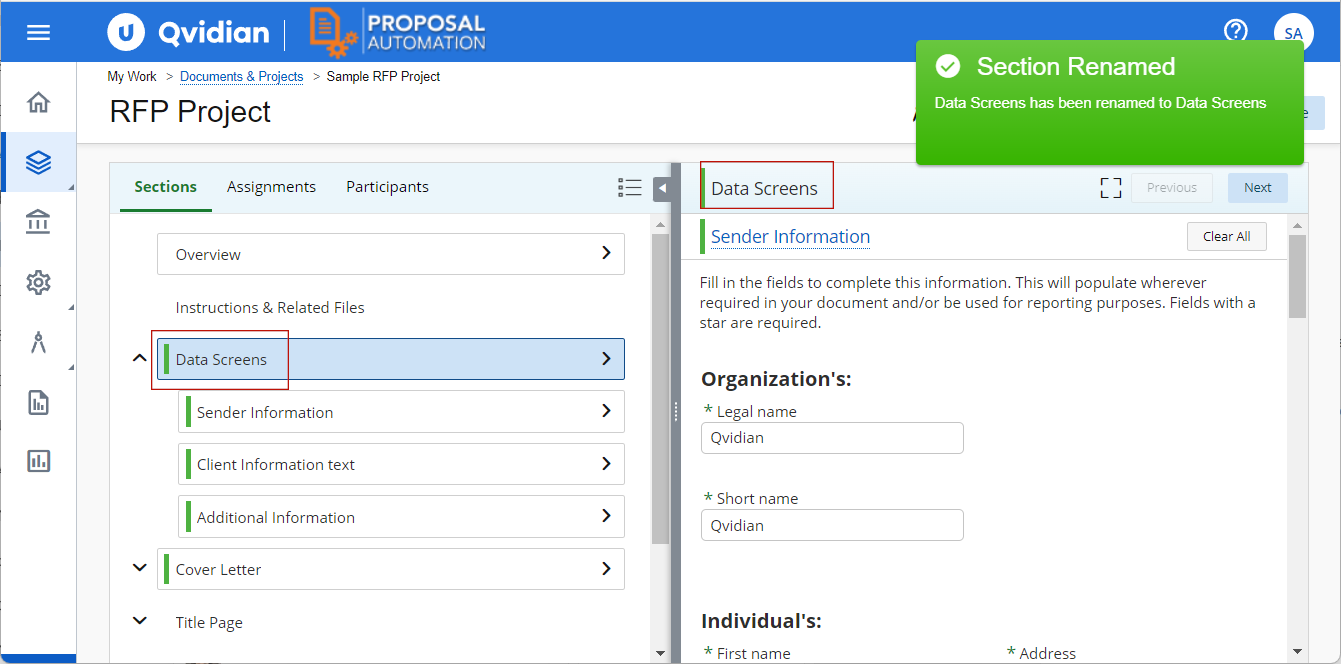
From Left to Right: Editing the section title, Confirmation message
August 2023 Resolved Issues
|
|
Summary |
Resolution |
|---|---|---|
| QPA-86260 | Users could not delete the owner of a content record. Deleting the owner and opening the Edit Properties page finds the owner still present. | This issue is now resolved. |
| QPA-86445 | The standard report for Search Details in Upland Analytics for Qvidian does not show the details of searches performed in the new Library. The reports do show the details of searches performed in the classic Library. | This issue is now resolved. |
| QPA-86633 | Salesforce is spelled incorrectly as "Sales Force" in the description of an application permission. | This issue is now resolved. |
| QPA-86670 | When applying a Workspace that runs a search, and then applying a second workspace that does not run the search, child folders that have not yet been expanded still show the results from the first search. Clicking to drill in on those results locks the library. | This issue is now resolved. |
| QPA-86729 | Bullet items and some content inserted using library references do not inherit the proper indentation specified in the style template. Some content requires the style to be reapplied during editing, and then it will correctly inherit the indentation from the selected Style Template. | This issue is now resolved. |
| QPA-86794 | Opening a second Qvidian window and then closing the first will close any open Library windows or tabs. | This issue is now resolved. |
| QPA-86815 | Uploading a file to the new library does not add the Title to the Learned terms. | This issue is now resolved. |
| QPA-86909 | Users setting an owner other than themselves while Bulk uploading failed to save the new owner. | This issue is now resolved. |
| QPA-86954 | Content export fails when there are more than fifty content records, and content contains protected elements. | This issue is now resolved. |
| QPA-86956 | Running a saved search with custom Metadata filters and then searching a second time does not preserve the filters. | This issue is now resolved. |
| QPA-86991 | An exact phrase search in the new Library with punctuation marks in the search terms does not work. | This issue is now resolved. |
| QPA-87067 | Content feedback thread started by users who are not owners do not get notifications of responses in the feedback thread. | This issue is now resolved. |
| QPA-87082 | The cursor to select a value from a filter with a drop-down list of values does not work over the whole | This issue is now resolved. |
| QPA-87151 | When users create a new Saved search and add a new sub-folder to a parent folder that is not part of the Saved search, the new sub-folder is selected when the Saved search is next run. | This issue is now resolved. |
| QPA-87177 | User buik loading content to the new library is not set as the owner of the content. | This issue is now resolved. |
| QPA-87282 | When users create a default Workspace with many columns in the Grid view and collapse the preview and the folder panels, end up with white space to the right and the horizontal scroll bar works improperly. | This issue is now resolved. |
| QPA-87348 | Using an SSO bookmark to open Qvidian instance on more than one browser tab, users are redirected to the explicit login page. | This issue is now resolved. |
| QPA-87360 | When users click the Build button to start a project build and immediately click Cancel, they get a QPA request error. | This issue is now resolved. |
July 2023
System Enhancements
New Dashboard Builder in Upland Analytics NextGen User Interface
The new Dashboard Builder for Upland Analytics NextGen available to Enterprise customers has the following enhancements.
Report editors can now perform the following:
-
Add On-Page filters to Dashboards
-
Create Drill-downs
-
Delete, Download, Duplicate and Email Dashboards
-
Subscribe to a Dashboard
-
Change the Owner of a Dashboard
Report Viewers can now perform the following:
-
Download a Dashboard
-
Email a Dashboard
-
Subscribe to a Dashboard
For a full report, see What's New in 2023R1
Improved Refresh Model for Faster Load Time of Qvidian Projects
In this release, an improved Refresh Model method loads the Navigation tree much faster than in the previous releases. The new Refresh model improves the project load time even when the Qvidian instance supports a large user base with many active concurrent users loading their projects.
July 2023 Resolved Issues
|
|
Summary |
Resolution |
|---|---|---|
| QPA-83250 | Users are unable to open their projects. The projects appear to open for a long time and then returns the users to their Home page. | This issue is now resolved. |
| QPA-86358 | When users submit content from the Home page they do not receive email notifications when the submission completes. | This issue is now resolved. |
| QPA-86165 | The ampersand character added as a value to a Custom Metadata in the Classic Library appears as "&" in the New Library. | This issue is now resolved. |
| QPA-86253 | Users cannot export a Bundle as a single file when the Bundle contains files in the same format. The "Single File" option is visible on the Export Content dialog but is disabled. | This issue is now resolved. |
| QPA-86260 | Users with permissions to add or remove owners could not remove owners of a content record. They used the Edit Content Properties option on the More Options menu; | This issue is now resolved. |
| QPA-86701 | The default workspace assigned on opening a new library instance does not maintain the selected folders. | This issue is now resolved. |
| QPA-85914 | The "Edit Content > Advanced Edit" option is available for Bundles containing a mix of different file types (Other than MS Word files). This option should not be available for such Bundles. | This issue is not resolved. |
| QPA-86288 | The filters from a user's current search were getting cleared when the user drills in on a folder's search results. | This issue is now resolved. |
| QPA-86221 | Content results would scroll to the top in the Card view when users scroll down the list and edit a content record. | This issue is now resolved. |
| QPA-86225 | "Advanced Edit > Download" excluded files that had a comment as the first element in the document. | This issue is now resolved. |
| QPA-85278 | Advanced Edit on a bundle would deliver a file with a BNDL extension instead of DOCX. | This issue is now resolved. |
| QPA-86408 | Editing an answer with bullet text in an Excel RFP causes the bullet text to duplicate. | This issue is now resolved. |
| QPA-86819 | Users selecting more than one value from a suggested filter results in an error. | This issue is now resolved. |
| QPA-86332 | Users are unable to sort by the "Date Content Uploaded" field in the library. | This issue is now resolved. |
June 2023
System Enhancements
Search Terms Hit Highlighting in the Keywords and Learned Terms Panels
Search term hits in the Qvidian Library are now highlighted in the Keywords and Learned Terms detail panels. If inflectional search is enabled, which also finds different forms of the words, then those variations are also highlighted.
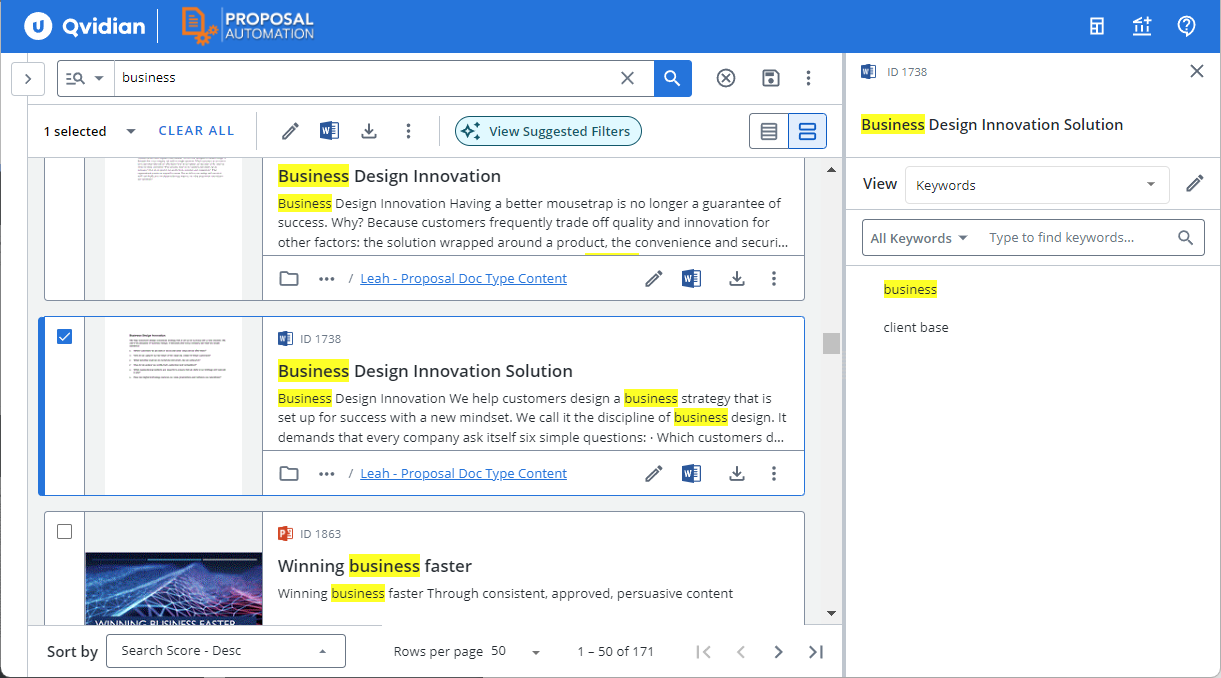
Sample library page in Card view and the Keywords details panel showing the highlighted terms.
Option to Disable Running a Search on Opening a Workspace
Previously, a workspace would automatically execute a search saved in the workspace. In this release, a new option allows users to specify that the saved search runs on loading the workspace. Users can exercise this option when they are configuring the workspace. See the sample screen below.
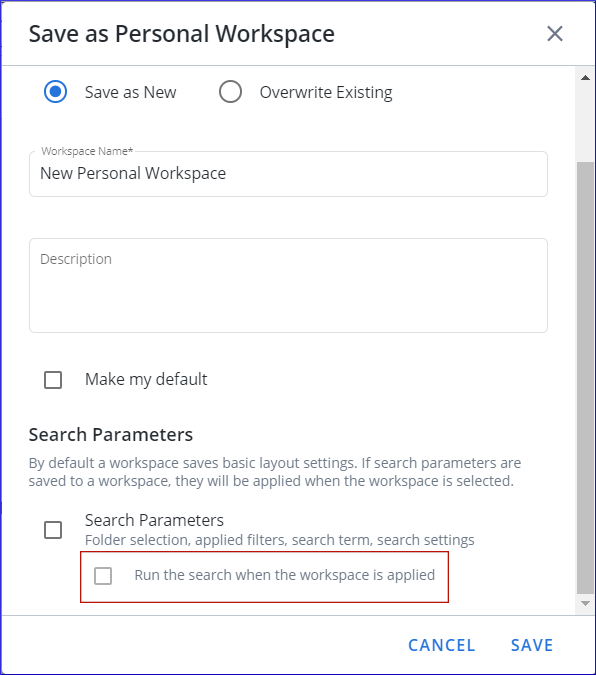
Sample Image showing the Option to run the search.
"Download to Edit" Menu Option Renamed to "Download to Edit (ZIP)"
In the previous release of New Library, users did not realize that the Download to Edit menu option downloaded the selected files as a zip file. In this release, the menu option is renamed to Download to Edit (ZIP) to clarify that the files download as a ZIP file. The new name also differentiated it from the Download to Edit option in the Advanced Edit submenu.
Improved Multi-value Custom Metadata Fields Dropdown
Previously, users could populate and filter multi-valued Custom Metadata fields by selecting values from a dropdown or typing the exact value. In this release, the improved multi-valued Custom Metadata field will now filter the dropdown values as you type, providing better support for longer lists.
"Me" Operator for Standard and Custom User Filters
Users can now easily find content associated with them using the new “Me” operator. This new operator is available for most Standard and Custom Metadata User fields, including the newly added “Owned By” and “Managed By” filters. This operator automatically uses the current User’s ID in the search. In Shared Searches and Workspace Templates, this operator shows each user their own content. For example, a Saved Search containing a filter for content “Owned By Me” will show User A content where User A is an owner and will show User B content where User B is the owner.
You can choose the "Me" operator in the following User Fields:
User ID Fields:
-
Checked In By User ID
-
Checked Out By User ID
-
Created By User ID
-
Last Modified By User ID
-
Last Used By User ID
-
Managed By User ID
-
Owned By User ID
User Name Fields
-
Checked In By
-
Checked Out By
-
Created By
-
Last Modified By
-
Used By
Other
-
Checked Out By (Email)
-
Users Custom Metadata
New Default Saved Search "Owned by Me"
A new Default Saved Search Owned by Me introduced in this release, searches for content records owned by the current user.
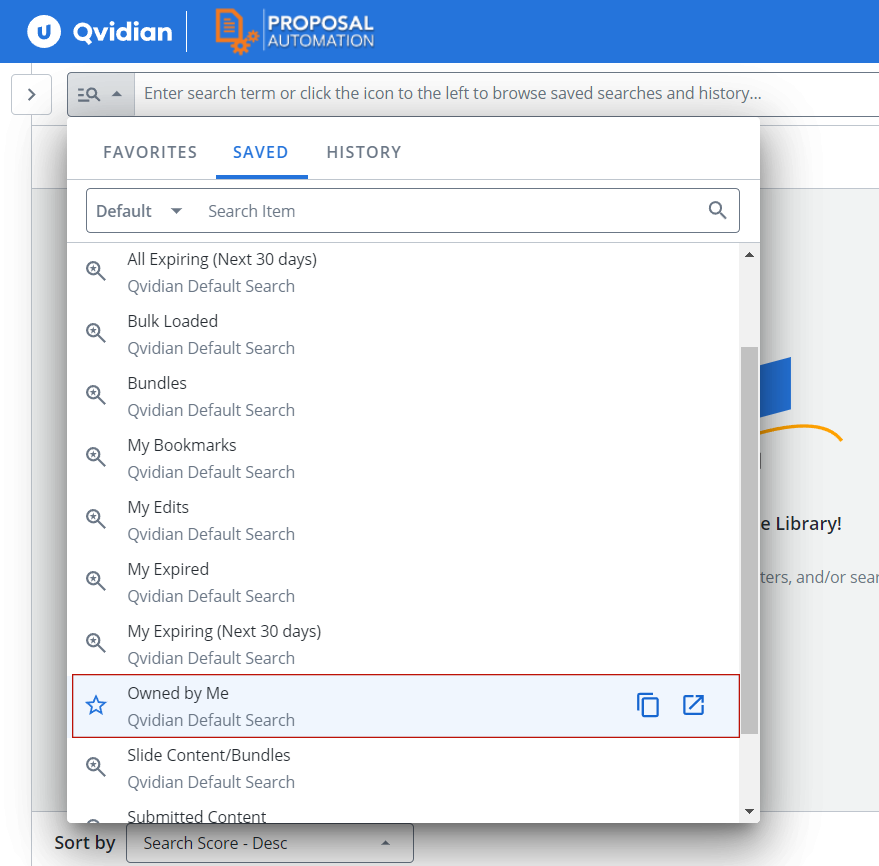
Sample Image showing the new Default saved search.
“User” Custom Metadata Field Support in Qvidian for Office, Qvidian for Web, and the Search Mode Panels on RFP and File List
Users can now filter on Custom Metadata fields of data type “User” in Qvidian for Office, Qvidian for Web, and the Search Mode Panels in RFP and File List subsections. Additionally, displaying content details will now include Custom Metadata fields of data type “User” in the displayed properties.
New option to Preview Content in the Linked Content Details Panel
A new action View Content Preview is now available in the More Options menu on the linked content records listed in the Linked Content details panel.
Bookmarked Content Changes
The display of Bookmarked content is being switched from launching a dialog with limited functionality to launching in a new Library tab or window, so that users can access all the features available to them in the Library. This is starting with the “Bookmarks” icon on the header bar on Administration pages. In future releases, this will also be done for the “Bookmarks” icon in other areas of the product, as well as the “Bookmarked Content” widget on the Home Page.
June 2023 Resolved Issues
|
Item |
Summary |
Resolution |
|---|---|---|
| QPA-83250 | The Generate Web URL option in the More Options menu remains active even when the Global setting EnableGenerateURL is OFF. If the user clicks an option in the Generate Web URL dialog, the Qvidian home page opens. | The Generate Web URL option is disabled when the Global setting EnableGenerateURL is OFF. |
| QPA-83802 | In the new library, the edit button option on the hover bar of a record in the grid view, the toolbar in the card view, or at the top under the search bar when a single record is selected does not show the hover text. | This issue is now resolved. |
| QPA-84661 | In the new library, on deselecting a top-level folder, the child folders remain selected even when auto-select subfolders is enabled in the Folder Settings. | This issue is now resolved. |
| QPA-84724 | The library reference details panel does not display all the library references of records. | This issue is now resolved. |
| QPA-85011 | Setting a date for a custom metadata date field of a record displays the wrong date and a fixed time of 8 PM on the grid view of the new library. The classic library does not display the time. | The correct date and time displays on the grid view in the new and classic libraries. |
| QPA-85124 | Switching to Card view makes the Qvidian library unresponsive or loads the records very slowly. | This issue is now resolved. |
| QPA-85272 | When uploading or bulk-loading content records to the new library, the language field is not set and the default language setting is not getting considered. | When users specify a language preference the first time they upload content records, their choice is maintained the next time they upload or bulk-load content records. |
| QPA-85320 | In the new library, the default content permissions of a folder are not applied to new content uploaded to the folder. | New content uploaded to a folder gets the default content permissions. |
| QPA-85357 | Changing the data type of a multivalued custom metadata dropdown field to another data type prevents users from editing the records with multiple values set for the custom metadata. It also prevents them from downloading the content records. | Users can now change the data type of multivalued custom metadata dropdown fields. They are issued a warning "Changing data type may lose existing values associated with the content." |
| QPA-85365 | Users or roles who do not have permission to edit content properties can see the Edit Properties option on the toolbar and the hover bar of a record. They can open and edit the properties but cannot save them. | Users without permission to edit content properties can no longer see the Edit Properties option. |
| QPA-85373 | Users without HTML view permissions cannot see the search terms highlighted when they click the Highlight tab in the preview details panel. | Users without HTML view permissions can now see the highlighted terms in the Highlight tab. |
| QPA-85382 | Users are unable to move multiple records to a different folder by editing the folder path on the record's properties page. | Users can now move multiple records to a different folder by editing the folder path on the properties page. |
| QPA-85386 | Users have to perform a search twice to get search results after they reset the library workspace to the default by using the "Reset to My Default" option in the Workspaces menu. | Users do not have to perform a search twice to get results after switching to their default workspace. |
| QPA-85415 | On the Content Properties page for multiple selected content records, the checkboxes to choose the fields to edit are not centered vertically with the controls or the label above the controls. | The checkboxes align vertically with the set of controls or the label above the control set. |
| QPA-85434 | Drilling into a folder to browse its contents and then performing a search does not show the expected results. It shows the correct results on running the search a second time. | Drilling into a folder no longer affects the search results. |
| QPA-85450 | Users are unable to export all the records in the new library to an Excel spreadsheet as the export process fails. | This issue is now resolved. |
| QPA-85451 | When a user downloads a content record with Chinese, Japanese, or Korean characters in the title, the record's file name is corrupted. | This issue is now resolved. |
| QPA-85613 | Running the default saved search Bundles to find all bundle records clears the search settings and causes a QPA request error. | The issue is now resolved. |
| QPA-85617 | When editing custom metadata fields, the mandatory fields do not have the astrix mark when the metadata name is long. | The issue is now resolved. |
| QPA-85655 | Workspaces created by users in the new library during the preview period no longer work. | This issue is now resolved, |
| QPA-85664 | In the new library, when users run a saved search, the folders selected for their previous tasks are not getting deselected. | This issue is now resolved. |
| QPA-85673 | In the new library, when users run an exact phrase search, the search phrase is not highlighted in the Highlight tab of the preview details panel. | This issue is now resolved. |
| QPA-85712 | When a user performs a Download Bulk Edit and selects a custom set of Columns, the names of CustomUserInfo fields display as CustomUserINfo_1, CustomerUserInfo_2, and so on, instead of the Custom User Info field name. The downloaded spreadsheet does have the correct custom name. | The Custom User Info field name now displays correctly. |
| QPA-85736 | In the new library, using the Edit in Office Online option to edit an MS Word file with a DOC extension presents a blank document to edit. | This issue is now resolved. |
| QPA-85748 | In the new library, when users run the default saved search My Expiring (Next 30 Days), the Date Expires filter does not appear in the FILTERS tab, even though the search results are correct. | The Date Expires filter now appears in the Filters tab, |
| QPA-85753 | Users could not assign role permissions to content records during the upload process. | This issue is now resolved. |
| QPA-85758 | In the new library, users editing a record's properties found the date set for a custom metadata date field has moved back by a day from the original date. | This issue is now resolved. |
| QPA-85780 | Loading the default personal workspace adds sub-folders that were not specified when configuring the workspace. | This issue is now resolved. |
| QPA-85802 | When users download and edit a composite file of 100 records and upload the composite file back to the library, only 42 records check in. The remaining 58 files stay checked out and are not updated. | This issue is now resolved. |
| QPA-85848 | Deactivated owners of content records are visible in the owner field in the grid view and content summary panel. | Deactivated owners are no longer visible in the grid view or the content summary panel. |
| QPA-85858 | Bulk uploading content files to any folder in the new library throws an exception. | The issue is now resolved. |
| QPA-85860 | Date fields displayed in the content summary details panel are not localized and improperly formatted. | This issue is now resolved. |
| QPA-85908 | If a user applies the default content permissions to existing content in the new library, all the content owners of all content in the hierarchy are removed. | This has been updated to no longer remove existing Owners on content. In a future release, this will be updated further. |
| QPA-86003 | When users opt for email intimation of a project build status, the link in the email fails to download the project file. | This issue is now resolved. |
| QPA-86014 | Opening a file in the Office online from SharePoint and inserting an answer using the Office add-in results in an error message even though it inserts the answer. | The error message no longer appears. |
| QPA-86020 | The Doc Type tab in the Usage details panel shows a word icon for a PowerPoint slide used as part of a presentation doc type. | This issue is now resolved. |
| QPA-86099 | When users download multiple records to edit and then upload the zip file back to the library, new records are created instead of updating the downloaded records. | This issue is now resolved. |
| QPA-86208 | When users perform a composite edit on multiple content records using the Advanced Edit > Download to Edit option. On dragging and dropping an updated ZIP file, they get an Insufficient folder permissions message, and the records are not checked in. | This issue is now resolved. |
| QPA-86231 | The busy spinner icon does not go away after a user issues more auto-search actions on a split RFP question after the first auto-search option opens the library and performs a search. | This issue is now resolved. |
| QPA-86238 | Users with the permission allow users to see features related to content management do not have the Copy Reference Code submenu option available to them in the More Options > More Tools submenu of a content record. | This issue no longer occurs. |
| QPA-86243 | When content records are bulk loaded to a folder using the Upload Content > Bulk Load Word Files or Bulk Load PowerPoint Files, the default content permissions of the folder are not applied. | The default content permissions of a folder are now applied to bulk-loaded content records. |
| QPA-85596 |
The horizontal scrollbar starts to flicker after a user adds a dropdown value to a list and moves the mouse to the scrollbar. When a user edits a merge code, the horizontal scrollbar disappears. |
This issue no longer occurs. |
| QPA-86001 | A QPA request error occurs when the search term uses an exclusion operator (- sign), and the default search behavior is Any of these words. | Using the exclusion operator when the default search behavior is Any of these words does not throw a QPA request error. |
| QPA-86151 | Search Settings does not show the selected language when a single language is enabled. | This issue is now resolved. |
May 2023
System Enhancements
Highlighting Search Terms - Search Results and Details Panels
Search term hits in the Qvidian Library are now highlighted in the grid and card views and in the context sensitive details panel. If inflectional search is enabled, then such terms are also highlighted. For example, in the sample screen below, the search term is Manufacture and the search hit term highlighted in the content summary details panel is Manufacturing.
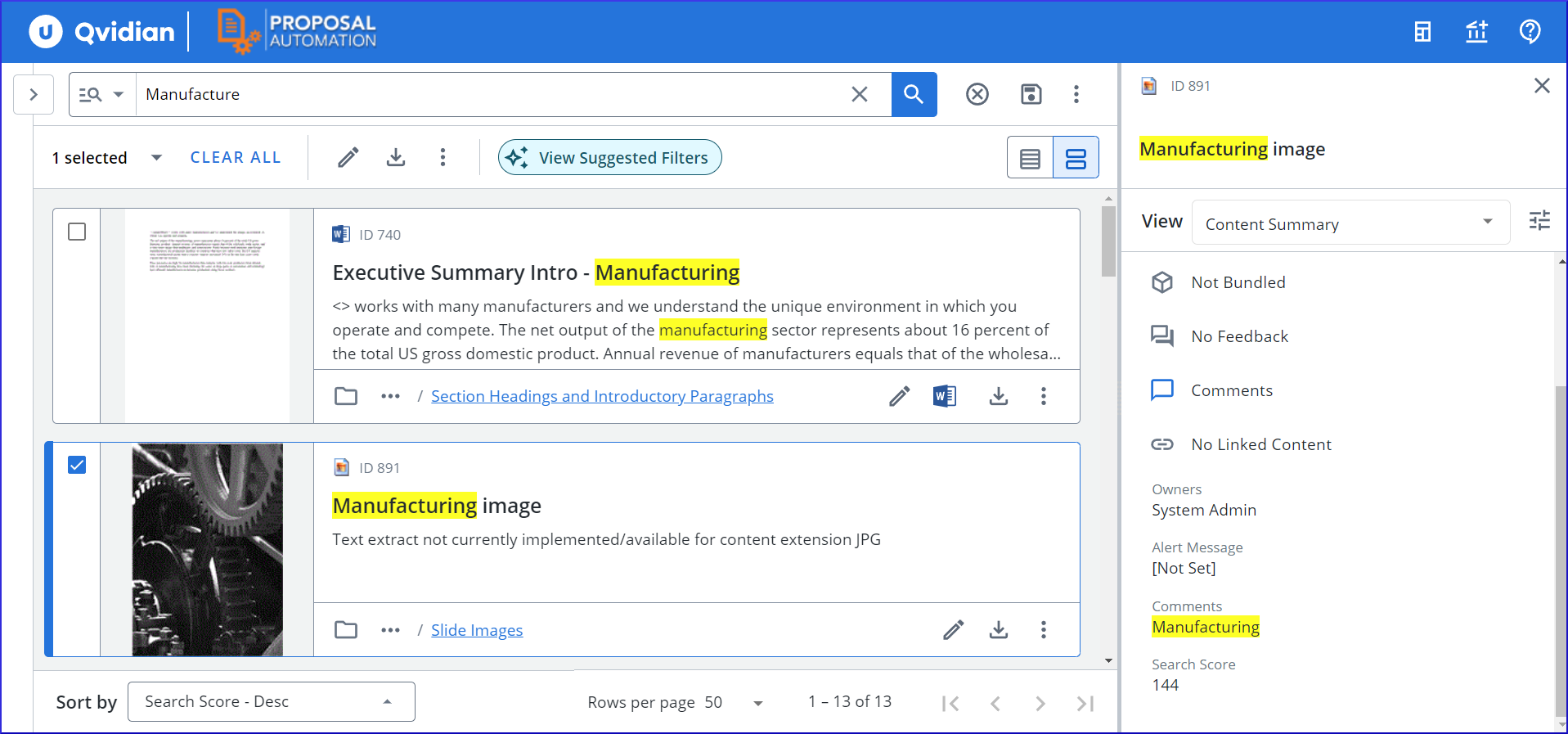
Sample library page in Card view and the Content Summary details panel showing the highlighted search term.
Keyboard Navigation of Content Records in the Library Search Results
You can now navigate the content records in the search results using the Up and Down arrow keys. This is especially useful when you have the content sensitive details panel open and you scroll through the search results using the keyboard while viewing the record details in the details panel. You can also press the Enter key to open the More Options menu and use the arrow keys to browse the menu and sub-menu options and press Enter to execute an option.
Button to Launch a Fresh Library Window or Tab
The New Library Tab/Window  icon in the top right corner of the Qvidian Library allows you to launch a fresh library page in a new window or tab. This is especially useful when you want to view additional information about content records or folder while completing a task in another library page or window. For example, when moving or copying a folder to another parent folder, it might be useful to view the parent folder permissions in a fresh library page before you inherit or merge the parent folder permissions to the new child folder.
Tip: The button opens a fresh library page in a new browser window or tab based on your preference. To specify your preference, see Reset Preferences.
Note: The library page opens using your personal default workspace. If you do not have a personal default workspace then it opens in your role's default workspace set by your administrator, and if a role default is not available then it opens in the Qvidian default workspace.
Uploading RFP's Containing Right Aligned Tables and Wrapped Text
Previously, uploading RFP's to projects failed when they contained tables that are right aligned and text that wraps around. In this release you can upload tables with any formatting.
May 2023 Resolved Issues
|
Item |
Summary |
Resolution |
|---|---|---|
| QPA-84101 | Discarding the changes to a word file that is checked out and edited does not discard the changes when the checkout is cancelled. | Canceling a checkout and discarding the changes to a record does not retain the changes. |
| QPA-83726 | The Manage Content Review job view of a job that contains more than 50 assignments does not display correctly. The assignment radio boxes show in the column for the job information. | The assignment radio boxes now display correctly. |
| QPA-69039 | Inline editing a bullet listed answer in a sliced RFP results in duplicate bullet items. | Inline editing of bullet listed content does not result in duplicate bullet items |
| QPA-84897 | The Qvidian application becomes unresponsive after editing content in Microsoft word. | This issue is now resolved. |
| QPA-84988 | When users drag and drop a file to the library, the Qvidian application throws an exception. | This issue is now resolved. |
| QPA-85010 | ProSearch users are unable to generate Weblinks unless they have the Edit Content Permission enabled on the folder or they have Edit Permission for the content record. | ProSearch users now have the option to generate Weblinks without requiring explicit edit permissions on the folder or the content record. |
| QPA-84767 | Users are unable to copy and paste numeric values from custom metadata fields containing Integer or Decimal values, when they are editing content record properties from the library. | Users are now able to copy and paste numeric values from custom metadata fields containing Integer or Decimal values. |
| QPA-84974 | Users must reselect the Content ID and Title properties in the Export content dialog when exporting a second content record. The rest of the properties selected during the first content export remain selected. | This issue is now resolved. |
| QPA-84963 | Users could see and use the Copy Reference Code option on content records. They should not be having this option. | Users can no longer see and use the Copy Reference Code option on content records. Users must be an Owner or Manager of content records to see this menu option for those records, which is consistent with the Classic Library. |
| QPA-84008 |
In an RFP project, when running autofill and viewing a content record's properties containing keywords, the keywords property shows “N/A” instead of the keywords. |
The keywords are not visible. |
| QPA-84088 | Audit logs shows the last user to add a new drop-down value to a custom metadata as the person who added all the previous values. These values were added by other users. | Audit logs now show all the users who added the different dropdown values. |
| QPA-84158 | When Structured Content Subsections with Salesforce integration configured are copied from another Doc Type, users are unable to import data to the new Structured Content subsection using Salesforce. | Salesforce configuration information will now be copied when Structured Content Subsections are copied to another Doc Type, which will allow data to be imported from Salesforce. |
| QPA-85047 | When users create a review job and save it for later and then come back to the same records and execute the review job, two review jobs were created. | When users create a review job, save it for later and come back and execute the review job only one review job is created. |
| QPA-85111 | New Library did not apply document templates to content records correctly. | Document templates are now applied correctly to content records in the new Library. |
| QPA-85119 | Performing a search by applying a drop-down custom metadata with the "Matches exactly" operator as a filter, throws an error. | This issue is now resolved. |
| QPA-85077 | Searching for a term in the new Library with many folders selected, was taking a long time to show search results. | This issue is now resolved. |
| QPA-84874 | In the new Library, the vertical scroll bar does not reset to the top of the search results after performing a new search. | This issue is now resolved. |
| QPA-85073 | The Edit Icon menu in a Review Job partially displays the text "Edit in Microsoft W...". | The Edit Icon menu in a Review Job now properly displays the text "Edit in Microsoft Word". |
| QPA-84905 | When users added a historical saved search to their list of favorite saved searches, the time of the search was changed by 4 hours. | This issue is now resolved. |
| QPA-84925 | Searching for a folder to apply permissions does not show the folder path on hovering over the ellipsis to the left of the folders in the search results of the "Select a Folder" dialog. This dialog is displayed when users are managing folder permissions or default content permissions and want to select a folder to copy its permissions. | The ellipsis to the left of the folders in the search results in the "Select a Folder" dialog, now displays the folder path. |
| QPA-84782 | In the new Library, when a user is copying content to another folder and chooses to keep or merge or inherit permissions option, all the owners of the content records are not copied. | This issue is now resolved. |
| QPA-84786 | When users create a workspace by adding and ordering columns using Manage columns and they reload the workspace again and open Manage columns, the order of columns in the Set columns section is not in the same order as that displayed in the grid view. | This issue is now resolved. |
| QPA-84944 | Users are unable to download any report from the New Analytics and the error message 'An Error occurred during download' appears. | This issue is now resolved. |
| QPA-84984 | Users could not see the Delete option in the More Options menu, for content they own unless they also had the Content Manager permission. | This issue is now resolved. |
| QPA-85037 | When users select multiple records and select the Advanced editing option, in the resulting page displayed, the tool tip for icon next to Download shows "SLIB_EditDownload_Tip". | The correct tool tip information is now displayed. |
| QPA-85310 | Launching a bundle in a new window does not display the content records in the bundle. | This issue is now resolved. |
| QPA-85341, QPA-85056 | A QPA request error message is displayed when users search for the exact phrase "401(a)4" and "401(k)" and they have enabled inflectional search. | This and similar phrases no longer throw an error. But note that the search results will not be accurate. This is because parentheses are considered “word breakers” in SQL Server, which means the phrase "401(a)4" is treated as 3 terms: “401”, “a”, and “4”. Moreover, single characters and single digits are treated by the SQL Server as “noise words” and are ignored. Which means the only term that will be used in the search is “401”, which would also find content with “401” as a term, like 401(k). |
| QPA-85488 | When users open a bundle in a new window and work with the displayed content records, then move back to the original window, they are unable to bring up the More Options menu." | Users can now bring up the More Options menu in the original window. |
April 2023
System Enhancements
New Qvidian Library
The New Qvidian Library features a modern and improved user interface that provides a slew of new and enhanced features. Some of these new and improved features are described in the sections below.
Open the Library in a Browser Tab or Window
The Classic Library allowed only a single instance in a browser window with up to 5 tabs in it. With the New Library, you can open as many library instances as you need in new windows or tabs. The full functionality of the library is available on each new instance. This allows you to perform many library tasks in parallel.
Workspaces
Workspaces in the New Library allow you to arrange the New Library in a way that best suits your working style and requirements. A Workspace can capture search settings, views, columns, folders, filters and more. You can create as many workspaces as you need for different tasks. For example, Workspaces to respond to RFPs, manage expired content, and create new document types. Users with permissions can also share a Workspace as a Workspace template with other users by Roles.
Navigation Panel
The Navigation panel to the left of the Library page contains the FOLDERS and FILTERS tab. The following labeled and overlaid sample screen shot shows the FOLDERS tab in the Navigation panel to the left of the page.
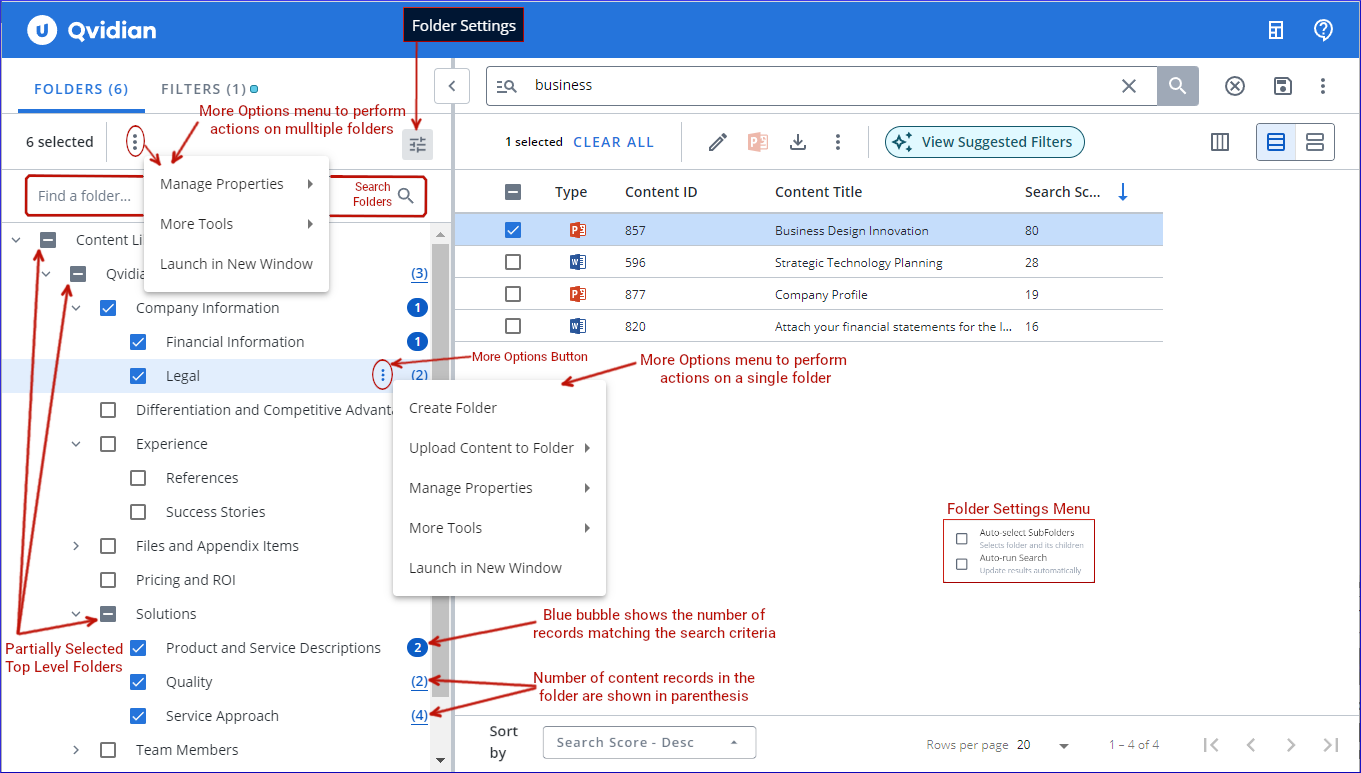
Sample screen with labels and overlays
You can see 6 folders selected and one active filter in parenthesis by the FOLDER and FILTER tabs. The numbers in parenthesis show the number of records in a folder. The numbers in blue bubbles show the number of records in the selected folder that match the search criteria. The partially selected check boxes are the top level folders with some of the subfolders selected. The Folder Settings menu button and More Options action menu to act on multiple folders selections is at the top. A More Options menu is also available on hovering over a single folder to act only on that folder. You can quickly find a folder using the folder search bar.
Search Results and Context Sensitive Details Panel
The new Library introduces the context sensitive Details Panel that allows you to easily display and work with different contextual details of a selected content record.
Grid View
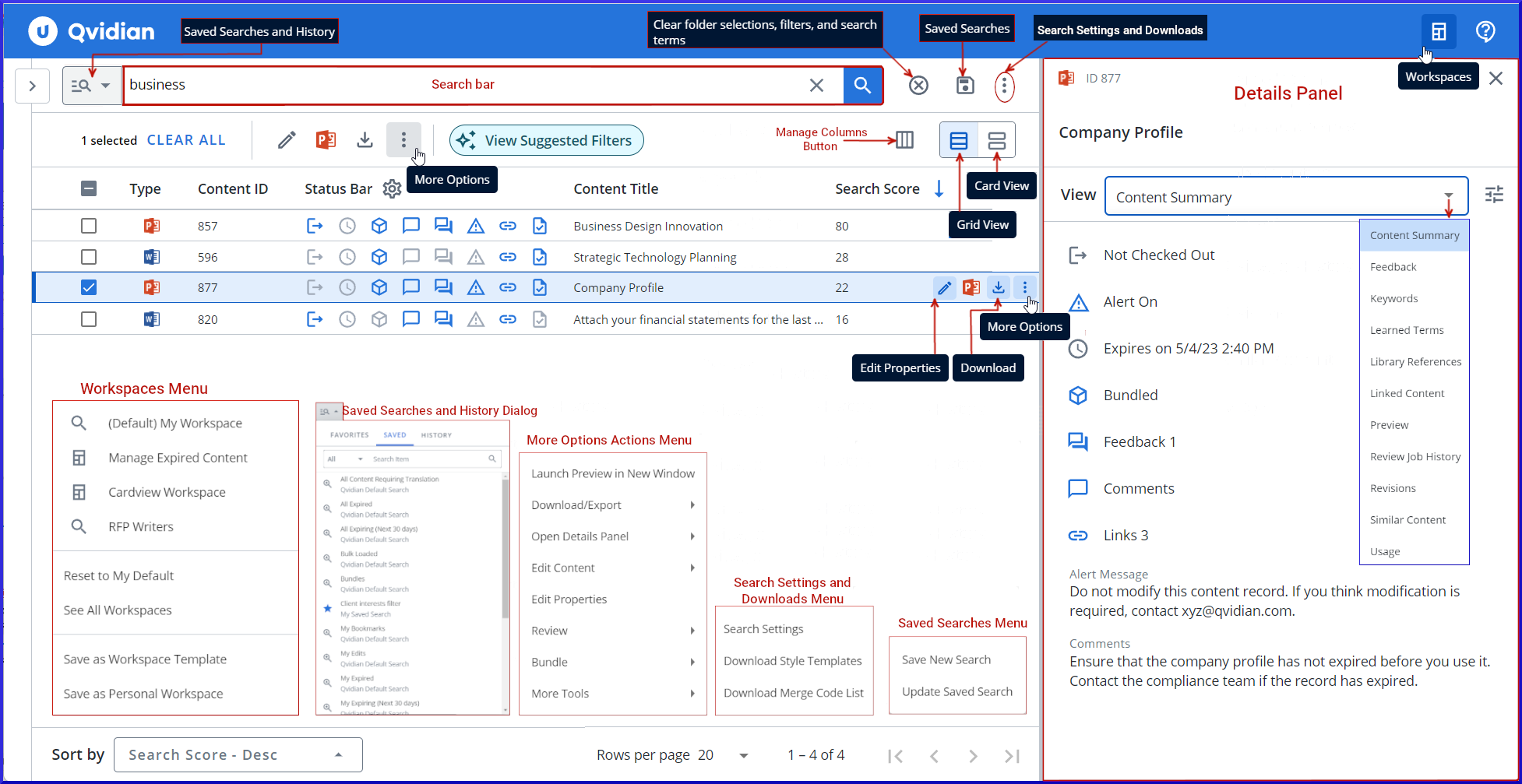
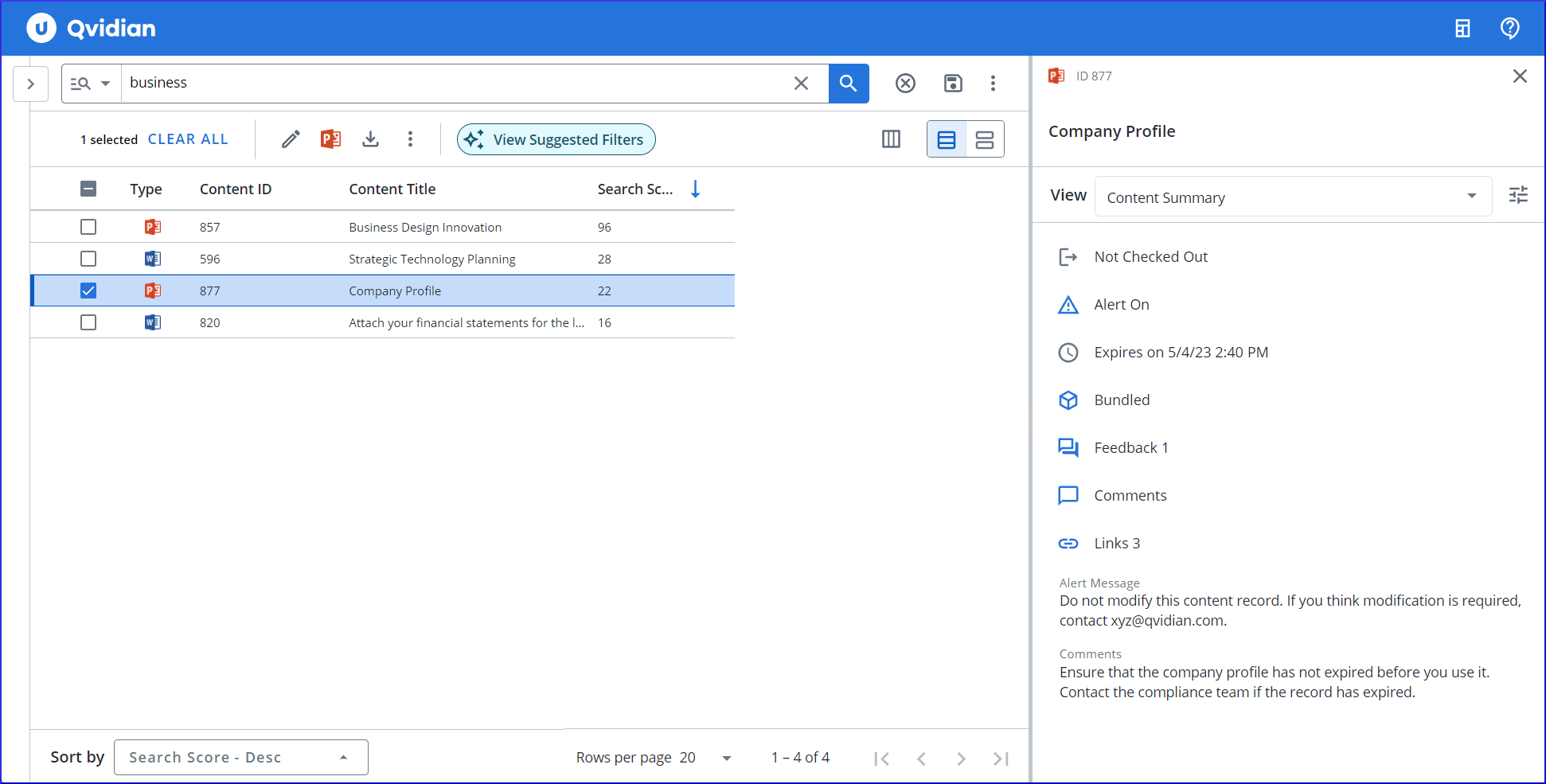
From left to right: 1. Sample screen with labels and the menu overlays of the corresponding menu buttons 2. The actual Sample screen without labels and overlays.
The above labeled and overlaid sample of the Search results and the Display panel in the New Library shows the menu buttons and the corresponding menus and dialogs that allows quick access to most of the functions you could perform on content records. The menus and dialogs are pasted in red boxes and correspond to the menu and dialog buttons that are labeled on top.
Notice the single click buttons to Edit properties, Edit content, and Download that appear when you hover over a record, including the More Options action menu button. The More Options menu button below the search bar is used for actions on a bunch of selected records. You can use the View dropdown to select and view the different details of a record like Summary, Preview, Feedback etc. You can click through the records while viewing the record details in the Details panel.
Card View
The sample screen shot shows the same search results in the Card view. The Details panel shows the Highlight Preview of the selected content record. The Sort By option at the bottom left of the search results helps you sort the content records by the column you specify.
Easy access to the most common actions
You have easy access to the most common actions you perform on content records. You can accept, download and edit records with just one click. Edit a record's content and properties, link content records and more. These actions are available in the More Options menu on each record. You can use the More Options menu below the search bar to perform bulk actions on many records.
All the common folder actions are available in the More Options menu on a folder. The More Option menu under the FOLDERS tab allows bulk actions on many folders at once.
Managing folders and Content records
Bulk editing properties and content
-
You can bulk edit the keywords and learned terms of content records. Propagate the keywords and learned terms to all records or remove them from all records.
-
You can bulk edit properties that have text fields. Append, prepend, or replace existing property text values. For example, this is useful when bulk editing the Custom metadata of records.
-
You can bulk find and replace text property values of selected records.
-
The Classic Library used Bookmarks to separate records in a Bulk edit document. Bookmarks are easy to move and delete. The new library uses Content Control tags to separate records. Content Control tags are not easy to delete.
-
You get better warnings and have fewer restrictions when deleting content.
Managing Permissions
-
The New Library allows you to bulk edit permissions of folders and content records. You can apply permissions at a very granular level. When you grant a new set of permissions, they do not overwrite the existing permissions.
-
You can manage folder permissions at the Role or User level on many selected folders at the same time. This allows granular control to add or remove individual permissions. You can permit access to a branch of folders by Role and keep existing permissions on the folders.
-
You can manage permissions of one or more selected records without overwriting permissions. For example, you can select a bunch of records and give access permissions to the selected records by Role.
-
Folder ownership is a permission in the new Library rather than a property like it was in the Classic Library. Now you can add more than one owner of a folder as well as remove folder ownership.
Improved Search
The FILTERS tab in the New Library consolidates the advanced search criteria window and column filters from the Classic Library in one place. Thus, you can refine your search results by finding the fields you want to filter by. You can focus on the fields you care about which out the clutter. You can search for the filters, apply and remove or toggle them off. You can also find filters by category.
Suggested Filters
The New Library reviews search results and recommends filters to refine the results. These Suggested Filters are based on Custom Metadata. A prominent button "View Suggested Filters" is displayed to notify the recommendations.
Watch the Videos of the New Library Webinar in April
- April 2023 Release Webinar: Search & Use Content
- April 2023 Release Webinar: Admin Considerations
- April 2023 Release Webinar: Content Management
April 2023 Resolved Issues
|
Item
|
Summary |
Resolution |
|---|---|---|
|
QPA-84993 |
Users were getting composite edit requests failed messages on uploading composite edit documents. |
This issue is now resolved. |
| QPA-84207 | Deselecting a folder that is in a partially selected state does not deselect subfolders that were automatically selected by a workspace or by running a saved search. | Deselecting a folder that is partially selected now deselects the subfolders that are selected. |
|
QPA-84211 |
Adding a new value to a Custom Metadata of type Dropdown resulted in the Custom Metadata existing values already assigned to a content record disappear from the Edit Content Properties page. | This issue is now resolved. |
| QPA-83763 | Cancelling the checkout of the last content record in an SME job throws an exception and fails to cancel the checkout. | This issue is now resolved. |
| QPA-84454 | Previewing a content record in a new window using the "Launch Preview in a New Window" action, does not load the Highlight tab. | The preview in a new window now loads all the tabs correctly. |
| QPA-84471 | To copy text from a HTML preview of a content records users had to press CTRL+C keys twice. | Users can now copy content from a HTML preview with single press of CTRL+C keys. |
| QPA-84410 | In the new library, reloading a content record preview in the Details panel after popping out a content record preview from the Details panel. The Image tab fails to load. | This issue is now resolved. |
| QPA-84424 | In the new library, suggested search remains active even when it is disabled in the Global Settings or disabled by the user in the search settings. | This issue is now resolved. |
| QPA-84562 | In the new library, copying and pasting text from the HTML preview does not look the same as it did in the classic library. | This issue is now resolved. |
| QPA-84738 | In the new library, setting the default search behavior to "All of these words", did not return any search results. | The new library search now works as expected for all search behavior settings. |
| QPA-83875 | In the new library, saving a composite edit back to the library results in failure and triggers error message emails. | The issue is now resolved. |
| QPA-83396 | In the new library, emails with job status information after completing a bulk upload job were not sent. | Status update emails message for bulk upload jobs are now being sent. |
| QPA-84494 | In the new library, users were not able to open the Edit Content Properties page. | The Edit Content Properties page now opens. |
| QPA-84549 | In the new library, it was not possible to remove existing owners of a content record from the Edit Content Properties page. | The current owners of content records can now be removed from the Edit Content Properties page. |
| QPA-84495 | In the new library, HTML preview was available to users without permissions. | Users without permissions cannot access HTML preview of content records. |
| QPA-84503 | In the new library, opening a preview of a content record, then right-click and selecting "View Content Preview" opens a new empty black page. | The "View Content Preview" options has been removed from the right-click menu of a preview in the Details panel. |
| QPA-84507 | In the new library, the Content ID was missing in the Edit Content Properties page. | The Content ID is now displayed in the Edit Content Properties page |
| QPA-84553 | In the new library, users were unable to change the folder to a sub-folder in the Edit Content Properties page. They got a "you do not have permission" message even when they had the necessary permissions. | Users with permissions can now change the folder of a content record to a sub-folder in the content record's Edit Content Properties page. |
| QPA-84557 | In the new library, users were unable to edit a content record using Microsoft Word from the Firefox browser. | This issue is now resolved. |
| QPA-84564 | In the new library, when users edit and save a property of a content record the expiration date of the content record was getting removed. | The issue is now resolved. |
| QPA-84614 | In the new library, users get an exception error when they link multiple content records. | Users can now link multiple content records successfully. |
| QPA-84640 | In the new library, adding a new Keywords filter did not increase the filters count besides the FILTER tab in the left navigation panel. | This issue is now resolved. |
| QPA-84669 | In the new library, adding a new owner to the Edit Content Properties page, when bulk editing multiple content records. The Owners property is not saved. | This issue is now resolved. |
| QPA-84695 | In the new library, clearing the check box of a folder in a partially selected state did not deselect all the selected subfolders . | Clearing a partially selected folder's check box now deselects all the selected subfolders. |
March 2023
System Enhancements
Project Plan For Preparing to Use the New Library
Watch the New Library Webinar Videos in March
- March 2023 Release Webinar: Pre-Release Preparation
- March 2023 Release Webinar: Search & Use Content
- March 2023 Release Webinar: Admin Considerations
- March 2023 Release Webinar: Content Management
Resolved Issues
|
Item |
Summary |
Resolution |
|---|---|---|
|
QPA-83065 |
When submitting content from the Home Page, the Select Folder option was not available to users unless they had the "Manage Custom Metadata" permission. |
User in roles that have been configured to show the Select Folder option will now see that option without needing the Manage Custom Metadata permission. |
| QPA-83201 | With recent changes to mark content as deleted to allow for easier recovery, email notifications for changes to linked content were still being sent out for content that was marked as deleted. | Email notifications for changes to linked content are no longer sent out for content that was marked as deleted. |
| QPA-83763 | Canceling the checkout of the last content record in an SME job throws an exception and fails to cancel the checkout. | This issue has been resolved. |
February 2023
Resolved Issues
|
Item |
Summary |
Resolution |
|---|---|---|
|
QPA-80856 |
Updating a data input field of a data entry component already containing data with new data reverted to the already existing data. |
When a Data Entry field was changed by the current user or another user, a refresh call was initiated. If the call completed, when a user is making another change to the data field, that subsequent change could get overwritten. The issue has been resolved. |
| QPA-82359 | Files remained checked out after applying a style template to the file content in the library. | This issue was caused by content with required fields that weren’t populated. The required field validation was being done as a part of the Save when it wasn’t needed. This issue has been resolved. |
| QPA-82719 | Users without edit permissions to global workflows could change default assignees in the workflows. | This issue has been resolved. |
| QPA-82751 | The “Keyword Usage” report in the legacy SQL reporting tool would not work when a keyword had more than one alias defined. | The SQL statement for the report is updated. If you continue to experience issues with reports based on this standard report due to multiple keyword aliases, contact Support for assistance. |
| QPA- 82759 | The "By Inclusion" selection item components are skipped when navigating a project quickly. | This was observed when the user navigated the project quickly without waiting for the selected component to load or enable. |
| QPA-82955 | Exporting from Event Auditing when filtered on Event Type would fail. | This issue has been resolved. |
| QPA- 83103 | Users without the application permission Manage Merge Code could not change and save global settings on the Administration page. They were instead redirected to the Home page. | This issue has been resSolved. |
January 2023
System Enhancements
New Deletion Time Frame to Recover Accidentally Deleted Folders and Content
Upland Qvidian now preserves deleted folders and content for the duration you specify using the global setting RecycleBinTimeFrame. The default period is 14 days and you can specify up to a maximum of 90 days. Support can recover the deleted folders and content for you within the time frame you specify.
Duplicating Merge Codes
Previously, on duplicating a merge code containing drop-down values, you had to re-create the drop-down values in the duplicated merge code. In this release, the drop-down values of a merge code are also duplicated and you do not have to recreate them.
Default Search Fields Expanded to Improve Search Scope
Qvidian for Office, Qvidian for Web, and Search Panels for RFP files and File List Screens will now search all four fields of a record: Title, Keywords, Content, and Learned terms. These default settings will allow you to find the most amount of matching content.
Deleting all Tasks from a Review Job
Tasks can be added for each piece of content in a review job. If you delete all the tasks for a content in a review, the content is removed from the review job. If you remove all content in a review job the review job is closed.
Better support to match content with dash or hyphen in the search term
Previously, you could not find content containing a dash or hyphen in the search term when inflectional search was enabled. In this release, you can search for content with hyphenated terms even when inflectional search is enabled. For example, search terms like "10-k".
January 2023 Resolved Issues
|
Item |
Summary |
Resolution |
|---|---|---|
|
QPA-51912 |
Users could not add some PDF files to the library because preview generation failed. |
The issue has been resolved. |
|
QPA-69993 |
An error occurs when a user selects Answer RFP Questions, whose role is switched from PA to PS. The Answer RFP Questions is present under My Work on the user's home page. |
The error occurs because preferences for options under My Work associated with the previous role continued to apply. Such preferences for options the user cannot access due to change in the role, are no longer applied. |
|
QPA-78692 |
The RFP project build fails due to the presence of control tags in the RFP Word document. |
The project build no longer fails due to the presence of control tags in the RFP Word document. |
|
QPA-79324 |
The presence of SVG graphics in a slide uploaded to a file list component causes the file download and generation of preview to fail. |
This issue has been resolved. |
|
QPA-80520 |
RFP documents that allow text to wrap around tables generate faulty slices when uploaded using the sliced editing model. |
RFP documents that allow text to wrap around tables no longer generate faulty slices when uploaded using the sliced editing model. |
|
QPA-80857 |
When users reuse a saved assignment workflow with the last step having the same deadline date as the project, the new workflow gets the deadline date of the first step. |
Reusing saved assignment workflows no longer results in faulty deadline dates. |
|
QPA-81183 |
The Submit Content Settings menu option was previously available to users with any form of Administrator level permissions. |
The Submit Content Settings menu option is now limited to users with the "Manage Customer Metadata" permission. |
|
QPA-81225 |
When users copy and paste subsections in Architect, or click through different subsections, the Usage panel on the subsection details page takes a few seconds to update, |
When the Usage panel reloads, previous data is cleared and a loading indicator will be displayed. |
|
QPA-81251 |
Editing or creating merge codes with drop-down values displays with overlapping text. |
Editing Merge codes with drop-down values no longer display overlapping text. |
|
QPA-81518 |
On download, Excel files containing merge codes do not populate values if the merge code includes a space at the end. |
Excel files with merge codes populate values even if the merge codes include a space at the end. |
|
QPA-81601 |
An Upland Analytics user with read-only role cannot download any reports in the NextGen User Interface. |
Appropriate default permissions now allow Upland Analytics users to download reports from the NextGen User Interface. |
|
QPA-81690 |
Users are unable to close review jobs that don't have content files. |
Review jobs that don't have content files are no longer listed. |
|
QPA-81709 |
The Custom User Info section in the User Properties dialog contains labels indicating required fields. Users find the labels confusing. |
The Customer User Info section in the User Properties dialog no longer contains labels indicating required fields. |
|
QPA-81802 |
Setting the ProjectDueDateDefautTimeFrame to 0 requires users to provide a due date. The due date fields for Projects or Created Documents defaults to the current date instead of a blank value. |
The due date field is now left blank. Users have to provide a due date before they can proceed to create a Document or a Project. |
|
QPA-81881 |
Dragging a file from the library to the file list of a project and changing the file name in the list does not keep the new file name. Downloading the file creates a file with the old file name. |
The new name given to the file in the project file list remains on download. |
|
QPA-81902 |
Users are unable to login to QPA concurrently when they are using SSO (Single Sign On). |
Users can now log in to QPA concurrently when using SSO. |
|
QPA-81904 |
Incorrect links to the built project files are listed in the email intimation sent after a project build is complete. |
Correct links to the build artifacts are now provided in the email. |
|
QPA-82291 |
Qvidian for Office was blocked from editing RFPs in Office Online due to a Microsoft Security Patch. |
The trusted host handshake implemented by Qvidian for Office now meets the stricter handshake rules enforced by the Microsoft Security Patch. |
|
QPA-82332 |
When users add a Bundle to an RFP and build the RFP, the resulting file contains the records in the Content ID order and not as per the order of the records in the bundle. |
The records in the built RFP are now placed in the same order as that in the Bundle. |
|
QPA-82417 |
Failure to add or modify a user via API due to insufficient licenses did not report the failure.This created the impression of a successful operation. |
Failure to add or modify users due to insufficient licenses is not reported correctly. |
November 2022
System Enhancements
Update Trusted Publisher Certificate for Legacy Add-ins
The Upland Qvidian add-in for Microsoft Office with a new trusted publisher certificate will be available for download after the release (November 12). Customers using our legacy add-ins should install the new add-in as the current certificate expires on January 22, 2023. For detailed directions to download and install the add-in, refer to the Upland Qvidian Browser and Microsoft Word Configuration Guide.
New Report Builder in the New Upland Analytics
The new upgraded Report Builder UI is now available in the Upland Analytics reporting tool. The report builder has a simple and intuitive user interface that is easy to use. Some of the exciting new enhancements are listed below:
-
Guides you through the steps of building a new report or editing reports while switching between steps
-
Provides tools to process and analyze data directly in the report
-
Allows you to change the report type without having to reselect all the required data fields again
-
Generates reports faster, allowing you to spend more time analyzing data
For more information, visit the Upland Analytics Online Help and watch the November 2022 recorded webinar.
Formatting Code for Graphic Merge Codes in PowerPoint Projects
When you populate a PowerPoint with the same image in different locations using graphic merge codes, you may also want to control how the image displays. You can use the new {{FitToShape}} formatting code to fit the image to the size of the containing shape. Without the {{FitToShape}} formatting code the image will populate in its original size. The following screen shots show the upland University logo, using the merge code with and without the {{FitToShape}} formatting code. 
November 2022 Resolved Issues
|
Item |
Summary |
Resolution |
|---|---|---|
|
QPA-80924 |
The user list in the administration section displaying values in the manager's name and manager email columns for a user did not display the manager details in the User Properties screen. |
The User Properties screen for a user now loads and displays the manager details correctly. This issue was resolved in a previous release. |
|
QPA-33233 |
Files from a network drive or SharePoint which require a log in failed to export. |
This issue was resolved in a previous release. |
|
QPA-34002 |
Users with PA licenses could be added even when the license limit was reached. This could be done from the Roles or Users screen. |
Users with PA licenses cannot be added once the license limit is reached. A prior release resolved this issue. |
|
QPA-41178 |
The preview of PowerPoint slides in the library was not the same as the view of the actual document with certain content. |
The preview of PowerPoint slides in the library matches the document view. A prior release resolved this issue. |
|
QPA-49421 |
Users could not load Excel RFPs containing graphics that extended beyond the print area. |
Users can now load Excel RFPs that contain graphics that extend beyond the print area. A prior release resolved this issue. |
|
QPA-61270 |
Users could not upload a new revision of a content record if the previous revision had a library reference that pointed to a file that had a library reference to the original file (known as a circular reference). |
While circular references should still be avoided, they will no longer prevent uploading new revisions of content. A prior release resolved this issue. |
|
QPA-69029 |
Existing search terms of a content item are lost if users update the search terms during the import of a new record revision. |
Learned terms (a.k.a. Search terms) can now be edited while uploading revisions of content without losing existing terms. |
|
QPA-73833 |
While choosing columns in the newer UI (Administration and top-level Architecture pages), if the user searched within the available columns, and then chose the Select All option, it would select all columns, not just the search results. |
The Select All option only selects the items in the search result list. |
|
QPA-73834 |
While choosing columns in the newer UI (Administration and top-level Architecture pages), if the user searched within the available columns, selected one or more available columns, and added them to the selected columns, then the columns would not be removed from the available columns. |
The selected items are now moved to the right column and removed from the left column. |
|
QPA-73848 |
While choosing columns in the newer UI (Administration and top-level Architecture pages), selecting and moving all the records in the left column to the right and then again using the Select All (left-hand side) option and moving them to the right column results in duplicate records in the right column. |
Using the Select All (left-hand side) option and moving the records to the right column a second time does not create duplicate records in the right column. |
|
QPA-80471 |
When exporting all users, the PA and PS columns display the value False for all users, even when the users have a license applied to their accounts. |
The PA and PS columns will now accurately reflect the assigned licenses. |
|
QPA-80819 |
Some fields, in the following screens and dialogs to create new or edit existing values, do not trim empty spaces from the beginning and the end. The screens are Integrations Connections, Integration Settings, Announcements, Custom Metadata, Custom User Info, Keywords, and Report Views. |
The identified fields can now trim the empty spaces at the beginning and the end. |
|
QPA-80820 |
Some fields, in the Project Teams screens and dialogs to create new or edit existing values, do not trim empty spaces from the beginning and the end. |
The identified fields can now trim the empty spaces at the beginning and the end. |
|
QPA-80821 |
Some fields, in the Architecture screens and dialogs to create new or edit existing values, do not trim empty spaces from the beginning and the end. |
The identified fields can now trim the empty spaces at the beginning and the end. |
|
QPA-80822 |
Manager information of a new user or an existing user is not displayed after saving the user details. |
The Manager information is now displayed for users. |
|
QPA-80851 |
Users could not highlight and delete merge code values in a dropdown, Custom Metadata, and Calendar merge codes as the highlight action initiated a drag action. They had to use backspace to delete the value. |
Users can now highlight and delete merge code values in a dropdown, Custom Metadata, and Calendar merge codes. |
|
QPA-80880 |
Users could not delete a style template that is being used in a review job. |
Users can now delete templates associated with Review Jobs as long as the process of applying the template to the content in the job has completed. . |
|
QPA-80907 |
The vertical scrollbar does not show up on the Role Mappings screen in the SSO administration section. This prevents users from viewing all the groups. |
The vertical scrollbar now shows up on the Role Mappings screen. |
|
QPA-80974 |
Users could not add an answer to a table cell adjacent to another table with a different format. |
Users can now populate such cells with an answer. |
|
QPA-81192 |
The Default Value in the Create Folder and Saved Searches screens and dialogs to create new or edit existing values, do not trim empty spaces from the beginning and the end. |
The default field can now trim the empty space from the beginning and the end. |
|
QPA-81201 |
When users edited an existing template or created a new template with spaces in the template name, the template name displayed “%20” instead of space. |
The template names with spaces in them now display correctly. |
|
QPA-81208 |
When files were set to Maintain Section Formatting, the Build process did not correctly preserve headers and footers. |
Headers and footers will now be preserved for files set to Maintain Section Formatting. This issue was resolved in a service release prior to the November ’22 Maintenance release. |
|
QPA-66339 |
Users with limited access to specific folders in the library retrieve a different number of search result records for similar search attempts. For example, a search with no folders selected, retrieves more records than a search with all the folders selected. |
Search now takes into account the user's access permissions on different folders before searching the folders resulting in consistent number of search results. A prior release resolved this issue. NOTE: Customers who give users access to only a subset of content in a folder should set the FolderStatisticsMode global setting to 1, so that permissions are taken into consideration when displaying the count of content in each folder. |
|
QPA-65335 |
Enabling the highlight of search terms in the full preview of the search results, portions of words that are not search terms get highlighted. For example, a search on “bus” highlighted the letters “bus” in the word “business”. |
Only words that are search terms get highlighted in the full preview of search results. A prior release resolved this issue. |
|
QPA-33139 |
When a user adds a logo to a text box using the {{ClientLogo}} merge code, the logo image inserted during the final build exceeds the boundary of the text box. |
The functionality was working as some customers expected it to, as it was preserving the original size of the graphic. But other customers expected it to fit to the shape it was inserted into, as it did in the past. We’ve added a new {{FitToShape}} Formatting Code that can be used in locations where you want the inserted graphic to fit to the shape. For example: {{FitToShape}}<<GraphicMergeCode>>{{FitToShape}}. |
October 2022
System Enhancements
Upland Analytics UI Upgrade
Upland Analytics Report Viewer UI (user interface) has been upgraded. The new UI is optional and a toggle allows you to move between the new and old as required. The Report Builder feature is still only accessible in Classic Analytics. The following sections describe the main benefits of the new UI:
On the home page
-
The home page now includes a My Recently Viewed section where you can revisit the last eight reports and dashboards you accessed. These reports and dashboards are also accessible from the left-hand panel.
-
It also includes My Favorites, so any report or dashboard that you have favorited can be accessed from the home page as well on the left panel.
-
My Reports and Dashboards as well as any other folders can be accessed from the home page.
-
A button in the upper right corner provides access to Analytics Classic. This button is available on any page in the new user interface (and only available for a limited period).
Within a dashboard
Within dashboards, a new Quick Filters feature provides a view of the filters of your choice at the top of the dashboard page. Only three filters are displayed at a time and each user can select which quick filters are displayed. Note that this feature is for dashboards only, and not reports.
Within reports and dashboards
Within both reports and dashboards, a clickable star icon is how you mark dashboards and filters as your favorites.
The filters within reports and dashboards now give you two options when searching: Basic and Advanced. Basic allows you to search for a specific word or term. Advanced (similar to Conditions in the old UI) gives you more filters to choose from, such as 'Equals To', 'Contains' and 'Ends With'.
You can apply and save your filter values directly to reports and dashboards. This means that when you open a relevant report or dashboard, it will be automatically filtered to display the information that concerns you most.
Left-hand panel
The panel now includes a link to Upland Analytics online help system. Click the lightbulb icon to watch the tutorial again, and the download manager is where your downloads are stored. The panel also includes My Favorites and My Recently Viewed so they can be accessed from anywhere in Analytics (and not just from the home page).
For more information, visit the Upland Analytics Online Help and watch the Analytics release webinar.
October 2022 Resolved Issues
|
Item |
Summary |
Resolution |
|---|---|---|
|
QPA-33911 |
Users in Chrome did not have all the appropriate options in a selection screen shared across multiple document types. |
All appropriate options are now available to Chrome users. This was resolved in a prior release. |
|
QPA-74129 |
User who did not have the application permission Allow user to create Global Saved Workflows could still create global workflows. |
Issue is now resolved and only users with the appropriate permission can create global workflows. |
|
QPA-74239 |
When duplicating a report in Analytics, changes to filters weren’t applied to previews until the report is saved. |
Issue is resolved in the New Analytics UI. |
|
QPA-77662 |
Users with permission to Allow user to manage Analytics objects were able to edit the Standard Reports and Dashboards. |
This permission is now limited to the custom Reports and Dashboards created by users. |
|
QPA-79425 |
User experienced Review Jobs that could not be completed due to the job being in an invalid state after a communication failure during an app pool reset. |
Additional retry attempts have been added to prevent the issue in the future, and additional logging has been added. |
|
QPA-79662 |
On the Documents and Projects panel - if a project or document was marked as complete but not archived, it would still be indicated as overdue when the due date elapsed. |
The due date for completed projects and documents is no longer highlighted in red when the date elapses. |
|
QPA-79683 |
When a user attempted to split a large presentation on a File List subsection in a PowerPoint project, the user experienced an error, but the presentation split successfully. |
This issue has been resolved. |
|
QPA-79764 |
Users could not download Bundles from Qvidian for Microsoft Office or Qvidian for Web. |
Users can now download Bundles from Qvidian for Microsoft Office and Qvidian for Web. |
|
QPA-79931 |
A blank hover message was displayed for workflow indicators in the Comments of a project question with assignments. |
Hover message for Workflow indicator now displays the correct information. |
|
QPA-79935 |
When a user canceled the checkout of a Word file they were editing in a project, the cancelation occurred automatically and before the user selected an option in the Select Cancel Checkout Option pop-up window. This meant that either of the following could occur: changes could be retained that the user wanted to discard or changes could be lost that the user wanted to retain. |
Cancelation of checkout does not occur until after user has indicated their preference in the Select Cancel Checkout Option pop-up window. |
|
QPA-79991 |
In Administration, exporting selecting Users in a Project Team returned the user to the home page. |
Exporting of Project Team Users now works as expected. |
|
QPA-79992 |
Building a File List component failed in the following scenario: a file in the list contained a graphic, the style applied to the graphic included a frame, and in the Settings for the specific file, Maintain Section Formatting was enabled. |
Additional code handles this scenario and the building a file list component with such a file no longer fails. |
|
QPA-80003 |
If a user didn’t close the Add Participants window using the X icon, subsequent attempts to add participants may fail. |
Users or project teams are added regardless of how the user last closed the Add Participant dialog. |
|
QPA-80017 |
User wass receiving intermittent errors stating QPA Request error Unavailable for Legal Reasons when clicking on the Library or running searches. |
Error handling and retries have been added to recover from intermittent communication issues. |
|
QPA-80110 |
Add Participants window was not displaying correctly if a large number of users (110+) were being added in step 1 of the Project Overview assignment workflow. |
Add Participants window is displayed in full when a large number of users is added to the assignment workflow. |
|
QPA-80113 |
Last Modified date and time was not updating correctly when a new style template was uploaded or an existing template edited. |
Issue with UTC and UTC + times is resolved. |
|
QPA-80207 |
When multiple users were editing a document in Office Online, a user might not see the other users editing the document or their edits. |
Issue arose when a user exited the editing session and then rejoined. This scenario is now handled by the code. |
|
QPA-80246 |
When accepting content from the Library on a File List subsection, and then changing the name of the file without editing the file itself, the new name wouldn’t be displayed when the file was downloaded. |
File name changes will now be used on download. |
|
QPA-80275 |
Downloading a bundle failed when performed via a Multiple use Web link and the bundle contained an alert, or content within the bundle contained an alert. |
Downloading content with an alert via a Multiple use Web link now works as expected. |
|
QPA-80362 |
When a user built a project with a numeric merge code, a superfluous decimal point and zeroes were added to the inputted value. For example, ‘2500’ became ‘2500.0000’. |
Decimal point and trailing zeroes are no longer added to numeric code values. |
|
QPA-80485 |
Users were unable to search/view contents of a Library Folder. Logged error message stated: There was an error generating the XML document. ---> The surrogate pair (0xD83D, 0xD83D) is invalid. A high surrogate character (0xD800 - 0xDBFF) must always be paired with a low surrogate character (0xDC00 - 0xDFFF). |
This error was caused by the text extract of content records in the folder, where the 1000 character limit fell in the middle of a surrogate pair character. The text extract logic has been updated to not split a surrogate pair. |
September 2022
System Enhancements
Qvidian for Web
Qvidian for Web is easy to use, offering a similar experience to functionality already available in Qvidian for Office, such as searching for and consuming content. Qvidian for Web allows you to:
- Find and consume your content quickly and easily on various RFP portals, websites, and web-based tools, such as Google Docs, Sheets, and Slides.
- Quickly access and download content stored in Qvidian.
- Quickly copy answers and paste as needed.
- Focus your search using Folders and Filters.
- Find the right content with Suggested Filters.
- Easily see content preview or details.
- Read and leave feedback on content.
How do I use it?
Once loaded, Qvidian for Web, which operates in a separate window, interacts with web pages to add a context menu option, allowing you to search Qvidian with your selected text.
- Finding Content: Click a button at the top right of Qvidian for Web to grab the selected text on the page and run your search.
- Select folders and filters to constrain your search. Qvidian offers suggested filters to recommend ways to filter your search results based on Custom Metadata applied to the content found in your search results.
- Preview content, view details, or view and leave feedback on content.
- Using Content: Once you find the content you’re looking for, you can:
- Click the “Copy Text” button to copy the HTML Preview for any text that Qvidian can generate an HTML Preview. Pasting into a Rich Text control will preserve most formatting and graphics. Pasting into a regular text box will use the plain text.
- Download any desired content (e.g. standard PDFs or PPT decks can be managed in Qvidian and then downloaded by users across your company).
- Copy a portion of selected text from the HTML Preview.
For more information, watch the Qvidian for Web release webinar.
September 2022 Resolved Issues
| Item | Summary | Resolution |
|---|---|---|
|
QPA-78839 |
Users with the permission 'Manage Custom Metadata' were unable to view or edit the properties of Custom Metadata fields. This action was only possible with the permission 'Manage Merge Codes'. |
Users with the permission 'Manage Custom Metadata' are able to view or edit the properties of Custom Metadata fields. |
|
QPA-79167 |
A text formatting issue occurred in tables included in downloaded PPT slides. If a merge code was added to a cell, all the text in the cell was formatted according to the formatting of the initial text when the user clicked Download with Merge Code. |
The different formatting of merge codes and accompanying text in a PPT table cell is now respected when downloading with merge code. |
|
QPA-79218 |
A text formatting issue occurred when inserting library references into a content item. If not separated by a paragraph break, the first line automatically took on the formatting of the second when the user clicked Download with Merge Code. |
The different formatting of lines in a library reference is now respected when downloading with merge code. |
|
QPA-79334 |
Values in filter drop-down menus were not capitalized consistently (e.g. ‘Less than or equal to’ vs ‘Not Equal To’). |
Values in filter drop-down menus are capitalized consistently (e.g. ‘Less than or equal to’ and ‘Not equal to’). |
|
QPA-79468 |
A typo was present in the description of the Global Setting UserInactivityLockInterval. |
Typo is corrected. |
|
QPA-79478 |
The Simplified Doc Structure view in Projects was not including components that were shared in multiple "by inclusion" subsections. |
Shared Components that are "by inclusion" will now display in Simplified Doc Structure view. |
|
QPA-79735 |
Users tab on the Everyone Role was active even though users cannot be added to or removed from the Everyone Role. |
Users tab on the Everyone Role is inactive. |
|
QPA-79740 |
In a project, in certain scenarios, the system was updating the ‘Due’ date under Project Status on the Assignments tab to an incorrect date . For example, if the Project Deadline was updated by a user. |
This issue was resolved in an unscheduled update. |
August 2022
System Enhancements
- File uploader UI update: The UI across the following file uploaders in Qvidian has been updated to include file size and truncated naming for long file names:
- Branding: Uploading the logo.
- Connection Information: Uploading the Salesforce certificate for OAuth.
- Templates: Uploading or replacing a template.
- Doc Types: Uploading an example document to the Doc Type properties.
- Users: Uploading the users spreadsheet.
August 2022 Resolved Issues
| Item | Summary | Resolution |
|---|---|---|
| QPA- 79177 | If a Doc Type contained a {{Link}} formatting code around a <<URL>> merge code, and the user did not provide a URL value, the build failed. | If a Doc Type contains a {{Link}} formatting code around a <<URL>> merge code, and the user does not provide a URL value, the {{Link}} formatting code will be removed and the build will proceed. |
| QPA- 78158 | A green dot appeared on the Project Assignments tab even though all assignments had been completed. | Green dots will not appear on Project Assignments tabs once all assignments have been completed. |
| QPA- 78515 | The “Apply Template” function did not apply the desired font correctly. | The “Apply Template” function will apply the desired font as expected. |
| QPA- 77026 | If the “Allow user to manage Project Teams (Projects)” permission is enabled and the “Manage Users” permission is disabled, users were logged out when they clicked the “Project Teams” option on the Users and/or Roles pages. | This issue has been resolved. |
| QPA- 79053 | Content Files did not display when a user double-clicked a Bundle in any of the following Library Views: Grid View with Preview, List View with Preview, Full Size Preview. | Content Files will display as expected when a user double-clicks a Bundle in any of the following Library Views: Grid View with Preview, List View with Preview, Full Size Preview. |
| QPA- 79090 | A Project Participant who was not an owner of the project and did not have the “Manage Projects created by another User” permission, but was assigned to the current step of the Project Workflow, received a QPA Request Error when they re-ordered the documents that were loaded into a File List section. | A Project Participant assigned to the current step of the Project Workflow can re-order the documents loaded into a File List section without needing to be an owner of the project or having permission to “Manage Projects created by another User”. |
| QPA- 79018 | When a user made composite edits to a single document, an error message appeared even though the edits were saved successfully. | Error messages will not appear if the save was successful. |
| QPA- 79188 | An unexpected error occurred when a user selected the source while editing a dynamic slide component. | While editing a dynamic slide component, the source can be selected. If a user needs to edit “Dynamic Slides”, they will need to re-install the legacy add-ins after the August ’22 release. Other users do not need to re-install the legacy add-ins. |
| QPA- 79219 & 79424 | When a customer ran the Permissions by Role report in the legacy SQL Reporting tool, an error message appeared if the customer had duplicate Role names, or if a Role name contained square brackets. | The SQL for this standard report has been updated for any customers who have not changed the SQL. If you continue to experience errors after the August ’22 release because your report SQL had been customized, you must correct your Role names. |
| QPA- 78478 | When a user clicked on a Job Name on the “Manage Content Review Jobs” Home page panel, the Assignments page opened, but no content assignment was listed. | When a user clicks on a Job Name on the “Manage Content Review Jobs” Home page panel, the content assignment will be listed on the Assignments page. |
| QPA- 78480 | In Presentation Doc Types, including File List files in the agenda by checking the Subsection failed to add the slides to the agenda. | Agenda slides and File List screens within a presentation will behave as expected. |
| QPA- 78495 | When a user clicked “Select All X records” on the Merge Codes administration screen rows and then clicked the “Export Selected” icon, the Excel file was not created. | Merge Code rows will export into an Excel file as expected. |
| QPA- 78514 | When the “Document Has Been Assigned To You” email notification is sent to a newly assigned Project owner, the Participant names did not appear in the correct order. | The email body previously started with “<<ProjectOwner>> assigned”, which would pull in the current list of owners, and was inserted as a list that now included the newly assigned user. This also caused confusion when owners were removed. To reduce confusion, for any customer who has not changed this default body text, it has been updated to: “The Owners for <<ProjectName>> document have been updated to <<ProjectOwner>> on <<CurrentDate>>. This project is due on <<ProposalDate>>.” |
| QPA- 78446 | The “Last Activity Date” time did not match the local time zone on the Users administration page. | The “Last Activity Date” time matches the local time zone on the Users administration page. |
| QPA- 78691 | When a user attempted to cancel an edit to the style template, the style template remained checked out and the “Save” button did not become enabled. | Edits to style templates can be canceled. |
| QPA- 79162 | When users attempted to filter on “Date” columns in newer grids, the operators that appeared were for the “Text” data type (such as “Contains Any”). | Date filters will now display appropriate operators, like Before, After, and Between. |
| QPA- 77690 | The “Validation Failed” error message did not display correctly for date custom metadata fields in the Library when a regex validation rule had been applied. | Regex validation rules have been removed from Date Custom Metadata fields, as they no longer apply with the date picker control. |
| QPA- 78210 | When a new Doc Type was created without any Roles assigned to it, some Users were granted Build, Edit, and Architect permissions at a Role level. | This issue has been resolved. |
| QPA- 78850 | When a Project was linked to a Custom Object in Salesforce, the built documents from that Project were not written back to the file storage location linked to the Custom Object. | Qvidian Projects linked to Saleseforce Custom Objects will now be written back to the file storage location linked to those Custom Objects. |
July 2022
System Enhancements
- {{Link}} formatting code: {{Link}} formatting codes are now supported for all Word content that is built in a Project.
Example: If a content manager wanted to insert the merge code, <<HelpURL>>, to populate a unique online help center URL into each project build, there are several ways they could use the {{Link}} formatting code to produce a clickable hyperlink in their built Word document.
Example 1- To format the value of a merge code as a link, surround the merge code with the {{Link}} formatting code:
{{Link}}<<HelpURL>>{{Link}}would appear as https://help.uplandsoftware.com/qvidian/Home.htm, if “https://help.uplandsoftware.com/qvidian/Home.htm” was entered as the <<HelpURL>> on the data entry screen.Example 2- To include a fixed alternative display text for the link, enter that text before the merge code, and separate them with a vertical bar:
{{Link}}Click Here!|<<HelpURL>>{{Link}}would appear as Click Here!, if “https://help.uplandsoftware.com/qvidian/Home.htm” was entered as the <<HelpURL>> on the data entry screen.Example 3- To include an alternative display text for the link, enter a merge code for the text and the desired merge code link, and separate them with a vertical bar:
{{Link}}<<DisplayText>>|<<HelpURL>>{{Link}}would appear as DisplayText, depending on what was entered as the merge code display text and if “https://help.uplandsoftware.com/qvidian/Home.htm” was entered as the <<HelpURL>> on the data entry screen. - Upland Analytics Version Upgrade: Upland Analytics has been upgraded to v2021R1.12. For more information, please see the Upland Analytics Online Help.
- Architecture Selection Screen auditing events: The following audit events have been added to track the editing, adding, deleting, and moving of Groups and Items within Architecture in Doc Type Selection Screens:
Event Name Event ID Event Category Description Selection Group Created 1101 Architect: Doc Type A selection group has been created. Selection Group Edited 1102 Architect: Doc Type A selection group has been edited. Selection Group Moved 1103 Architect: Doc Type A selection group has been moved up or down. Selection Group Deleted 1104 Architect: Doc Type A selection group has been deleted. Selection Item Created 1201 Architect: Doc Type A selection item has been created. Selection Item Edited 1202 Architect: Doc Type A selection item has been edited. Selection Item Moved 1203 Architect: Doc Type A selection item has been moved up or down. Selection Item Deleted 1204 Architect: Doc Type A selection item has been deleted. Selection Item Content Added 1205 Architect: Doc Type A selection item had content added to it. Selection Item Content Removed 1206 Architect: Doc Type A selection item had content removed from it. Content Added to Selection Item 1207 Architect: Doc Type Content has been added to a selection item. Content Removed from Selection Item 1208 Architect: Doc Type Content has been removed from a selection item.
July 2022 Resolved Issues
| Item | Summary | Resolution |
|---|---|---|
| QPA- 78477 | When a client added a dropdown value to a custom metadata value to an existing list of dropdown values used in content and/or bundles, the value would be removed. | When a dropdown value is added to an existing list of dropdown values used in content and/or bundles, the value will not be removed. |
| QPA- 77822 | A Qvidian Web Add-In Error Connecting message occurred when a user created an assignment for a question that contained a Word comment. | Assignments can be created for questions containing Word comments. |
| QPA- 77899 | Large Doc Types could not be exported. | This issue has been resolved. |
| QPA- 78008 | Users added to a Project workflow were removed unexpectedly from the workflow and Participants list. | Users that are added to a Project workflow will appear in the workflow and Participants list. |
| QPA- 78224 | When “All Activity” was exported from a Project, an “Unexpected Exception” error would occur. | “All Activity” can be exported from a Project as expected. |
| QPA- 77842 | If a user that was granted “Manage Document Types”, but not “Manage Users” permissions, selected the “Edit Properties” button within Document Types or Architecture pages, they were redirected to the Home page. | Users that are granted “Manage Document Types”, but not “Manage Users” permissions, can “Edit Properties” within Document Types or Architecture pages. |
| QPA- 78146 | The following columns did not appear on the Users grid for a client: Failed Password Attempt Window, Last Locked Out Date, Password Reset. | User grid columns will appear as expected. |
| QPA- 77355 | When a user saved a new .dotx file to an existing template, the process timed out while deleting the stored previews associated with the old template. | .dotx files will be saved to existing templates as expected. |
| QPA- 78203 | Projects with File List sections with “Maintain Section Formatting” and “Continuous Section Break” enabled, added an extra bullet icon to the bulleted list when the Word document was built. | This issue has been resolved. |
| QPA- 73784 | A Library “Translation Parent” column configuration contradicted the Parent selection displayed in the content properties. | Library “Translation Parent” column configurations will match the Parent selection displayed in the content properties. |
| QPA- 78468 | The “PA” and “PS” permissions columns were selected for all users in the Users grid regardless of the type of license assigned to the user account(s). | The appropriate permissions columns will be selected depending on the type of license assigned to the user account(s). |
| QPA- 77843 | If many style templates are enabled for a user, when “Apply Template” is selected for a Library content item, the last template in the list will be hidden. | If many style templates are enabled for a user, when “Apply Template” is selected for a Library content item, the last template in the list will appear as expected. |
| QPA- 68363 | When a user reordered files by dragging and dropping them in their RFP or File List subsections, sometimes the files did not appear in the expected order. | Drag and drop behavior has been improved. Note: Expect lag time when dragging and dropping files. Hover the mouse over the drop target for it to appear. |
| QPA- 69049 | A Salesforce integration recursion error occurred when a client created a document that used a particular Doc Type. | This issue was resolved as part of an earlier release. |
| QPA- 77620 | FirstPass failed in Qvidian for Office when table cells contained a space beneath a question. This issue occurred because Microsoft changed the implementation of their API functions. | This issue has been resolved. |
| QPA- 77813 | Previously deactivated users cannot be reactivated using Security and Authentication internal API calls. | Previously deactivated users can be reactivated using Security and Authentication internal API calls. |
| QPA- 77836 | Prosearch licenses could not be applied to new or existing Roles. | Prosearch licenses can be applied to new or existing Roles. |
| QPA- 77915 | The “Add” button was disabled on the “Details” dialog when a user built a Presentation Doc Type with Structured Content Components. | The “Add” button will appear as expected on the “Details” dialog when a user builds a Presentation Doc Type with Structured Content Components. |
| QPA- 77894 | The user count found in Role Properties did not match the actual list of enabled users. This issue occurred because inactive users were still being included in the count. | The user count found in Role Properties will match the actual list of enabled users. |
| QPA- 78300 | When a user searched a Role permission and either selected or unselected it, all other permissions were automatically unselected. | This issue has been resolved. |
| QPA- 78493 | When a style template was applied to a Word document, a client received a failure message for each piece of content. The style template would still be successfully applied despite the failure messages. | When a style template is successfully applied to a Word document, failure messages will not appear. |
June 2022
Project Enhancements
- Structured Content Merge Codes will display configured decimal places: Structured Content Merge Codes with “Currency” Data Types will now display the configured number of decimal places for a field even if the number is a whole number. Previously, the configured number of decimal places for “Currency” Data Types would only appear correctly upon build, but not be reflected accurately in the UI.
- Updated formatting for Optional Groups in Project selection screens: The text format for optional groups in Project selection screens has been updated. Previously, the displayed text was grey, causing the optional group to appear disabled. Now, the displayed text will appear like other groups where the checkbox indicates whether the group is selected.
- Updated Project Task View indicator: The Project task view indicator colors will now reflect the status of the current task in the workflow. Previously, the indicator colors reflected the status of the overall workflow.
Example: If 2 decimal places are configured for a field, the whole number will display as “3.00” not “3”.
System Enhancements
- New Qvidian Help Center link: The link to Qvidian's online Product Help Center will be changing to: https://help.uplandsoftware.com/qvidian/Home.htm. The online help can now be accessed directly via the link or as done previously from within Qvidian.
- Ability to run second user session simultaneously: Users can run a second Qvidian session simultaneously in another browser window or tab to compare Projects side by side.
- Qvidian for Office and Project RFPs performance improvements: Performance has been improved for Qvidian for Office and Project RFPs when creating a large number of assignments.
- Custom Metadata ID Column added to grid: The ID column has been added to the Custom Metadata grid within Administration, allowing users to filter and sort on that field.
- Option to insert Merge Code Dropdown Values to top of the list: Users now have the option to insert dropdown values at the top of the list when creating default Merge Codes.
Note: Please ask your Qvidian admin to share this update with your organization’s IT department in case they need to whitelist the new URL. For GDPR Compliance purposes, please note that the Help Center will be hosted in North America. No personally identifiable information (PII) is transmitted or tracked by the Help Center.
Note: Logging out of one Qvidian session will automatically log out the second session.
Note: Clear your grid preferences to see the ID column.
Tip: Select the “Add to Top” checkbox when adding a “Text” dropdown value to a Merge Code. Once selected, this is remembered as the user preference.
June 2022 Resolved Issues
| Item | Summary | Resolution |
|---|---|---|
| QPA- 77390 | The navigation and load times in the Users grid took longer than expected. | Performance has been improved. |
| QPA- 77574 & 77246 | Project assignment email links directed to the Home page instead of the Project if an existing Qvidian session was already open. | Now, users can run a second Qvidian session simultaneously in another browser window or tab to compare Projects side by side. |
| QPA- 77567 | The displayed text for optional groups in Project selection screens was grey, which caused the optional group to appear disabled. | The displayed text for optional groups in Project selection screens will appear like other groups where the checkbox indicates whether the group is selected. |
| QPA- 77621 & 77313 | When a user edited the Dropdown values for Custom Metadata, the “Save” button on the “Custom Metadata Properties” dialog was disabled. | The “Save” button on the “Custom Metadata Properties” dialog will be enabled when editing a Dropdown value. |
| QPA- 77570 | Text in Library references was not displayed in the expected format when “Download with Merge Codes” was applied. | Text in Library references will display in the expected format when “Download with Merge Codes” is applied. |
| QPA- 77571 | Permission descriptions within the Users and Roles pages were not fully visible on the screen. | Permission descriptions within the Users and Roles pages will show an ellipsis if the text is wider than the column and show the full description when hovering the mouse over the text. |
| QPA- 59101 | Highlighted text within a table did not appear in the sliced document. | Highlighted text within a table will appear in the sliced document as expected. |
| QPA- 77575 | When a client duplicated a Salesforce merge code mapping or created a new mapping in their instance, the Home page would either load or the Qvidian session froze. | This issue has been resolved. |
| QPA- 77563 | When a client performed a single document edit on a piece of content that contained Custom Metadata that was flagged to only be visible to administrators, a “Composite Edit type request failed…” error occurred when the changes were saved to the Library. | Single document edits on content containing Custom Metadata will save to the Library as expected. |
| QPA- 77323 | The “New” icon did not appear in the Home page News Feed panel for announcements that were created by duplicating an existing announcement. | The “New” icon will appear in the Home page News Feed panel for announcements that are created by duplicating an existing announcement. |
| QPA- 76655 | A “QPA Request Error” occurred when clients added or refreshed comments in sliced RFP sections of Projects. This issue occurred when the application timed out after inactivity. The servers cached the auto-logout request, which failed to update the user activity. | The auto logout call has been updated to prevent caching. |
| QPA- 77045 | The Project task workflow appeared complete even though tasks were incomplete. This occurred because a bug marked multiple tasks as the “current” task, causing them to appear complete. | Marking tasks as complete will no longer leave the tasks marked as current. |
| QPA- 73689 | Assignments were not actually being created within an RFP. This occurred when a large number of assignments were being created. | Performance has been improved for Qvidian for Office and Project RFPs when creating a large number of assignments. |
| QPA- 76771 | When a user created new assignments and selected another Excel RFP worksheet in Office Online, a “GeneralWebServiceException(6106)” error occurred. | Switching tabs will interrupt the assignment process. Now, a progress bar with a warning to not switch tabs until it completes will be displayed. |
| QPA- 77302 & 77694 | Users were unable to upload changes to a template if the Properties dialog was closed and they were unable to cancel the checkout. | These issues have been resolved. |
| QPA- 77309 | Users occasionally received the “Object reference not set to an instance of an object” exception upon log in. | This issue has been resolved. |
| QPA- 77211 | Display issues occurred when a user narrowed the Projects “Sections, Assignments, Participants” tabs in their browser. This issue occurred in Chrome and Firefox browsers. | The Projects “Sections, Assignments, Participants” tabs will display as expected when narrowed in the browser window. |
| QPA- 77853 | When a user selected Roles permissions using any other method besides the checkbox, all other selected permissions were deselected. | This issue was resolved as part of an earlier hotfix. |
| QPA- 77936 | When a user performed a single document edit and successfully saved back to the Library, a “Composite Edit type request failed…” email was sent. | “Composite Edit type request failed…” emails will not be sent when a single document edit is successfully saved back to the Library. |
May 2022
Project Enhancements
- Project Assignment Naming for Table Cells with Multilevel List Numbering: Project assignments created within table cells where the numbering is controlled by a multilevel list will now automatically inherit the multilevel list numbering as the assignment name.
- Users Bulk Add/Edit Upload Format Upgraded to XLSX: Qvidian has upgraded the Bulk Add/Edit Excel spreadsheet upload format on the Users page from XLS to XLSX.
API Enhancements
- Query Event Auditing Information: Event auditing data can now be searched and filtered on directly via API, much like the functionality already available in the Event Auditing Administration page.
Note: For more information on how to enable and use this feature, please contact your customer success advisor.
System Enhancements
- Upland Analytics Version Upgrade: Upland Analytics has been upgraded to v2021R1.11. For more information, please see the Upland Analytics Online Help.
Qvidian’s Help Center Link is Changing
In a future release (the date isn't scheduled quite yet), the link to Qvidian's online Product Help Center will be changing to: https://help.uplandsoftware.com/qvidian/Home.htm. Currently, the Qvidian Help Center will continue to be accessed from within Qvidian, but the new link can also be navigated to directly. Please ask your Qvidian admin to share this update with your organization’s IT department in case they need to whitelist this new URL before it goes live. We'll be sure to let you know when we schedule an official date for this change.
Note: For GDPR Compliance purposes, please note that the Help Center will be hosted in North America. No personally identifiable information (PII) is transmitted or tracked by the Help Center.
May 2022 Resolved Issues
| Item | Summary | Resolution |
|---|---|---|
| QPA- 77339 | The breadcrumb link on the Reports page incorrectly displayed “Document Types”. | The Reports breadcrumb link has been removed. |
| QPA- 77086 | When a grid that contained checkboxes to choose or include a particular record was selected using any other method besides the checkbox, all other selected rows were deselected. | This issue has been resolved. |
| QPA- 76120 | The Auto-Assign option did not appear when a user created a Project assignment if the user custom metadata field was set to “Admin-Only”. | The Auto-Assign option will appear as expected when a user creates a Project assignment. |
| QPA- 76752 | When a client with explicit login users in a Mixed Mode Authentication instance clicked notification emails they were sent to an SSO login page. | The type of link contained in a notification email will match the explicit login user accessing it via a Mixed Mode Authentication instance. |
| QPA- 72547 | When a user accessed the Library directly via URL and left the window idle for less than the timeout period, an incident error occurred. | Bookmarks to the Library will open the Home page in a main window and the Library in a new window so the timeouts can be handled properly. |
| QPA- 73121 | The Upland Analytics Search Details report time was followed by “EDT” even though the set and displayed time was actually in UTC. | The Upland Analytics Search Details report time will no longer display “EDT” at the end of the date/time stamp. |
| QPA- 50690 | When a user edited a Project RFP answer, a “QPA Request Error” occurred. | This issue was resolved as part of an earlier release. |
| QPA- 58072 | If a client had a non-Qvidian bookmark that matched the name of a Qvidian RFP bookmark, a QPA Request Error: Answer cannot be added” occurred when the client attempted to answer a question within the bookmarked RFP. | This issue was resolved as part of an earlier release. Bookmarks have been removed from accepted content. |
| QPA- 59752 | When a user edited a Word table answer slice within a Project RFP, a “QPA Request Error” occurred. | This issue was resolved as part of an earlier release. |
| QPA- 75840 | If a user downloaded an Upland Analytics Content Usage Excel report from the Dashboard and set the Filter to a specific time period (e.g. Jan 1, 2022- Feb 24, 2022), the download only displayed the last 30 days in the Excel report. | When a user downloads an Upland Analytics Content Usage Excel report from the Dashboard, the specific time period set in the Filter will be displayed. |
| QPA- 76200 | The latest changes to bookmarked content records were not displayed in the Preview. | The latest changes to bookmarked content records will be displayed in the Preview. |
| QPA- 76212 | When a SME accessed and completed the first of multiple jobs, the link in the second “Send to SME” email would fail to open. | SMEs can access and complete multiple jobs sent by “Send to SME” email link as expected. |
| QPA- 76539 | Static content components that contained “Next Page” section breaks became “Continuous” section breaks when built. | Static content components containing “Next Page” section breaks will remain as such when built. |
| QPA- 76280 | The Project Properties “Close Date” was unable to be cleared. | The Project Properties “Close Date” can be cleared. |
| QPA- 77078 | If the UserID column was not displayed in the User grid, an incident error would occur when the User account properties were being viewed. | This issue has been resolved. |
| QPA- 77079 | When a User account was selected from the Users grid, all accounts were also automatically selected if the UserID column was not included in the grid. | Only the expected User accounts will appear selected from the User grid if the UserID column is not included in the grid. |
| QPA- 77093 | Qvidian sessions would time out before the User Session Timeout period was reached. | This issue was resolved as part of an earlier hotfix. |
| QPA- 77094 & 77237 | The “Export” option was missing from the Users tab within the Roles page. | The “Export” option is available on the Users tab within the Roles page. |
| QPA- 77095 | Not all text columns in the Users grid were searchable. | All text columns in the Users grid are searchable. |
| QPA- 77112 | The Start/End Date columns in the Announcements grid were unable to be sorted by ascending/descending order. | The Start/End Date columns in the Announcements grid can be sorted by ascending/descending order. |
| QPA- 77236 & 77238 | The “Send Status” value in the “Your Review Job Task in Workflow Will Expire” email notification trigger was unable to be changed. The “Save” button on the “Edit Email Notification Trigger” dialog did not work if the email trigger contained any disabled dropdown items. | This issue has been resolved. |
| QPA- 77382 | Some Salesforce Partner APIs still referenced version 19.0. | All Salesforce Partner APIs have been updated to the latest version. |
April 2022
April '22 release webinar: https://uplandsoftware.wistia.com/medias/qkaquy9g05
User Interface (UI) Enhancements: Administration and Top-Level Architecture
Qvidian’s UI has been upgraded to the “Upland UI 2.0” standard. This modern UI, which only impacts Admin and Architect user types, improves accessibility, and increases consistency within Qvidian and across Upland’s complete product portfolio. The new interface provides numerous time-saving features, such as: more powerful filtering, the ability to bulk-add values, easier reordering (e.g., drag-and-drop and manual options), improved clarity via info icons, added column resizing and sorting, an upgraded HTML editor, and an alphabetized navigation menu. Qvidian’s core technology has also been updated, to deliver even stronger security and increase browser compatibility. The following Administration and top-level Architecture pages have been updated:
- Users & Roles: Project Teams, Roles, Users
- Application Settings: Build Settings, Clear Content URLs, Event Auditing Configuration, Global Settings, Integration Connections, Integration Settings, IP Filters, Login Security, Single Sign-On, Submit Content Settings, Timeouts
- Application Data: Announcements, Branding, Custom Metadata, Custom User Information, Dropdown Lists, Email Notification Triggers, Event Auditing, Keywords, Merge Codes, Report Views, SME Email Body
- Salesforce: Connection Information, Document Type Mapping, Merge Code Mapping
- Architecture Top Pages: Document Types, Document Type Categories, Dropdown Lists, Merge Codes, Templates
Note: The Application Setting “Default Home Page” will be updated later when the Home Page is updated. In Architecture, the Document Types screen has been updated, but the architecting section will be updated later.
“Upland UI 2.0” Grid Overview
Many of the Administration and top-level Architecture pages that have been updated to the “Upland UI 2.0” standard feature a grid structure. While there are some variations, most pages function in the same manner. Here is a quick overview on how to work with the “Upland UI 2.0” grid:
Search
- To search for a record, enter text into the search box at the top right of the grid, and click the Search
 icon or Enter.
 - To re-display all records in the grid, delete the entire entry in the box by clicking the X.
Filter the grid
Use the advanced filters to display specific records quickly on the grid.
- Hover over the column header until you see the Filter
 icon appear.
 -
Click the Filter
icon to display the following dialog to set filtering parameters:- Text Columns: Select either Contains All, Contains Any, Matches Any, Starts with, Ends with, Is Empty, or Not Empty from the Operator dropdown menu. The Contains All, Contains Any, and Matches Any operators allows you to enter more than one value by pressing the Enter key after each value. The Starts with and Ends with operators allow you to enter a text value to find. The Is Empty and Not Empty operators do not require a value.
- True/False Columns: Select either the Is True or Is False radio button.
- Numeric Columns: Select either Equals, Greater than, Less than, Greater than or equal to, Less than or equal to, Not Equal to, Between, Matches Any, Is Empty, or Not Empty from the Operator dropdown menu. The Between operator shows two fields for the starting and ending values of the range you want to find. Is Empty and Not Empty operators do not require a value. All other operators require a single value.
- Date Columns: Select either On, After, Before, Between, Is Empty, or Not Empty from the Operator dropdown menu. The Between operator shows two fields for the starting and ending dates of the range you want to find. Is Empty and Not Empty operators do not require a value. All other operators require a single value.
- Click Apply.
Tip: To clear the filter, click the Clear Filter  icon in the header, and then click Clear. You can also click out of the filter dialog to close it.
Sort columns
- To sort columns chronologically or alphabetically, click the column header name. The records will display in ascending order.
- To switch from ascending to descending order, click the selected column header name again.
Customize columns
You can show, hide, and order columns to display on the grid.
- Click the Customize Columns icon in the top right corner of the grid to display the Columns dialog. The "Manage Columns" dialog will appear.
- To filter the column list, enter text into the search box.
- Select your desired column(s) using the checkboxes or by clicking the rows and using CTRL+CLICK or SHIFT+CLICK to select multiple records. Select the Select All option from the More Options menu to enable all the columns and use the Left
 and Right
  icons to move the columns between the Available and Selected columns to determine which columns will be displayed on the grid.
 - To determine grid order: drag and drop any Selected Columns, select specific column checkboxes and use the Move to Top or Move to Bottom options from the More Options menu, or select specific column checkboxes and use the Up
 and Down
  icons to order the columns.
 - Click Restore Default to return to the default settings.
- Click Save to save the changes and close the dialog box or Cancel to close without saving changes.
Navigate pages
- At the bottom right of the grid, use the page scrolling controls (First page, Previous page, Next page, Last page) to move between pages of records in the grid.
Display grid rows
- At the bottom right of the grid, use the "Rows per page" dropdown menu to select the number of rows that you want to display on the grid.
Select grid rows
- Select your desired grid row(s) using the checkboxes or by clicking the rows and using CTRL+CLICK or SHIFT+CLICK to select multiple records.
Default v Compact column mode
You can switch between the default and compact column modes. Unless updated, the grid will remain in default mode. Compact mode shortens the height of the grid rows.
- To switch between the modes, go to My Preferences within the header Profile menu and select the Default and/or Compact radio buttons.
Qvidian for Office Enhancements
Download Files with Library References & Default Value Merge Codes
All file types can now be download containing their Library References and Default Merge Codes in Qvidian for Microsoft Office. This resolves QPA-75777; for more information, see the April ’22 Resolved Issues.
- How do I use this? After performing a search in Qvidian for Microsoft Office, locate the file you would like to download. Click the More Options menu and select “Download” from the dropdown menu.
Qvidian’s Help Center Link is Changing
In a future release (the date isn't scheduled quite yet), the link to Qvidian's online Product Help Center will be changing to: https://help.uplandsoftware.com/qvidian/Home.htm. Currently, the Qvidian Help Center will continue to be accessed from within Qvidian, but the new link can also be navigated to directly. Please ask your Qvidian admin to share this update with your organization’s IT department in case they need to whitelist this new URL before it goes live. We'll be sure to let you know when we schedule an official date for this change.
Note: For GDPR Compliance purposes, please note that the Help Center will be hosted in North America. No personally identifiable information (PII) is transmitted or tracked by the Help Center.
April 2022 Resolved Issues
| Item | Summary | Resolution |
|---|---|---|
| QPA- 75113 | When a user attempted to edit content files uploaded to a File List component, some of the files would fail to download. This only occurred in Projects that had been duplicated. | This issue has been resolved. |
| QPA- 75574 | When a user saved a new .dotx file to an existing template, the process timed out while deleting the stored previews associated with the old template. | .dotx files will be saved to existing templates as expected. |
| QPA- 74458 | If an RFP in Microsoft Word had a Content Control Tag in a table cell, and the RFP was loaded to work in Qvidian, the user was unable to save edits to the cell. | This issue has been resolved. |
| QPA- 76026 | If a Project Data Entry screen contained 2 columns and date merge codes, when the Project default language was set to “French (Canada)” the date picker calendar reformatted dates from the expected yyyy-MM-dd format to M/d/Yiyi. | Project Data Entry screens containing 2 columns and date merge codes will maintain the expected yyyy-MM-dd calendar format when the default language is set to “French (Canada)”. |
| QPA- 75614 | If an RFP was edited via “Edit Original in Microsoft Word”, an additional paragraph marker was added when saved back to the Project. | RFP’s edited via “Edit Original in Microsoft Word” will save back to the Project as expected. |
| QPA- 75777 | Library References and Default Merge Codes were not replaced when a user downloaded a file from Qvidian for Office. | Microsoft Word content will now populate Default Value Merge Codes and Library References on Download from Qvidian for Office. |
| QPA- 75343 | When a user edited an Excel RFP that contained many assignments in Office Online, the “Edit” icon did not appear. | When a user edits an Excel RFP containing many assignments in Office Online, the “Edit” icon will appear as expected. Performance for the procedure that checks whether the selected text is part of an assignment has been significantly improved. |
| QPA- 75801 | When “DateLastUsed” was used as a filter parameter in the projectSearch API method, the SQL failed. | This issue has been resolved. |
| QPA- 75828 | A user was unable to add files to a Project File List section via the drag-and-drop method but were able via click/browse. If the “Manage Projects created by other Users” permission was enabled, then the drag-and-drop method was successful. | Users can add files to a Project File List section via both the drag-and-drop and click/browse method regardless of whether the “Manage Projects created by other Users” permission is enabled. |
| QPA- 76211 | A customer that used MFA for Qvidian for Office and deployed in mixed mode was still directed to the explicit login and MFA for SSO users. | This issue has been resolved. |
March 2022
System Enhancements
- Increase Number of Revisions Deleted: The number of content revisions that are deleted per scheduled nightly job has been increased from 300 to 1500.
Note: This performance enhancement is only available if the “ContentRevisionExpiryDays” Global settings, which was introduced in February ’22, is enabled.
Integration Enhancements
- Salesforce Integration Package Update: The Qvidian Salesforce Integration Package has been updated. This update eliminated the usage of any older API versions that were being retired in Salesforce.
Note: Users must upgrade their Qvidian Salesforce Package prior to the Salesforce Summer '23 release. For more information, see the Salesforce Help and Training Community.
API Enhancements
- Update Custom Metadata Fields: Custom metadata fields can now be updated for existing content records via the API. This allows the existing “libraryContentDetailsUpdate” API method to support the “ContentCustomX” property when updating Custom Metadata values.
Note: For more information on how to enable and use this feature, please contact your customer success advisor.
March 2022 Resolved Issues
| Item | Summary | Resolution |
|---|---|---|
| QPA- 75196 | The Manage Users “Download Bulk Edit Template” displayed “True/False” in the Existing Users column. This caused an “Upload Unsuccessful” error to occur when the file was uploaded back into Qvidian. | The Manage Users “Download Bulk Edit Template” will display “0/1” in the Existing Users column. The user file will now upload as expected back into Qvidian. |
| QPA- 75017 | When a user edited an RFP via “Edit in Microsoft Word” it failed to save back to the Project, the assignment control tags were removed. When a user saved their edits, the revision was recognized as an incremental save, but was not committed until the session was ended. | “Edit in Microsoft Word” functionality has been updated. Now, when a user saves their edits, the revision is committed, but will not be checked back in until the session is ended. |
| QPA- 75558 | When a new user was granted a role, the role permissions were assigned directly to the user. When that role was later removed, any user that was granted that role was still assigned the role permissions. | When a new user is granted a role, the role permissions will not be assigned directly to the user. When that role is removed, any user that was granted that role will no longer be assigned the role permissions. |
| QPA- 75571 | Projects that contained Compliance Matrix or Structured Content components could not be created from within Salesforce. | Projects that contain Compliance Matrix or Structured
Content components can be created from within Salesforce.
|
| QPA- 75369 | When a user built a Doc Type that contained merge code values split by a “|” in a section break footer, any text following the “|” would not be included in the built document. | Doc Types containing merge code values split by a “|” in the section break footer will build as expected. |
| QPA- 75532 | When Autosearch was run on an Excel RFP question and the Library search terms were modified prior to accepting the answer, only the modified terms were added to the content search terms. | When Autosearch is run on an Excel RFP question and the Library search terms are modified prior to accepting the answer, both the original search terms and modified terms are added to the content search terms. |
| QPA- 60935 | The Upland Analytics Document Build Activity Report and Document Build Trend numbers did not match on the Created Documents Dashboard. | The Project Date Finished date field has been removed and replaced with a date/time equivalent of the field, which may potentially break existing filters. This filter has been re-applied in the default reports, but may impact custom reports that have previously filtered on the Project Date Finished field. |
| QPA- 75313 | When a user bulk edited content properties and updated the language, it reverted to the default language if another standard or custom metadata field was selected. | This issue has been resolved. |
| QPA- 74459 | When an RFP question used the number formatting “n.n.n” (e.g., 2.1.17), AutoFill did not retrieve the correct answer. | When the first term in the text appears to be numbering, the numbering will be removed from the search text. |
February 2022
Qvidian for Office & Search Mode Enhancements
- Download All File Types: All file types can now be downloaded in Qvidian for Microsoft Office and Project RFP Search Mode. This allows users to download all file types directly from their Qvidian for Office or Search Mode instance rather than searching through the Library.
- How do I use this? After performing a search in Qvidian for Microsoft Office and Project RFP Search Mode, locate the file you would like to download. Click the icon and select “Download” from the dropdown menu. Word files can be downloaded or inserted directly into the Project.
- Maintain Word Styles When Inserting Content: Word styles will be maintained when content is inserted into Qvidian for Microsoft Office. Previously, content was inserted as HTML, which did not maintain Word styles.
Note: This feature is ONLY available when Qvidian for Office is accessed via a locally installed Microsoft Office instance or an independently launched Office Online session. It is NOT available when accessed via an Office Online session launched from a Qvidian RFP Project or the Library.
- Qvidian for Office Audit Events: The following Qvidian for Office Audit Events have been added:
- #27102 WebAddinContentInsertContent: Content inserted in Web Add-In
- #27103 WebAddinContentCopyContent: Content copied in Web Add-In
- #27104 WebAddinContentFirstPassAnswerInserted: Web Add-In FirstPass inserted content
- #27106 SearchPanelContentCopyContent: Content copied in search panel
System Enhancements
- Delete Previous Revisions: The “ContentRevisionExpiryDays” Global settings has been added. This allows previous revisions of content to be automatically deleted from the system after a specified number of days. Audit Event #57 "System deleted old content revision" has been added.
- How do I enable this? Locate the “ContentRevisionExpiryDays” Global settings. Enter the number of days, from 0 to 18250, after which previous content revisions should be deleted. The default value is 0, meaning the previous revisions of content should never be deleted.
- Microsoft Office Default Fonts Supported in Preview: Microsoft Office default fonts are now supported when previewing a piece of content. This allows users to obtain a more accurate preview of their content.
- SSO Global Setting Hides URL on Query String Parameter: The “SSOWebServiceCallback” Global settings has been added to improve security. This allows administrators to define the parameters of an SSO URL, redirecting users to the desired URL once they log into Qvidian via SSO.
- How do I enable this? Locate the “SSOWebServiceCallback” Global settings. Enter the URL that the user will be redirected to after performing the QPA SSC. The default value is blank. If you have further questions, contact customer support or professional services.
- Windows 11 & Office 2021 Certification: Upland Qvidian has been certified for Windows 11 and Office 2021.
- FolderStatisticsMode Global Setting Performance Improvements: Performance has been improved when the “FolderStatisticsMode” Global settings is enabled. When enabled, the number displayed next to each folder represents the number of records the current user can view. This is applicable when the user only has permission to view a subset of the records within folders. When disabled, the full number of records stored in each folder is displayed, regardless of whether the user has permission to view all the records. Previously, when “FolderStatisticsMode” was enabled, it took a long time to load the Library record count that a user had access to within the Library folder panel. Now, the load time has been significantly reduced.
- How do I enable this? Locate the “FolderStatisticsMode” Global settings. Enter a value of “1” to enable this setting. The default value is "0".
- Upland Analytics Version Upgrade: Upland Analytics has been upgraded to v2021R1.8. For more information, please see the Upland Analytics Online Help.
- Legacy Add-In Update: The Legacy Add-Ins have been upgraded to fix defect QPA- 74807. For more information, please see the February 2022 Resolved Issues.
Note: Legacy Add-Ins are gradually being retired and it is recommended that you begin using the latest features and processes. The only remaining functionality that requires use of Legacy Add-Ins exists within Architecture. All Library and RFP features are available without Add-Ins. If you plan to continue using the Legacy Add-Ins, you must redownload them after the release from the Qvidian application or the set-up utility, which is available in the Community.
February 2022 Resolved Issues
| Item | Summary | Resolution |
|---|---|---|
| QPA- 73025 | Fonts did not load correctly when content was being previewed in a Project. | The default Office fonts have been added to the servers where previews are generated. The previews will display text in these fonts correctly. |
| QPA- 74439 | When a user bulkloaded Word content into the Library that contained Custom Metadata with the “Admins Only” option enabled, the Custom Metadata values were not added to any newly created records. | When a user bulkloads Word content into the Library that contains Custom Metadata with the “Admins Only” option enabled, the Custom Metadata values will be added to any newly created records. |
| QPA- 74833 | When a user bulk submitted content from a sliced RFP Project that contained multiple Custom Metadata fields and provided values, only the first value was saved. | When a user bulk submits content from a sliced RFP Project that contains multiple Custom Metadata fields and provides values, all the values will be saved. |
| QPA- 74807 | When Smart Marking (e.g. bulk loading to the Library or marking sections of a RFP in Created Documents) was used in the Legacy Add-Ins, a ‘445’ run-time error occurred. | This issue has been resolved by a Legacy Add-In update. To continue using the Legacy Add-Ins, users must redownload them following the February ’22 release from the Qvidian application or the set-up utility, which is available in the Community. |
| QPA- 73351 | When a user performed a search and selected “Insert Below” in Qvidian for Office, the EventObjectID in the audit event was listed as “-1”. | This issue has been resolved by adding the following new
Audit Events:
|
| QPA- 74410 | When a customer added values to required Data Entry fields on the Missing Data screen within Created Documents, the Build button remained inactive. The workaround required the customer to exit and reenter the Assemble tab for the Build button to become active. | When values are added to required Data Entry fields on the Missing Data screen within Created Documents, the Build button will become active. |
| QPA- 74549 | When a customer created an Excel list using the Library, an “Unexpected Exception” error occurred because the application misinterpreted the “User Type” Custom Metadata as a date column. | This issue has been resolved. |
| QPA- 75056 | When a user created a Project or Document, they were unable to select the Document Type Category. | When a user creates a Project or Document, they can select the Document Type Category as expected. |
January 2022
Project Enhancements
- Accept Bundles into RFPs: Bundles can now be accepted as answers into Project RFP Word and Excel slices.
API Enhancements
- Edit and Delete Saved Searches: Saved Searches can now be edited and deleted via the API, allowing users to perform the following actions:
- Add search criteria to existing Saved Searches
- Remove search criteria from existing Saved Searches
- Rename an existing Saved Search
- Delete a previously created Saved Search
Note: For more information on how to enable and use this feature, please contact your customer success advisor.
January 2022 Resolved Issues
| Item | Summary | Resolution |
|---|---|---|
| QPA- 74054 | The “Allow user to create analytics dashboards/reports” application permission did not work as expected when applied to existing user accounts. | The “Allow user to create analytics dashboards/reports” application permission will work as expected when applied to existing user accounts. |
| QPA- 73887 | The Content Contact Info column did not appear in “Expiring Content” and “Expired Content” Standard Dashboard reports. | The Content Contact Info column will appear in “Expiring Content” and “Expired Content” Standard Dashboard reports. |
| QPA- 73905 & 73918 | Builds that used a “Freeform Presentation” Doc Type failed when a File List subsection did not contain a document while “Include” was set to “Always” or “Optional”. | Builds that use a “Freeform Presentation” Doc Type will succeed when a File List subsection does not contain a document while “Include” is set to “Always” or “Optional”. |
| QPA- 73925 | The Qvidian for Office Add-In assignment functionality was available when a user edited a slice model RFP via “Edit in Office Online”. | The Qvidian for Office Add-In assignment functionality will not be available when editing a slice model RFP via “Edit in Office Online”. |
| QPA- 73997 | Doc Types marked as “Project Only” were not displayed when brought into Qvidian from Salesforce. | Doc Types marked as “Project Only” will be displayed when brought into Qvidian from Salesforce. |
| QPA- 74057 | Project participants that did not have the “Transfer Assigned Questions to other Users” permission enabled were able to reassign workflow tasks to other participants. | Only Project participants with the “Transfer Assigned Questions to other Users” permission enabled can reassign workflow tasks to other participants. |
| QPA- 74113 | When Search Mode ran against an RFP questionnaire slice, the slice text was not displayed in the search field. | When Search Mode is run against an RFP questionnaire slice, the slice text will be displayed in the search field. |
| QPA- 73005 | When a blank answer slice was added to a Microsoft Word RFP, it would automatically inherit the styling of the slice below it. | This issue has been resolved. |
| QPA- 73521 | When a user imported a Doc Type without selecting the “Import as New” checkbox, the subsections were not imported. | Doc Type subsections will be imported as expected if the “Import as New” checkbox is not selected. |
| QPA- 74181 | A Library export included bundles that a user deselected when they clicked the “Select All” action, held down the CTRL key, and clicked the bundle(s) to exclude from the export. | Library exports will not include bundles that have been deselected. |
| QPA- 74146 | QvidianWS Content-related events (Event IDs: 25001 & 25002) were not linked to Upland Analytics content. | QvidianWS Content-related events (Event IDs: 25001 & 25002) are linked to Upland Analytics content as expected. |
| QPA- 72487 & 71610 | Builds failed when certain documents were included due to memory configuration on the server. Although not the root cause, this issue was related to Custom XML and embedded spreadsheets. | This issue has been resolved. |
| QPA- 70968 | Cell assignment order for an Excel Online document in Qvidian for Office was not displayed or navigated numerically. | Cell assignment order for Excel Online documents in Qvidian for Office will display and navigate numerically. |
| QPA- 73425 | When a client entered the emailed MFA token, an expired code message appeared before the allotted time had expired. This occurred when the client pressed the “Enter” key after typing the code, which automatically sent a new code and invalided the one that had just been entered. | This issue has been resolved. |
| QPA- 73605 | The following error message appeared after a failed Library search: "Subquery returned more than 1 value. This is not permitted when the subquery follows =, !=, <, <=, >, >= or when the subquery is used as an expression." and all search options were automatically cleared. | This issue has been resolved. |
| QPA- 73501 | When an Owner of a single participant Project added a Team to a new workflow step, the members of that Project Team were not added to the participants list. | When an Owner of a single-participant Project adds a Team to a new workflow step, the members of that Project Team are added to the participants list. |
| QPA- 73655 | When a user added a file to a Project that used a Doc Type with copied File List sections and the “Share Existing” option enabled, duplicate assignments were created. | Duplicate assignments will not be created when a user adds a file to a Project that uses a Doc Type with copied File List sections and the “Share Existing” option enabled. |
| QPA- 72452 | Project File List subsections that included a PNG, automatically built the PNG separately from the Project. | Now, users have the option to “Build Separately” or “Include in the Main Document” when including PNGs into a Project File List subsection. That choice can also be saved as a default preference for subsequent PNG files. |
| QPA- 72779 | When a SME attempted to edit the Properties of a piece of content that contained multi-value dropdowns sent from the Library via the “Send to SME” button with the “Allow user to update properties” setting enabled, an error message appeared. | Multi-value dropdowns will not be displayed on the Properties page when accessed via the “Send to SME” link. |
| QPA- 73116 | The <<DaysRemaining>> and <<DaysInactive>> merge fields for the “Auto Notify Inactive Users” email trigger was being calculated incorrectly. | The <<DaysRemaining>> and <<DaysInactive>> merge fields for the “Auto Notify Inactive Users” email trigger will be calculated as expected. |
| QPA- 73158 | When a user searched for a Bundle in the Library using the ID#, the following error appeared when they attempted to export, “Selected export settings results in no content items for export. Modify settings and retry export.” | Library Bundles searched by ID# can be exported. |
| QPA- 73979 | Large Doc Types, over 200 MB, were unable to be exported. | Large Doc Types, up to 300 MB, can now be exported. |
| QPA- 74416 | When a user built a Document Type, additional page breaks of undetermined origin appeared. | This issue has been resolved. |
| QPA- 74434 & 64576 | Commas appeared in larger Content IDs within Upland Analytics (e.g., 4,621). | This issue has been resolved by deploying Upland Analytics V2021R1.5. Only Measures format fields will contain commas. |
November 2021
Library Enhancements
- Apply Section Formatting: When applying a Style Template to one or more Word documents, users can now choose if they also want Qvidian to apply section formatting, such as margins, paper size, and orientation, from the Style Template to the selected content.
- How do I use this? Select one or more Word documents from the Library, click “Apply Template”, and select the desired Template. Once selected, the “Apply Section Formatting (margins, paper size, orientation, etc.) from the Style Template to the Content” checkbox will appear. Select the checkbox and click “Update”.
Note: We recommend updating any templates stored in Qvidian to ensure they contain the desired section formatting. You may also want to have multiple templates that contain the same styles with different section formatting. Applying section formatting does not impact the way templates interact with Document Types or Projects because section formatting is not pulled from the template within a project.
Global Setting Enhancements
- Whitelist Email Domains: The “EmailDomainWhitelist” Global settings has been added. This allows administrators to define which email domains Qvidian can send emails to, preventing users from sending sensitive information to unauthorized companies. When Qvidian sends emails, recipients with email domains that aren’t whitelisted will be removed and tracked by an audit event.
- How do I enable this? Locate the “EmailDomainWhitelist” Global settings. nter one or more email domains, separated by semi-colons, to allow in Qvidian. Emails are not restricted unless domains are added to the whitelist. Emails sent before login, like Forgot Password or Multi-Factor Authentication emails, will not be restricted.
System Enhancements
- Upland Analytics Reports: Qvidian is upgrading to a new version of Upland Analytics, which includes the following new reports, found in the Analytics Additional Reports folder:
- Time Spent in Projects: Displays a bar chart showing all Projects created in the past 30 days and the total time spent, in hours, on each Project.
- User Time in Projects: Displays a bar chart showing the top 20 users and their total time spent, in hours, on Projects for the past 30 days.
- Upland Assist: Upland Assist is a single point of access for self-service and customer support directly within Upland Qvidian. It provides enhanced support by delivering the following features in one seamless experience:
- Help Center: Search and browse the Upland Qvidian Help Center.
- Community: Search and browse Support Knowledge content.
- Contact Support: Ability to submit a support ticket.
Note: After Upland Assist launches in your product, when users click the question mark icon (?), now found in the top right of the Qvidian header, the new “Upland Assist” sidebar will open. From this sidebar, search by keywords and phrases to find articles from both the Help Center and Community—all in one place. Upland Assist is not available in IE11 as Upland Qvidian no longer supports IE11 (as of August 2021). For more information on how to use Upland Assist, see Upland Qvidian Interface.
November 2021 Resolved Issues
| Item | Summary | Resolution |
|---|---|---|
| QPA- 72345 | When a user bulkloaded content using the legacy Microsoft add-in, only the first record would be uploaded successfully. | Legacy Microsoft add-ins will bulkload content as expected. Upland Qvidian is actively working to retire legacy add-ins and suggest that users provide feedback on any concerns so that they may be addressed. |
| QPA- 72510 | A customer was unable to approve any completed SME Jobs because the content remained “Checked Out” in the Library. This occurred because the Custom Document Properties required for the Save process to function properly were lost when a user edited the content and copied it into a new document. | This issue has been resolved. To ensure that the Custom Document Properties required for the Save process to function properly are not lost, do not copy the content into a new document while editing. If you must do this, save a version of the original file to copy the content back into. |
| QPA- 72458 | When a customer built a project containing multiple selection item documents formatted in two columns, text and graphics appeared out of place. | Improvements have been made to better preserve the section formatting on files with section breaks during a build. |
| QPA- 72464 | Empty image placeholders in slides forced any merge code graphic that was inserted to go into an existing placeholder, which caused the graphic merge code to appear in the wrong location. | Placeholders will move into their expected location. |
| QPA- 72296 & 68094 | Qvidian for Office would need to be manually reloaded every time it was accessed while editing in Office Online from Qvidian. | Qvidian for Office will automatically load when editing in Office Online from Qvidian. SSO Users must include their Subscriber GUID to sign in for the first time, as the add-in is loaded directly from the store. |
| QPA- 66292 & 64546 | Merge codes within a Data Entry screen Document Type did not drag and drop as expected. | Buttons have been added to allow users to move merge codes up, down, left, and right within the Document Type. See the Upland Qvidian Help Center for more information. |
| QPA- 72744 | When a user attempted to create a report on “Manager” and/or “Manager Email” in Upland Analytics, a SQL error occurred. | Upland Analytics reports on “Manager” and/or “Manager Email” will be produced as expected. |
| QPA- 69762 | Audit Event 17 “Customer Metadata Field Changed” was recorded even when no custom metadata field had been changed. | Audit Event 17 “Customer Metadata Field Changed” will only be recorded when a custom metadata field is changed. |
| QPA- 71810 | When a user clicked the Properties icon of a selected content item within a SME Job, a QPA Exception error occurred. | This issue has been resolved. |
| QPA- 72721 | When a client autoprovisioned a user and did not define an email address in their SAML attributes, the user was not created in the Portal. | Error handling has been added to better handle this scenario. The email address is now a required field. |
| QPA- 72914 | The “Times Used” count did not increment when Word Bundles were accepted as an answer or dragged and dropped into a Project RFP slice. | The “Times Used” count will increment when Word Bundles are accepted as an answer or dragged and dropped into a Project RFP slice. |
| QPA- 54283 | When a File List item was edited in Microsoft Word, the Activity log created two “Checked Out” entries. | When a File List item is edited in Microsoft Word, the Activity log will only create one “Checked Out” entry. |
| QPA- 68573 | The TOC appeared when a user navigated through a Project in Simplified View. | The TOC will not appear when a user navigates through a Project in Simplified View. |
| QPA- 73089 | Document Types were unable to be deleted because they belonged to an orphaned Project which was created by a deactivated user. | This issue has been resolved. |
| QPA- 73403 | The “ExcludeSenderFromFeedbackRecipients” Global Setting was hidden. | The “ExcludeSenderFromFeedbackRecipients” Global Setting is now visible. |
October 2021
System Enhancements
- Include Excel Files as an Icon: The “IncludeExcelFilesAsIcon” Global settings has been added. This allows administrators to determine whether Excel files are inserted as content or an icon when a user selects “Include in the Main Document” within a Project File List or RFP subsection. Previously, when Excel files were embedded directly as content, it was not always clear that additional tabs may exist on the spreadsheet. Now, when the Excel file is embedded as an icon, users must double-click the icon to open the spreadsheet and will not miss any additional tabs.
- Locate the “IncludeExcelFilesAsIcon” Global settings. Select the “On” radio button to insert the Excel file as an icon. Select the “Off” radio button to insert the Excel file as content. This setting is “Off” by default.
- Exclude Feedback Sender from the Recipient List: The “ExcludeSenderFromFeedbackRecipients” Global settings has been added. This allows administrators to determine if the user who sends feedback should be excluded from the email recipient list.
- How do I enable this? Locate the “ExcludeSenderFromFeedbackRecipients” Global settings. Select the “On” radio button to exclude the feedback sender from the recipient list. Select the “Off” radio button to include the feedback sender in the recipient list. This setting is “Off” by default.
October 2021 Resolved Issues
| Item | Summary | Resolution |
|---|---|---|
| QPA- 72539 & 72541 | When a user ran AutoFill, Search Mode, Autosearch, or Search and accepted a content file into an RFP, a QPA Request Error occurred if either the accepted answer or RFP contained footnotes and/or Endnotes. | This issue has been resolved. |
| QPA- 71996 | Qvidian Help Center URL did not load as expected due to authentication issues. | Qvidian Help Center URL will load as expected. |
| QPA- 72055 | An assignment workflow selection arrow for an Excel cell that contained a large amount of text did not display in the default Qvidian for Office pane. The assignment workflow selection arrow only reappeared when the Qvidian for Office pane was resized. | Assignment workflow selection arrows will appear as expected in Qvidian for Office panes. |
| QPA- 72439 | Custom Reports would time out when “View in Grid” was selected. | Report query has been updated to obey the correct timeout configuration, which gives more complex reports additional time to be completed. |
| QPA- 72455 | When a client built a Project to PDF, spaces appeared within some words. | This issue has been resolved. |
| QPA- 72168 | When a client attempted to open their built RFP Project in Microsoft Word, the following error message appeared: “Word experienced an error trying to open the file. Try these suggestions…”. | This issue has been resolved. |
| QPA- 72519 | When a client selected “Include in the Main Document” for an Excel RFP, the Excel file was not included in the Main Document upon build. | This issue has been resolved. |
| QPA- 72386 | When a non-Word file was loaded into a File List section, the “Section Formatting” setting was available. | The “Section Formatting” setting will not be available for non-Word files that are loaded into a File List section. |
| QPA- 71150 | When an “All Audit Events” standard report for “Content Type” was run, “-1” was returned for the EventObject IDs. | This issue has been resolved. |
| QPA- 72397 | The Qvidian for Office Folders tab did not expand fully to the space available in the pane. | The Qvidian for Office Folders tab will appear as expected. |
| QPA- 72404 | When a user dragged and dropped an answer from the Library to the second to last question in a Word RFP, the text of the last question was added into a new answer slice. | This issue has been resolved. |
| QPA- 72411 | When a user inserted an answer via AutoFill into a Word table, the defined style changed to “Normal”. | Defined styles will be retained when an answer is inserted into a Word table via AutoFill. |
| QPA- 71497 | When a user multiselected and right-clicked multiple assignments with different workflows, nothing happened. | Multiselecting and right-clicking multiple assignments with different workflows will work as expected. |
| QPA- 71240 | If a user performed an inline edit on a Word RFP after accepting a styled answer from the Library, the content style reverted to “Normal”. | This issue has been resolved. |
| QPA- 63956 | A typo appeared in an Upland Analytics confirmation dialog when a user switched Report types. | This issue has been resolved. |
| QPA- 66525 | If a section of text was deleted from a content review job with Track Changes enabled, the deleted section would still appear in the Word TOC after the review job was submitted and approved. | This issue was resolved in an earlier hotfix. |
September 2021
Project Usability Enhancements
- Rename Project files: Rename files in File List and RFP Project subsections. This can be helpful when many files are being added to the same subsection and you want to provide more meaningful file names to keep everything organized.
- Maintain Word file section formatting: Word file formatting, such as margins, headers/footers, paper size, and orientation can now be maintained in File List and RFP Project subsections when built. This is particularly useful when the Document Type section breaks are configured in portrait orientation, but the RFP questionnaire or File List file are in landscape orientation; allowing you to maintain the landscape orientation for the file without reconfiguring anything in Architecture.
- Build files separately: All files within Project File List or RFP subsections can now be included in the main assembled document/presentation (as content or as an embedded object, depending on the file type), or be built separately from the main document/presentation. When answering an Excel RFP, you may now choose to build the Excel file as an embedded object in the larger Word file that is being produced. When adding PDF files to a File List screen, you may now choose to have them built as an embedded object in the larger Word file.
September 2021 Resolved Issues
| Item | Summary | Resolution |
|---|---|---|
| QPA- 71436 | A Project File List document that had Track Changes enabled failed to build. | Project File List documents with Track Changes enabled will build as expected. |
| QPA- 71450 | If an architect deleted a Selection subsection on which a user had created a Selection Shortcut, the following message appeared: “QPA Operation Failed. Callback PageMethod: Delete Node. There was an error processing the request.” | Selection subsections with associated Selection Shortcuts can now be deleted. |
| QPA- 71396 | The Status radio buttons within the Library Advanced Filters were unable to be selected when the user scrolled down the list of radio buttons. This issue only occurred in Google Chrome and Microsoft Edge browsers. | The Status radio buttons within the Library Advanced Filters can be selected when the radio buttons are scrolled down. |
| QPA- 71401 | A user’s manager only received intermittent email notifications on “Past Due” assignments. | This issue has been resolved. |
| QPA- 71774 | When a user tried to create or link to a Project from a Custom Object in Salesforce, the Project would be linked to the Account ID instead of the Custom Object’s ID. | Projects created from Salesforce Custom Objects will now be linked to the Custom Object instead of the Account. |
| QPA- 71512 | When a user had certain browser extensions installed in Chrome or Firefox, clicking certain menu items on the left navigation bar would cause the screen to appear gray. | This issue has been resolved. |
| QPA- 71389 | A client was unable to fully display the context menu on Selection Screens in Architecture in browsers other than Internet Explorer. This issue was caused by unsupported characters in the Content Title. | Unsupported characters in the Content Title will be replaced. |
| QPA- 71460 | If a selection item that was included in a shortcut was deleted from the Doc Type, the shortcut no longer worked in any selection driven content that was created in a new Project. | Shortcuts will continue to work in selection driven content when a single selection item is deleted from that Doc Type. |
| QPA- 71229 | When a user saved an edit to content that contained values for a Custom Metadata field with “User” data type, an error occurred. | This issue has been resolved. |
| QPA- 71135 | When a client previewed a shared selection driven content component, it did not display in the expected order. This issue occurred because there was no specific order defined for the usage subsections and the content was defaulting to the order in which it was created. | When previewing shared selection driven content components that do not have a specific order defined, it will sort by document order. |
| QPA- 69470 | When a user exported content in the Library, and chose to order the results by their current Display Order, the content would appear ordered by Content ID. | Exporting by Display Order will now correctly order the results how they are sorted in the grid. Any bundles included in the export will include the content of the bundle in the order defined in the bundle. |
| QPA- 71134 | The Custom Objects tab on the Salesforce Connection area within Administration did not handle OAuth connections. | The Custom Objects tab on the Salesforce Connection area within Administration now handles OAuth connections. |
| QPA- 71075 | When a user performed an Advanced Search on a checkbox type Custom Metadata field to find records with the checkbox unchecked, it would not find records where the checkbox had never been checked. | Advanced Search on checkbox type Custom Metadata fields will now include all expected results. |
| QPA- 71148 | When a user attempted to submit new content from the Home page or a Project, the user could select folders that they did not have permission to Submit to, which prevented the Submit, but there was no explanation why this occurred. | Folders the user cannot Submit to will now display a message informing the user “You do not have permission to submit to this folder.” |
August 2021
Project Usability Enhancements
- Customize the Create a Project panel’s description on the Home page: The “CreateAProjectDescription” Global settings has been added. This allows administrators to customize the description that appears in the Create a Project panel on the Home page. This is useful for companies that may have their own unique processes or Project naming conventions that their users should follow.
- How do I enable this? Locate the “CreateAProjectDescription” Global settings. In the Value field, enter the text that you want to appear in the Create a Project panel. If the Value field is blank, the default text (“Start a project to complete a document package by entering the project title or adding a file.”) will be displayed. To reset the description to the default text, click “Default”.
- Specify Default Due Dates for Projects: The “ProjectDueDateDefaultTimeframe” Global settings has been added. This allows administrators to specify the number of days in the future that the Due Date for new projects will default to or require users to select a Due Date each time they create a new Project.
- How do I enable this? Locate the “ProjectDueDateDefaultTimeframe” Global settings. Enter the number of days in the future to default the Due Date on Project creation. The default is 30 days. Enter a value of “0” to require users to select a Due Date each time they create a new Project rather than pre-populating the Due Date.
- Set Simplified Mode as the default Project view for new users: The “Show Simplified Doc Structure in Projects on First Use” System Permissions has been added. When enabled, the first time a user opens a Project, their view will default to Simplified Mode. After opening a Project, the user can change their view and the system will remember their preferences the next time they create or open a Project. Previously, Projects would default to Full Mode the first time it was opened.
- How do I enable this? Select the “Show Simplified Doc Structure in Projects on First Use” System Permissions checkbox.
- Bundles enabled in RFP subsection Search Panel: Word and PowerPoint Bundles can be searched on and added to the Project RFP from the Search Panel.
- Preview Bundles in Project selection screens: Word and PowerPoint Bundles can be previewed in Project Selection Driven Content screens. If “Preview Custom Fields” is enabled, the merge codes will be replaced.
Content Enhancements
- Specify if content titles are added to search terms during upload: The “AddTitleToLearnedTerms” Global settings has been added. This allows administrators to choose if a content title is added as the first search term in the associated record’s Learned Terms when it is uploaded, bulkloaded, or submitted from an RFP.
- How do I enable this? Locate the “AddTitleToLearnedTerms” Global settings. This setting is “On” by default.
- Specify how duplicated Doc Type content is handled: The “DuplicateDocTypeContentHandling” Global settings has been added. This allows administrators to specify how copied content is handled when a Document Type is duplicated. Now, duplicated content can appear in either: the same folder as the original content, the new default content folder for the new document type, or the new default folder if the original content was in the original default folder (and any content not in the original default folder gets duplicated to the same folder as the original content). Previously, all duplicated content would only appear in the same folder as the original content.
- How do I enable this? Locate the “DuplicateDocTypeContentHandling” Global settings. Enter one of the following values:
- 1 : Creates copies in same folder as the original content. This is the default.
- 2 : Creates copies in the new default folder.
- 3 : Creates copies in the new default folder if the original content was in the original default folder.
- How do I enable this? Locate the “DuplicateDocTypeContentHandling” Global settings. Enter one of the following values:
System Enhancements
- Build servers updated: The US and EU Qvidian Build servers have been upgraded from Office 2010 to Office 2019. This will improve build and export performance.
- Multi-factor authentication (MFA) by email: Users can now log into Qvidian, Qvidian for Office, and web add-ins using multi-factor authentication (MFA) by email. When enabled, a 6-digit PIN is sent via email when a user attempts to log in. The user will then be required to enter that emailed verification code PIN within a set timeframe.
- How do I enable this? Navigate to: Administration | Application Settings | Login Security. Select the “Enable Multi-Factor Authentication by Email” checkbox and enter a “Pin Expiration Timeframe (in minutes)” between 1 and 20 minutes.
August 2021 Resolved Issues
| Item | Summary | Resolution |
|---|---|---|
| QPA- 70135 | When a user attempted to drag and drop a slide Bundle from the Library into a Presentation Project File List subsection, it would fail and the following error message appeared, “Selected document(s) include file types that are not supported for adding to File List workspace!”. | Slide Bundles can be dragged and dropped from the Library into a Presentation Project File List subsection. Qvidian will split Bundles into their individual files and only valid files will be added. |
| QPA-70682 | When a client edited an Excel RFP in Office Online, the pencil icon would take an exceptionally long time to load. | Performance has been improved. |
| QPA-70258 | Projects that used “DateLong” format and Language set to “Dutch (Netherlands)”, would not replace the date format correctly when built. | This issue has been resolved. |
| QPA- 70536 | When a user had a Project Selection section set to “By Inclusion” and contained Selection subsections with a Min of “1” item and Max of “1” item, the first selection section that only has 1 selection item would automatically be selected. | This issue has been resolved. |
| QPA- 70609 | When a user attempted to update the case of a Merge Code in Architecture from “client” to “Client”, the following error message appeared: “Duplicate Merge Code: The merge code is already being used. Please specify a new one or cancel this operation.” | Merge code cases in Architecture can be updated as expected. |
| QPA- 71103 | The “Add Condition” Data Source filter in Analytics Dashboards and Reports did not load correctly. | The “Add Condition” Data Source filter in Analytics Dashboards and Reports will load as expected. |
July 2021
Project Usability Enhancements
- Increased file upload limit & improved error handling: Users can now upload larger files, up to 200MB, to a Project or the Library. Error handling has been improved and notifies the user if the file they are attempting to load is over the 200MB limit.
- Content titles automatically added to search terms during upload: When a piece of Word or PowerPoint content is uploaded, bulkloaded, or submitted from an RFP, Qvidian will automatically add the content’s title as the first search term in the associated record’s Learned Terms.
July 2021 Resolved Issues
| Item | Summary | Resolution |
|---|---|---|
|
QPA- 70086 |
When a client selected Home page items containing submenus, the browser would appear greyed out. This issue only occurred in Chrome. |
This issue has been resolved. |
|
QPA-68539 |
When a client attempted to create a new assignment using Qvidian for Office, the assignment tag appeared, but no assignment was created upon save. |
This issue has been resolved. |
|
QPA- 70042 |
When a bundle of Word or PowerPoint content was added to a Project Selection Item, the file thumbnail and full preview did not load. |
File thumbnails and full previews will appear as expected when a bundle of Word or PowerPoint content is added to a Project Selection Item. |
|
QPA-70108 |
Users were unable to delete RFP files once comments had been added to individual slices. |
Comments will no longer prevent RFP Files from being deleted. |
|
QPA-70045 |
If a user attempted to access the Product Help from the Manage Content Review Jobs page, a 404 error would appear. |
This issue has been resolved. |
|
QPA-64612 |
A content item with an expiration date set to “null” did not appear to be expired in the Library or in any linked items, displayed as expired in the Test Build. |
Content items with an expiration date set to “null” will not appear expired in the Test Build. |
|
QPA-70324 |
When a Custom Object was selected on the Edit Salesforce Connection screen within Administration, the following error message appeared, “encodingKey must be specified”. |
This issue has been resolved. |
|
QPA-70280 |
A change in Microsoft Web Add-In functionality, with the introduction of Chromium Edge, resulted in Qvidian for Office navigation tree issues (e.g. double scroll bars appeared, tree did not accurately reflect the expanded/collapsed state). |
This issue has been resolved. |
|
QPA-70047 |
When the “Enable Non-Content Library Content” setting is disabled in Projects, users were still able to drag and drop or upload non-Library files into a File List section. |
When the “Enable Non-Content Library Content” setting is disabled in Projects, users cannot drag and drop or upload non-Library files into a File List section. |
|
QPA-69987 |
An incident report would occur when a user created and saved a new workflow in Qvidian for Office and then edited the workflow and selected “Save for Reuse”. |
This issue has been resolved. |
|
QPA- 70374 |
User was unable to create multiple workflows at once in the Qvidian for Office. |
Multiple workflows can be created at once in the Qvidian for Office. |
|
QPA- 66149 |
An incident report would occur when a user performed an Event Auditing search with all events and dates available as parameters. |
Changes have been made to the filtering options to guide users to a more focused search. The “All” option has been removed from the dates dropdown, and the default has been set to “Last day”. The “Date Columns” option has been eliminated from the Advanced Filters, since it conflicted with the date dropdown. The timeout for the search has been increased, since it is likely to take longer due to the amount of data involved. |
|
QPA- 67969 |
When a Duplicate Content Report that filtered out a record that was created by a Deleted User was loaded, extra spaces would appear between the First and Last Name if the MiddleName was an empty string. |
Duplicate Content Reports will load as expected. |
|
QPA- 70589 |
An issue prevented adding new languages to customer databases. |
This issue has been resolved. |
June 2021
Upland Analytics for Qvidian Enhancements
- Search Dashboard added: The Upland Analytics Search dashboard, which shows information about Qvidian search activity, has been added to the standard dashboards. The Search dashboard contains the following:
- Total Searches (All): KPI displaying the total number of searches.
- Total Searches (30 days): KPI displaying the total number of searches within the past 30 days.
- Text Search (30 days): KPI displaying the total number of searches within the past 30 days that contain Search Text.
- Browse (30 days): KPI displaying the total number of searches within the past 30 days that do not contain Search Text.
- Searches by Month (All): This graph displays the search counter total by month.
- Top Search Users (30 days): This graph displays the top 5 users and their search counts for the past 30 days.
- Top 20 Search Terms (30 days): This graph displays total searches in a descending order for the top ten users by search count over the last 30 days.
- Edit Upland Analytics objects that other users created: The “Allow user to manage Analytics objects” system permission has been added. This setting now allows users to edit Upland Analytics objects that other users have created. Previously, users were only able to edit Upland Analytics objects that they created. This is only available to customers with Enterprise Analytics; contact your CSM for more information.
Project Usability Enhancements
- Prevent Project & Created Doc builds for disabled Doc Types: The “PreventBuildWithDisabledDocType” Global Setting has been added. This allows administrators to prevent the build of a previously created Project or Created Document when the associated Document Type has since been disabled. When this setting is turned on, if a user attempts to build using a now disabled Doc Type, the Build button will be grayed out and the following hover text will appear: “Build is not available when the Document Type is disabled.”
- Lock Word documents with track changes on after build: The “Entire Document with Track Changes” Lock After Build option has been added to the Document Type Properties section within Architecture. This enables administrators to ensure that after a document is built, editing in Word is only permitted via Track Changes. To unlock the Track Changes mode, users must enter the password that matches the one originally entered when the “Entire Document with Track Changes” option was enabled in Architecture. Once a Word document has gone through all the appropriate reviews, only a manager or individual with the password can approve any Track Changes that have been made before sending the document to customers.
- Control tab direction within data entry subsections: The “DataEntryTabMode” Global Setting has been added. This allows administrators to set the tab order for multi-column layouts in Project data entry screens. A value of “0” (default behavior) will move vertically through column 1, then column 2 when the “tab” key is pressed. A value of 1 will move horizontally left to right. Please note, any fields containing a button or dropdown menu (e.g. fields requiring the user to perform additional clicks or actions in order to be completed) will be skipped when the “Tab” key is pressed.
- Count HTML preview drag & drop as usage: When a user drags and drops content from the Qvidian for Office HTML Preview, it will now be included in the “Times Used Count”. Previously, dragging and dropping content from Qvidian for Office HTML Preview would not be included in the “Times Used Count”.
Architecture Enhancements
- Test Build in both Projects and Created Docs: The “TestBuildAsProject” Global Setting has been added. This allows administrators to choose whether a test build will occur in Projects or Created Documents.
Qvidian for Office Enhancements
- Protected RFPs can be uploaded and edited in Qvidian for Office: Protected Microsoft Word and Excel RFPs that do not require a password to open can be imported into a Project via the “Work in Qvidian for Microsoft Office” Editing Model. If the RFP is password protected or if the protected file is imported via the “Work in Qvidian” Editing Model, the following error message will be displayed: “One or more of the selected Word documents/worksheets is password protected. Please unlock the file/worksheets and try again.” If importing a forms document that restricts editing only to the form fields, the assignment functionality is not available.
- Bulk edit assignments in Qvidian for Office: Project owners and users authorized to manage projects owned by other users can now edit assignment workflows for two or more assignments at the same time in Qvidian for Office.
June 2021 Resolved Issues
| Item | Summary | Resolution |
|---|---|---|
| QPA- 68452 | A client was unable to update their Salesforce Related List in Structured Content. | Salesforce Related Lists will update as expected in Structured Content. |
| QPA- 69800 | A Project that contained many RFPs would time out during a build, which caused a build failure. | Added additional activity logging while processing inline shapes to prevent the timeout. |
| QPA- 69852 | When a client attempted to display feedback using “All”, “Active”, and “Content”, the feedback would display incorrectly and a QPA Request Error would appear. This was caused by an issue with the WHERE clause in the feedback query. | Feedback using “All”, “Active”, and “Content” will display as expected. |
| QPA-69105 | When a user exported multiple Word files with “Apply Merge Codes” enabled as a single zip file, the export would time out and fail. | Multiple Word files with “Apply Merge Codes” enabled will export successfully as a single zip file. |
| QPA- 69778 | When a user attempted to add a workflow step with participants to an existing content review job, an error message appeared, and the Participants dialog was empty. | This issue has been resolved. |
| QPA- 69768 | When a user entered a search term into the Home page Search Panel and clicked the magnifying glass icon or Enter, nothing happened. | The Home page Search Panel will work as expected. |
| QPA-69725 | When a user performed a document type Test Build, multiple section items were included in the built document that had not been selected. | Only selected section items will be included when test building a document type in Architecture, unless the “Print all content from selection screens” setting is enabled. |
| QPA-69704 | If the “Show fields in the built document" checkbox was not selected during a Test Build, the Merge Codes, not the values entered in the Data Entry screens would be displayed in the built document. | The “Show fields in the built document" checkbox will work as expected. |
| QPA- 69131 | Word Bookmarks caused Library Reference replacements to fail and resulted in an ERROR_GALLERY message. | This issue has been resolved. |
| QPA-33145 | The Suggested Search feature was showing previous searches that did not include search text, and only displayed properties of the search (e.g. “Found in ContentID”). | The Suggested Search feature will now only track and suggest actual search text. |
May 2021
- “ProjectBuildButtonMode” Global Setting: The “ProjectBuildButtonMode” Global Setting has been added. This allows administrators to set the enforcement level of Architecture requirements by choosing whether to allow a Project to be built when there are incomplete subsections or workflows.
- How do I enable this? Locate the “ProjectBuildButtonMode” Global Setting. When the setting value equals “0”, a Project build will occur even if incomplete subsections or workflows exist; a build is only prevented if the required merge codes are not complete. This is the default and how Project builds previously behaved. When the value equals “1”, a dialog appears informing the user that incomplete subsections or workflows exist in the Project, but still allows them to proceed with the build. If the value equals “2”, the user is prevented from performing a Project build if anything is incomplete.
- RFP Project Tasks data source: The “RFP Project Tasks” data source has been added to Upland Analytics. This enables users to report on RFP files, workflows, tasks, and assignments. This enhancement enables managers to see the length of time (number of days or hours) it took for participants to complete workflow tasks and assignments.
- Manager Name and Email filter: Users can now filter their Upland Analytics reports by Manager Name and Manager Email.
April 2021
- Header and Navigation Updates: To further modernize Qvidian’s interface, based on user feedback, icons and colors have been refreshed. The Help icon has moved from the header to the bottom of the side navigation menu. Any side navigation menu items with an arrow in the lower right-hand corner will expand to show all available areas in a list instead of bringing users to a dedicated page. For example: My Work, Administration, Architecture, and Help.
- PowerPoint Automation
- Presentations in Projects: Users can now build PowerPoint presentations in Projects. Previously, PowerPoint presentations were only available in Created Docs. The Document Type must be specified as “Available in” either “Both” or “Projects” for presentations to be created in Projects.
- Structured Content in Projects: Pull approved content into presentations from your library, Salesforce, or user completed fields. Structured Content is available for presentations in Projects. Previously, Structured Content for presentations was only available in Created Documents.
- Search Panel on File List Subsections: Find the best presentation content fast with simplified, intuitive searching. Activate Search Mode and search directly in your workspace rather than opening the library in a different window. You can preview, filter, and insert content without opening a separate library window.
- Word Automation
- Structured Content in Projects: Pull approved content into documents from your library, Salesforce, or user completed fields. Structured Content is available in Projects. Previously, Structured Content was only available in Created Documents.
- Search Panel on File List Subsections: Find the best proposal content fast with simplified, intuitive searching. Activate Search Mode and search directly in your workspace rather than opening the library in a different window. You can preview, filter, and insert content without opening a separate library window.
- Project Owner Empowerment
- Complete Tasks via the Participants Tab: Project owner and managers can save time and work faster by marking multiple tasks complete at a time on behalf of the participant. This is useful when a participant has forgotten to mark their tasks complete, and the owner wants to move the project forward.
- Add Assignees by Team: Project owners can add assignees by Team in RFP slices, Project workflows, File Lists, and Qvidian for Microsoft Office assignments. This is useful when an owner isn’t sure exactly which team member will work on an assignment and they want to allow the team members to divvy up the work themselves.
- Mark Tasks Complete while creating Workflows: While creating an assignment workflow, project owners can complete any assignment tasks that may have already been done before assignment creation. This is useful if owners want to take advantage of saved workflows, but one of the steps has already been completed when they are assigning the workflow.
- Quick access to Assignments from Project slices: You can view assignments by right-clicking an existing slice and selecting Assignments from the menu that appears. The assignment workflow will then appear in the left panel. When you navigate to different slices, the left panel will display each selected assignment. If there are no assignments for a selected slice, the Create Assignment button will appear. This is useful for walking through an RFP and viewing the progress of the workflow assigned to each slice.
- Qvidian for Microsoft Office Assignment and Navigation Enhancements: Making it even easier to work with Qvidian without ever leaving Office. The following features are available when using Qvidian for Office from a Project: add Assignees by Team and mark tasks complete while creating workflows.
- Architecture
- Test Build in Projects: When you perform a Document Type test build in Architecture, you will be sent to Projects. Previously, when you performed a test build, you were brought to Created Documents. This enhancement reflects that Qvidian users can maximize productivity by working in the modern Projects workspace.
- Jump to Architecture from within a Project: You can jump directly to the Architecture Document Type by clicking the Architecture
 icon in your Project workspace header. This enhancement empowers permissioned users to access Architecture in one click instead of navigating through Qvidian menus.
- Salesforce Integration
- Custom Object support extended to Structured Content Related Lists: Expanding Salesforce integration to all your Salesforce objects. You will now be able to use Related Lists that are tied to custom objects. Previously, you were only able to use Related Lists that were in Accounts, Opportunities or Contacts.
- Upland Analytics
March 2021
Salesforce integration extended to Custom Objects: To support bringing Qvidian's power to where you work naturally, customers could already integrate Qvidian with Salesforce Opportunity, Account, and Contact records. Now, customers can also integrate Qvidian with Custom Objects in Salesforce. With this enhancement, no matter what Salesforce object you're working from, you can link to and update existing Qvidian documents and projects and pre-fill new Qvidian documents and projects with trusted CRM data.
February 2021
Provide Feedback on Content Records: Available for both Project Search Mode and Qvidian for Microsoft Office. When working in Qvidian for Microsoft Office or Search Mode in Qvidian, permissioned users can now add feedback on content records and reply to existing feedback. This enhancement enables users to direct questions and concerns about content records directly to their associated content owners.
Note: This feature is not for providing feedback related to specific responses or Projects. Feedback that users submit through this feature is tied to the content record itself, without any greater context.
January 2021
- Set Default Name for New Workflow Tasks
- Suggested Search Filters (Search Mode in Projects & Qvidian for Microsoft Office)
- Assignment Workflows (Qvidian for Microsoft Office)
- Define Default Subscriber ID (Qvidian for Microsoft Office)
November 2020
- Search Mode for RFPs & Questionnaires
- Find & Insert Answers Rapidly without Opening the Library
- Create "User" Custom Metadata Fields for Content Records
- Set Default Reviewers & Writers by Region, Expertise & Beyond
- Auto-Assign Reviewers & Writers to Steps in Projects
- Capture More Data When Submitting Content
- Make Smarter Decisions to Approve or Reject Content Fast
- Qvidian for Microsoft Office Enhancements
October 2020
New & Updated Event Audits: To simplify Qvidian administration and project management while increasing transparency and accountability, this release includes several new and updated Qvidian event audits. Unless noted, event audits will be enabled by default.
- Merge Code Dropdown Items Updated (EventID 55): When a permissioned user updates a merge code dropdown value, Qvidian will now record who made the change, what was changed, and when the change occurred. This alert is disabled by default.
- Project Archived (EventID 2074) & Project Unarchived (EventID 2075): When a permissioned user archives or unarchives a project, Qvidian will now record who completed the action and when the action occurred.
- Default Home Page Customized (EventID 416) & Change Warning: When a permissioned user attempts to change the default home page, Qvidian will now display a warning that the user is about to change the default for all new users. If the user goes through with the change, Qvidian will also now record who made the change and when the change occurred.
- User Updated Default Library Columns (EventID 415) & Change Warning: When a permission user attempts to change the default columns in the Library, Qvidian will now display a warning that the user is about to change the default for all new users. If the user goes through with the change, Qvidian will also now record who made the change, what was changed, and when the change occurred.
- Content Properties Updated (EventID 17): When a permissioned user updates a standard or custom metadata field in a content record’s properties, Qvidian will now record who made the change, what was changed, and when the change occurred.
Select & Copy Text from Qvidian Alerts: To align Qvidian better with how users work naturally, users can now select and copy text from Qvidian alerts. This enhancement is particularly useful for users who want to follow hyperlinks included in Qvidian alerts.
Qvidian's Q4 Virtual User Conference: Our final VUC of 2020 will be Thursday, November 19 (8:00 AM PT | 11:00 AM ET | 4:00 PM GMT). Save your spot now to learn about Qvidian's Product Roadmap, company news, customer success initiatives, and more! You'll also have the opportunity to ask questions during the Q&A portion of this free, live event. Register Now>>
Pop-Up Course- How to Lead Change & Drive Adoption: Offered on October 22. Change is the only constant. Whether you’re an individual contributor, manager, or executive, this live online course will teach you how to lead change in your organization and create communication plans that drive adoption. More Info & Register Now >>
September 2020
Qvidian for Microsoft Office: Included for all fully licensed Qvidian users, this optional integration enables teams to access their Qvidian libraries directly within Word documents and Excel spreadsheets. Teams can search for and add answers to RFPs and automatically answer blocks of questions in bulk. Via Office Online, teams can also collaborate in real-time.
June 2020
In the June 2020 release, we've made a variety of improvements to make working with the product easier. Updates include:
- Bulk Edit Assignment Workflows: When working on a questionnaire response (e.g., an RFP response), authorized users can now edit assignment workflows for two or more slices at the same time, simplifying questionnaire management and saving users time.
- Delete Unsent Notification Emails in Bulk: To help proposal managers work more efficiently, users can now delete all unsent email notifications associated with a project at the same time or delete all unsent notifications associated with a user at the same time.
- View Favorite Saved Searches: The “Search for Content” widget on Qvidian’s home screen will now display a list of links to each user’s favorite saved Library searches. Clicking one of the links will open the Library and execute the search.
- Streamlined Custom Metadata Searching: When running an Advanced Search in the Library, there are now filters ("Exact Match," "Contains All in List," "Contains Any in List," and "Is Empty") for searching Custom Metadata that align more intuitively with the way users search naturally.
- Manage Users with Prefilled Bulk Edit Template: Admins can now manage multiple users at the same time more efficiently by downloading a bulk edit template that is prefilled with existing data.
- Watch the video: 2020 Q2 Virtual User Conference
Spring 2020
In the Spring 2020 release, we've made a variety of improvements to make working with the product easier. Updates include:
- The streamlined Create Assignment interface allows users to create assignments with greater control and efficiency. Assignment workflows can now be saved and reused.
- The modernized Assignments Panel allows users to manage and complete assignments faster and more intuitively.
- The modernized Participants Panel allows users to simplify and expedite participant management. The redesigned Add Participants menu and ability to save Teams of participants makes it easy to manage project participants.
- The "Reset Test Build" button allows architects to return to a fresh test document in one click.